زر تسجيل Google Meet غير متاح؟ الأسباب والحلول
زر تسجيل Google Meet غير متاح أو معطل؟ إليك الأسباب بالتفصيل وراء تعطيل زر التسجيل وكيفية تسجيل أي مكالمة بغض النظر عن اشتراكك.

تشارك في مكالمة مهمة، تفتح القائمة لتضغط على تسجيل، ولكن الخيار غير متاح للضغط. عندما يكون زر تسجيل Google Meet معطلاً بهذا الشكل، فإن السبب يعود في الغالب إلى أمر واحد: ميزة التسجيل المدمجة متاحة فقط في خطط Google Workspace المدفوعة، ومقيدة بنوع حسابك، وخطة الاشتراك، وإعدادات المسؤول. نادراً ما يكون السبب خللاً تقنياً.
المحبط في الأمر أن الزر يبدو وكأنه متاح، مما يجعلك تشعر أن المشكلة من جانبك. في معظم الحالات، لا يوجد خلل. ببساطة أنت لا تستوفي أحد شروط Google لاستخدام التسجيل المدمج، كما هو موضح في متطلبات تسجيل Google Meet. يشرح هذا الدليل كل سبب قد يجعل خيار التسجيل معطلاً أو غير متاح، وكيفية التحقق من كل سبب، وكيفية تسجيل الاجتماع على أي حال حتى لو بقي الزر مقفولاً.
أبرز النقاط
- التسجيل ميزة مدفوعة. لا يتوفر التسجيل المدمج في Google Meet للحسابات الشخصية المجانية. يتطلب ذلك اشتراكات محددة في Google Workspace.
- قد لا تشمل خطتك هذه الميزة. حتى في الاشتراكات المدفوعة، الخطط الأقل مثل Business Starter لا تشمل التسجيل.
- المسؤول يتحكم في الإعداد. يمكن لمسؤول Workspace تفعيل أو تعطيل التسجيل للمنظمة بأكملها، لذا قد يكون الزر معطلاً حتى لو كان الاشتراك مؤهلاً.
- فقط المضيف والمشاركون في الإدارة يمكنهم التسجيل. إذا انضممت كمشارك عادي، فإن الخيار يكون معطلاً لك بحسب التصميم.
- أداة تسجيل تعمل في المتصفح تتجاوز كل ذلك. أدوات تسجيل تبث الاجتماع تعمل على أي حساب، أي خطة، سواء كنت المضيف أو المشارك.
لماذا يكون خيار تسجيل Google Meet معطلاً؟
قبل أن تفترض أن هناك مشكلة، من المفيد أن تعرف أن التسجيل المدمج في Meet له عدة شروط، وعليك استيفاء جميعها ليعمل الزر. إذا فشل شرط واحد، فإن حالة زر تسجيل Google Meet معطلاً هي ما تراه.
إليك الشروط التي تتحقق منها Google، بالترتيب تقريباً:
- أنت مسجل الدخول بحساب Google Workspace مدفوع، وليس حساب Gmail شخصي مجاني.
- خطة Workspace الخاصة بك تشمل التسجيل. ليست كل الخطط المدفوعة تشمل ذلك.
- المسؤول قام بتمكين التسجيل لمنظمتك وحسابك.
- أنت مضيف الاجتماع أو مشارك في الإدارة، أو تنتمي إلى منظمة المضيف ولديك إذن للتسجيل.
- أنت تستخدم جهاز كمبيوتر بمتصفح مدعوم، وليس تطبيق الهاتف الذي لا يدعم التسجيل المدمج.
إذا كنت غير متأكد من الشرط الذي يعيقك، اتبع الأقسام أدناه بالترتيب. السبب الأكثر شيوعاً هو الشرطين الأولين: حساب شخصي أو خطة لا تشمل الميزة.
تسجيل Google Meet ونوع حسابك
السبب الأكبر لتعطيل خيار التسجيل هو استخدام حساب Google شخصي. يمكن لحسابات Gmail المجانية الانضمام إلى مكالمات Meet واستضافتها، لكن لا يمكنها استخدام التسجيل المدمج. الميزة ببساطة غير متاحة في الطبقة المجانية.
كيفية تمكين التسجيل في حساب Google Meet الشخصي
هذه الحقيقة الأصعب في هذا الدليل: لا يمكنك تفعيل التسجيل المدمج لحساب Gmail شخصي. لا يوجد إعداد خفي، ولا خيار في إعدادات Meet، ولا ترقية داخل الحساب الشخصي تفتح هذه الميزة. التسجيل المدمج خاص بـ Workspace، والحسابات الشخصية ليست حسابات Workspace.
إذا كنت تستخدم حساباً شخصياً وتحتاج إلى التسجيل، لديك خياران واقعيان:
- الانتقال إلى خطة Workspace مدفوعة تشمل التسجيل (سيتم شرحها لاحقاً)، مما يعني اشتراكاً تجارياً وإعداداً من المسؤول.
- استخدام أداة تسجيل تعمل في المتصفح تسجل المكالمة بغض النظر عن نوع الحساب. هذا هو الحل الأسرع لمعظم الأشخاص، لأنه يعمل بنفس الطريقة على الحسابات الشخصية والتجارية.
سنشرح الخيار الثاني بالتفصيل لاحقاً. بالنسبة لمعظم الأفراد والفرق الصغيرة، هو الحل العملي.
أي خطط Google Workspace تشمل التسجيل
حتى في حسابات Workspace المدفوعة، التسجيل ليس متاحاً للجميع. Google تحجزه للخطط الأعلى، لذا قد تظل الخطة الأرخص تسبب تعطيل الزر.
التسجيل متاح عموماً في الخطط مثل:
-
Business Standard و Business Plus
-
الخطط Enterprise (Starter وStandard وPlus)
-
Education Plus و Teaching and Learning Upgrade
-
Workspace Individual
التسجيل غير متاح عموماً في:
- Business Starter
- Frontline Starter
- الطبقة المجانية Essentials
إذا كانت منظمتك تستخدم Business Starter، فهذا وحده يفسر تعطيل الزر. ستحتاج إلى أن يقوم المسؤول بترقية الخطة ليصبح التسجيل المدمج متاحاً. أسماء الخطط والميزات تتغير بمرور الوقت، لذا تحقق من خطتك الحالية في لوحة المسؤول أو مع من يدير الاشتراك.
تسجيل Google Meet غير متاح حتى مع الخطة الصحيحة
لنفترض أنك في خطة Workspace مؤهلة وما زال تسجيل Google Meet غير متاح. هنا تكون المشكلة عادة في الإعدادات وليس الخطة.
المسؤول قام بتعطيل التسجيل
مسؤول Workspace يتحكم في إتاحة التسجيل للمنظمة، أو مجموعات محددة، أو وحدات تنظيمية معينة. إذا قام بتعطيله، فإن الخيار يظل معطلاً لكل المتأثرين، بغض النظر عن الخطة.
لحل ذلك، تواصل مع مسؤول IT واطلب منه تمكين التسجيل لحسابك في لوحة تحكم Google Admin تحت Apps، ثم Google Workspace، ثم Google Meet، ثم إعدادات فيديو Meet. توثق Google الخيار الدقيق تحت تمكين أو تعطيل تسجيل Meet لمنظمتك. فقط المسؤول يمكنه تغيير هذا.
أنت لست المضيف أو مشاركاً في الإدارة
بشكل افتراضي، فقط مضيف الاجتماع والمشاركون في الإدارة يمكنهم بدء التسجيل. إذا انضممت كمشارك عادي، فإن خيار التسجيل يكون معطلاً لك. هذا هو الشرط نفسه الذي يمنع الكثيرين من تسجيل مكالمات لم ينظموها.
- اطلب من المضيف التسجيل ومشاركة الملف لاحقاً.
- اطلب أن تصبح مشاركاً في الإدارة، مما يمنحك صلاحيات التسجيل أثناء المكالمة.
- إذا كنت في منظمة مختلفة عن المضيف، فقد لا تتمكن من التسجيل إطلاقاً تحت إعدادات المضيف.
إذا كنت تحتاج بانتظام إلى تسجيل مكالمات تنضم إليها بدلاً من استضافتها، راجع دليلنا حول كيفية تسجيل Google Meet دون إذن المضيف باستخدام أداة تعمل في المتصفح، مما يلغي هذا القيد تماماً.
أنت تستخدم الهاتف
التسجيل المدمج في Google Meet يعمل على الكمبيوتر بمتصفح مدعوم. تطبيقات الهاتف لنظامي Android وiOS لا توفر تسجيلاً مدمجاً إطلاقاً، لذا لا يوجد زر لتعطيله، ببساطة لا يوجد خيار من الأساس. لتسجيل من الهاتف، تحتاج إلى طريقة تسجيل شاشة منفصلة أو إعداد كمبيوتر.
أسباب أخرى تذكرها Google في دليل استكشاف الأخطاء
حتى عندما تبدو خطتك ودورك صحيحين، بعض الحالات النادرة قد تظل تسبب تعطيل التسجيل. وفقاً لـ صفحة استكشاف أخطاء تسجيل Google، قد يكون التسجيل غير متاح إذا كنت في غرفة فرعية، إذا كان Google Drive معطلاً في حسابك، إذا منع المسؤول إنشاء ملفات Drive جديدة، أو إذا تم تعطيل حساب منظم سلسلة اجتماعات متكررة. تحقق من هذه العناصر قبل أن تفترض أن الميزة معطلة.
 جرب Record Meeting
يُسجل Record Meeting مكالمات Google Meet مباشرة في المتصفح، مع نصوص وملخصات ذكاء اصطناعي محفوظة فوراً مع Pro. يعمل على أي حساب وأي خطة، مجانية أو مدفوعة، سواء كنت تستضيف المكالمة أو تنضم إليها فقط.
ابدأ مجاناً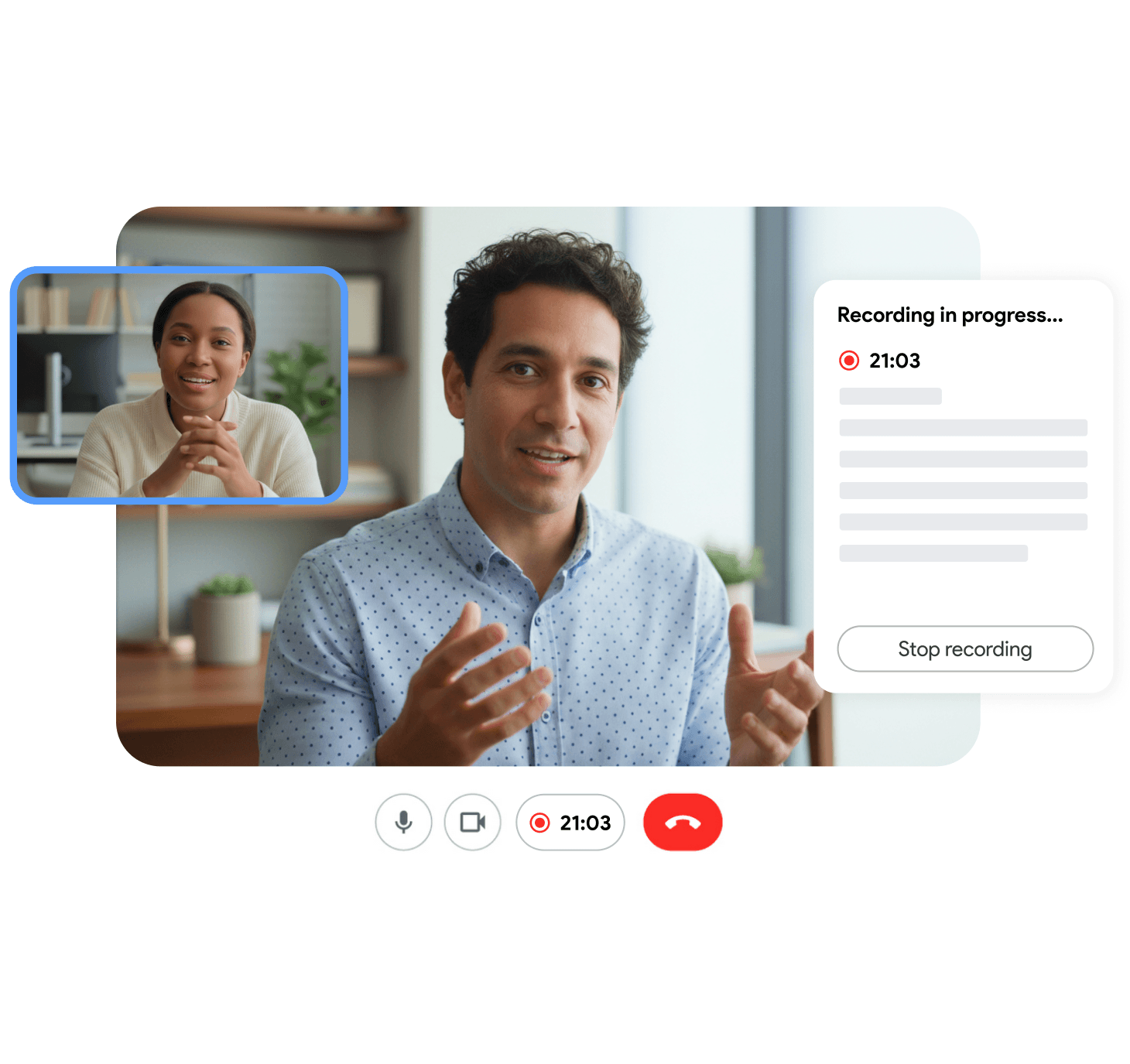
كيفية تمكين التسجيل في Google Meet (الطريقة الأصلية)
إذا كنت مؤهلاً وتحتاج فقط إلى تفعيل الميزة، إليك الترتيب الذي يجب اتباعه. كل خطوة تعتمد على التي قبلها.
- تأكد أن حسابك هو حساب Google Workspace، وليس حساب Gmail شخصي. تحقق من الحساب الذي سجلت الدخول به في أعلى يمين Meet.
- تأكد أن خطتك تشمل التسجيل. اسأل المسؤول أو تحقق من الاشتراك في لوحة تحكم Google Admin. إذا كنت في Business Starter أو خطة مجانية، فإن التسجيل لن يظهر.
- اجعل المسؤول يقوم بتمكين التسجيل. في لوحة تحكم Admin، تحت Apps، ثم Google Workspace، ثم Google Meet، ثم إعدادات فيديو Meet، يجب أن يكون التسجيل مفعلاً لوحدتك التنظيمية.
- انضم إلى المكالمة من كمبيوتر بمتصفح مدعوم مثل Chrome. الهاتف لن يعرض الخيار.
- تأكد أنك المضيف أو مشارك في الإدارة. ابدأ الاجتماع بنفسك، أو اطلب من المضيف منحك صلاحيات مشارك في الإدارة.
- افتح قائمة Activities أو النقاط الثلاث في المكالمة واختر Recording، ثم Start recording.
عند انتهاء التسجيل، يحفظه Google في Google Drive الخاص بالمضيف ويضيف رابطاً في حدث التقويم. إذا كنت غير متأكد من مكان حفظه، يغطي دليلنا أين تُحفظ تسجيلات Google Meet المواقع الدقيقة وكيفية مشاركة الملف.
كيفية السماح بالتسجيل في Google Meet دون الخطة أو المسؤول
بالنسبة للكثيرين، قائمة الشروط الأصلية أعلاه طريق مسدود. أنت تستخدم حساباً شخصياً، شركتك في Business Starter، المسؤول لن يغير الإعداد، أو ببساطة تنضم إلى مكالمات لا تستضيفها. في كل هذه الحالات، يظل الزر المدمج معطلاً بغض النظر عما تفعله.
هنا يأتي دور أداة تسجيل تعمل في المتصفح لحل المشكلة مباشرة. بدلاً من الاعتماد على ميزة التسجيل في Google، فإنها تسجل تبويب Meet كما يعرض في متصفحك. لأنها لا تتأثر بقيود حساب أو خطة Google، فإنها تعمل في الحالات التي يكون فيها التسجيل المدمج غير متاح:
- أي نوع حساب، بما في ذلك Gmail الشخصي المجاني.
- أي خطة Workspace، بما فيها الخطط التي تستثني التسجيل المدمج.
- كمضيف أو مشارك، لأنها لا تحتاج إلى أذونات تسجيل.
- لا حاجة لتدخل المسؤول، لأن لا شيء يجب تفعيله في لوحة تحكم Admin.
Record Meeting صُمم خصيصاً لهذا. يُثبت كإضافة Chrome وإضافة Google Workspace، يسجل المكالمة في المتصفح، ويحفظ الفيديو مع نص وملخص ذكاء اصطناعي بمجرد انتهاء المكالمة. لا يوجد زر معطل للتعامل معه، لأنه لا يعتمد على ميزة التسجيل في Google إطلاقاً. إذا كنت تريد النص الناتج أيضاً، يرشدك دليلنا نص Google Meet للحصول على سجل دقيق للمحادثة مع تحديد المتحدثين.
شيء واحد يجب تذكره أيًا كانت الطريقة التي تختارها: تسجيل الآخرين يحمل التزامات قانونية وأخلاقية. أخبر المشاركين أنك تسجل واحصل على الموافقة حيثما يلزم. يغطي ملخصنا حول هل تسجيلات Google Meet آمنة وخاصة الجانب الخاص بمزيد من التفاصيل.
أسئلة شائعة
الخلاصة
حالة زر تسجيل Google Meet معطلاً ليست عادة خللاً تقنياً. إنها Google تفرض قواعد ميزة مدفوعة: نوع الحساب الصحيح، خطة Workspace مؤهلة، مسؤول قام بتمكينها، كونك مضيفاً أو مشاركاً في الإدارة، ومتصفح كمبيوتر. إذا فاتك شرط واحد، يظل الزر مقفولاً.
إذا استطعت تخطي كل العقبات، فإن قائمة الشروط الأصلية أعلاه ستفعل التسجيل. إذا لم تستطع، فإن أبسط حل هو التوقف عن محاربة الزر تماماً. أداة تسجيل تعمل في المتصفح تسجل أي مكالمة Meet على أي حساب، مجاني أو مدفوع، مضيف أو ضيف. بالنسبة لـ Google Meet، ابدأ مع Record Meeting وسيكون تسجيلك جاهزاً بمجرد انتهاء المكالمة، مع النص والملخص عبر Pro، دون زر معطل للتعامل معه.