Google Meet Transcript: How to Get Accurate Meeting Transcripts Automatically
A complete guide to Google Meet transcripts in 2026. How automatic transcription works, how to get a searchable text file after every call, and the privacy considerations your team should know.

Every meeting produces two documents. The first is the recording file that few people watch again. The second is a searchable transcript that becomes a living record of every decision, commitment, and question raised. Getting that second document consistently and accurately is what separates teams that extract value from meetings from teams that just hold them.
This guide covers how Google Meet transcripts work in 2026, what native tools provide, where they fall short, and how to build a transcript workflow your whole team will actually use.
How Google Meet Transcription Works
Google Meet can generate transcripts in two distinct ways.
Native Google Workspace transcription uses Google’s speech-to-text engine to produce a .docx or .txt file saved automatically to the meeting organizer’s Google Drive folder after the call ends. This path requires a Google Workspace Business Standard plan or higher and must be enabled by a Workspace admin. Participants see a transcript icon in the meeting controls while the feature is active.
Browser-based third-party transcription captures the audio stream through a Chrome extension or Meet add-on without requiring admin-level Workspace configuration. Tools like Record Meeting use this path. The transcript is generated in real time and delivered to users immediately after the call. No bot joins the meeting, and no separate recording host seat is needed.
Both paths produce text. The differences are in accuracy, speaker labeling, availability, and what you can do with the output afterward.
What a Google Meet Transcript Gives You
A well-structured transcript contains several elements that a recording file alone cannot provide.
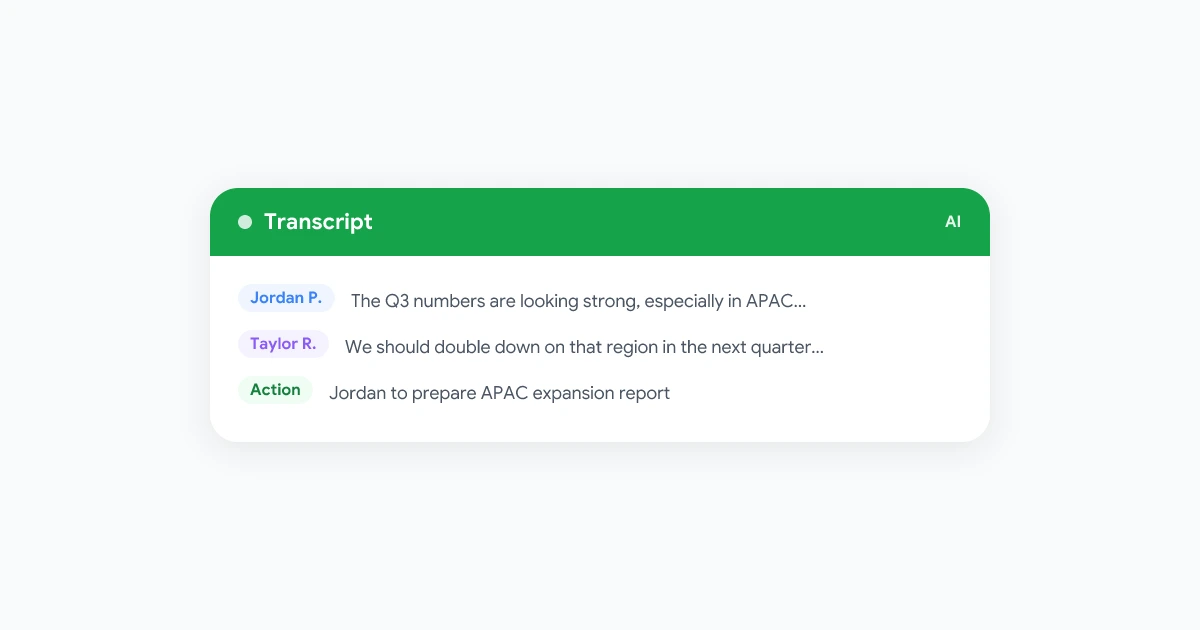
Speaker-labeled text. Each paragraph starts with the speaker’s name, making it easy to scan who said what without scrubbing through video. This is critical for accountability: when action items surface, you need names attached.
Timestamps. Timestamp markers every 30 to 60 seconds let you jump directly to a relevant section of the recording. A stakeholder who missed the budget discussion can skip to minute 14 without watching the full hour.
Searchability. A transcript is a text document. You can run Ctrl+F, pipe it into a search tool, or feed it to an AI to answer questions like “what did we decide about the Q3 launch date?” This makes your entire meeting archive accessible in seconds rather than hours.
Action item extraction. Modern tools scan the transcript for phrases like “I’ll take that,” “let’s schedule a follow-up,” or “can you send that by Friday?” and surface them as a separate action list. That alone justifies the switch from manual notes.
The Accuracy Gap in Google Meet Transcripts
Speech recognition has improved dramatically. But accuracy gaps still exist, and they matter most in the situations where transcripts matter most.
Technical vocabulary. Medical, legal, financial, and engineering terms routinely get transcribed wrong when they are uncommon words. “EBITDA” becomes “Ebitta.” “Kubernetes” becomes “cube nettus.” Teams that discuss specialised topics need to review transcripts before distributing them.
Overlapping speech. When two people talk at the same time, both streams get mixed. The transcript may attribute words to the wrong speaker or produce garbled text. Native Meet transcription handles this reasonably well in small calls but degrades in calls with five or more participants all speaking frequently.
Accents and audio quality. A participant on a shaky mobile connection or with a strong regional accent will see higher error rates. Noise-canceling headsets and stable connections are the most effective accuracy improvements available.
Action: Review transcripts before sharing externally. For internal use, a 90 percent accurate transcript is usually good enough. For client-facing or compliance documentation, build in a 5-minute review step.
Setting Up Transcripts in Google Meet
Native Workspace Transcription
Before you start, your Workspace admin must enable the feature:
- In Google Admin Console, go to Apps > Google Workspace > Google Meet.
- Select Meet video settings.
- Enable Transcripts for your organizational unit.
- Apply the setting.
Once enabled, meeting hosts see a Transcripts button in the bottom toolbar. Click it to start. A notification shows all participants that the meeting is being transcribed. The transcript appears in the organizer’s Drive in a folder called “Meet Recordings” within 24 hours of the call ending.
What you get: A plain-text document with speaker labels and timestamps. No AI summary. No action items. The file is shareable from Drive like any other document.
What you do not get: Real-time display during the call. Automatic sharing with all participants. AI-generated summaries or task extraction.
Browser-Based Transcription with Record Meeting
For teams who need more control or who are not on an eligible Workspace plan:
- Install the Record Meeting Chrome extension from the Chrome Web Store.
- Join or start a Google Meet.
- Click the Record Meeting icon in the toolbar and select Start recording and transcript.
- The extension captures both the video and the audio, generates a live transcript in a side panel, and produces a full transcript document when you stop recording.
The transcript is available immediately after the call. Participants do not need to install anything themselves. You can share the transcript link directly from your Record Meeting dashboard.
For step-by-step setup, see our guide on recording Google Meet without a bot joining the call.
Sharing and Managing Transcripts After the Call
A transcript that lives only in one person’s Drive is not a shared artifact. Build a distribution habit.
Option 1: Drive folder for each project. Create a shared Shared Drive folder per team or project. After each relevant meeting, move the transcript there. Grant the whole team viewer access. This works well for ongoing projects with a consistent attendee list.
Option 2: Paste into your project management tool. If your team lives in Linear, Jira, Notion, or a similar tool, paste the key sections (decisions, actions, open questions) into the relevant ticket or page. Link the full transcript as a source document rather than copying everything.
Option 3: Automated sharing via Record Meeting. Record Meeting can send the transcript link automatically to all participants as a post-meeting email or Slack message. This removes the manual step entirely. No one has to remember to share.
Privacy consideration: Before sharing externally, remove any personally identifying information that was discussed but is not relevant to the recipient. Apply the same judgment you would to sharing a recording. See our meeting recording security guide for a full privacy checklist.
Transcripts and AI Summaries: Two Different Things
These terms get conflated. It matters to keep them separate.
A transcript is a verbatim or near-verbatim record of everything said. It is long, comprehensive, and accurate to the conversation.
An AI summary is a synthesized document generated from the transcript. It extracts the main points, decisions, and action items. It is shorter, digestible, but dependent on the quality of the underlying transcript.
If your summary is wrong, the transcript is where you go to check what actually happened. For accountability and compliance purposes, the transcript is the primary record. The summary is a navigation aid.
Record Meeting generates both. The summary appears in the dashboard within a minute of the call ending. The full transcript is searchable and downloadable. You reference the summary in your standup and the transcript when something is disputed.
For guidance on using AI summaries as part of a broader meeting workflow, see our guide on how to take better meeting notes with AI.
Transcript Retention: How Long to Keep Them
Most teams keep transcripts longer than they should and in less organized ways than they realize.
A practical retention framework:
| Meeting type | Suggested retention |
|---|---|
| Internal status update | 30 days (or until the sprint closes) |
| Client call or customer interview | 1 year minimum, or the life of the contract |
| Job interview | Check with legal; typically 1 year minimum |
| Board or executive meeting | 7 years if legally sensitive |
| Training session | 90 days unless it defines ongoing policy |
Set a calendar reminder at the 6-month mark to audit what is in your transcript library and delete what is no longer needed. Stale records create privacy risk and cost storage.
For healthcare teams, apply HIPAA retention rules to any transcript that contains patient information. Our HIPAA meeting recording guide covers this in detail.
Common Transcript Problems and How to Fix Them
“The transcript doesn’t identify the right speakers.”
Speaker identification depends on participant names being visible in Meet. If someone joins as “iPhone” or “User 2,” the transcript will label them that way. Ask participants to update their display name before large calls.
“We’re missing the first five minutes.”
Native transcription begins when the host manually clicks start. Record Meeting starts from the moment you click record. For important calls, start recording as you admit the first participant, not after introductions end.
“The transcript file is missing from Drive.”
Native Meet transcripts can take up to 24 hours to appear. If the call was shorter than a few minutes, the file may not be generated. Check the Meet recordings folder in the organizer’s Drive, not in a shared drive. If it still does not appear after 24 hours, check admin settings for storage quota issues.
“The transcript is accurate but not readable.”
Long blocks of unmarked text are hard to scan. Tools that add paragraph breaks between topic shifts and speaker turns produce a more readable output. Record Meeting formats transcripts into clear speaker-labeled paragraphs that match the meeting’s natural rhythm.
Transcripts for Distributed and Async Teams
The most underused benefit of meeting transcripts is what they do for people who were not on the call.
A team member in a different timezone who was not invited to the planning session can read the transcript in 10 minutes and make a decision that needed their input. A new hire who joined the company after a foundational architecture discussion can go back and understand why a technical choice was made.
This makes transcripts an institutional memory tool, not just a meeting output.
For a wider view of how distributed teams use recordings to stay aligned, see our remote team meeting etiquette guide.
FAQ
Summary
Google Meet transcripts turn meetings from time-boxed conversations into searchable records that your team can reference, share, and build on. Native Workspace transcription covers the basics for teams on eligible plans. Browser-based tools like Record Meeting add real-time access, AI summaries, and broader language support without requiring admin configuration.
The most important step is starting. Pick one meeting type this week and enable transcription. After the first call, share the link with participants instead of writing manual recap notes. Within a month, transcripts will become the default rather than the exception.
Start with the Record Meeting extension and your next Google Meet will produce a searchable record automatically.