How to Record Google Meet Without Host Permission (and What You Should Know)
Can you record Google Meet without being the host? A clear guide to what works in 2026, the legal and ethical considerations, and the browser-based approach that does not require anyone's permission inside Meet.

The native Google Meet recording button is only available to hosts and co-hosts on eligible Workspace plans. Everyone else sees a grayed-out icon or no recording option at all. But the meeting matters, and you need a record of it.
This guide explains what options actually exist for participants who want to record, what the legal and ethical lines are, and how to handle the most common situations you will encounter in 2026.
Why Google Meet Restricts Recording to Hosts
Google’s design choice is deliberate. When a recording starts inside Google Meet, every participant sees a red notification in the corner of their screen. That notification is the only consent mechanism the platform provides. Giving any participant the ability to start a recording silently would remove that safeguard entirely.
Hosts bear responsibility for the meetings they run, which is why they control the recording function. In many organizations, recording is tied to a Workspace admin policy: some domains allow only specific roles to record, others disable recording entirely for external participants or guests.
So when you cannot find the record button as a participant, it is usually because:
- You are not the meeting host or co-host
- Your Workspace admin has disabled recording for your account tier
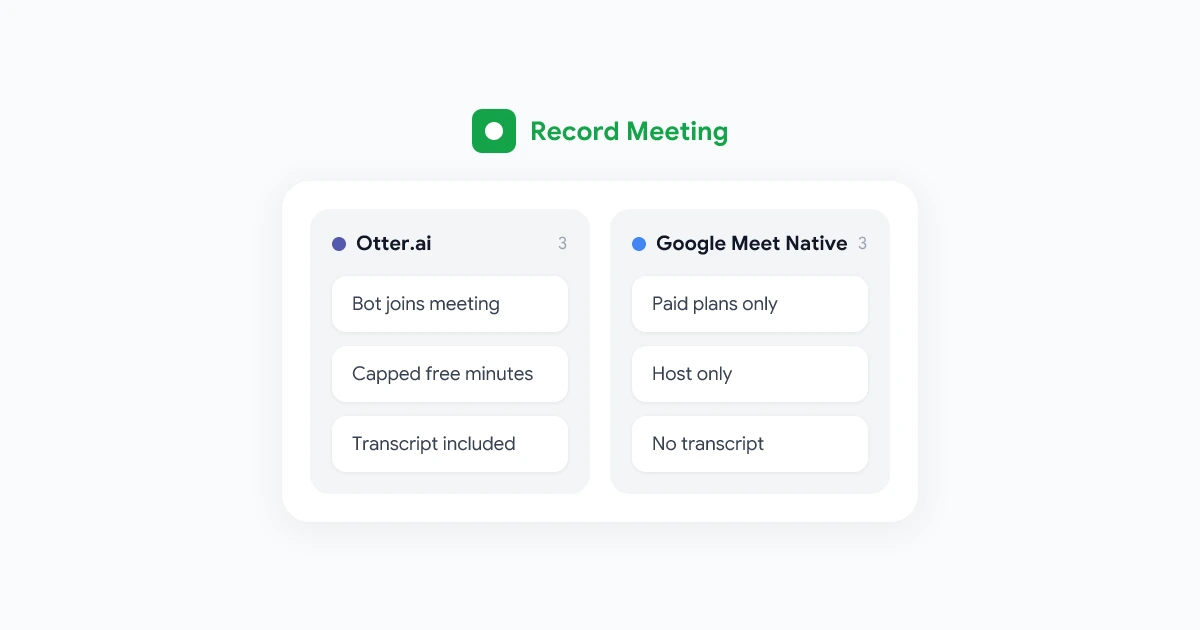
- The host is on a plan that does not include recording (Google Meet free tier)
- The meeting is using a personal Google account, which has no recording feature at all
What “Without Permission” Actually Means
There are two different situations people mean when they search for this:
Situation A: Recording without needing the host to start it for you. You want your own copy of the meeting and you do not want to ask the host to start the native Google record function. This is the most common case and it has a straightforward legal answer: using your own device or browser to capture a meeting you are legitimately attending is generally lawful in most jurisdictions, subject to consent notification rules.
Situation B: Recording a meeting without the other participants knowing. This is the legally and ethically problematic version. Secret recording of other people without their knowledge violates privacy laws in many places, violates professional trust in most workplaces, and produces material you cannot use or share without creating legal exposure.
This guide focuses on Situation A. Situation B is not a gap we help fill.
The Browser-Based Recording Approach
Browser-based recording tools like Record Meeting capture the audio and video stream that reaches your browser during a Google Meet. Because this capture happens in your own browser, on your own device, it does not require any action from the meeting host inside the Google Meet interface.
How it works:
- Install the Record Meeting Chrome extension.
- Join the Google Meet as you normally would.
- Click the Record Meeting icon in your browser toolbar.
- Select “Start recording.” The extension captures the call from that point forward.
- When the call ends (or you click stop), the recording is saved to your Record Meeting account along with a full transcript and AI summary.
No bot joins the meeting. No notification appears in the Google Meet interface from Record Meeting itself. The capture is local to your browser session.
What participants see: Google Meet does not display a notification that a browser extension is recording. This is why the ethics section below matters. Just because the technology allows silent capture does not mean silent capture is appropriate.
The Legal Layer: What You Need to Know
Recording laws vary significantly by country and, within the US, by state. The core distinction is between one-party consent and all-party consent (sometimes called two-party consent) jurisdictions.
One-party consent means that if you are a participant in the conversation, you can record it without telling anyone else. This is the law in most US states, the UK, and many other countries.
All-party consent means every person on the call must consent before recording. States like California, Florida, Illinois, Pennsylvania, and Washington follow this rule. Many European countries have similar requirements under their privacy laws.
The practical result: If you are on a call with someone in California and you are in New York, California’s stricter rule likely applies. When in doubt, announce that you are recording. A brief “I’ll be recording this for my own notes” takes 5 seconds and eliminates your legal exposure entirely.
International calls add more complexity. If you are recording a call with participants in Germany or France, EU GDPR requirements apply and consent must be explicit. For business use, this means at minimum announcing the recording and giving participants a practical way to decline.
For a full overview of recording privacy considerations, see our Google Meet recording security guide.
The Ethics Layer: When to Announce Your Recording
Legal minimum and ethical best practice are not always the same.
Even in one-party consent jurisdictions, silent recording of colleagues, clients, or partners without disclosure creates a trust problem if they find out later. The recording may be legal but the relationship damage is real.
When announcement is clearly the right call:
- Client or partner calls where the recording might be shared or used for reference
- Performance conversations, negotiations, or any call with legal significance
- Any call where you would feel uncomfortable if the other party discovered you had recorded it
When recording for personal notes only is generally acceptable without announcement:
- An internal company meeting where recording for your own reference is common practice
- A training session or onboarding call you want to review later
- Calls where company policy explicitly permits participant recording
The clearest signal: if you would not want them to know, announce it anyway. The discomfort you feel about announcing it is precisely the reason you should.
Our meeting recording etiquette guide for remote teams covers the cultural and team dynamics of this in more detail.
Using Record Meeting Responsibly as a Participant
Record Meeting is designed for participants who want their own record of meetings they attend. Here is the intended use case:
You are on a product roadmap call with 12 people. The host is not recording. After the call, you will be responsible for implementing several decisions that were discussed. You want an accurate record. You mention at the start of the call: “I’m going to capture a transcript for my own reference.” You record the session with Record Meeting. After the call, you have a full transcript and AI summary that you use to create your task list.
That is the workflow Record Meeting is built for.
The tool also works for:
- Solo learners on webinars or training calls who want a personal reference copy
- Freelancers on client calls who want their own documentation of scope and decisions
- Team members in different time zones who join calls outside core hours and want to review their transcript for missed details
For guidance on the host recording workflow, see our guide on recording Google Meet sessions.
Getting Permission to Record: How to Ask
In many situations, the simplest solution is to ask the host to start recording, or to ask to be made a co-host.
How to ask to be made co-host:
“Before we start, could you make me a co-host? I want to handle the recording for our team’s records.”
Most hosts say yes immediately. Being made a co-host gives you access to the native recording button and the result goes into the host’s Drive alongside the meeting.
How to ask the host to start recording:
“Would you mind starting a recording? I want to make sure we have a full transcript for the people who couldn’t join.”
Framing it as a transcript for absent teammates is accurate and gives a concrete reason. Hosts almost always agree.
When host permission is not possible:
If the host is a client, an interviewer, or an external party who cannot or will not share co-host access, use a browser-based tool for your own notes. Announce it at the start of the call: “I’m going to capture a transcript on my end for my reference.” This respects the host’s control while giving you the record you need.
Alternatives When Recording Is Blocked
Sometimes the context makes recording impractical, or you want something lighter.
Live captions. Google Meet’s built-in live captions run locally and display transcribed text during the call. They are not saved as a document but you can select and copy text from the captions panel during the meeting. This works on free and paid accounts without any extension.
Manual notes during the call. Old fashioned but effective when stakes are high and you want full control. A shared Google Doc where participants add notes in real time creates a collaborative record without any recording involved.
AI note-taker add-ons. Several Workspace Marketplace add-ons can be enabled by an admin that generate meeting notes from the live audio feed within the Google environment. These require admin configuration but do not rely on you being the host.
Post-meeting summary requests. If you cannot record, ask the host to share whatever notes or recording they captured. Frame it as “Could you share the transcript or notes after?” Most hosts with native recording enabled will share.
FAQ
Summary
Recording Google Meet as a participant without the host starting the native recording is possible through browser-based tools like Record Meeting. The technology is straightforward. The responsibility is yours.
Announce your recording when context calls for it. Know the consent laws for your jurisdiction and your participants’ locations. Use recordings for the purpose you stated: your own reference, your team’s documentation, your accountability to deliverables discussed in the meeting.
Record Meeting is designed for exactly this use case: participants who need their own record of meetings they attend, without requiring host action and without a bot disrupting the call.
Install the Record Meeting extension and your next Google Meet will have a transcript and AI summary waiting when you leave the call.