
How to record Google Meet
How to record Google Meet, three methods
There are three main ways to record a Google Meet call in 2026. Built-in recording, Chrome extension and screen recorder. Here is how each works and which situations they fit.
Works with

Trusted by teams at











Method 1: Chrome extension
Fastest path. Works on free Gmail, no host permission needed.
Method 2: Built-in Meet recording
Workspace-only, host-only. Stores in Drive.
Method 3: Screen recorder
Fallback if neither option fits. Lower quality.
Method 1: Chrome extension
Best for most users
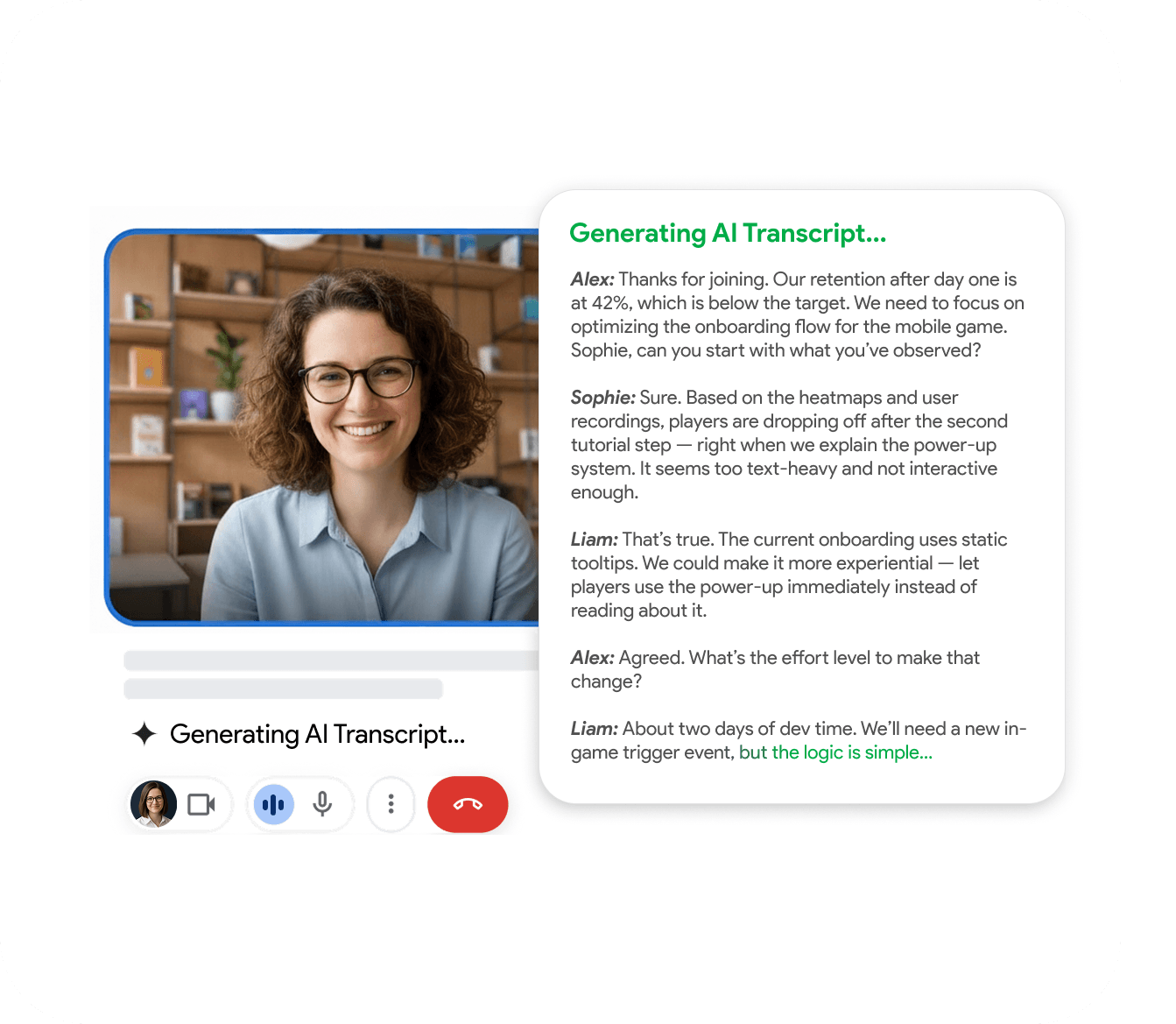
Install RecordMeeting from the Chrome Web Store, sign in with Google, click record when the call starts. Recording uploads automatically. Transcript and summary follow within minutes.
- Free Gmail accounts supported
- No host permission required
- Transcript and summary included

Method 2: Built-in Meet recording
Best for Drive-only setups
Open Meet, three-dot menu, Record meeting. Saves to organizer's Drive. Requires Business Standard, Business Plus or Enterprise. Only the host or co-host can start it.
- Stored in Google Drive
- Host or co-host only
- Workspace plan required
Built for the way teams work
See how different teams use RecordMeeting to capture every conversation.
"I use it for Google Meet calls - super convenient: one click and the meeting is recorded, and afterwards you automatically get a transcript in a Google Doc with speaker labels and timestamps. A big plus for privacy: it doesn’t add any “bots” to the participant list, everything stays clean and professional. Search across meetings and 2×/3× playback are must-haves to quickly pull out decisions and action items. A real lifesaver for work, highly recommend!"

"Great app with a clean design and very intuitive controls. It was easy to set up and start recording meetings right away. The interface is simple, works smoothly in Google Meet, and the features are well thought out. Everything runs stable without lag, which is important during live meetings. Overall, a very convenient and reliable tool that does exactly what it promises."

"An excellent, easy-to-learn, and intuitive solution for recording video meetings and hosting live broadcasts in Meet.\ \ This convenient tool for recording and broadcasting in Google Meet is distinguished by its simplicity and intuitive interface."

"Started using Record Meeting AI as I've moved off Zoom licence and fully into Google Workspace environment. Does everything I want, plus more. Simple and intuitive UI. Look no further."

"Simple and effective app. It captures everything perfectly, so I don't have to worry about missing important details. Great job developers"

"A useful extension that works smoothly. With just one click, you can start recording without any issues."

"Wait, why don't all apps work like this? i just hit record and that is it. no complex setup or anything"

"Finally a recorder that doesnt look like it was made in 1995. super sleek and the google docs integration is 10/10."

"This app nails the basics perfectly. Simple, effective, and beautifully designed. No unnecessary clutter."

"A fantastic and reliable addition with no technical errors; I highly recommend it to everyone."

"Works well, the quality of the sound and video is good unlike Loom that is quite disappointing"

"Great quality recordings and the AI summaries are surprisingly accurate."

"I really appreciate this app. It’s well designed and very user-friendly."

"Love that it works with personal Gmail, not just Workspace 🙌"

"Works great, no complaints."

"Super fast and easy to use"

"great app and easy to use"

"great extensions \<3"

FAQ
Frequently Asked Questions
Everything you need to know about RecordMeeting.
Which method is best for free Gmail accounts?
Do I need to be the host to record?
Can I use the screen recorder method?
Where does the Chrome extension save the recording?
Can I use both built-in and the extension at once?
Related resources
Explore more guides and features across RecordMeeting.
Record your first Google Meet call today
Install the extension and start recording in under a minute. Free to use.