Best Meeting Recorder for Google Meet in 2026
A practical guide to the best meeting recorder for Google Meet in 2026, covering browser extensions, bot-based tools, and what to look for on free and paid plans.

Finding the best meeting recorder for Google Meet in 2026 is harder than it looks. A search returns dozens of tools, most of them claiming to offer AI transcription, speaker labels, and automatic summaries. The real question is not which tool has the longest feature list. It is which one fits how you actually run meetings, what plan you need to use it, and whether it creates friction in your calls.
This guide cuts through the noise. It covers the main approaches to recording Google Meet, the tools worth trying, and what to look for before you commit.
The two approaches to recording Google Meet
Every Google Meet recording tool falls into one of two categories.
Bot-based tools work by sending a virtual participant into your meeting. The bot joins through the normal meeting link, appears in the attendee list, and records the call from its own connection. When the meeting ends, the bot leaves and uploads the recording to the tool’s servers.
Browser extension tools work differently. They run in your Chrome browser and capture the meeting directly from your screen and microphone. Other participants do not see a bot in the attendee list. The extension records from the host’s perspective without joining as a separate participant.
Both approaches produce recordings and transcripts. The difference is visibility and setup. A bot requires admission from the meeting host and is visible to everyone. An extension is invisible to other participants and does not need any special configuration from the host or admin.
Google Meet’s built-in recording
Before looking at third-party tools, it is worth knowing what Google itself offers.
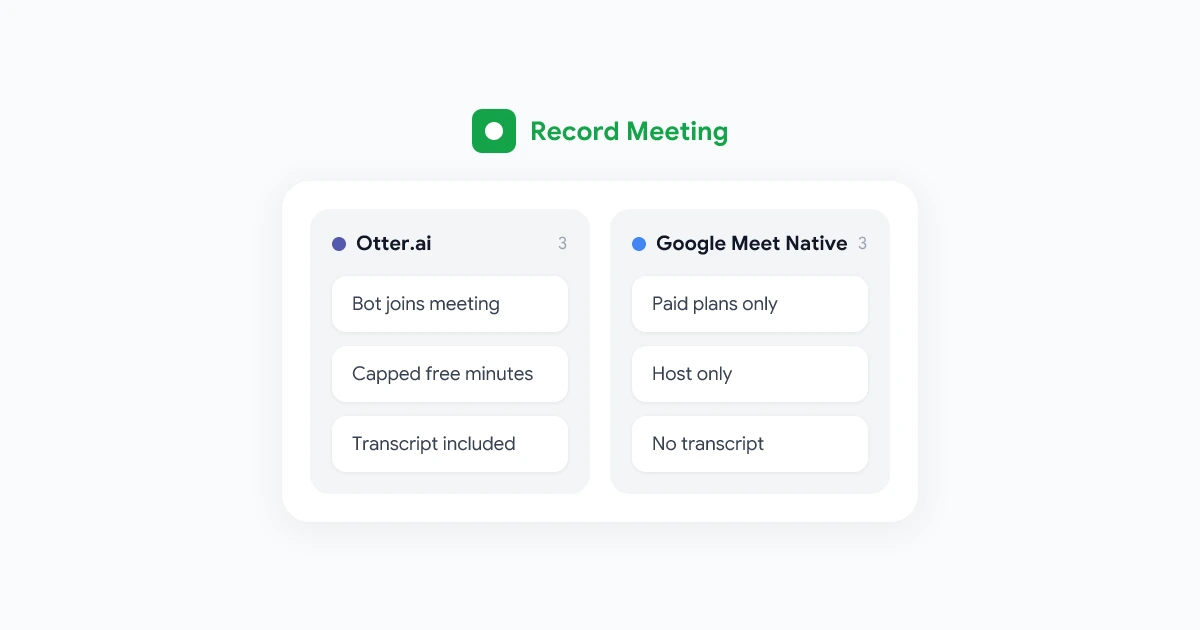
Google Meet has a built-in recording feature, but it requires a Google Workspace Business Standard plan or higher. On qualifying plans, the host can start recording from the three-dot menu inside the meeting. The recording saves to Google Drive in the host’s account, along with a transcript if the host also enabled the transcription feature.
What the built-in recording does well: Tight integration with Google Drive, automatic sharing with Google Calendar invitees, no extra app to install.
What it does not cover: No recording for free Google accounts or Workspace Starter plans. No recording if you were not the host. Limited control over the recording format or destination. Transcripts are only available on Business Standard and above, and they require a separate step to enable.
If your team is on Workspace Business Standard and your admin has enabled recording, the built-in tool may be all you need. If not, a third-party tool fills the gap.
Record Meeting: best overall for Google Meet
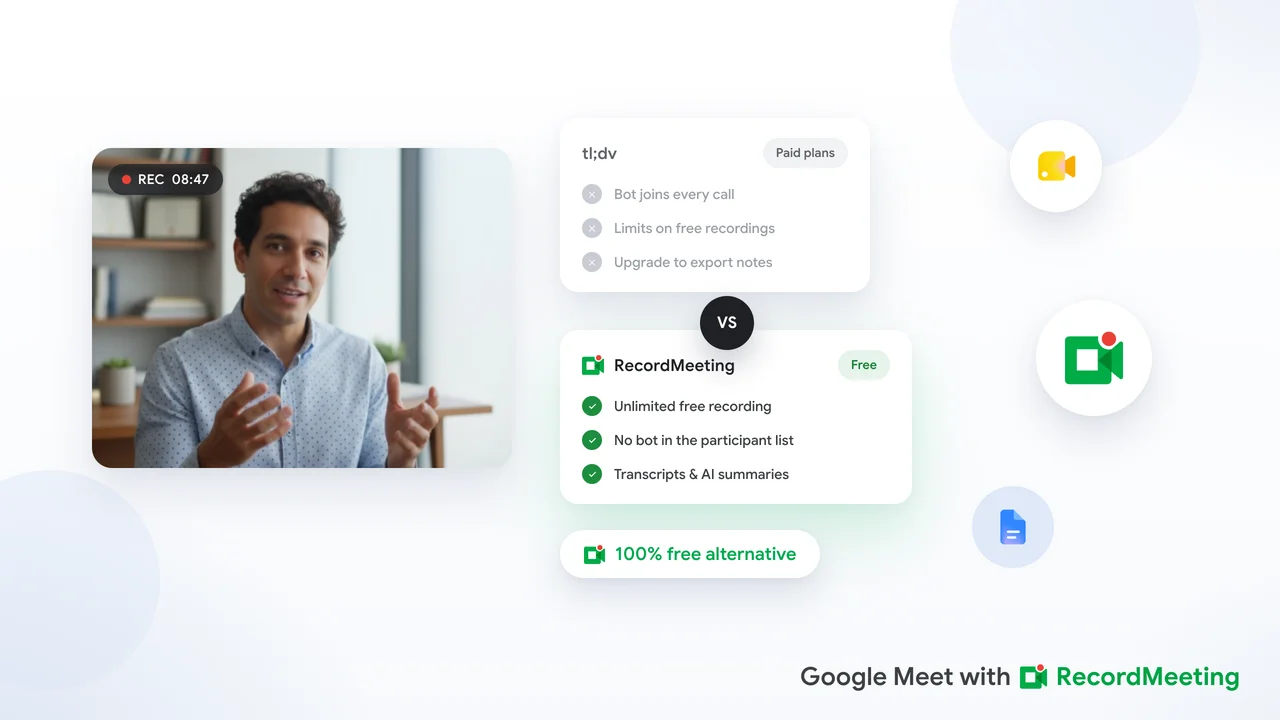
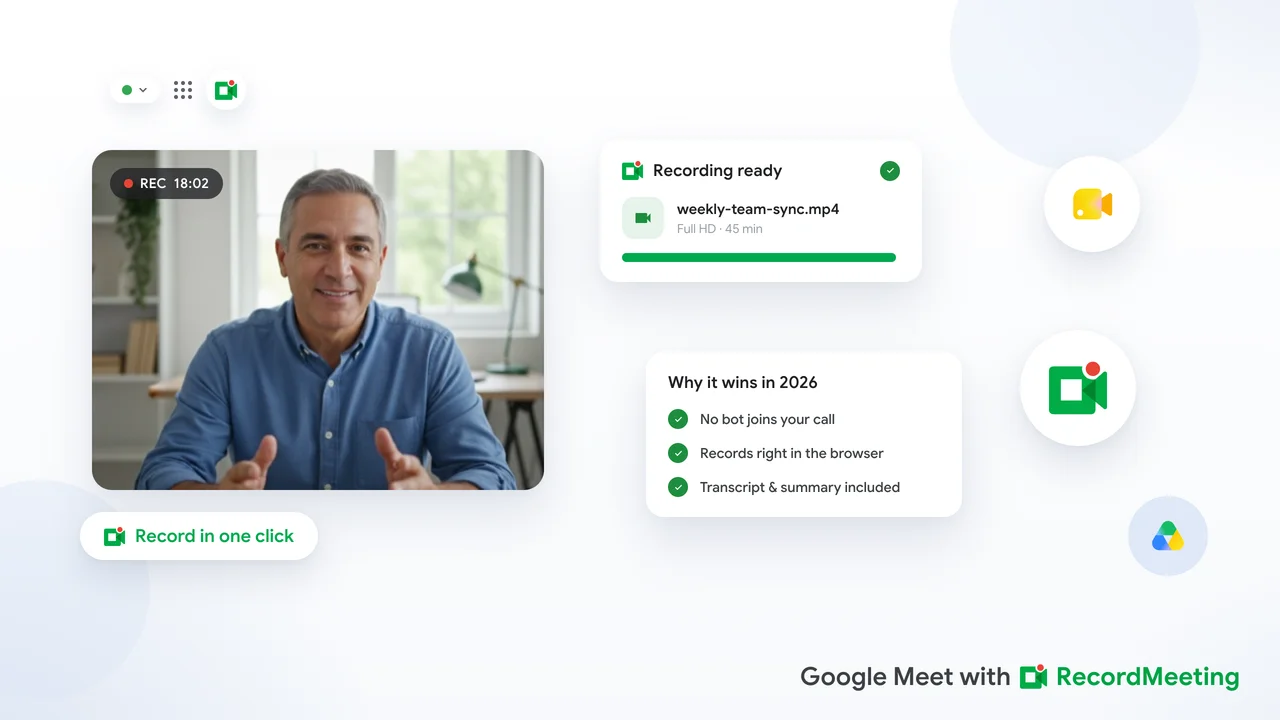
Record Meeting is a Chrome extension built specifically for Google Meet. It records video and audio directly from the browser, with no bot involved.
How it works: Install the extension, join your Google Meet call as usual, and click Record in the extension toolbar. When the meeting ends, Record Meeting saves the recording to your Record Meeting dashboard. With Pro, it also generates a transcript in the background, with speaker labels and timestamps, within minutes of the call ending.
Key features:
- Full video recording on every plan
- Synchronized transcript with speaker labels and timestamps on Pro
- 42 languages supported for transcription on Pro
- Shareable recording link for sharing with teammates who were not on the call
- Export transcript as text on Pro
- Works on any Google account, including free personal Gmail
- No bot joins the meeting
Free plan: Available without a credit card. It includes up to 5 recordings of up to 1 hour each. Transcripts, AI notes and downloads come with Pro.
Best for: Teams that work primarily in Google Meet and want a clean, bot-free recording experience. Also a strong choice for anyone on a Google Workspace Starter plan who does not have access to the built-in recording feature.
Fireflies.ai: best for CRM integrations
Fireflies.ai is a bot-based recording tool with a broad feature set, including integrations with Salesforce, HubSpot, and other CRM platforms.
How it works: You invite the Fireflies bot (called Fred) to your meeting. Fred joins as a participant, records the call, and uploads the transcript and summary to the Fireflies dashboard. From there, you can tag clips, add notes, and push data to your CRM.
Key features:
- AI-generated meeting summary
- CRM integrations (Salesforce, HubSpot, Notion, and others)
- Clip and highlight creation
- Multi-platform support (Zoom, Google Meet, Microsoft Teams)
Free plan: Limited to a certain number of transcription minutes per month. AI summary features require a paid plan.
Best for: Sales teams that need to log call notes directly to a CRM or need to create shareable clips from recordings. Less ideal for teams that want a bot-free experience or need a strong free tier.
Otter.ai: best for English transcription accuracy
Otter.ai has been in the transcription space longer than most of its competitors. Its English transcription accuracy is strong, and it offers a simple, clean interface that is easy to learn.
How it works: Otter connects to your calendar and joins Google Meet calls via a bot called OtterPilot. It transcribes in real time and displays a live transcript on screen during the meeting.
Key features:
- Real-time transcription visible during the call
- AI-generated summary (on paid plans)
- Mobile app for in-person meeting capture
- Import audio and video files for transcription
Free plan: Includes a limited number of transcription minutes per month. Storage is based in the United States.
Best for: Teams that work primarily in English and want reliable transcription accuracy. Not ideal for multilingual teams or users who need GDPR-compliant data handling on a free plan.
Tactiq: best free transcript-only option
Tactiq is a Chrome extension that captures Google Meet captions in real time and saves them as a structured transcript. It does not record video.
How it works: The extension hooks into Google Meet’s live captions and saves them to your Tactiq account as the meeting progresses. When the meeting ends, the transcript is available in the Tactiq dashboard. You can export it or copy it to another tool.
Key features:
- Real-time transcript capture
- Works in Google Meet, Zoom, and Microsoft Teams
- AI summary generation (paid plan)
- Simple, fast interface
Free plan: Allows a limited number of transcript exports per month.
Best for: Users who want a text transcript and do not need video. If you only need the written record of what was said and want to minimize storage, Tactiq is fast and lightweight.
How to choose the right tool
With these options in front of you, here is a simple framework for choosing.
Choose Record Meeting if:
- You work primarily in Google Meet
- You want a bot-free recording experience
- You need multi-language transcript support
- You are on a free or Starter Workspace plan and do not have access to built-in recording
- You want a clean interface without a heavy feature layer you will not use
Choose Fireflies.ai if:
- You manage a sales or customer success team
- You need direct CRM integration for logging call notes
- You are comfortable with a bot joining your meetings
- AI coaching or call analysis features are valuable to you
Choose Otter.ai if:
- Your team works almost exclusively in English
- You record in-person conversations in addition to meetings
- You want a simple tool with a track record of strong transcription
Choose Tactiq if:
- You only need text transcripts, not video
- You want the lightest-weight option available
- You primarily use Google Meet and want something fast to set up
What about Google Meet’s built-in recording?
If your organization is on Google Workspace Business Standard or above, the built-in recording and transcript features are worth enabling before you add a third-party tool. They are already included in your plan, integrate cleanly with Google Drive and Calendar, and do not require an additional subscription.
The main gaps are video quality control, the requirement that the host enables transcription manually before each meeting, and the fact that recordings are tied to the host’s Google Drive. If those limitations matter to your workflow, a third-party tool gives you more flexibility.
Setting up your meeting recorder: tips for Google Meet
Whichever tool you choose, these practices will make your recordings more useful.
Inform participants before you start recording. Most jurisdictions require at least one-party consent to record, and many require all-party consent. Stating at the start of a meeting that the call is being recorded is good practice regardless of local law.
Test your setup before an important call. Run a short test meeting with a colleague to confirm that the recording captures both video and audio correctly, and that the transcript quality is acceptable for your use case.
Establish a consistent storage location. Decide where recordings will be stored, who has access, and how long they are kept. A clear retention policy prevents recordings from accumulating indefinitely.
Use transcripts actively, not just as backup. The most useful recordings are the ones you actually reference. Building a habit of reviewing transcripts for action items after important meetings makes the recording tool pay for itself.
Frequently asked questions
Can I record a Google Meet without being the host?
With a browser extension like Record Meeting, yes. Extensions record from your own browser tab, so you do not need host permissions. Bot-based tools typically require the host to admit the bot.
Is it legal to record a Google Meet?
Recording laws vary by country and state. The safest approach is to inform all participants at the start of the meeting that you are recording. Many jurisdictions require consent from all parties, not just the person recording.
Do I need a paid Google Workspace plan to use a third-party recorder?
No. Third-party tools like Record Meeting work with any Google account, including free personal accounts. You do not need a specific Workspace plan to use an extension-based recorder.
How do I share a Google Meet recording with people who were not on the call?
Most recording tools generate a shareable link to the recording. With Record Meeting, you can share a link directly from the dashboard. For Google’s built-in recordings, the file is in Google Drive, and you can share it with the usual Drive sharing options.
Which meeting recorder has the best free plan for Google Meet?
For Google Meet specifically, Record Meeting’s free plan records your calls with no bot, up to 5 recordings of up to 1 hour each, while transcripts and speaker labels come with Pro. Tactiq is the best free option if you only need text transcripts. Both require no credit card to get started.