Best Free tl;dv Alternative in 2026: What to Use Instead
Looking for a free tl;dv alternative? This guide compares the top options for recording and transcribing Google Meet, with a focus on free plans, privacy, and ease of use.

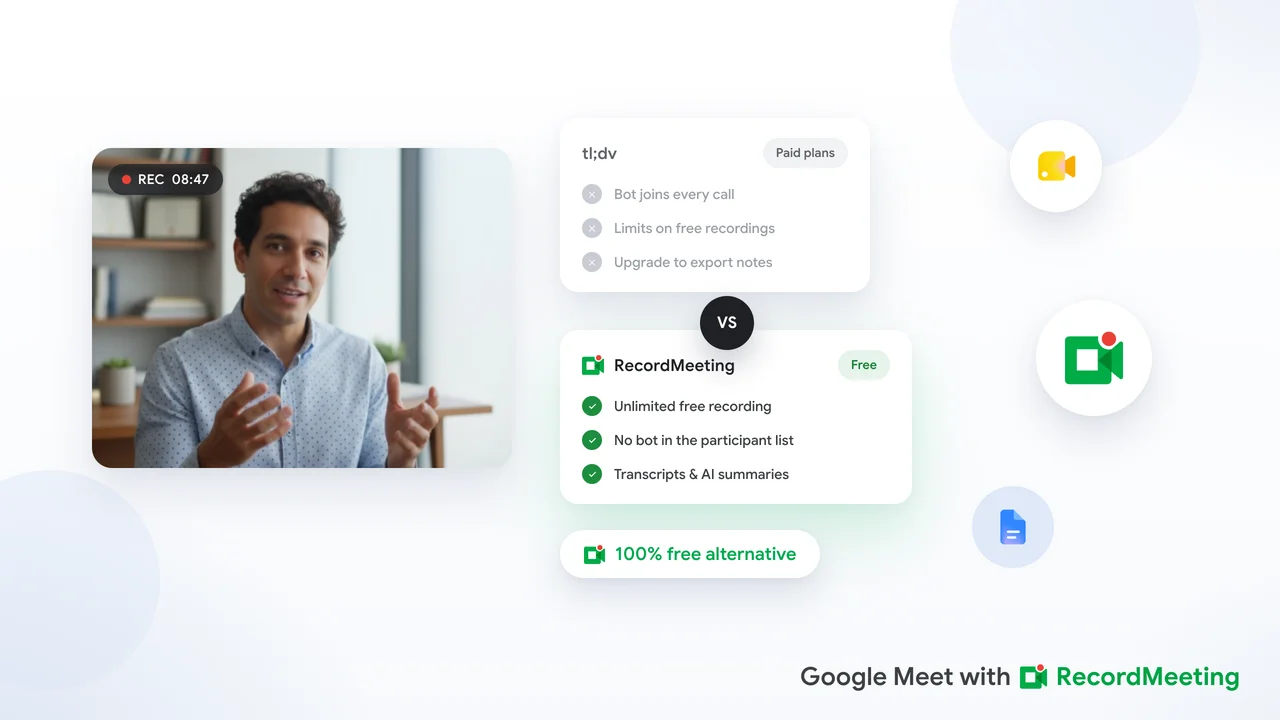
tl;dv is a popular meeting recorder with a generous free tier, but it is not the right fit for every team. Some users run into its bot-based capture model, which adds a visible participant to every call. Others hit the free plan’s limits on transcription minutes or AI summaries. And for teams working outside North America, data residency can be a concern.
If you are looking for a free tl;dv alternative in 2026, you have several solid options. This guide breaks down what matters most and where each tool fits.
Why people look for a tl;dv alternative
Before comparing tools, it helps to understand what drives people to look for an alternative in the first place.
The bot model creates friction. tl;dv works by sending a meeting bot into your call. That bot appears as a participant in the attendee list. For internal team meetings this is usually fine, but for sales calls, job interviews, or external client meetings, a visible bot can feel intrusive. Guests sometimes ask to have it removed, and candidates may feel watched rather than interviewed.
Free plan limits hit quickly. tl;dv’s free plan includes a limited number of transcription minutes per month and puts AI-generated features behind a paid tier. For teams that record daily standups, weekly planning sessions, and client calls, the free quota runs out fast.
Platform focus. tl;dv’s strongest integrations are built around Zoom, with Google Meet support added later. Teams that work primarily in Google Meet sometimes find the experience less polished than the Zoom-first workflow.
Data location. For teams in Europe or regulated industries, knowing where meeting data is stored and processed matters. tl;dv’s data flows depend on its infrastructure, which may not meet certain compliance requirements without a paid enterprise plan.
What to look for in a free alternative
When evaluating a free tl;dv alternative, consider these factors.
Capture method. Bot-based tools send a recording bot into your call. Browser-extension tools record the meeting directly from your browser tab. Extensions are invisible to other participants and work without any special permissions from the meeting host or admin.
Transcript quality and language support. A transcript is only useful if it is accurate. Look for tools that support multiple languages if your team is international, and check whether speaker labels are included.
Video and audio capture. Some tools capture only audio and generate a transcript from that. Others capture the full video, which makes it easier to review what was shared on screen. If screen context matters to you, check whether video is included.
Free plan limits. Understand what the free plan actually covers: number of meetings per month, minutes of transcription, whether AI summaries are included, and how long recordings are stored.
Privacy and data controls. Check whether the vendor stores your meeting content on its servers and for how long. For sensitive meetings, you want clear data retention policies and the ability to delete recordings.
The best free tl;dv alternatives in 2026
Record Meeting
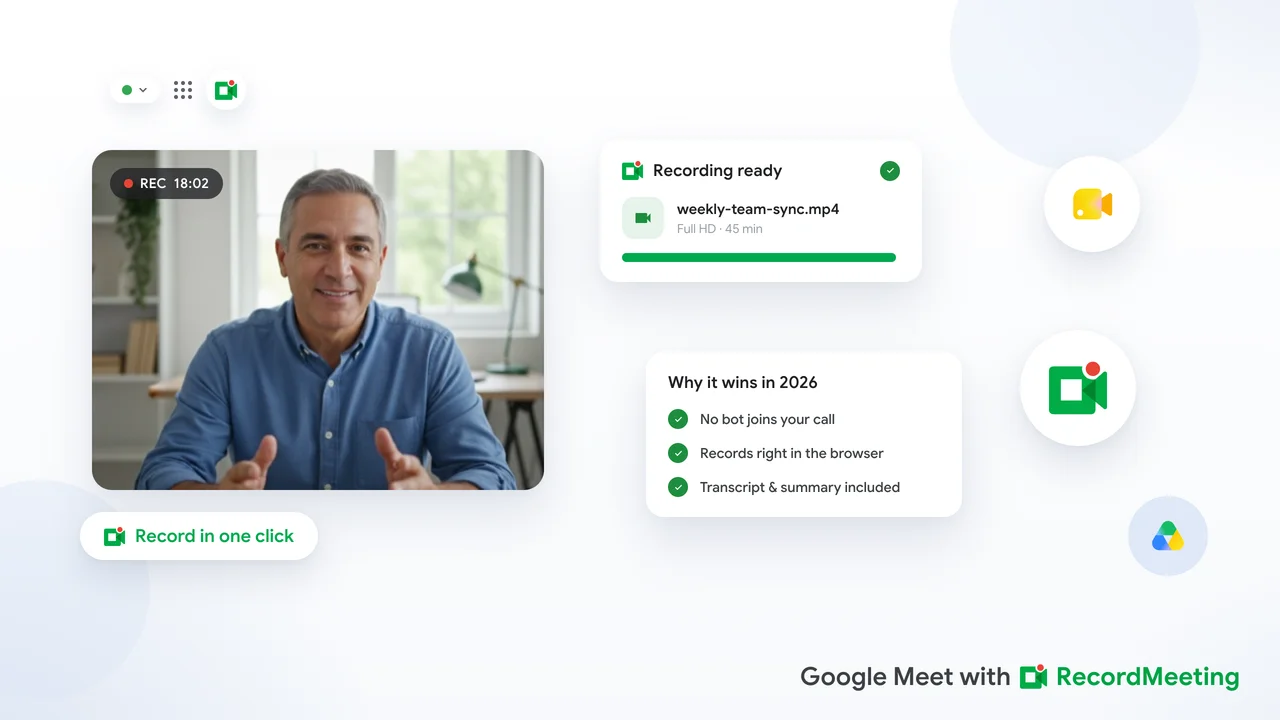
Record Meeting is a Chrome extension that records Google Meet directly from the browser. There is no bot joining your call. The extension runs silently in the background while you run your meeting normally.
Why it stands out as a tl;dv alternative:
- No visible bot in the meeting
- Works on any Google account, including free personal Gmail
- Full video recording on every plan
- Transcript with speaker labels and timestamps on Pro
- Recordings are accessible from the Record Meeting dashboard
- Recordings can be shared via link, and transcripts and downloads come with Pro
- Supports 42 languages for transcription on Pro
- Free plan with up to 5 recordings of up to 1 hour each, no credit card required
For Google Meet users in particular, Record Meeting matches the native feel of the platform. Because it runs as a browser extension, there is nothing to configure in your Google Workspace admin console. It works out of the box.
When Record Meeting is the right choice: You work primarily in Google Meet, you want a clean call experience without a visible bot, or you need multi-language transcripts on Pro.
Otter.ai
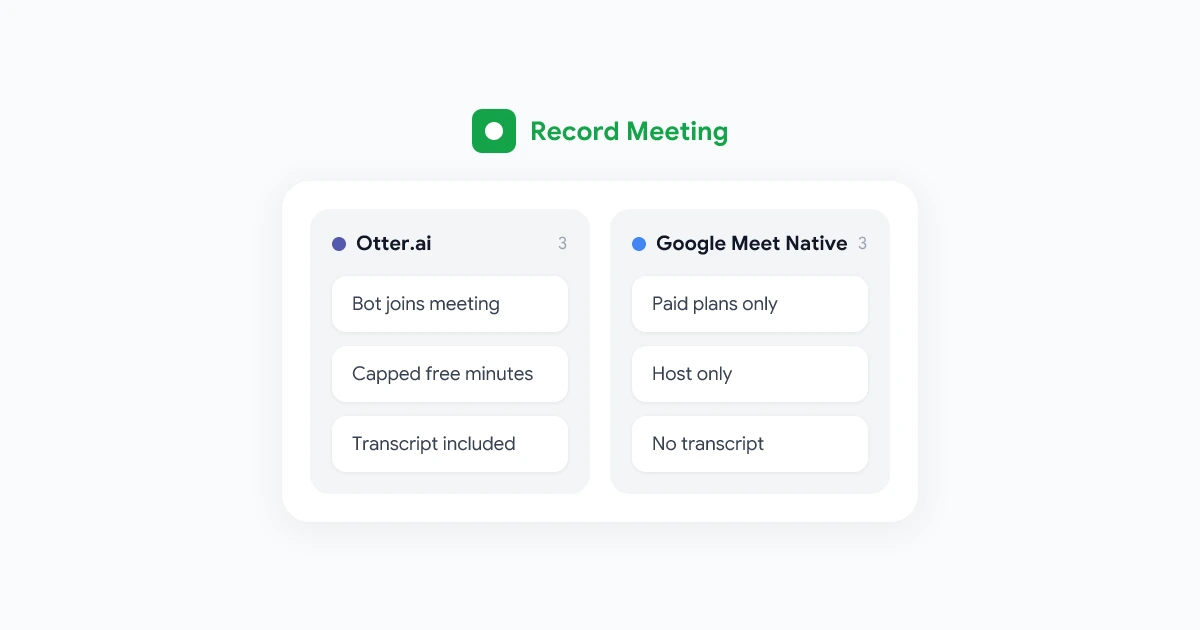
Otter.ai is one of the oldest tools in the meeting transcription space. It offers a free plan that includes a limited number of transcription minutes per month and a mobile app for capturing in-person conversations.
Strengths: Strong transcript accuracy for English, simple interface, the ability to import audio files for transcription.
Limitations: The free plan limits you to a set number of minutes per month. Otter uses a bot-based model for meeting capture. Storage is US-based, which may not work for teams with GDPR requirements.
When it fits: If you need to transcribe a mix of recorded meetings and in-person audio on a free budget and your team works in English.
Tactiq
Tactiq is a Chrome extension that captures Google Meet captions in real time and turns them into a searchable transcript. It does not record video, only text.
Strengths: Extremely lightweight and simple to use. Works in Google Meet, Zoom, and Microsoft Teams. Free plan allows a limited number of transcription exports per month.
Limitations: Transcript only, no video recording. Free plan caps how many meetings you can export per month. No speaker diarization on the free tier.
When it fits: You want transcripts but do not need video, and you are comfortable with a browser extension that captures only text.
Notta
Notta is a transcription tool with a web app, mobile app, and browser extension. The free plan includes a limited number of transcription minutes per month and allows you to upload audio or video files for transcription.
Strengths: Multi-language support, clean interface, file upload transcription on the free tier.
Limitations: Bot-based for live meeting capture. Free plan minutes are capped and do not roll over. AI summary features require a paid plan.
When it fits: You want to transcribe uploaded recordings or occasionally capture live meetings, and language support beyond English is important.
Comparing the free tiers side by side
| Feature | Record Meeting | tl;dv Free | Otter.ai Free | Tactiq Free | Notta Free |
|---|---|---|---|---|---|
| Bot in meeting | No | Yes | Yes | No | Yes |
| Video recording | Yes | Yes | No | No | Yes (uploads) |
| Transcript | Pro | Yes | Yes | Yes | Yes |
| Speaker labels | Pro | Yes | Limited | No | Yes |
| Languages | 42 (Pro) | Limited | English-first | Limited | 50+ |
| Free plan | Yes (5 recordings) | Yes | Yes | Yes | Yes |
Does any free tl;dv alternative include AI summaries?
Most tools that offer AI-generated meeting summaries put them behind a paid plan. This is true for tl;dv, Otter.ai, and Notta. The reason is straightforward: AI summary generation costs money per request, so vendors reserve it for paying customers.
On the free tier, your best option is to use the transcript to build your own summary. A searchable transcript with speaker labels and timestamps makes it straightforward to pull out decisions and action items manually, or to paste the text into a tool like ChatGPT to generate a summary yourself.
Record Meeting keeps the transcript and AI meeting notes on Pro. On its free plan you get the recording itself, and you can upgrade when you want the transcript and notes.
Bot vs. extension: why it matters for your meetings
This is the most practical difference between the alternatives.
When a bot joins your meeting, every participant can see it in the attendee list. The bot’s name typically includes the tool’s branding (for example, “tl;dv Notetaker”). In some meeting contexts this is fine. In others, it creates friction.
A browser extension records from the host’s browser tab without appearing as a participant. Other attendees do not see any indication that the meeting is being recorded through an extension, though they should still be informed that the call is being recorded in line with your meeting recording policy.
For teams that care about a clean, professional call experience, the extension approach removes a distraction from the start of every meeting.
How to switch from tl;dv to Record Meeting
If you have been using tl;dv and want to try Record Meeting, the switch takes a few minutes.
- Install the Record Meeting Chrome extension from the Chrome Web Store.
- Sign in with your Google account.
- Join your next Google Meet call as you normally would.
- Click the Record Meeting icon in the Chrome toolbar and start recording.
- When the meeting ends, the recording appears in your Record Meeting dashboard. With Pro, the transcript appears there too.
Your existing tl;dv recordings stay in your tl;dv account. Record Meeting does not import or migrate previous recordings, so you may want to download any important files before ending your tl;dv subscription.
Frequently asked questions
Is there a completely free tl;dv alternative with no usage limits?
Most tools impose some limits on the free tier, whether on minutes, number of meetings, or features. Record Meeting’s free plan gives you up to 5 recordings of up to 1 hour each with no bot in the call, and transcripts and AI notes are part of Pro. The best approach is to test a tool during a free trial before committing to a paid plan.
Can I use a tl;dv alternative without being the meeting host?
Browser extensions like Record Meeting and Tactiq work from your browser tab, so you do not need to be the host. Bot-based tools typically do require host permission to join, or the bot needs to be admitted through the waiting room.
Will other participants know I am recording?
Best practice is to always inform participants that the meeting is being recorded, regardless of the tool you use. Many jurisdictions require consent from all parties. Check the meeting recording laws for your location before recording without disclosure.
Does Record Meeting work with Google Workspace free accounts?
Yes. Record Meeting works with any Google account, including free personal Gmail accounts and standard Google Workspace plans. It does not require a specific Workspace tier or admin approval.