Google Workspace Meeting Notes Automation: A Practical Guide
Learn how to automate meeting notes in Google Workspace using built-in tools, AI features, and browser extensions. Save time and capture every decision without manual note-taking.

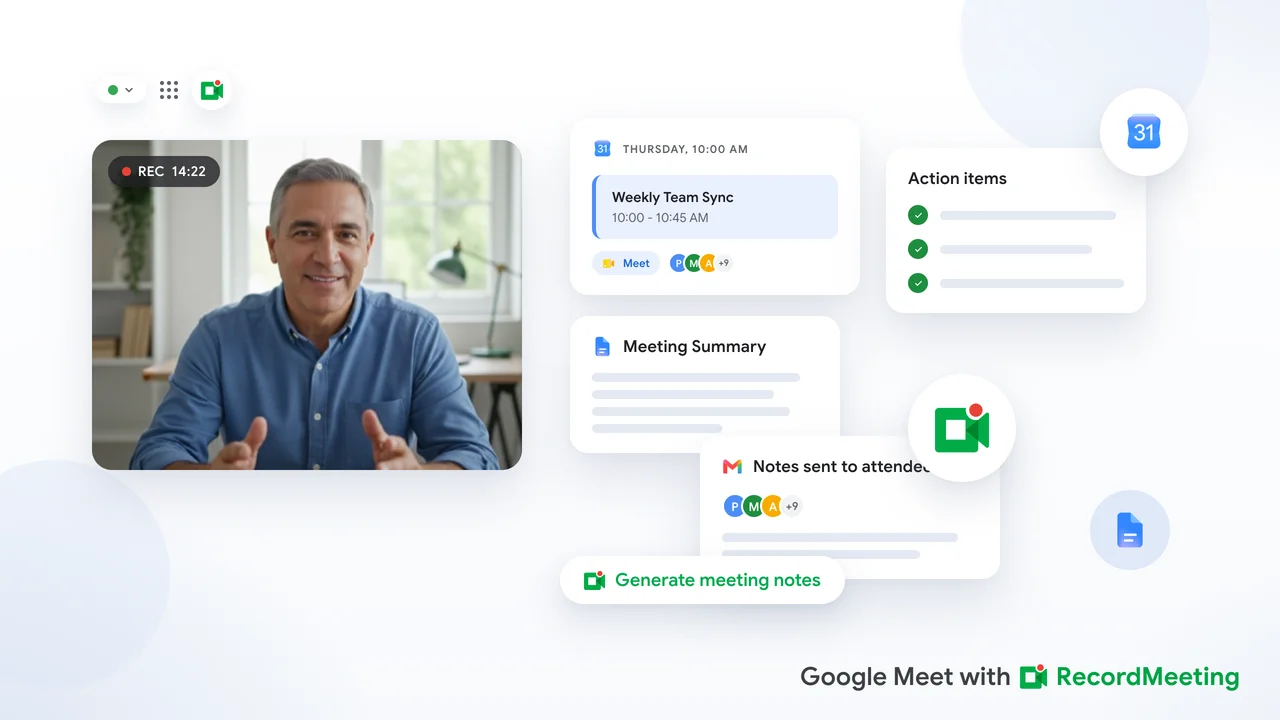
Manual note-taking during a meeting is one of the least efficient tasks in the modern workday. While someone is writing notes, they are not fully present in the conversation. When the meeting ends, the notes are incomplete, shared inconsistently, or never reviewed again. Automating meeting notes in Google Workspace solves all three problems.
This guide covers how to set up automated meeting notes using Google’s built-in tools, the best third-party options that integrate with Google Workspace, and practical workflows for making notes useful rather than just captured.
Why automated meeting notes matter
The case for automating meeting notes is not complicated.
You get a complete record. A note-taker using a keyboard captures maybe 30 to 40 percent of what is said in a meeting. An automated transcript captures everything, with speaker labels and timestamps, without anyone having to divide their attention.
Notes are consistent. When different people take notes in different meetings, the output varies widely. Some notes are detailed. Some are a single bullet point. Automated notes follow the same structure every time.
Notes are available immediately. The transcript and summary are ready within minutes of the meeting ending, not hours or days later when the note-taker finally gets around to writing them up.
You can search previous meetings. A library of searchable transcripts lets you find what was decided in a specific meeting, pull up action items by date, or review context before a follow-up call.
Option 1: Google Meet’s built-in notes and transcript features
Google has built several note-taking and transcript features directly into Google Meet and Google Calendar. These features are available on Google Workspace Business Standard and above.
Google Meet transcription
The transcript feature in Google Meet creates a text record of everything said in the call. To enable it, the host clicks the three-dot menu during the meeting and selects “Transcription.” Google processes the audio and generates a Google Doc that appears in the host’s Google Drive after the meeting.
What you get: A full transcript with speaker labels. The document is titled with the meeting name and date. It appears in the “Meet Recordings” folder alongside any video recording.
Limitations: Only the host can start transcription. It does not start automatically, so if the host forgets, there is no transcript. The feature requires Business Standard or above.
Google Meet AI notes (Gemini for Workspace)
Workspace plans that include Gemini add an AI note-taking layer on top of the transcript. The feature is called “Take Notes for Me” in Google Meet. When enabled, Gemini generates a structured summary of the meeting with a list of key decisions and action items.
What you get: A meeting summary document created in Google Drive, separate from the full transcript. The summary is AI-generated and includes highlighted decisions and tasks.
Limitations: Requires a Gemini for Workspace add-on or a Workspace plan that includes it. The feature must be enabled by the meeting host at the start of the call.
Google Calendar + Google Docs integration
Google Calendar lets you add a Google Docs meeting notes template to any event. When you create or edit a calendar event, click the meeting notes icon to attach a pre-filled Doc that includes the meeting title, date, attendees, and a structured notes template.
What you get: A shared notes Doc that all meeting attendees can access from the Calendar event. The Doc is created before the meeting, so participants can add agenda items or context in advance.
Limitations: This is a pre-meeting template, not automatic note capture. Someone still needs to write notes during the meeting, or you need to pair this with a transcription tool to automate the capture.
Option 2: Record Meeting for automated Google Meet capture
Record Meeting is a Chrome extension that automates the full recording and notes workflow for Google Meet. It runs in the browser without a bot joining the call, and it generates a transcript and synchronized video recording that is available as soon as the meeting ends.
How it works:
- Install the Record Meeting Chrome extension.
- Join your Google Meet call and click Record in the extension toolbar.
- When the meeting ends, Record Meeting processes the audio and generates a full transcript with speaker labels and timestamps.
- Open the Record Meeting dashboard to view the recording, read the transcript, and share the link with teammates.
Why this complements Google Workspace automation:
Record Meeting does not require a specific Workspace plan or admin permission to capture. It works on free Google accounts and on Business Starter plans that do not include the built-in transcript feature. It also starts recording from the first word, not from the moment the host remembers to click the transcription button.
The transcript can be copied and pasted into a Google Doc, exported as a text file, or shared via a direct link. This makes it easy to combine with existing Google Workspace workflows.
Option 3: Using Google Apps Script to automate note distribution
For teams that want more control over how notes are created and distributed, Google Apps Script offers a programmable layer on top of Google Workspace. You can use it to automate tasks that the built-in features do not handle.
Example: auto-create a notes Doc before every meeting
Apps Script can watch your Google Calendar for new events and automatically create a meeting notes Doc for each one. The Doc is linked to the Calendar event, pre-filled with the meeting title, attendees, and date, and shared with everyone on the invite.
This removes the step of manually creating a notes file before each meeting. Every meeting starts with a notes Doc already in place.
Example: send a meeting summary by email after each call
After a meeting transcript is generated, Apps Script can parse the Google Doc, pull out action items (if they follow a consistent format), and send a summary email to all attendees. This closes the loop between the call and the follow-up without anyone having to write and send the email manually.
Limitations: Apps Script requires some technical setup. If your team does not have someone comfortable with basic JavaScript, this approach may not be practical without additional help.
Option 4: Zapier or Make for cross-tool automation
If your team already uses Zapier or Make for workflow automation, you can connect Google Workspace to other tools to automate what happens with meeting notes after the call.
Common automations:
- When a new Google Drive file appears in “Meet Recordings,” send a Slack message with a link to the recording.
- When a new meeting transcript is created, append a row to a Google Sheet with the meeting name, date, and link.
- When someone marks an action item in a meeting notes Doc, create a task in Asana, Trello, or another project management tool.
These integrations work best when the output format of your meeting notes is consistent. If transcripts land in a predictable location with a predictable naming convention, it is straightforward to build automations around them.
Building an automated meeting notes workflow for your team
Combining the options above, here is a practical workflow that works for most Google Workspace teams.
Before the meeting:
- Google Calendar creates a notes Doc from the template automatically, linked to the event.
- Attendees add agenda items to the Doc before the call.
During the meeting:
- Record Meeting (or Google Meet’s built-in transcription if your plan includes it) captures the full audio and video.
- No one takes manual notes during the call. Everyone focuses on the conversation.
After the meeting:
- The transcript is ready within minutes. The meeting host copies the AI-generated summary or key action items into the pre-created notes Doc.
- A Zapier automation sends a Slack notification with a link to the recording and the notes Doc.
- Action items are manually moved into the team’s project management tool, or a Zapier integration handles this step automatically.
This approach combines the convenience of automated capture with the clarity of a shared Google Doc that lives inside the tools the team already uses.
Tips for making automated notes actually useful
Automating note capture is only half the job. The notes need to be used for the automation to pay off.
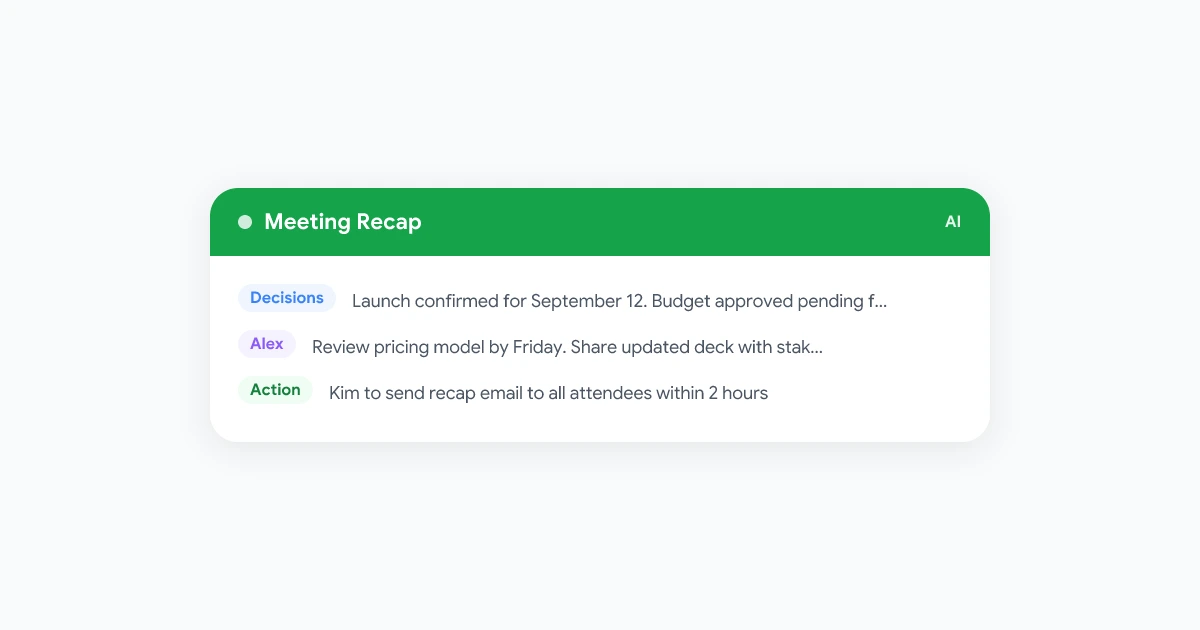
Establish a consistent format for action items. If action items always start with a name and a verb (for example, “Alex: send proposal by Friday”), they are easier to search, parse, and automate.
Review the transcript within 24 hours. The transcript captures everything, but decisions are easier to identify while the meeting is still fresh. A quick scan to mark key items makes the transcript much more useful as a reference.
Store recordings and notes in a shared location. If recordings and notes are scattered across individual Google Drives, they are hard to find later. A shared Team Drive folder for each project keeps everything in one place.
Set a retention policy. Decide how long meeting recordings and transcripts are kept. Most teams find that 90 days is enough for most meetings. For strategic planning sessions or board-level calls, longer retention may be appropriate.
Frequently asked questions
Does Google Workspace automatically take meeting notes?
Not fully automatically. Google Meet’s transcription and AI notes features require the host to enable them at the start of each meeting. They are not enabled by default. Tools like Record Meeting can capture from the first minute of a call without any manual action, as long as you start the recording when you join.
Do I need a specific Google Workspace plan for automated notes?
Google’s built-in transcript requires Business Standard or above. Google’s AI notes require a Gemini for Workspace add-on. Record Meeting works on any Google account, including free Gmail accounts and Business Starter plans.
Can I use AI to summarize my Google Meet transcript automatically?
Yes. If you are on a Workspace plan with Gemini, the AI notes feature generates a summary automatically. On other plans, you can paste the transcript into ChatGPT or another AI tool and ask it to summarize the key decisions and action items.
How do I share automated meeting notes with people who were not on the call?
Google Meet transcripts are saved to Google Drive and can be shared with the normal Drive sharing options. Record Meeting generates a shareable link from the dashboard. If you want notes to go to a mailing list or Slack channel automatically, a Zapier automation can handle the distribution.
Can I automate meeting notes for Google Meet on a free account?
Google’s built-in features require a paid Workspace plan. Record Meeting works on free Google accounts and provides a transcript automatically after each recorded call.