Meeting Recap Email Template: Write Better Follow-ups in Minutes
Use a proven meeting recap email template to send clear, actionable follow-ups after every Google Meet. Includes structure, examples, and an AI shortcut.

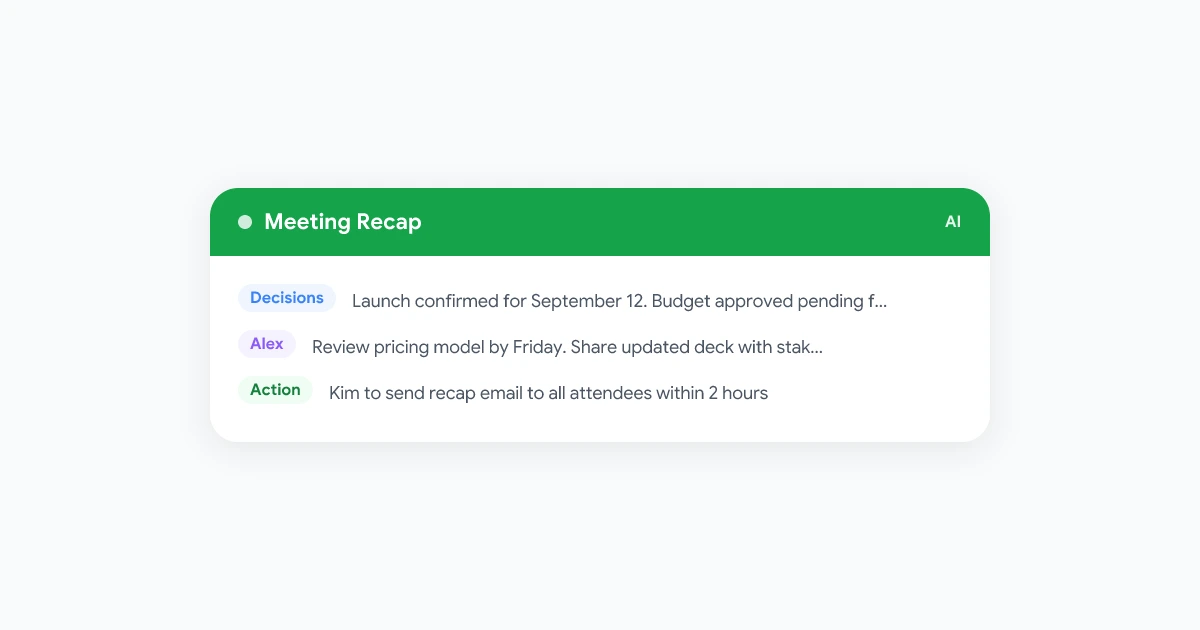
A meeting recap email closes the loop between what was said on the call and what actually gets done. Without one, decisions fade, action items slip, and teammates who missed the call start the next one confused about where things stand.
The good news: you do not need to write a recap from scratch every time. A consistent template takes about three minutes to fill in once you have your notes. This guide gives you a working meeting recap email template, explains what each section does, and shows how to pull the first draft from a Google Meet recording automatically.
For async teammates who need more context than a quick email, pair this with the full async meeting recap template. If your team records every call, the weekly standup recording best practices guide covers the lightest-weight version of this workflow.
Key takeaways
- Send within two hours: Action items lose momentum when the recap arrives the next morning.
- Lead with decisions, not discussion: Recipients skim. Put what was resolved at the top.
- Name owners explicitly: “Team will review” becomes nobody’s job. “Alex reviews pricing model by Friday” does not.
- Keep recordings optional: Link the recording for reference, but make the email self-sufficient.
- One email per meeting: Resist splitting recaps into threads. One thread per meeting keeps context searchable.
Why most meeting follow-ups fail
The common failure mode is a recap that reads like a transcript: “Sarah said X, then Alex raised Y, then the group agreed to think about it.” Nobody acts on it because nobody knows what they are supposed to do.
A useful recap skips the discussion and captures four things only:
- What was decided
- Who does what next
- When each action is due
- Where to find more context (recording, doc, ticket)
That is the entire job. Everything else is noise.
The meeting recap email template
Copy this structure into your email client or document. Fill in the bracketed sections immediately after the call.
Subject: Recap: [Meeting Name] — [Date]
Hi [team/names],
Summary [One or two sentences describing what the meeting covered and the overall outcome.]
Decisions made
- [Decision 1: state clearly what was resolved]
- [Decision 2]
- [Decision 3 if applicable]
Action items
| Owner | Action | Due date |
|---|---|---|
| [Name] | [Specific task] | [Date] |
| [Name] | [Specific task] | [Date] |
| [Name] | [Specific task] | [Date] |
Next meeting [Date, time, and agenda focus if already scheduled. Leave blank if not set.]
Recording and notes [Link to recording or transcript if available.]
Use this template as a starting point and trim sections that do not apply. A quick internal sync might only need decisions and actions. A client call might need a formal summary section and a separate follow-up document.
Section-by-section breakdown
Subject line
Keep it scannable: Recap: [Name] — [Date]. Recipients file it easily and find it later. Avoid subjects like “Following up on our call” that give no signal about which meeting or when.
Summary
Two sentences maximum. Answer: what did we meet about, and what is the headline outcome? This is the only section executives read before delegating the rest.
Good example: “We reviewed the Q3 launch timeline and resolved the resource allocation question. The launch date is confirmed for September 12.”
Bad example: “We had a great discussion about many important topics related to our upcoming product launch and next steps.”
Decisions made
List only final calls, not options that were floated and rejected. Use assertive language: “Launch is confirmed for September 12,” not “We may consider launching around mid-September.”
If a decision depends on a condition, state the condition: “Budget approved pending finance sign-off by June 28.”
Action items
The table format forces three things: a named owner, a concrete task, and a date. Without all three, the item is a wish, not a commitment.
Tips:
- One action per row. If an action has multiple steps, break them into separate rows or link to a task in your project tool.
- Assign to one person, not “the team.”
- Set a specific date, not “ASAP” or “next sprint.”
Next meeting
If the next meeting is already booked, include it. Attendees scan recaps to orient themselves on the calendar. If it is not set, leave this section out entirely rather than writing “TBD.”
Recording and notes
Link the recording only when it adds value. For short decision-making calls, skip the link. For complex technical discussions or client presentations, a transcript link saves the next person from asking you to explain it again.
Customizing the template by meeting type
Different meetings need different emphasis.
Project check-in
Focus on status against milestones and blockers. The summary line should state whether the project is on track. Action items should fix blockers or accelerate the critical path.
Client call
Start with what the client committed to and what your team committed to. Keep language professional and specific. Avoid internal jargon the client might not understand.
Sales discovery call
Lead with what you learned about the prospect’s problem, then document next steps. Share only the next-steps portion externally; keep the internal notes in your CRM.
All-hands or team update
These often have no action items because the purpose is information sharing. In that case, drop the action table and focus on what decisions were announced and where employees can find more detail.
How to generate a recap from a Google Meet recording
If you use Record Meeting for Google Meet, you can turn the transcript into a first-draft recap without rewriting notes manually.
Step 1: Record the meeting Install the Record Meeting Chrome extension and start recording when the call begins. The extension captures audio and video without adding a bot to the participant list.
Step 2: Get the AI summary After the call ends, Record Meeting generates a transcript with speaker labels and an AI summary that identifies decisions, action items, and key discussion points.
Step 3: Map to the template The AI summary maps directly to the recap template:
- The summary section comes from the meeting overview
- Decisions map to the decisions list
- Action items are already extracted with owners when possible
Step 4: Edit and send Read the draft, verify names and dates, fill in anything the AI missed, and send. The whole process takes under three minutes for most calls.
For teams that run recurring meetings, this becomes a repeatable habit rather than a task anyone dreads.
Common mistakes and how to fix them
Sending too late
A recap sent 24 hours after the meeting arrives after most people have already moved on. Send it within two hours of the call ending. If you cannot do that manually, use a tool that generates it automatically.
Too much context
Recaps are not meeting notes documents. If you find yourself writing three paragraphs per agenda item, you are transcribing, not recapping. Stop at decisions and actions.
Missing owners on action items
“The team will follow up” is not an action item. Name the person. If it genuinely is a group responsibility, rotate the owner role each meeting.
Passive language
“It was decided that…” makes every decision feel like it came from nowhere. “Sarah approved the new pricing structure” is clear, searchable, and holds the decision-maker accountable.
Separate recap per recipient
Do not send personalized versions of the recap to different people. One email to all attendees keeps the record consistent and avoids confusion when someone forwards it.
Frequently asked questions
How long should a meeting recap email be?
For a one-hour meeting, aim for under 200 words in the email body. Longer recaps do not get read. If the meeting covered complex material, link to a shared document rather than embedding everything in the email.
Who should send the meeting recap?
The meeting organizer typically owns the recap. If someone else facilitates, assign the recap task in advance. Ambiguity about who sends it is the most common reason recaps do not happen at all.
Should I include the recording in every recap?
No. Link the recording only when the content is complex enough that someone might need to replay a specific moment. For most internal calls, a clean set of decisions and actions is more useful than a 45-minute video.
What if I missed an action item?
Send a correction email quickly with the subject Correction: Recap — [Date]. State what was missed and who owns it. Do not let a gap sit unreported for days.
Can I automate meeting recaps?
Yes. Tools like Record Meeting generate a transcript and AI summary after every Google Meet call. You fill in dates and verify names, then send. The template structure stays the same; only the content changes call to call.
Start with one meeting this week
Pick a recurring meeting where follow-up is inconsistent. Use the template above for this week’s session. Keep the email under 150 words. Compare how many action items get completed by the next meeting.
Most teams that adopt a consistent recap format see a visible difference in the first two weeks. Decisions stop getting relitigated. Action items get done. Meetings get shorter because there is less ambiguity to resolve at the start.
For the fastest path to automatic recaps, install Record Meeting on Chrome, record your next Google Meet call, and let the AI summary do the first draft.