
Mac app
Record any call from your Mac
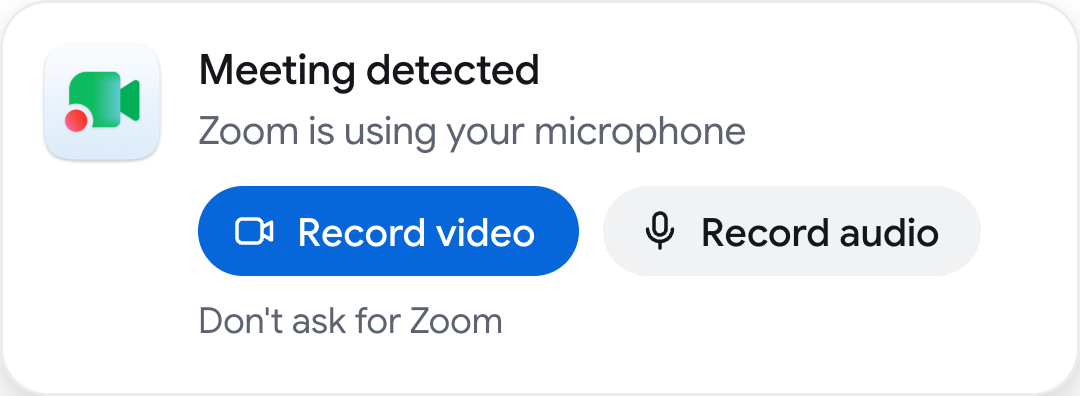
RecordMeeting notices when a call starts in Zoom, Teams, Slack, FaceTime or your browser and asks if you want to record it. One click, and no bot joins the call.
Apple Silicon (M1 or later) and macOS 15 or later
Setup
Ready in a minute
- 1
Open the file
Open RecordMeeting.dmg from your Downloads folder.
- 2
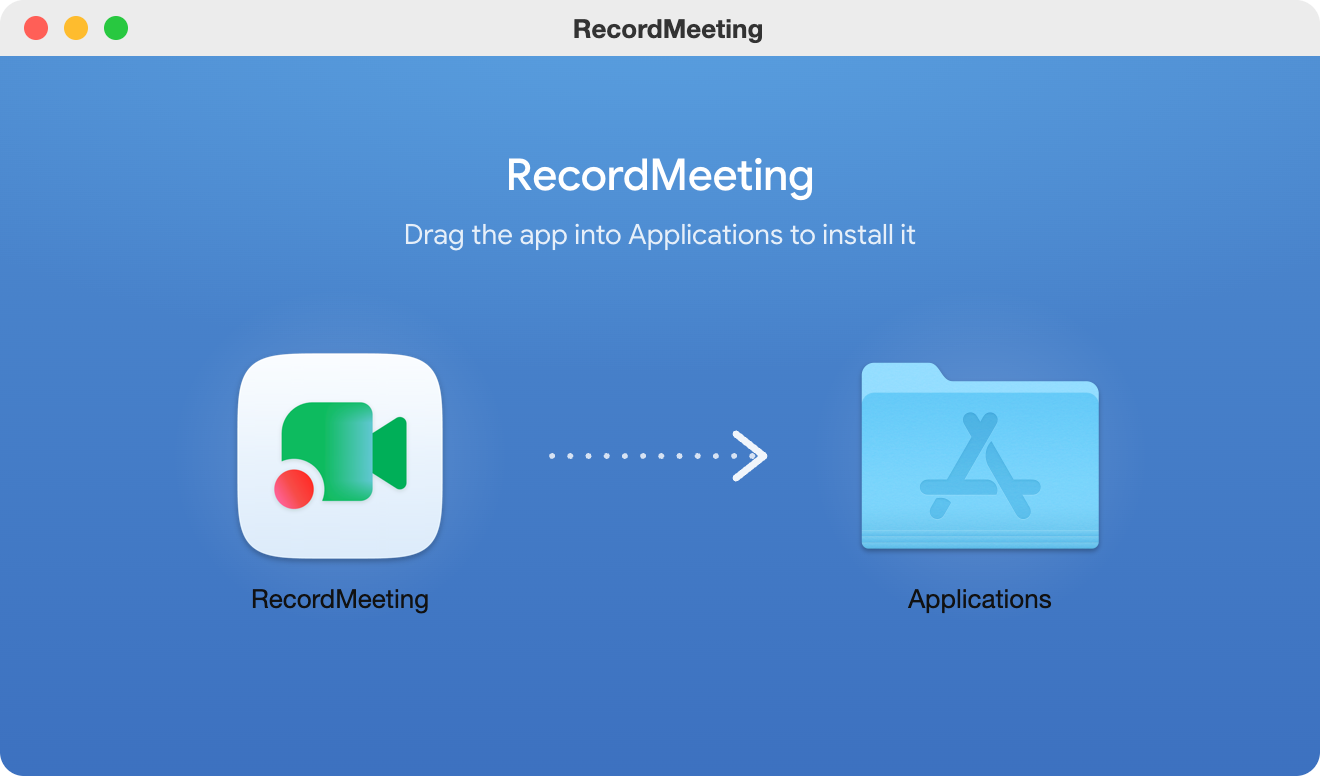
Drag it to Applications
Drag RecordMeeting onto the Applications folder, then open it from there.
- 3
Sign in
Sign in with your RecordMeeting account. The app stays in your menu bar and opens when you start your Mac, so it is ready for your next call.
Works with the apps you call from
Zoom, Teams, Slack, Webex, FaceTime, WhatsApp, Discord, Telegram and calls in your browser.
Records only the call
The call window, its sound and your microphone. Nothing else on your screen.
Stops when the call ends
Recording stops on its own shortly after the call lets go of your microphone. The transcript and notes follow in your account.
FAQ
Questions about the Mac app
What to know before you install it.
- Does it record without asking?
-
No. The app asks when it notices a call, and nothing is recorded until you click Record.
- Which permissions does it need?
-
macOS asks for your microphone and system audio when you record a call, and for screen access when you record video.
- Do I need a paid plan?
-
No. The app uses your RecordMeeting account and the same plan as the web app and the extension.
- Is it safe to install?
-
Yes. The app is signed with an Apple Developer ID and notarized by Apple, so macOS checks it before it opens.
- How does it update?
-
It updates itself in the background, and never during a call or a recording.
- Is there a Windows version?
-
Not yet. On Windows, record your calls with the Chrome extension.
