How to Download a Google Meet Transcript (2026 Guide)
How to download a Google Meet transcript as a text file, Google Doc or PDF. Covers built-in captions, other tools and what to do when it is grayed out.

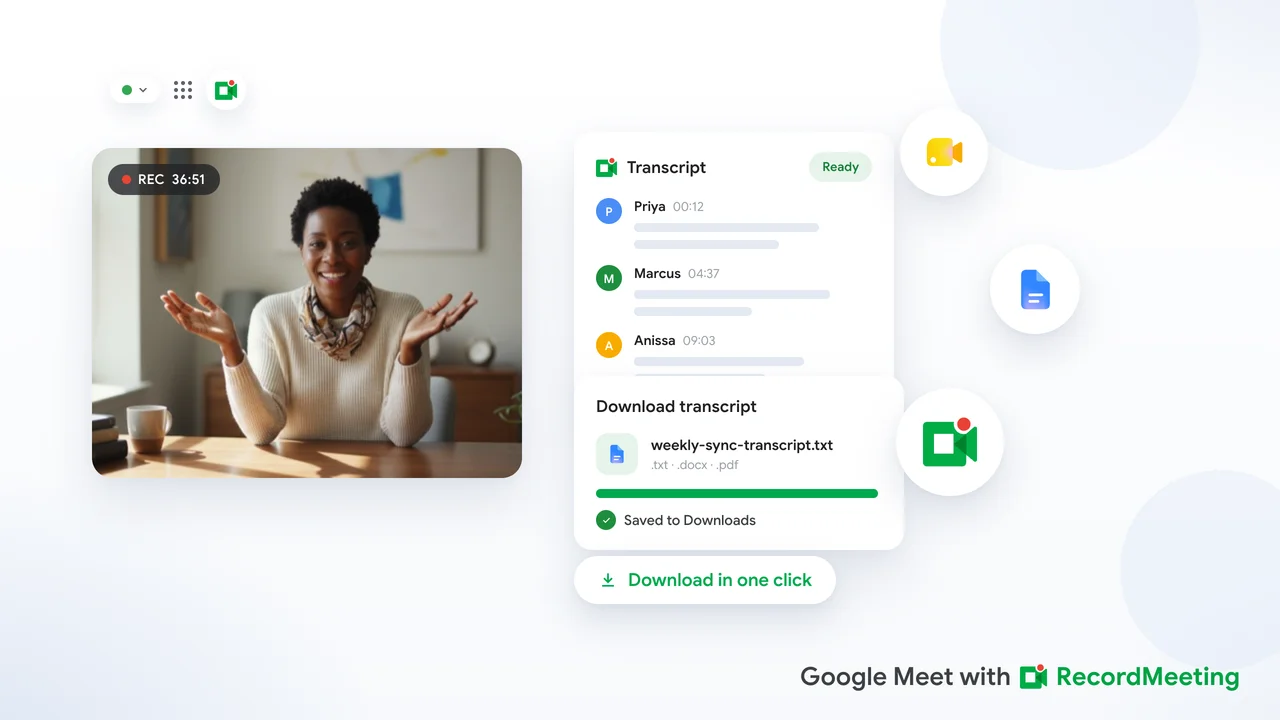
Downloading a Google Meet transcript sounds like it should take about ten seconds. In practice, it depends on your Google Workspace plan, your admin settings, and whether you actually started captions before the meeting ended. This guide covers every path available in 2026, from Google’s native tools to third-party options that work even when the built-in features are unavailable.
What Google Meet offers natively
Google Meet’s built-in transcript feature is tied to Google Workspace, and it is not available on every plan.
Plans that include meeting transcripts:
- Google Workspace Business Standard and above
- Google Workspace Enterprise plans
- Google One AI Premium (for personal accounts)
What gets generated: When a Workspace admin has enabled the feature, meeting hosts can turn on transcription from within the call. At the end of the meeting, Google creates a document in the host’s Google Drive. The file appears in the “Meet Recordings” folder alongside any recording that was made during the call.
What the transcript includes: Speaker labels, time-stamped text, and a link back to the meeting. The format is a Google Doc, which you can open, copy, export as a PDF, or download as a plain text file using File > Download from within Docs.
Step-by-step: download a Google Meet transcript from Google Drive
If you used Google’s built-in transcript feature, follow these steps to get the file.
Step 1. Open Google Drive at drive.google.com and sign in with the Google account that hosted the meeting.
Step 2. Look in the “Meet Recordings” folder. If you cannot find it, type “Meet Recordings” in the search bar at the top.
Step 3. Open the folder and find the transcript file. It will have the same date and time as the meeting, with a “(Transcript)” label appended to the filename.
Step 4. Click the file to open it in Google Docs.
Step 5. Go to File > Download and choose your preferred format: Microsoft Word (.docx), PDF (.pdf), Plain text (.txt), or another option from the list.
The file will download to your computer’s default downloads folder.
If the transcript file is not there, see the troubleshooting section later in this article.
Step-by-step: download captions from Google Meet
Google Meet allows you to turn on live captions during a meeting. These captions appear at the bottom of the screen, but by default they are not saved to a file. There is no built-in “export captions” button inside Google Meet.
To get a text version of your captions, you need one of the following approaches.
Option A: Use the Workspace transcript feature. This is the most reliable method. If your plan supports it, enable transcription at the start of your next meeting and the full transcript will be saved to Google Drive automatically.
Option B: Use a browser extension. Extensions like Record Meeting capture the captions as they appear in real time and save them as a structured transcript. The transcript is available as soon as the meeting ends, without waiting for Google’s processing delay.
Option C: Use Google’s AI notes (Workspace Business Standard and above). Google Meet now offers an “AI note-taking” feature that combines a transcript with an AI-generated meeting summary. The combined output is saved to Google Drive.
What to do when the transcript option is grayed out
This is the most common complaint. You want to download a transcript, but the option is either missing or grayed out. Here is why that happens and what you can do.
Reason 1: Your Workspace plan does not include transcripts. Only Business Standard and above support the feature. If you are on Business Starter or a legacy G Suite plan, you will not see the transcript option. Upgrading your plan is the official fix, but using a browser extension is a faster workaround.
Reason 2: Your admin has disabled the feature. Workspace admins can turn off transcription at the organizational level. If you are on a qualifying plan but the button is still grayed out, ask your Google Workspace admin to enable “Meet transcript” in the Admin Console under Apps > Google Workspace > Google Meet > Meet safety settings.
Reason 3: You were not the host. Only the meeting host can start transcription in Google Meet. If someone else hosted the call, they need to have enabled transcription for a file to be generated. You can ask the host to share the transcript file from their Drive.
Reason 4: You forgot to start transcription. The transcript does not run automatically. The host must click the “Transcription” button at the start of the call. If you missed this step, there is no retroactive option inside Google Meet.
How to get a transcript for a meeting that already happened
If the meeting is over and there is no transcript in Google Drive, your options are limited but not zero.
If you recorded the meeting: You can use a transcription tool to convert the recording to text. Tools like Otter.ai, Whisper, or even Google’s own transcription inside Google Docs (by uploading the audio) can produce a transcript from a saved recording file.
If the meeting was recorded with Record Meeting: Record Meeting saves both the video and a synchronized transcript in real time. You can download the transcript directly from the Record Meeting dashboard, without any extra steps. The transcript is available even if Google’s built-in feature was not active.
If there is no recording: You are working from memory or written notes. This is why enabling transcription (or using a tool that captures it automatically) before every call is worth building into your meeting routine.
Using Record Meeting to get a transcript from every Google Meet call
Record Meeting is a Chrome extension that captures Google Meet calls directly in the browser, without a bot joining the call. It records the video, captures the audio, and generates a full transcript with speaker labels and timestamps.
How it works for transcripts:
- Install the Record Meeting extension from the Chrome Web Store.
- Join your Google Meet call as normal. Start recording from the extension toolbar.
- When the call ends, Record Meeting processes the recording and generates a transcript.
- Open the Record Meeting dashboard, find the meeting, and click “Transcript” to view or download it.
The transcript can be exported as a text file, copied to the clipboard, or shared with teammates via a link. Because Record Meeting works at the browser level, it captures captions in any language that Google Meet supports, and it does not require a specific Workspace plan or admin permission to use.
When Record Meeting is especially useful:
- You are on Google Workspace Business Starter and do not have access to native transcripts.
- Your admin has disabled the built-in transcript feature.
- You joined as a participant rather than the host.
- You want a transcript that is available immediately rather than waiting for Google Drive processing.
- You want to keep your transcripts in one place across multiple meetings.
Exporting transcripts from the Google Meet mobile app
The Google Meet mobile app has more limited transcript support than the desktop browser version. As of 2026, starting a transcript from the iOS or Android app requires the same Workspace plan as the desktop version, but the output file still lands in Google Drive on the host’s account.
There is no direct download button inside the mobile app. To download a transcript generated from a mobile meeting, open Google Drive on a desktop browser and follow the same steps described earlier in this article.
Frequently asked questions
Can I download a Google Meet transcript without a Workspace account?
Not using Google’s native tools. The transcript feature requires a Google Workspace Business Standard plan or higher. However, a browser extension like Record Meeting works on any Google account, including free personal accounts. With Pro, it captures the transcript during the meeting and makes it available in the extension’s dashboard.
How long does Google take to process a transcript?
Typically a few minutes after the meeting ends. For longer meetings, it can take up to 30 minutes. The file appears in Google Drive once processing is complete. If it has not appeared after an hour, check that transcription was actually enabled during the call.
Can I get a Google Meet transcript as a PDF?
Yes. Open the transcript file in Google Docs, go to File > Download, and choose PDF. This also works with the Word and plain text formats.
Can participants download the transcript, or only the host?
The transcript file is created in the host’s Google Drive. The host needs to share the file or the folder with participants. There is no automatic sharing to all attendees. If you need everyone on the call to have access, the host should move the file to a shared Drive folder.
Does Google Meet transcript work with non-Google accounts in the call?
Yes. If the host has transcription enabled, the transcript captures all speakers in the meeting, regardless of whether they have a Google account or a Workspace plan. Non-Google participants show up with their display name or a generic label.
What languages does Google Meet transcription support?
Google Meet transcription supports a growing list of languages, with English having the most reliable performance. For other languages, accuracy depends on the model version Google uses for your region and plan. Browser-extension tools like Record Meeting follow the caption language you have selected in Google Meet, so accuracy is consistent with what you see on screen during the call.