AI Meeting Notes in Google Calendar: How to Sync Summaries Automatically
Learn how to get AI meeting notes into Google Calendar automatically, from Gemini's native path to a browser workflow for teams without Workspace AI.

Google has spent the last year making Calendar smarter before a meeting starts. Gemini’s Help me schedule feature reads an email thread and suggests times that fit your Calendar, and Gemini can pull a prep brief with relevant docs and past emails before you join a call.
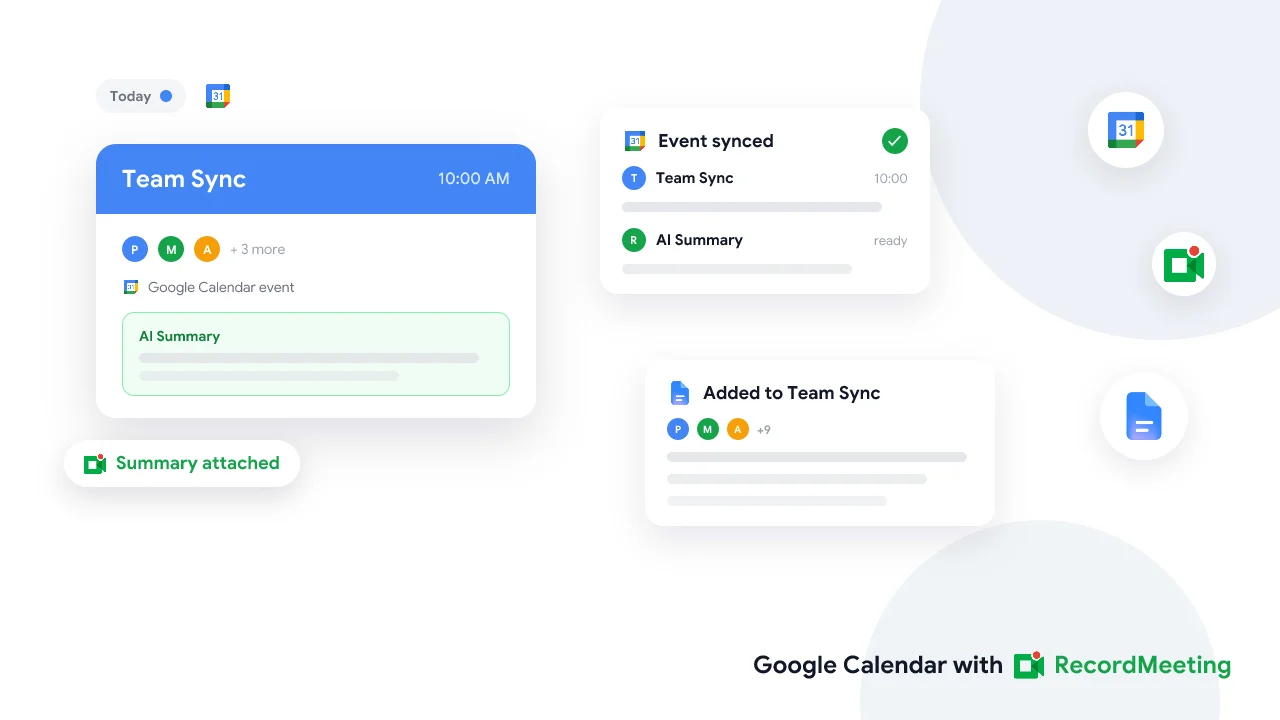
That leaves a gap on the other side of the meeting. Once the call ends, most teams still copy a summary into a doc by hand, or forget to attach anything at all, and the calendar event that scheduled the meeting stays empty forever. AI meeting notes and Google Calendar integration closes that loop so the event itself becomes the record, not just the invite.
This guide covers the native Gemini path, what to do when your plan does not include it, and a step-by-step workflow for attaching a summary to any calendar event after the call.
Key takeaways
- Native path: Gemini’s Take notes for me in Google Meet can save a summary to Drive and link it from the Calendar event automatically, but only on eligible Workspace or Google AI plans.
- The gap: Scheduling assistance and prep briefs happen before the meeting. Getting notes back onto the event afterward is a separate step Google does not fully automate for every plan.
- Workaround: A browser recorder like Record Meeting can generate a summary and action items that you attach to the event manually or through a shared link.
- Recurring events: Notes usually attach to the single occurrence that was recorded, not the whole series, so check the right date before you go looking.
- Guests matter: A note visible on the invite is not the same as a note everyone invited can actually open. Permissions live on the file, not the calendar entry.
Why Google Calendar is becoming the meeting AI hub
Search interest in google calendar ai meeting assistant features has grown alongside Gemini’s expansion into Workspace. The scheduling assistant reads context from an email and offers slots that match your existing Calendar commitments, so you skip the usual back and forth over “does Tuesday work.”
Gemini also generates meeting-prep briefs. Before a call starts, it can surface the agenda, related documents, and recent email threads tied to the event, giving attendees a running start instead of a blank screen.
Both features are useful, and both happen before the meeting. Once people hang up, the event on everyone’s calendar goes quiet again unless someone manually adds a recap.
How native Google Calendar AI notes work today
Google Meet’s Take notes for me feature is the closest thing to built-in google calendar meeting notes automation. When the meeting organizer turns it on, Gemini listens during the call, writes a structured summary with action items, and saves the result as a Google Doc in Drive.
That Doc typically links back to the Calendar event, so anyone opening the invite later can find the notes without digging through Drive folders. Our guide on how to auto generate a meeting summary in Google Meet walks through the exact setup steps and what the output looks like.
The native path has real limits worth knowing before you rely on it:
- Plan requirement: Take notes for me needs an eligible Google Workspace or Google AI subscription. It is not available on every tier.
- Organizer-controlled: Access depends on the meeting organizer’s plan, not each participant’s.
- One language per meeting and a minimum spoken word count before Gemini generates a usable summary.
- Admin controls can disable the feature tenant-wide, which happens more often than you might expect in regulated industries.
That small green panel on the event is what most teams actually want. The rest of this guide is about getting it there even when the native feature is not an option.
What to do when your plan does not include Gemini in Calendar
Plenty of teams run Google Meet calls without the Workspace tier that unlocks Take notes for me, or they mix Google Meet with Zoom and Teams and want one consistent workflow instead of three different native tools.
For broader Google Workspace meeting automation across Drive, Docs, and follow-up tasks, that guide covers the wider picture. This section focuses specifically on the Calendar event itself.
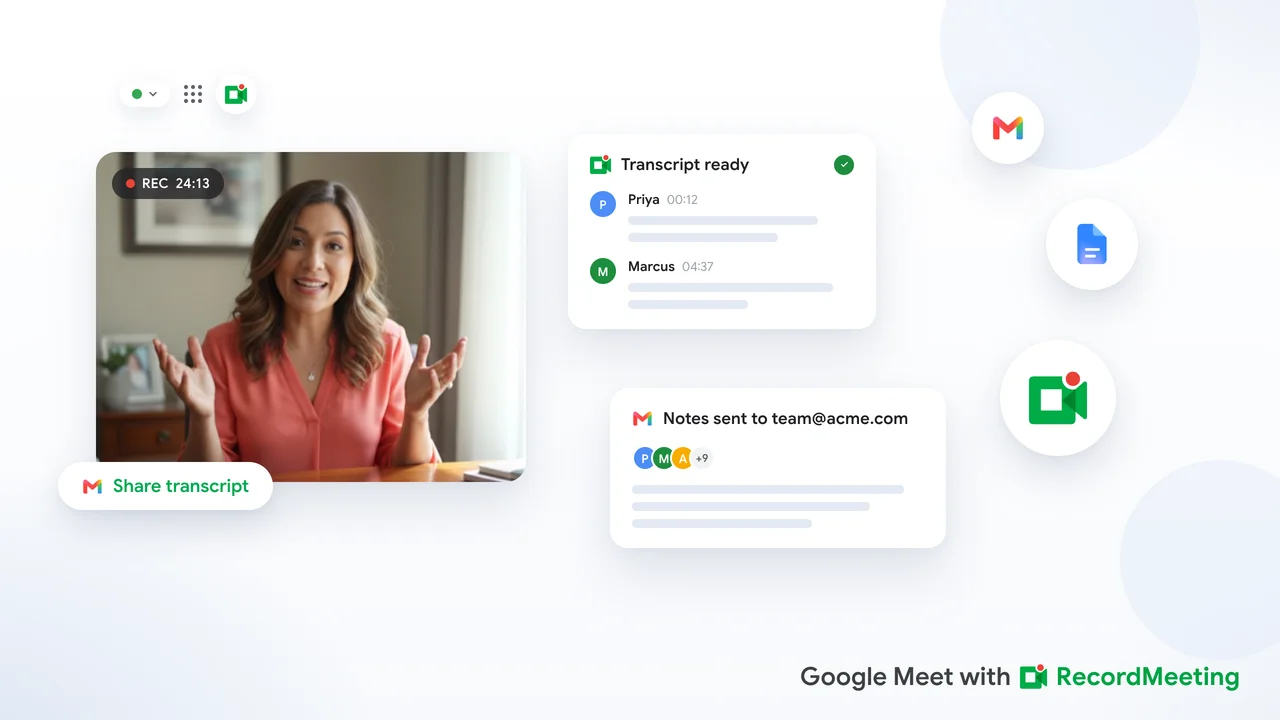
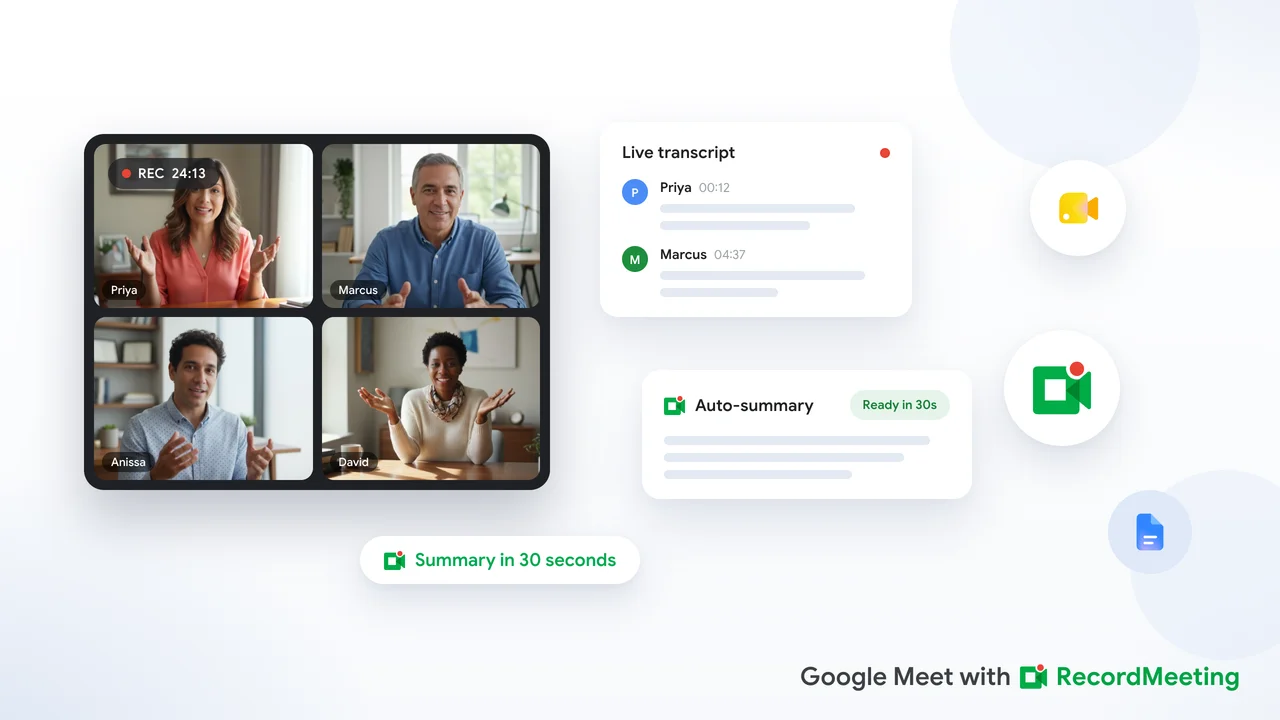
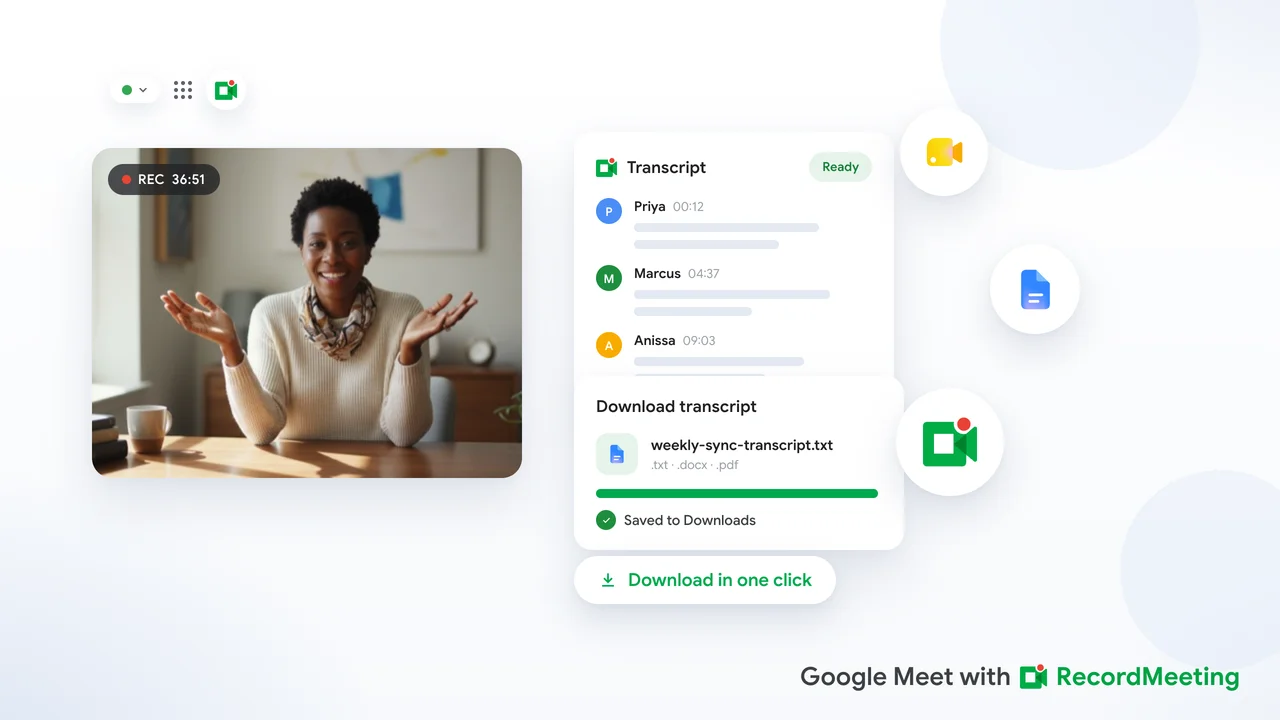
A browser-based recorder like Record Meeting captures the call, generates a transcript with speaker labels, and produces an AI summary with action items right after the meeting ends. From there you attach that summary to the calendar event the same way you would attach any other document.
 Try Record Meeting
Record Meeting captures Google Meet in the browser and produces a speaker-labeled transcript plus an AI summary you can attach to any Calendar event, no admin-enabled Gemini plan required.
Get Started Free
Step-by-step: attach an AI summary to a Google Calendar event
This workflow works whether the summary comes from Gemini, Record Meeting, or another recorder. The goal is the same either way: make the event itself the place people look for what happened.
- Generate the summary right after the call. Do this while the details are fresh instead of waiting until end of day.
- Copy a shareable link to the summary or transcript, or export it as a Google Doc if your recorder supports that.
- Open the Calendar event for the meeting you just finished, even if it already ended.
- Paste the link into the event description, or use Add attachment if the file lives in Drive.
- Set guest permissions on the underlying file before you save, so the link on the invite actually opens for the people who need it.
Doing this manually for every call gets old fast, which is why teams that run this workflow regularly tend to automate step two through four with a browser extension rather than repeating it by hand.
Recurring meetings: keep every instance up to date
Recurring events add a wrinkle that trips people up. A summary generated for Tuesday’s standup attaches to that single occurrence, not to the recurring series as a whole.
If you open the series parent event looking for last week’s notes, you will not find them there. Open the specific date the meeting happened, since that is where both Gemini and third-party recorders attach the file.
For teams running the same recurring call every week, a consistent naming pattern in the event description (something like “Notes: [date]”) saves a lot of scrolling later when someone searches Calendar for a decision made three weeks ago.
Privacy, guests, and calendar permissions
A note showing up on a Calendar invite is not proof that everyone invited can open it. The attachment on the event is a pointer, and access is controlled on the underlying Doc or link, not the calendar entry itself.
External guests are the most common failure point. If a client or vendor is on the invite but the summary Doc is shared only within your domain, they will see a broken link instead of the notes. Check sharing settings before you assume the job is done.
Regulated teams should also think about retention. If your meetings touch health, financial, or legal information, our GDPR meeting recording guide covers consent language and storage rules that apply just as much to AI-generated notes as to the recording itself.
Distribute notes beyond the calendar event
The calendar event is a good permanent home for a summary, but it is rarely the first place a busy teammate looks right after a call ends. Pair the Calendar attachment with a short recap sent through the channel people actually check.
Our meeting recap email template gives you a fill-in structure for a two-minute recap, and how to share a meeting transcript covers the full text version for anyone who needs exact wording rather than a summary.
FAQ
Does Google Calendar automatically add AI meeting notes to every event?
No. Automatic notes require the meeting organizer to have an eligible Google Workspace or Google AI plan with Take notes for me turned on. Without that plan, the event stays empty unless someone attaches a summary manually or through a browser recorder.
Can I attach a meeting summary to a calendar event after the call already happened?
Yes. Calendar events remain editable after their end time, so you can open a past event and add a link, attachment, or updated description whenever the summary is ready.
What is the difference between Gemini’s Help me schedule and AI meeting notes?
Help me schedule works before the meeting, suggesting times based on your Calendar availability from an email thread. AI meeting notes work after the meeting, capturing what was said and attaching a record to the event. They solve different halves of the same problem.
Do calendar AI notes work for external guests?
Only if the underlying file is shared with them. A visible attachment on the invite does not override the sharing settings on the Doc or link, so external guests often need explicit access added separately.
Is there a free way to add AI meeting notes to Google Calendar?
Yes. A browser recorder with a free tier, such as Record Meeting, can generate a transcript and summary you paste into the event description or attach as a Drive link, without needing an eligible Gemini plan.
Close the loop on every meeting
Google Calendar has gotten good at the part before the meeting starts. AI meeting notes and Google Calendar integration is about making sure the part after the meeting gets the same treatment, so the event people scheduled becomes the record of what actually happened.
Pick one method, native Gemini notes where your plan allows it, or a browser recorder where it does not, and apply it the same way every time. Record Meeting records Google Meet in the browser, generates a summary with action items, and gives you a link you can attach to any Calendar event in a few clicks.