How to Auto Generate a Meeting Summary in Google Meet
Learn how to auto generate a meeting summary in Google Meet with Gemini Take notes for me, plus browser tools when your plan does not include Workspace AI.

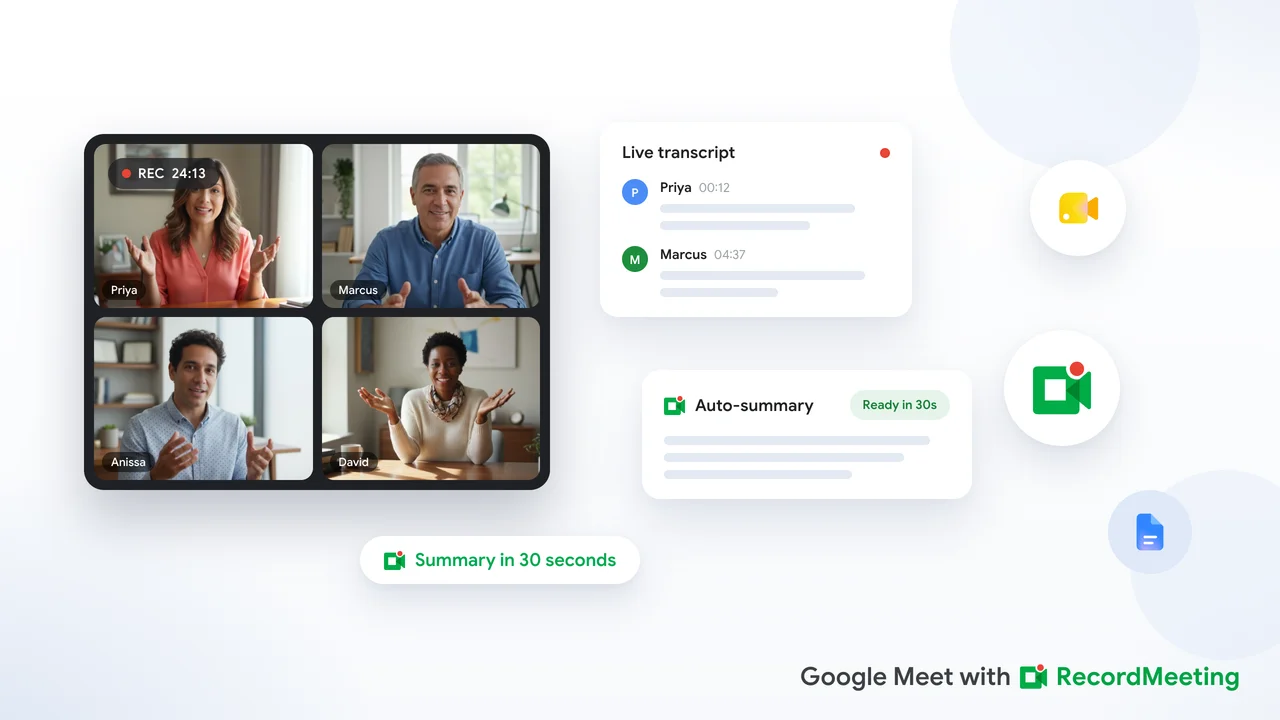
You can auto generate a meeting summary in Google Meet when the meeting organizer has an eligible Google Workspace or Google AI subscription and turns on Take notes for me. Gemini listens during the call, writes a structured summary with action items, saves a Google Doc to Drive, and emails a recap when the meeting ends.
If your team does not have that plan, or you need summaries on calls you do not host, a browser-based recorder like Record Meeting can produce transcripts and AI summaries without upgrading Workspace.
Key takeaways
- Native path: Gemini Take notes for me creates an automatic summary, saves it to Google Docs, and links it to the Calendar event.
- Who can use it: The meeting organizer’s subscription determines access, not individual participants.
- How to start it: Click the pencil icon in Meet, enable it in Meet settings, or schedule it from Google Calendar before the call.
- Limits: One spoken language per meeting, at least 50 spoken words required, and admin controls can block the feature.
- Alternative: Browser extensions record the call and generate summaries without a Workspace upgrade or host-only restrictions.
What “auto generate meeting summary” means in Google Meet
An automatic meeting summary is not a separate file you download. It is an AI-written document built from what was said on the call.
According to Google’s announcement of Take notes for me, Gemini works in the background to:
- Transcribe the conversation in real time
- Summarize key discussion points and decisions
- Extract action items from what participants said
- Save output to a Google Doc in the organizer’s Google Drive
- Send a recap email to the organizer and the person who started note-taking
This is different from Ask Gemini in Meet, which gives each participant a private in-meeting assistant. Ask Gemini can summarize what you missed, but it does not create a shared notes document for the team. Google’s Meet help page directs teams that want a shared post-meeting doc to use Take notes for me instead.
For a broader look at summary formats and tool options, see our guide to Google Meet AI summaries.
Who can auto generate summaries in Google Meet
Access depends on the organizer’s account, not yours as a participant. If the person who created the Calendar event lacks an eligible plan, the pencil icon will not appear for anyone on the call.
Google lists Take notes for me among premium Meet features tied to specific Workspace editions and Google One subscriptions. At launch, Google targeted select Workspace customers with Gemini add-ons. The feature has since expanded to Google AI Pro and Ultra subscribers and eligible Workspace business customers.
Free personal Gmail accounts do not include automatic AI summaries in Meet. Teams on lower Workspace tiers may also lack the feature until an admin upgrades the organizer’s license or adds the right Gemini bundle.
Your Workspace admin must enable Gemini and smart features. If note-taking is blocked at the organization level, no one in your company can start it even when the organizer has a qualifying plan. Admins configure this under Google Meet → Gemini settings → Google AI note-taking in the Admin console.
Step 1: Turn on Take notes for me during a live call
This is the fastest path when you are already in a meeting and confirmed your plan supports the feature.
- Join or start the Google Meet as the host or organizer.
- Look for the pencil icon at the top of the Meet window (labeled Take notes for me on desktop).
- Review the settings panel if it appears: note recipients, meeting language, and detail level.
- Click Start. Google displays a banner so all participants know note-taking is active.
- Run the meeting normally. Gemini captures from the moment you start, not from the beginning of the call if you enable it late.
When the meeting ends, Google generates the notes document within a short processing window. The doc lands in the organizer’s Drive and attaches to the Google Calendar event for internal invitees.
 Try Record Meeting
No eligible Workspace plan? Record Meeting captures Google Meet from your browser, then auto-generates a transcript and AI summary with action items after every call.
Get Started Free
Step 2: Schedule automatic summaries before the meeting
For recurring standups or client calls, pre-enabling summaries saves the host from clicking the pencil icon every time.
From Google Calendar
- Open the Calendar event and click Edit.
- Expand Video call options (or the Meet options section).
- Open Meeting records.
- Check Take notes with Gemini (wording may vary slightly by account type).
- Save the event. Notes start automatically when the meeting begins.
From Google Meet settings
- Go to meet.google.com and open Settings.
- Find the Meeting records section.
- Enable Take notes for me for meetings you host going forward.
These defaults pair well with broader Google Workspace meeting notes automation workflows that connect Calendar, Drive, and follow-up tasks.
Step 3: Review and share the generated summary
After the call, check three places for the output:
- Email: The organizer and the person who started note-taking receive a recap with a link to the doc.
- Google Drive: The notes file sits in the organizer’s Drive, typically named after the meeting.
- Google Calendar: The document attaches to the event so internal invitees can open it from the meeting details page.
Open the Google Doc and scan for accuracy before forwarding it. Gemini summaries are useful drafts, not legal records. Verify names, dates, and commitments against the full transcript if the meeting had high stakes.
Tip: For decisions that need an audit trail, pair the summary with a Google Meet transcript. Summaries compress. Transcripts preserve exact wording.
What the automatic summary includes (and what it misses)
A typical Gemini-generated notes document contains:
- Overview: A short paragraph on what the meeting covered
- Key points: Bulleted highlights from the discussion
- Action items: Tasks mentioned on the call (when Gemini detects them)
- Summary so far (live): On desktop, participants can open a running recap mid-meeting if they join late
What native summaries often lack compared to dedicated meeting tools:
- Speaker-attributed quotes at the same depth as a full transcript export
- Video playback synced to summary sections
- Cross-meeting search across months of calls in one dashboard
- CRM or project tool push without manual copy-paste from Docs
Teams that only need a Google Doc after internal Meet calls often stop at Gemini. Teams that run sales calls, interviews, or mixed-platform meetings usually add a dedicated recorder for richer output.
Limits and troubleshooting
Google documents several constraints in its admin help for AI note-taking:
| Issue | Cause | Fix |
|---|---|---|
| Pencil icon missing | Organizer lacks eligible plan | Confirm organizer’s Workspace or Google AI tier |
| Feature grayed out | Admin disabled Gemini note-taking | Ask IT to enable Google AI note-taking in Meet |
| Notes never appear | Fewer than 50 spoken words in the meeting | Ensure enough dialogue occurred |
| Wrong language captured | Multiple languages spoken | Pick one supported language per meeting |
| Notes start mid-call only | Feature enabled late | Turn on at start or schedule via Calendar |
| Host cannot start notes | Host management restricts controls | Host must enable Take notes for me |
Supported languages for AI note-taking include English, French, German, Italian, Japanese, Korean, Portuguese, and Spanish. Google supports one language at a time per meeting.
Notes are not retroactive. If you enable the feature 20 minutes into a one-hour call, the summary reflects what Gemini heard after you started it.
When to use a browser tool instead of native Gemini summaries
Native auto summaries work well when your entire team lives in Google Workspace at the right tier and the organizer always hosts. That profile does not fit every team.
Consider a browser-based recorder when:
- You attend but do not host. Organizer plan rules still apply to Gemini. Record Meeting lets individual users capture calls they join.
- Your org is on Business Starter or free Gmail. You need summaries without a license upgrade.
- You want video plus summary. Gemini notes are text-first. Record Meeting stores recording, transcript, and summary together.
- You need summaries in multiple languages beyond Google’s single-language note-taking limit.
Record Meeting runs as a Chrome extension and Google Workspace add-on. It captures audio from the browser tab, generates a transcript with speaker labels, and produces an AI summary with topics and action items when the recording finishes. Nothing joins your call as a visible bot participant.
For workflow tips on turning raw AI output into useful documentation, read how to take better meeting notes with AI.
FAQ
Can Google Meet auto generate a meeting summary on a free account?
No. Automatic AI summaries through Take notes for me require an eligible Google Workspace edition, Gemini add-on, or Google AI Pro/Ultra subscription on the meeting organizer’s account. Free Gmail users need a third-party recorder or manual note-taking.
Do participants get notified when automatic summaries are enabled?
Yes. Google displays a notification banner when Take notes for me starts so everyone on the call knows AI note-taking is active. Treat this as part of your meeting consent practice, especially for external guests.
What is the difference between Ask Gemini and Take notes for me?
Ask Gemini is a private in-meeting assistant. Only you see its answers, and it does not create a shared notes file. Take notes for me builds a Google Doc summary, saves it to Drive, and shares it with meeting invitees according to your settings. Use Ask Gemini to catch up live. Use Take notes for me for a team-facing recap after the call.
Where does the auto-generated summary get saved?
Google saves the notes document to the meeting organizer’s Google Drive. It also attaches to the Google Calendar event and sends a recap email to the organizer and whoever enabled note-taking on the call.
Can I auto generate summaries for meetings I do not host?
Gemini Take notes for me follows the organizer’s plan and settings. If you are not the host and the organizer lacks the feature, native auto summaries are unavailable. A personal browser recorder can still capture audio from calls you attend and produce your own transcript and summary afterward.
Conclusion
To auto generate a meeting summary in Google Meet, confirm the organizer has an eligible plan, enable Take notes for me from the pencil icon or Calendar settings, and review the Google Doc that lands in Drive after the call. The workflow is straightforward when your organization already pays for Gemini in Workspace.
When plan limits, host restrictions, or missing action-item detail get in the way, add a dedicated recorder so every important call leaves you with a searchable transcript and structured summary. Install Record Meeting free and record your next Google Meet, with automatic notes handled end to end on Pro.