How to Share a Meeting Transcript: Teams, Google Meet, and Secure Workflows
Learn how to share a meeting transcript in Teams and Google Meet. Step-by-step paths for notes, minutes, and secure links your team can act on today.

The fastest way to share a meeting transcript is to start with the file your platform already created, set permissions before you send anything, and pair the full text with a short summary so people know what to read. Google Meet saves transcripts to Drive. Microsoft Teams puts them in Recap. Dedicated recorders like Record Meeting give you a share link from the dashboard.
Most sharing problems are not about missing text. They are about the wrong audience seeing sensitive details, or teammates opening a Calendar link and hitting a permission error. This guide covers Google Meet, Teams, OneNote, and secure workflows so you can share meeting notes without forwarding a raw wall of dialogue.
If you need the file first, read how to download a Google Meet transcript. For permission settings on recordings and transcripts together, see how to share meeting recordings securely.
Key takeaways
- Pick the right artifact: A transcript is the full spoken record. Meeting notes or minutes are the edited summary your team acts on.
- Set permissions first: Calendar and Recap links do not override file access. Check Drive or OneDrive sharing before you post in chat.
- Teams mobile gap: Download the transcript and attach it to meeting chat when Recap is hard to open on a phone.
- Guests need a copy: External participants often cannot open Loop notes or internal Recap tabs. Email a summary or exported file instead.
- Default narrow: Share with named people, then expand only when someone asks with a reason.
Transcript vs meeting notes vs meeting minutes
These terms get mixed up in search and in Slack threads. The sharing method depends on which one you have.
| Artifact | What it is | Typical format | Best for |
|---|---|---|---|
| Transcript | Word-for-word record of what was said | Google Doc, .docx, .vtt, dashboard link | Search, compliance, catching exact quotes |
| Meeting notes | Live or post-meeting summary with decisions and tasks | Loop page, OneNote, Doc, email | Day-to-day team alignment |
| Meeting minutes | Formal record of decisions, votes, and owners | Doc or PDF, often approved before send | Board meetings, client governance, HR |
When someone searches how to share meeting minutes, they usually want a polished doc, not a 40-page transcript. Send the minutes as the primary file. Attach or link the transcript only for people who need the full record.
When someone searches how to share meeting notes in Teams, they often mean collaborative Loop notes tied to the calendar invite, not the auto-generated speech transcript. The sections below cover both.
How to share a Google Meet transcript
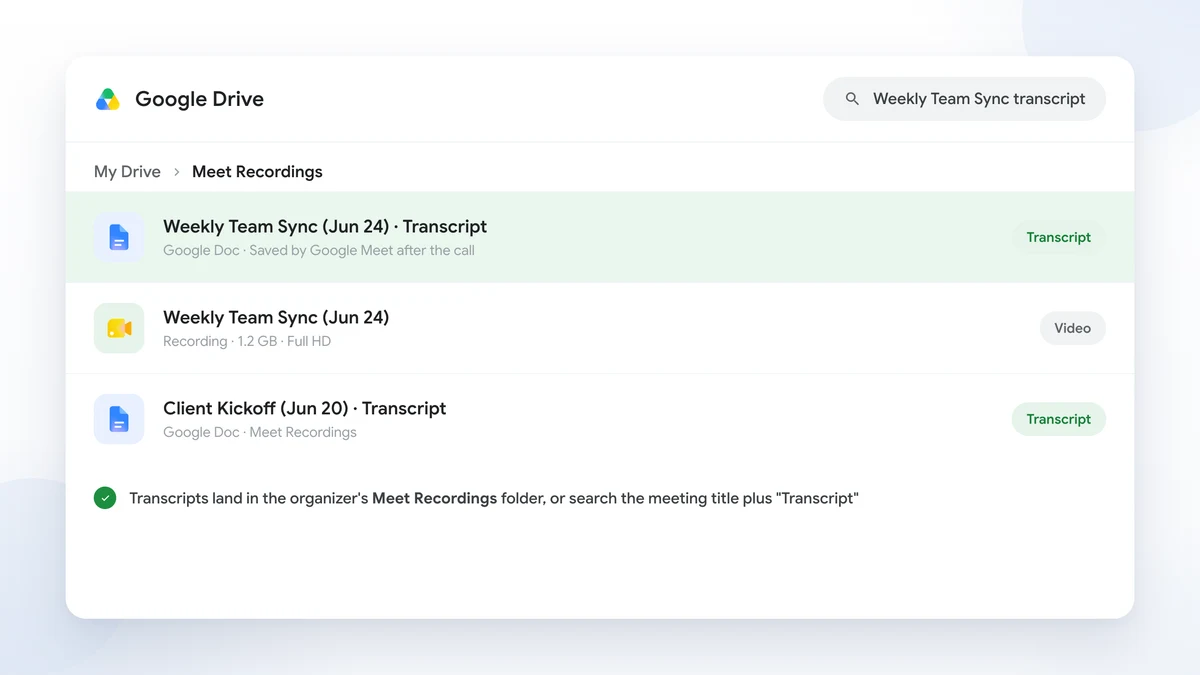
Google Workspace saves Meet transcripts to the meeting organizer’s Google Drive, usually inside a folder called Meet Recordings. According to Google’s Meet transcript help page, the host, co-hosts, and the person who started transcription receive an email with a link after the call ends. The transcript may also appear on the Google Calendar event.
Important: A link on the Calendar invite does not guarantee access. Google Drive permissions on the transcript file decide who can open it.
Step 1: Find the transcript
- Open Google Drive and go to the Meet Recordings folder, or search for the meeting title plus “Transcript.”
- You can also open the Calendar event and click the transcript attachment if your admin enabled that view.
If nothing appears, the host may not have started transcription, or your Workspace plan may not include the feature. See how to transcribe Google Meet for capture options before you worry about sharing.
Step 2: Set Drive sharing
- Right-click the transcript Google Doc and choose Share.
- Add people by work email, or add a Google Group for the project team.
- Choose Viewer unless someone must edit speaker names or redact sections.
- Turn off General access > Anyone with the link for internal or client calls.
For “Take notes for me” docs, sharing follows the settings the host picked when notes started. Google’s help article notes that seeing an attachment on a Calendar invite is not the same as having permission to open the underlying Doc.
Step 3: Distribute with context
Do not paste a bare Drive link into a public channel. Send a short recap email instead:
- Write three to five bullets: decisions, owners, due dates.
- Link the transcript for reference.
- Say who should read the full text vs who only needs the summary.
Our meeting recap email template gives you a fill-in structure that takes about three minutes after the call.
 Try Record Meeting
Record Meeting captures Google Meet with speaker-labeled transcripts and AI summaries. Share a link from the dashboard, or export text into your existing Drive workflow.
Get Started Free
How to share a meeting transcript in Teams
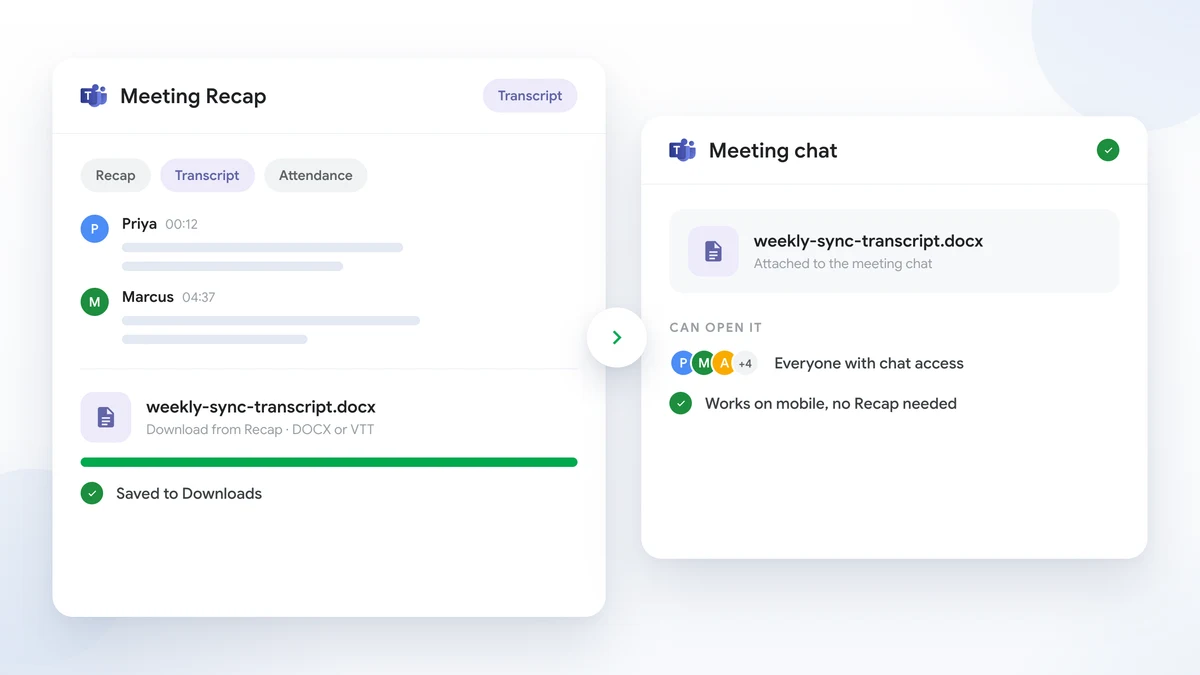
In Microsoft Teams, live meeting transcripts land in Recap after the call. Microsoft’s Teams transcript documentation states that organizers and co-organizers can download the file as .docx or .vtt from the calendar event or the past meeting chat.
Find and download the transcript
- Open Teams > Chat and select the past meeting, or open the event from Calendar.
- Click Recap.
- Open the Transcript section.
- Select Download and pick DOCX (readable) or VTT (timestamps for video workflows).
If you are not the organizer, you may see the transcript but not the download button. Ask the organizer to add you as co-organizer or to download and share the file.
Share inside Teams
Option A: Upload to meeting chat (best for mobile)
Some participants struggle to open Recap on a phone. Microsoft recommends downloading the transcript and attaching it to the meeting chat:
- Download the.docx or.vtt file to your computer.
- In the meeting chat, click Attach under the compose box.
- Upload the file so everyone with chat access can open it.
Option B: Recap link (organizers, rolling out 2026)
Microsoft is adding recap sharing so organizers can grant access to recordings, transcripts, AI summaries, and notes when copying a recap link. Non-attendees may need to request access. Check the Share menu on the Recap page if your tenant has received the update.
Option C: OneDrive or SharePoint permissions
Teams stores transcripts in the organizer’s OneDrive. Open the file from Recap, click Share, and add specific people instead of “Anyone with the link” when the content is sensitive.
Best way to share meeting notes in Teams
Collaborative Teams notes are different from speech transcripts. They are Loop components tied to the calendar invite, and they update for everyone on the invite list.
According to Microsoft’s meeting notes guide, any attendee or organizer can open Notes during the call or from the calendar event after the meeting. Changes sync automatically.
Best practices for internal teams
- Schedule channel meetings when the whole channel should see notes later. Channel members can open meeting details from the channel posts tab even if they did not get a personal invite.
- @mention owners for action items so notifications fire outside the notes page.
- Give the meeting a clear title so people can find notes later in the Loop app search.
Limitation for guests
External guests often cannot open collaborative Loop notes. Microsoft lists this as a known limitation. For clients and vendors, export the notes:
- Copy the Loop content into a Word doc or email, or
- Download the speech transcript from Recap and pair it with a written summary, or
- Use Email Page from OneNote if your team captures notes there (see below).
That pattern, summary first and full text second, is the best way to share meeting notes in Teams when your audience mixes internal staff and external partners.
How to share OneNote meeting notes
OneNote still fits teams that want structured pages with Outlook metadata at the top.
Create notes from Outlook
- Open the meeting in Outlook Calendar.
- Click Send to OneNote (or Meeting Notes in the ribbon).
- Choose Share notes with the meeting for a page everyone can edit, or take private notes and share later.
Participant names, date, time, and the Outlook link populate automatically, as described in Microsoft’s OneNote meeting details guide.
Share the page
Email: In OneNote, open the page and select Home > Email Page (or press Ctrl+Shift+E). Outlook opens with the page body in the message. Add recipients and send.
Teams channel: Get the channel email address from the channel … menu, paste it as the recipient on an emailed OneNote page, and the notes appear as a channel post.
Notebook tab: Pin a shared OneNote notebook as a tab in a Teams channel so the team has one home for running notes across recurring meetings.
External users need explicit notebook or section permissions. OneNote pages shared only inside Teams tabs remain internal in most setups.
Share meeting notes securely
Transcripts contain names, numbers, and off-the-cuff comments that never belonged in a company-wide folder. Treat them like any other confidential document.
Recommended defaults
- Specific people or groups instead of open links
- Viewer role unless someone is assigned to redact
- Summary + link instead of attaching the full transcript to a wide mailing list
- Revoke access when a project closes or someone changes roles
For a full post-meeting security checklist, read how to share meeting recordings securely. The same rules apply to transcript files stored in Drive, OneDrive, or a recorder workspace.
When only part of the call is relevant, send edited meeting minutes or a redacted excerpt. Keep the full transcript in a restricted folder for compliance or legal hold.
Share from a meeting recorder dashboard
If your team uses a dedicated Google Meet recorder, sharing often starts outside Drive or Teams entirely.
With Record Meeting, every recorded call gets a transcript with speaker labels and an AI summary in the webapp. From the recording detail page:
- Open Share.
- Email share: Add a teammate’s work email. They sign in to view. Choose view-only or allow download if your plan supports it.
- Link share: Create a link with view or download permission. Send the URL in Slack, email, or a ticket. Revoke the link from the share dialog when the project ends.
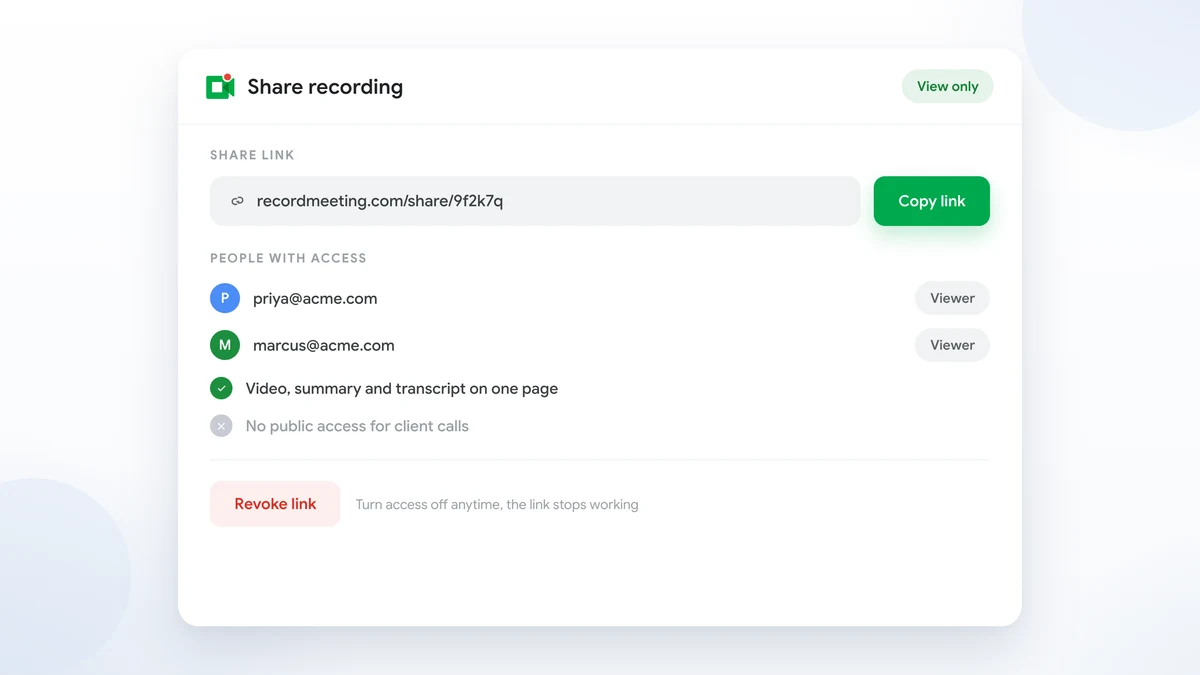
Recipients opening a link share see the video, summary, and transcript on a public shared page without needing the full recording in their personal Drive. That helps when the organizer’s Drive is not the right long-term home for the file.
You can still copy transcript text into Google Docs, paste action items into your PM tool, or follow the recap email pattern above. The recorder handles capture. Your team rules handle who gets access.
Quick checklist: share after every meeting
Run this list before you close the laptop:
- Confirm the artifact (transcript, notes, or minutes) matches what recipients expect.
- Redact or trim sensitive sections if the audience is wider than the room.
- Set file permissions in Drive, OneDrive, or the recorder share dialog.
- Send a summary with owners and due dates. Link the full transcript below the fold.
- Log where it lives (folder path, channel, ticket) so the next search takes seconds.
- Review access in 30 days and remove people who no longer need the file.
FAQ
How do I share a meeting transcript in Teams if I was not the organizer?
Ask the organizer to download the transcript from Recap and upload it to the meeting chat, or to add you as a co-organizer. By default, only organizers and co-organizers can download.docx and.vtt files. View access for same-org participants depends on your tenant policy.
How do I share meeting minutes in Teams vs a raw transcript?
Meeting minutes should be a short, approved doc with decisions and owners. Share that doc in chat or email as the primary file. Link or attach the speech transcript only for auditors or teammates who need exact quotes. Collaborative Loop notes can feed the minutes draft, but they are not a substitute for a finalized minutes doc.
Why can invitees see a transcript link on Google Calendar but get access denied?
The Calendar attachment is a pointer to a Google Drive file. Access is controlled on the file itself. Open the transcript in Drive, click Share, and add the people or groups who need viewer access. For large invites, consider a Shared Drive folder with explicit membership instead of sharing with every attendee individually.
How do I share OneNote meeting notes with people who missed the call?
Use Home > Email Page in OneNote to send the page in Outlook, or grant access to the notebook section and send the link. If the missed attendees are external, email a PDF export or a written summary because guest access to shared notebooks is often blocked.
Should I email the transcript as an attachment or send a link?
Prefer a restricted link to the canonical file in Drive, OneDrive, or your recorder workspace. Attachments multiply copies you cannot revoke. If you must attach, use a redacted export and keep the full transcript in an access-controlled folder.
Put sharing on autopilot
How to share a meeting transcript comes down to three habits: capture the text in the right place, narrow permissions before anyone clicks, and lead with a summary so busy teammates know what matters.
Pick one home for each recurring meeting (Shared Drive folder, Teams channel notebook, or Record Meeting workspace). Use the same recap email structure every week. Your future self will find last Tuesday’s decisions in one search instead of five chat threads.
Record Meeting records Google Meet in the browser, labels speakers, and generates share links with transcript access built in. Install the extension, record your next call, and share the recap link before the hour is up.