Async Meeting Recap Template for Remote Teams
Use this async meeting recap template to share decisions, owners, and next steps without another live call. Copy the six-block format and post it in minutes.

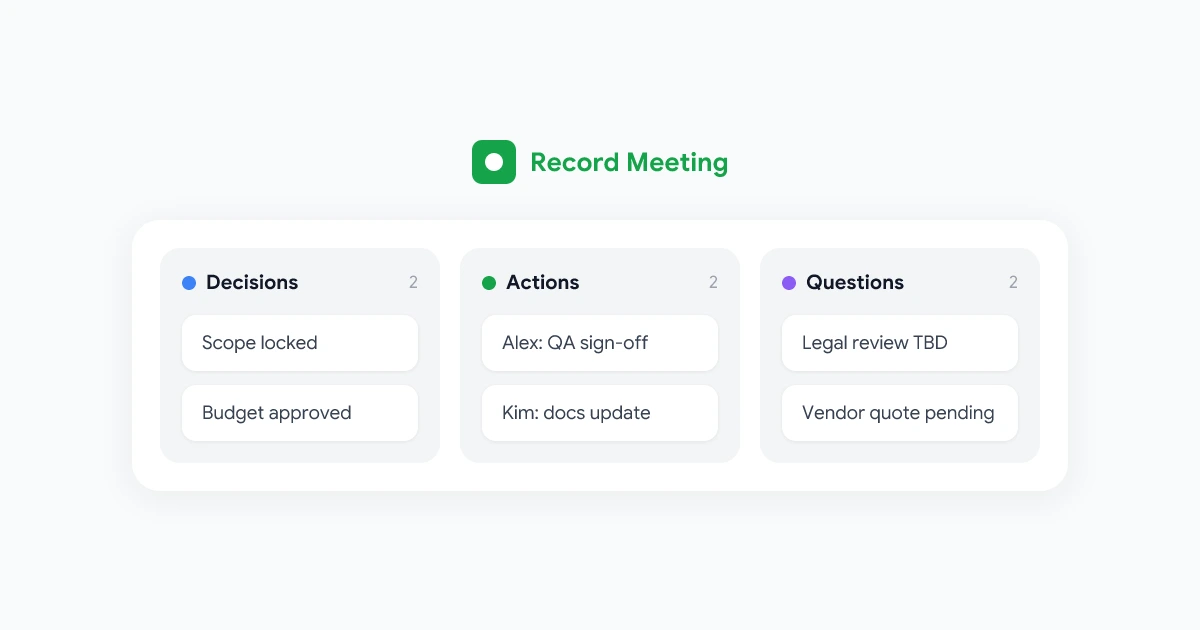
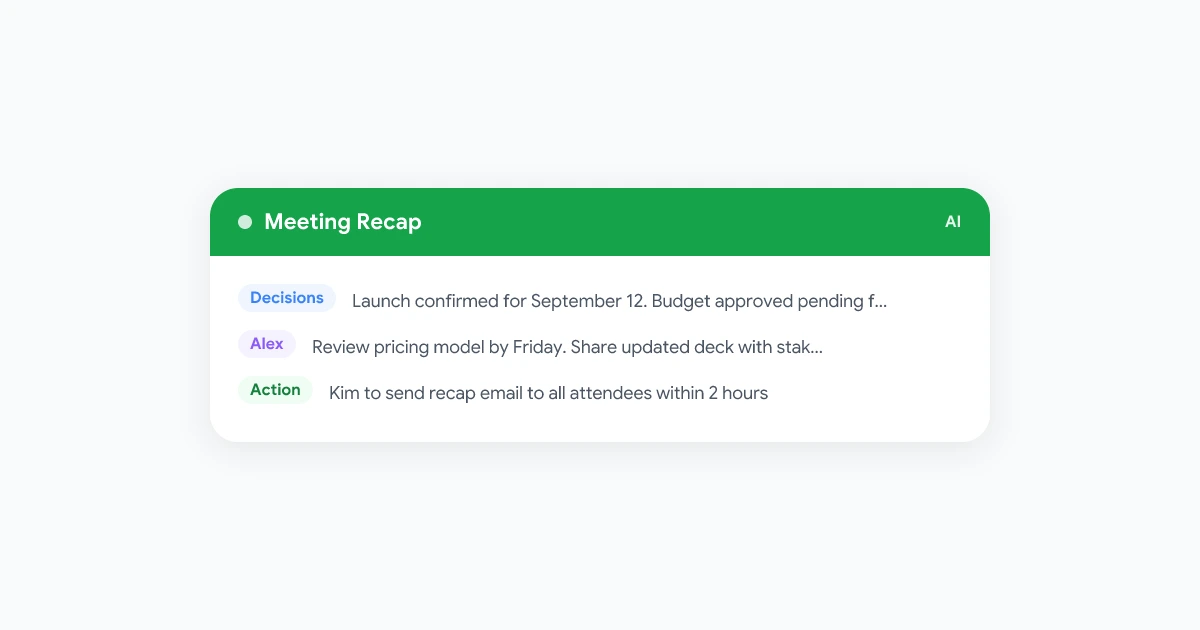
The best async meeting recap fits on one screen, names who owns what, and lets teammates in other time zones catch up without watching a 45-minute recording. You do not need another sync to explain what happened in the last one.
Remote teams lose hours when recaps are vague (“good discussion, more to follow”) or buried in a long thread. A short, repeatable template fixes that. This guide gives you a copy-paste structure, a 10-minute workflow after each call, and posting rules so the right people see context without opening every file.
For secure distribution patterns, pair this template with our guide to sharing meeting recordings securely. For announcing recordings and recap norms, see our meeting recording etiquette guide for remote teams.
Key takeaways
- Six blocks: Context, decisions, action items, open questions, recording link, and retention note.
- Write for skimmers: Lead with decisions and owners. Put background last.
- Default to text first: Post the written recap in chat or Docs. Add a video link only when someone needs proof or tone.
- Same format every time: Teammates learn where to look. Search gets easier.
- Ten minutes max: Record the call, pull decisions from the transcript, paste the template, send.
What a written recap is (and is not)
An async recap is a written summary posted after a live or recorded call so people who were absent can act without scheduling a replay meeting.
It is not a transcript dump. It is not a minute-by-minute play-by-play. It is not a substitute for announcing that you recorded the call.
Think of it as the executive layer on top of the raw capture. The recording holds detail. The recap holds commitment: what changed, who does what next, and what is still undecided.
According to Buffer’s 2025 State of Remote Work report, async communication is the top-enabling practice cited by fully remote teams. Recaps are the bridge between a synchronous conversation and work that continues on someone else’s clock.
When to use this template
Use it after any meeting where at least one person will miss the live session or needs a searchable record:
- Cross-time-zone standups and planning sessions
- Project reviews with stakeholders who join selectively
- Customer calls where internal teams need facts, not the full video
- Leadership updates that roll down to regional teams
Skip the full template for quick 1-on-1s with no downstream audience. A three-line Slack message is enough when nobody else depends on the outcome.
The six-block recap template (copy and paste)
Copy the block below into Google Docs, Notion, or your team wiki. Replace the bracketed placeholders after each meeting.
# [Meeting title] | [Date]

## Context (2 to 3 sentences)
Why we met and what was in scope.

## Decisions
- **[Decision 1]**: [One line, no hedging]
- **[Decision 2]**: [One line]

## Action items
| Owner | Task | Due |
|-------|------|-----|
| [Name] | [Specific deliverable] | [Date] |
| [Name] | [Specific deliverable] | [Date] |

## Open questions
- [Question]: [Who will resolve it by when]

## Recording and transcript
- **Recording**: [Restricted link, sign-in required]
- **Transcript**: [Link or "see recording timestamps 12:04 to 18:30 for pricing discussion"]

## Retention
Delete or archive this recap and the recording on [date], per [team policy link].
Block-by-block guidance
Context: Name the project or initiative. State the goal of the meeting in plain language. Two sentences is ideal.
Decisions: Use bold labels. If nothing was decided, say so explicitly (“No budget decision yet”). Ambiguity here creates duplicate meetings.
Action items: One row per owner. “Look into API options” is too vague. “Kim to send vendor comparison doc by Friday” is shippable.
Open questions: Park unresolved items here instead of hiding them in narrative prose. Assign a resolver and a target date.
Recording and transcript: Link only after access is restricted. Point to timestamp ranges when the full file is long. Our AI meeting notes workflow explains how to layer transcript, summary, and actions from the same capture.
Retention: Tie the recap to your deletion schedule. If your team uses a 90-day default, say so. See our meeting recording retention policy guide for category-based windows.
How to fill the template in 10 minutes
Speed comes from order of operations, not from skipping sections.
Step 1: Record and transcribe (0 setup if already on)
Start recording at the top of the meeting. If your stack supports it, enable live transcription in Google Meet or use a browser recorder that saves to your team workspace.
You cannot write a reliable recap from memory after back-to-back calls. Capture first, summarize second.
Step 2: Draft decisions and actions while context is fresh (3 minutes)
Before you close the Meet tab, fill Decisions and Action items from notes or the live transcript. Names and dates fade within an hour.
Ask yourself three prompts:
- What can we no longer debate?
- Who volunteered or was assigned work?
- What did we explicitly punt to a later meeting?
Step 3: Add context and open questions (2 minutes)
Write Context last. You already know what mattered. Keep it short.
Move anything that ended with “we need to think about” into Open questions with an owner.
Step 4: Attach links and post (5 minutes)
Paste the recap into the canonical place your team expects: a Google Doc in the project folder, a pinned Slack message, or a ticket comment.
Post the text in the channel. Add the recording link underneath with one line on who should watch it. That pattern matches the secure async workflow in our sharing guide.
Where to publish the recap
Pick one primary home per team. Multiple copies drift out of sync.
| Channel | Best for | Watch out for |
|---|---|---|
| Google Doc in Shared Drive | Long-lived project context, comments, version history | Set view-only for most readers |
| Slack or Google Chat thread | Fast visibility, quick reactions | Links get buried. Pin the recap message |
| Project ticket (Jira, Linear, Asana) | Execution-focused teams | Keep decisions in the ticket description, not only in chat |
| Email to a distribution list | Exec updates, external steering committees | Redact customer-specific details |
For calendar-heavy teams, sending a short recap note within 10 minutes of the meeting end keeps attention high. Our Google Meet tips that save hours every week covers that cadence in more detail.
Async recap examples by meeting type
Weekly standup
Decisions: None (status only).
Action items: Three rows max. Blockers go in Open questions with the name of who can unblock.
Recording link: Optional. Many teams delete standup recordings after 30 days.
Project kickoff
Decisions: Scope, milestones, success metrics.
Action items: Every workstream lead gets at least one row with a date in the next two weeks.
Recording link: Required for absent stakeholders. Add timestamp for the scope section.
Customer call
Decisions: What we committed to deliver or follow up on.
Action items: Owner on your side for each follow-up. No customer secrets in public channels.
Recording link: Restricted. Prefer an internal recap doc over posting the video in a wide channel.
Common mistakes that kill async recaps
Burying the lead. Start with Decisions and Action items in the message you post to chat. Some readers never scroll to the Doc.
Posting the video without the write-up. A link alone forces everyone to spend 40 minutes guessing which minute mattered.
Different format every week. Templates work because muscles memory kicks in. Change the section order only if the whole team agrees.
Forgetting retention. Recaps and recordings pile up. A one-line Retention block prevents “why is this still here?” audits six months later.
Skipping consent. If you recorded, you announced it at the start. If someone asked you to stop, their segment stays out of the recap and the file.
Level up with AI (without losing accuracy)
AI helps you draft faster. It does not replace a human pass on decisions and dates.
A practical flow:
- Record the meeting with transcript enabled.
- Paste the transcript into your note tool or use built-in summary features.
- Map AI output into the six template blocks.
- Skim the transcript for proper nouns, numbers, and deadlines before you send.
Google Meet’s intelligent recap features on eligible Workspace plans can surface key moments after recorded calls. Our Google Meet AI summary guide walks through what those summaries cover and where they fall short for cross-team async work.
Record Meeting keeps capture, transcript, and summary inside Google Workspace so the recap link and the recording share the same access rules your admin already set in Drive.
 Try Record Meeting
Record Google Meet from the browser with transcripts and summaries that map cleanly into this recap template. Free to start.
Get Started Free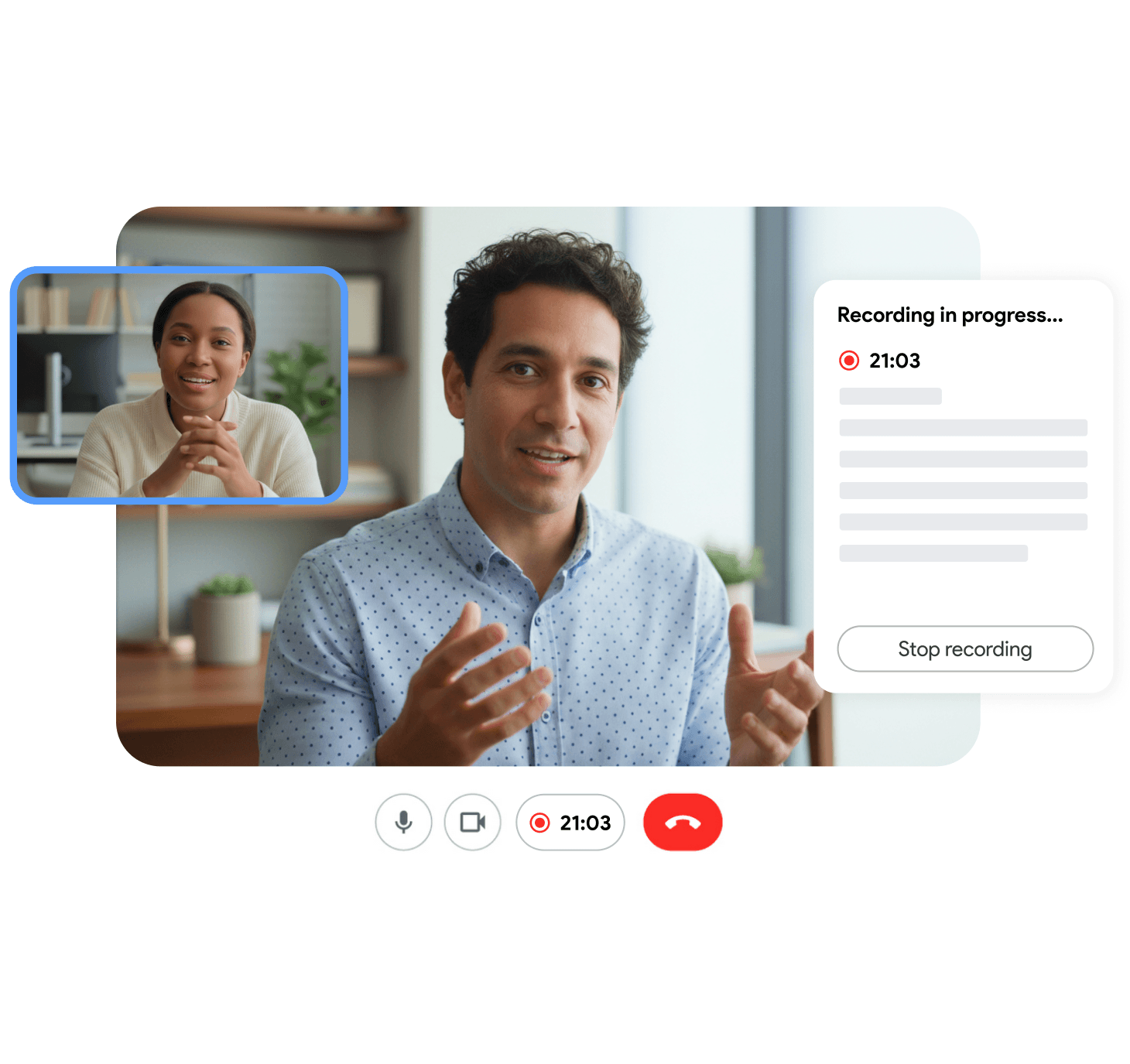
FAQ
How long should a recap be?
Aim for one screen in the channel post (roughly 150 to 300 words) plus a Doc if you need tables. If the recap exceeds 500 words, you probably pasted narrative instead of decisions and actions.
Should I include attendees in the recap?
List attendees in the Doc header if your team audits participation. For chat posts, names in Action items are enough. Do not tag everyone unless they have a task.
What if no decisions were made?
Say “No decisions this session” under Decisions. Still publish Action items and Open questions so absent teammates know nothing was silently finalized.
Is an async recap the same as meeting minutes?
Minutes often follow a formal governance format (motions, votes, approvals). An async recap is lighter and optimized for product and operations teams. Use your legal team’s minute format for board or compliance meetings.
Start with one meeting this week
Duplicate the six-block template into your team wiki today. Use it on the next cross-time-zone call. Post the written recap before you share the recording link.
Once the format sticks, teammates in other regions stop asking for “a quick sync to catch up.” They read, act, and move on. That is the point of a good recap.