10 Google Meet Tips That Save You Hours Every Week
Lesser-known Google Meet shortcuts, settings, and workflows that compound across hundreds of meetings a year. The tips power users actually rely on in 2026.


If you spend 15 hours a week in Google Meet, even a 30-second improvement per call adds up to a full workday a year. Most users only know 10% of what Google Meet can do.
Here are 10 tips that experienced power users rely on. Each one is small. Together they reshape how you spend your meeting time.
1. Use Keyboard Shortcuts for Mute and Camera
Stop hunting for the mute button mid-sentence.
- Ctrl + D (Mac: ⌘ + D) toggles your microphone
- Ctrl + E (Mac: ⌘ + E) toggles your camera
- Ctrl + Alt + H raises your hand
- Ctrl + Alt + C opens the chat panel
Memorize the first two. They will save you the most time over a career.
2. Pin Yourself to See Yourself Clearly
Most people do not realize they have spinach in their teeth until the meeting ends. Pin your own video to the main grid by clicking the pin icon on your tile.
This is especially useful for sales reps and execs who do a lot of customer-facing video. You catch posture problems, lighting issues, and unfortunate background details in real time.
3. Turn On Live Captions for Every Call
Captions are not just for accessibility. They make it dramatically easier to follow fast talkers, technical jargon, and accented speech.
Click the CC button in the bottom toolbar, or press Ctrl + Alt + C. Captions appear at the bottom of your screen and disappear when you leave.
4. Use Companion Mode in Conference Rooms
If you are in a conference room with a TV displaying the meeting, joining from your laptop in “Companion Mode” gives you chat, polls, captions, and screen sharing without doubling the audio.
Click “Use Companion Mode” on the join screen. Your microphone and speakers stay off, but you get all the interactive features.
5. Schedule Meetings With Dial-In Backups
For external calls with executives or international participants, always schedule with a phone dial-in number attached.
Google Calendar adds it automatically when you create a Meet event from the calendar. If a participant’s wifi dies, they can dial in from their phone and the meeting continues.
A 5-minute reschedule because a key participant could not reconnect costs every other attendee 5 minutes too. With 8 people on the call, that is 40 person-minutes of waste from one wifi hiccup.
6. Use “Q&A” for Large Meetings Instead of Chat
Chat in a 30-person meeting becomes noise. Google Meet has a separate Q&A panel that lets attendees submit and upvote questions.
Enable it from the bottom-right activities menu. The host sees questions sorted by upvotes, which surfaces what the room actually wants to ask.
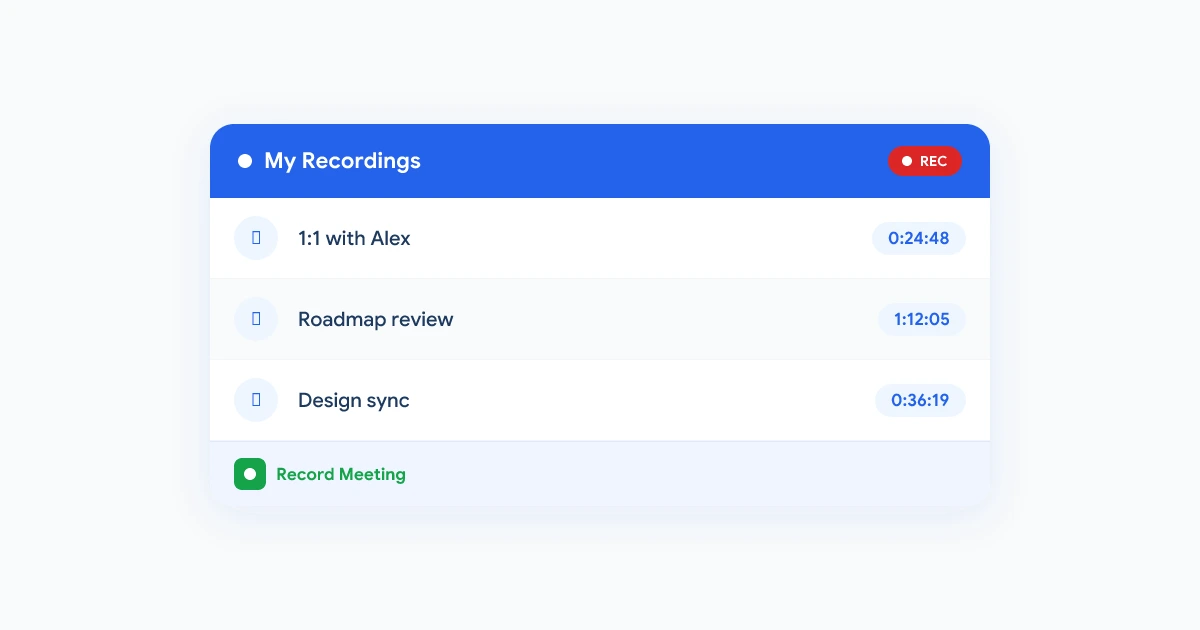
7. Record Every Meaningful Meeting
The hidden cost of not recording is the meeting you have to rerun next week because nobody remembers what was decided.
Native Google Meet recording is available on most paid Workspace plans. For more flexibility (transcripts, summaries, clip libraries), use a dedicated tool. We compared the options in our breakdown of RecordMeeting vs Otter.ai.
For where recordings are stored and how to access them later, see our Google Meet recording locations guide.
The fastest way to get started is with the RecordMeeting Chrome extension, which adds automatic recording to any Google Meet in under a minute. If your team is on Google Workspace, the Google Workspace addon integrates directly with Calendar so every meeting is captured without any manual step.
8. Use Breakout Rooms for Workshops, Not Lectures
If you are running a meeting larger than 8 people, default to breakouts.
The host clicks the breakout rooms icon (bottom-right activities menu) and assigns participants. Conversation density goes up, participation goes from 20% of the room to 100%, and you get more output in less time.
9. Mute Notifications During Critical Calls
Mac users: turn on Focus mode (top-right control center) before joining. Windows users: enable Focus assist.
Slack pings, calendar reminders, and personal text previews are the three most embarrassing screen-share moments. Two seconds of setup eliminates them.
10. Send a Calendar Recap Within 10 Minutes
The half-life of meeting attention is brutal. Send the recap before everyone has switched contexts.
Best practice: while still in the meeting, write three bullets. Decisions, owners, deadlines. Send as a calendar event update so it lands in everyone’s inbox automatically.
If you have an AI tool generating a transcript, paste it into a chat assistant and ask for a 60-word recap with three action items. Edit, send. Total time: 2 minutes.
Auto-record, transcribe, and summarize every Google Meet. Recaps land in your inbox before the next meeting starts.
Get StartedFrequently Asked Questions
The Bottom Line
Pick three tips from this list that you do not currently use. Try them this week. The compounding payoff over a year of meetings is enormous.
For deeper meeting workflows, see our guide on how to take better meeting notes with AI.