Google Meet Recording Without Bot: How to Capture Calls Invisibly
Need google meet recording without bot? Compare native Workspace recording, browser extensions, and local capture so no AI notetaker joins your call.

You want google meet recording without bot, which usually means one thing: capture the call without a third-party notetaker like “Otter Pilot” or “Fireflies Notetaker” appearing in the participant list. That visible bot can slow client calls, trigger security reviews, and get blocked by IT policies before it ever joins.
The good news is that several recording paths never add an extra attendee. Browser extensions capture audio inside your Meet tab. Desktop apps record system audio locally. Google’s own built-in recorder is also not a bot, though it does notify everyone when recording starts. This guide compares each approach, walks through setup, and covers what to do when a native recording never shows up in Drive.
Key takeaways
- A “recording bot” joins Meet as a participant. Everyone sees it in the attendee list, and some organizations block external bots entirely.
- Browser and local capture stay invisible. Nothing new appears in the call, because recording happens on your device, not inside Google’s meeting roster.
- Native Google Meet recording is not a bot either, but it requires a paid Workspace plan, host permissions, and shows a red recording indicator to all participants.
- Free Gmail and Business Starter cannot use native recording. If the record button is missing or greyed out, a no-bot extension is often the fastest fix.
- Record Meeting records from your browser tab with no bot joining the call, and adds a transcript and summary on Pro.
What counts as a Google Meet recording bot?
When people search for google meet recording bot alternatives, they usually mean tools that dispatch an automated participant into the call. That participant has a name like “Fireflies.ai Notetaker” or “Read.ai Meeting Bot.” It connects through meeting APIs, pulls the audio stream to a vendor cloud, and transcribes it there.
That design has trade-offs:
- Visible presence. External attendees often ask what the bot is. In sales or client calls, that question can derail the first minute.
- Join latency. Bots can take 10 to 30 seconds to enter, so early conversation may be missed.
- Admin blocks. Workspace administrators can restrict third-party bots. UC Today reported in 2026 that Microsoft Teams now labels external bots as “Unverified” and requires organizer admission, and Google has tightened controls around AI notetakers as well.
- Cloud routing. Audio passes through the vendor’s servers before you get a transcript.
Google Meet recording without bot means the opposite: your capture method never appears as a meeting guest. Browser extensions, Chrome-based recorders, and desktop system-audio apps all fit that definition. Google’s built-in recorder also does not add a bot, but it is a separate category because every participant gets an on-screen recording notification.
Native Google Meet recording (no bot, but not invisible)
Google’s built-in recording is the official path for Workspace customers. According to Google’s Meet recording requirements, supported editions include Business Standard, Business Plus, Enterprise tiers, Education Plus, Teaching and Learning Upgrade, Workspace Individual, and Google One with 2 TB or more storage.
Important limits to know upfront:
- Not free. Personal Gmail accounts and Business Starter plans do not include native recording.
- Host or co-host only. Regular participants cannot start it, even on a qualifying plan.
- Everyone is notified. A red recording indicator appears for all attendees when recording starts.
- Desktop first. Native recording on computer is the primary supported workflow. Mobile options are limited.
- 8-hour cap. Steegle notes that native recordings stop automatically after 8 hours.
Your administrator must also enable recording in the Admin console. Google’s admin documentation explains that both the organization and the person starting the recording need available Google Drive storage. If either quota is full, the recording fails silently or never completes processing.
When native recording fits your workflow, it is the cleanest option inside Google’s ecosystem. The file lands in the organizer’s Meet Recordings folder in Drive. For a full walkthrough of where files appear, see our guide on where Google Meet recordings are saved.
If the record button is greyed out despite a paid plan, read Google Meet recording greyed out before you assume a bug.
Browser extension recording: the practical no-bot path
For most teams that need google meet recording without bot, a Chrome extension is the balance between simplicity and invisibility. Extensions run inside your browser tab. They capture the audio and video stream that already reaches your computer during the call. No new participant joins. No lobby admission. No “who is this bot?” moment.
This architecture matters for three reasons:
- Works on free Gmail accounts. You do not need Business Standard or admin approval for the extension itself.
- Participants can record their own copy. You are not waiting for the host to start Google’s recorder. See our guide on recording Google Meet without host permission for the legal and ethical lines around that.
- Survives bot-blocking policies. Because nothing joins through the meeting API, IT rules that block external notetaker bots often do not apply.
How Record Meeting works without a bot
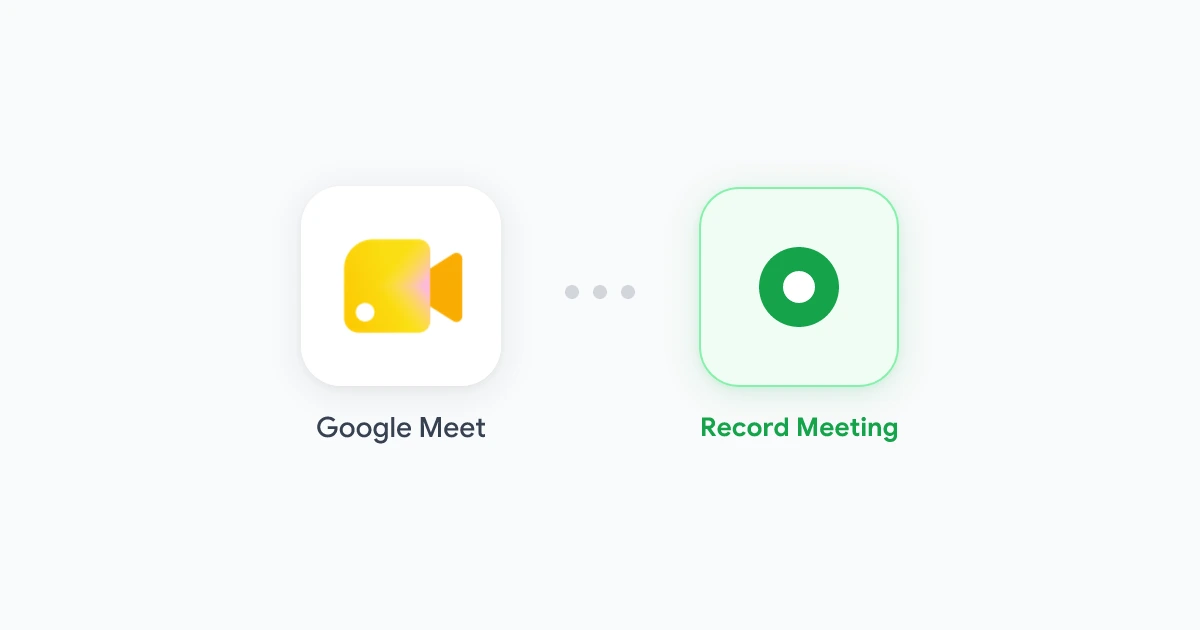
Record Meeting is a Chrome extension and Google Workspace add-on built for this exact workflow:
- Install the extension from the Chrome Web Store.
- Join your Google Meet call normally.
- Click the Record Meeting icon in your toolbar and start recording.
- When the call ends, your recording saves to your Record Meeting workspace, with the transcript and AI summary on Pro.
No bot appears in the participant list. Google Meet does not show a Record Meeting-specific notification. The capture happens in your browser session on your device.
 Try Record Meeting
Record Google Meet from your browser tab. No bot joins the call. Transcript, summary, and action items on Pro.
Get Started Free
For a deeper comparison of bot-based tools versus browser capture, read why teams choose Record Meeting over Otter.ai.
Desktop and system-audio capture (local, no bot)
Desktop apps take a different route. Instead of reading the browser tab, they capture system audio (what you hear through speakers or headphones) plus your microphone. On macOS, modern apps use Apple’s ScreenCaptureKit framework. On Windows, they tap the OS audio mixer directly.
Examples in this category include local transcription apps and open-source tools like OBS Studio. The pattern is the same:
- No bot joins the call.
- Works across Zoom, Teams, and Google Meet because all platforms route audio through your operating system.
- More setup. You may need to grant Screen Recording or Microphone permissions, configure audio sources, and manage file storage yourself.
- Transcription varies. OBS records video well but does not transcribe by default. Dedicated apps may send audio to a cloud service for processing even though no bot joined the meeting.
Desktop capture suits power users who want full control over file format and storage. For most Google Meet users who also want searchable transcripts, a browser extension is usually faster to deploy across a team.
Bot vs no-bot vs native: quick comparison
| Method | Bot joins call? | Works on free Gmail? | Transcript included? | Visible to participants? |
|---|---|---|---|---|
| Meeting bot (Otter, Fireflies) | Yes | Often yes | Yes | Yes, bot in attendee list |
| Browser extension (Record Meeting) | No | Yes | Yes, with Pro | No extension-specific alert |
| Native Google Meet recording | No | No (paid plan required) | Captions optional | Yes, red recording indicator |
| Desktop system-audio (OBS, etc.) | No | Yes | Depends on tool | No |
| Caption-only extension (Tactiq) | No | Yes | Yes (from captions) | No, but needs captions on |
Choose based on your constraints:
- Need official Drive storage and your org already pays for Business Standard+? Native recording.
- Need transcript plus summary without a visible bot? Browser extension.
- Client calls where any extra attendee is awkward? Avoid bot tools entirely.
- IT blocks third-party meeting bots? Browser or desktop local capture.
For step-by-step setup across laptop and phone, see our how to record Google Meet landing guide.
How to get a Google Meet recording when native save fails
Search traffic around how to get google meet recording often spikes after a call ends and the file is nowhere to be found. If you used native Workspace recording, work through this checklist before you re-record:
- Wait for processing. Google can take from a few minutes up to 24 hours to finish longer recordings, according to Bluedot’s Drive guide.
- Check the organizer’s account. Recordings save to the meeting organizer’s Drive, not every participant’s. Sign in to the account that created the calendar event.
- Open the Meet Recordings folder. In Google Drive, search for “Meet Recordings” or check the email link Google sends when processing completes.
- Verify storage space. Both your account and your organization need available Drive quota, per Google’s admin documentation.
- Confirm recording actually started. If no one clicked Start recording during the call, no file exists to find.
If native recording was never an option because of plan limits, switch to a no-bot extension for the next call rather than chasing a file that was never created.
Consent and policy reminders
Technology that records without a bot does not remove legal or workplace obligations. Many jurisdictions require consent from all parties on a call. Even when your tool stays invisible in the participant list, announcing “I’m recording for my notes” remains the safest practice.
Company policies may require using approved tools only, retaining recordings for a set period, or storing files in specific systems. Check with your manager or IT team before you adopt any new recorder, bot or not.
FAQ
Is Google Meet recording free?
Native Google Meet recording is not free. It requires a qualifying Google Workspace edition such as Business Standard or higher, or Google One with 2 TB or more storage. Free personal Gmail accounts and Business Starter plans do not include the built-in record button. Browser extensions like Record Meeting work on any Google account and do not require a paid Workspace subscription.
How do I get a Google Meet recording after the call?
If you used native recording, open the meeting organizer’s Google Drive and look in the Meet Recordings folder. Google also emails a link when processing finishes, which can take up to 24 hours. If you used Record Meeting or another extension, the file is in that tool’s library immediately after you stop recording, with the transcript and summary on Pro.
Why is my Google Meet recording not showing up?
The most common reasons are processing delay, checking the wrong Google account, or insufficient Drive storage. Native recordings belong to the organizer, not guests. If you joined someone else’s meeting and expected their recording in your Drive, it will not appear there. Confirm that someone actually started recording during the call. If the record button was greyed out, native recording was never available. Use a no-bot extension on your next call instead.
What is the difference between a recording bot and a browser extension?
A recording bot joins the meeting as a visible participant and pulls audio through meeting APIs. A browser extension captures the audio and video already playing in your Meet tab on your own device. Extensions do not add anyone to the attendee list. Bots can be blocked by IT policies. Extensions typically are not, because they behave like local screen capture rather than an external guest.
Can participants record Google Meet without a bot?
Yes. Participants cannot start Google’s native recorder, but they can use a browser extension or desktop capture tool on their own device. Each person gets their own recording file. Follow your local consent laws and team policy, and consider announcing that you are recording even when the tool does not trigger a Meet notification.
Conclusion
Google meet recording without bot comes down to choosing capture that stays off the participant list. Meeting bots are convenient for auto-join workflows, but they are visible, blockable, and awkward on external calls. Native Google recording avoids bots but needs a paid plan, host access, and notifies everyone anyway.
For most users who want transcript, summary, and no extra attendee, a browser extension is the practical default. Record Meeting records from your Meet tab in Chrome, works on free and Workspace accounts, and never sends a bot into the call.
Install the extension, join your next Meet, and start recording in one click. Your recording is ready when the call ends, and with Pro so are the transcript and summary.