How to save a Google Meet recording to your computer
Learn how to save a Google Meet recording to your computer: download it from Google Drive, capture any call locally without a paid plan, and play the.webm file.

To save a Google Meet recording to your computer, open the Meet Recordings folder in the organizer’s Google Drive, right-click the file, and choose Download. The video lands on your machine as a .webm file. That is the short answer, and it works every time the native recording feature was used. The catch is that the native feature only exists on paid Google Workspace plans, so plenty of people open Drive and find nothing there.
This guide covers both situations. You will learn exactly how to download a recording that already exists, what to do when you are not the meeting organizer, and how to capture and save a Meet call locally when you do not have a paid plan at all. If you have ever wondered where Google Meet recordings are saved and come up empty, start here.
Key takeaways
- Native Google Meet recordings save to the organizer’s My Drive > Meet Recordings folder, and can take up to 24 hours to appear.
- To save a Google Meet recording to your computer, download the file from Drive. It arrives as a
.webmvideo. - Native recording needs a paid Workspace edition (Business, Enterprise, or Education) and host or co-host access.
- No paid plan? A browser extension or your operating system’s screen recorder saves the call to your computer for free.
- Open
.webmfiles in VLC, QuickTime, or Windows Media Player, or convert to MP4 for editing.
Where a Google Meet recording lives before you save it
Before you can download anything, the file has to exist somewhere. Google stores native recordings in one place: the meeting organizer’s Google Drive, inside a folder called Meet Recordings under My Drive. This is true no matter who pressed the record button. If a co-host started the recording, it still lands in the organizer’s Drive, not theirs.
A few things happen automatically once the meeting ends:
- An email is sent: Google emails a recording link to the organizer and to whoever started the recording.
- A Calendar link appears: If the meeting was scheduled in Google Calendar, the recording link is added to the event so invitees can find it later.
- Drive storage is used: The file counts against the organizer’s Google Drive storage quota, which matters for long calls.
The most common surprise is timing. The recording does not show up the instant you hang up. Google needs to process the video, and per its official Meet recording documentation, it can take up to 24 hours to land in Drive. If the folder is empty right after a call, that is usually why. Wait, refresh, and check the organizer’s account rather than your own.
How to save a Google Meet recording to your computer from Drive
Once the recording is in Drive, saving it locally takes under a minute. Here is the full sequence.
- Open Google Drive: Go to drive.google.com and sign in with the organizer’s account.
- Find the folder: In the left sidebar, click My Drive, then open the Meet Recordings folder.
- Pick the file: Recordings are named by meeting title, date, and time, so the right one is easy to spot. Click it to preview if you want to confirm.
- Download it: Right-click the file and choose Download, or open it and click the download icon in the top corner.
- Save it: Your browser saves a
.webmcopy to your Downloads folder. Move it wherever you keep meeting files.
2026-06-22-Q3-planning.webm is far easier to find six months later than the default timestamp string.
If you are not the meeting organizer
This is where many people get stuck. Because the file lives in the organizer’s Drive, you cannot download it unless they share it with you. Google’s own community guidance confirms that non-organizers have no direct download path. Ask the organizer to either share the Drive file with view-or-download access, or forward the recording email. Once it is shared, the same right-click Download step works from your account. If recording is not even available in your meetings, our guide on the Google Meet record button being greyed out explains the eligibility checks to run.
What format the file is in, and how to play or convert it
Google Meet recordings download as .webm, an open video format built for the web. It plays fine in most modern browsers, but double-clicking the file on a fresh computer can throw an error because the default media player does not always support it.
To watch it locally, use a player that handles .webm:
- VLC Media Player: Free, works on Windows, Mac, and Linux, and opens
.webmwithout setup. - QuickTime: Available on Mac, though older versions may need a plugin.
- Windows Media Player: Recent Windows builds support
.webmnatively.
If you need to edit the recording or share it with someone who insists on MP4, you will want to convert it. Google Drive’s Google Photos integration allows basic trimming, and free desktop tools convert .webm to MP4 for use in editors like DaVinci Resolve or Premiere Pro. Convert first, edit second, because most timeline editors choke on raw .webm from Meet. For a deeper look at turning a recording into searchable text and summaries, see our Google Meet transcript guide.
How to save a Google Meet recording to your computer without a paid plan
Here is the part the official docs skip. The native record button requires a Business, Enterprise, or Education Workspace edition, plus host or co-host status. If you are on a free personal Gmail account, that button simply is not there, and Drive will never have a Meet Recordings folder. You can still record and save the call to your computer. You just have to use a different tool.
Two reliable approaches work on any Google account, including free Gmail:
- Your operating system’s screen recorder: On Windows, press Win + G to open Xbox Game Bar and capture the Meet tab, which saves to your Captures folder. On Mac, press Shift + Cmd + 5. This records the whole screen, so close other windows first.
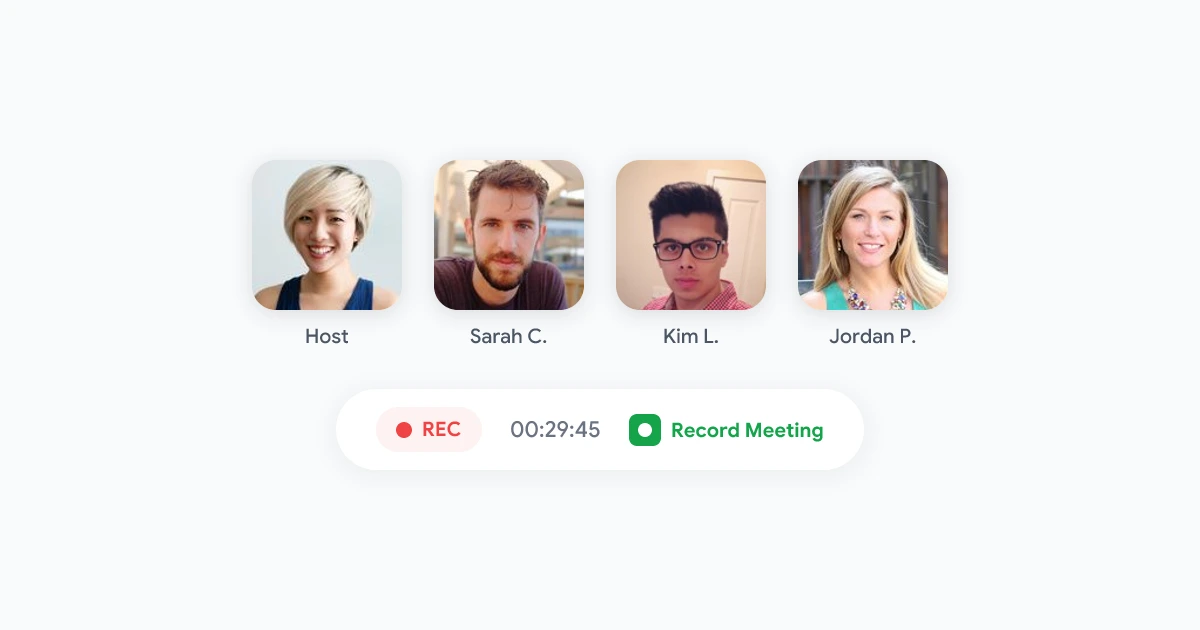
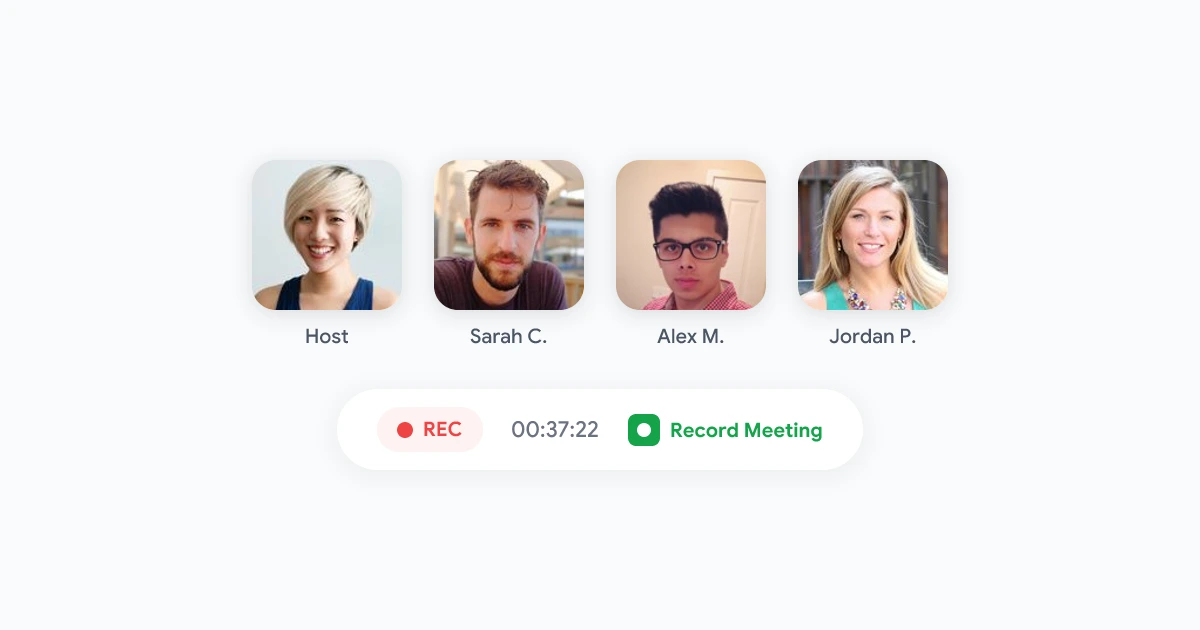
- A browser extension: A tool like Record Meeting captures the call directly in your browser tab, no bot joins the meeting, and the recording happens locally. It works without any Workspace upgrade, and the file is yours to keep. See the step-by-step how to record Google Meet walkthrough.
The extension route is the cleaner option for regular meetings. It avoids the “record my whole screen and hope nothing pops up” problem, and it adds transcripts and summaries on Pro on top of the raw video. If you specifically want a capture method that does not put a bot in the room, our record Google Meet without a bot article breaks down how that works.
 Try Record Meeting
Record any Google Meet call straight from your browser, no paid Workspace plan and no bot joining the room. The video saves to your account in one click, with the transcript and summary on Pro.
Get Started Free
A quick note on consent
Saving a recording to your computer is the easy part. Doing it lawfully matters more. Recording laws vary by location, and some regions require everyone on the call to consent before you record. Whether you use the native feature, a screen recorder, or an extension, tell participants the call is being recorded. A one-line heads-up at the start of the meeting keeps you on the right side of both etiquette and the law.
FAQ
Why is there no Google Meet recording in my Google Drive?
Three common reasons. The recording can take up to 24 hours to process and appear, the file lives in the organizer’s Drive rather than yours, or no native recording was ever made because the account is not on an eligible paid Workspace plan. Check the organizer’s My Drive > Meet Recordings folder first.
Can I save a Google Meet recording to my computer for free?
Yes. If the native feature is not available on your account, use your operating system’s screen recorder (Xbox Game Bar on Windows, Shift + Cmd + 5 on Mac) or a free browser extension like Record Meeting. Both save the call directly to your device without a paid Workspace upgrade.
What file format is a Google Meet recording saved as?
Native Google Meet recordings download as a .webm video. Play it in VLC, QuickTime, or a recent version of Windows Media Player. If you need MP4 for editing, convert the file first with a free desktop converter.
Can I download a Google Meet recording if I am not the organizer?
Not directly. The file sits in the organizer’s Drive, so you need them to share it with you or forward the recording email. Once it is shared with download access, you can save it to your computer the same way you would your own file.
How long does a Google Meet recording take to appear in Drive?
Usually a few minutes, but Google says it can take up to 24 hours for longer or busier meetings. If the Meet Recordings folder is empty right after the call, wait, refresh, and confirm you are signed in to the organizer’s account before assuming something went wrong.
Save every meeting, the simple way
To save a Google Meet recording to your computer, the path depends on how the call was captured. If the native feature was used, open the organizer’s Meet Recordings folder in Drive and download the .webm file. If you are not on a paid plan, a screen recorder or a browser extension records the call locally and hands you the file directly.
For most people, the extension is the least painful route. It records on any Google account, skips the 24-hour Drive wait, and adds a transcript and summary on Pro. Install Record Meeting before your next call, hit record, and the file is on your computer the moment the meeting ends.