8 Best Free Voice Recording Transcription Software Tools (2026)
Compare the best free voice recording transcription software options in 2026, from Google Docs Voice Typing to Otter and Whisper-based apps, plus their real limits.

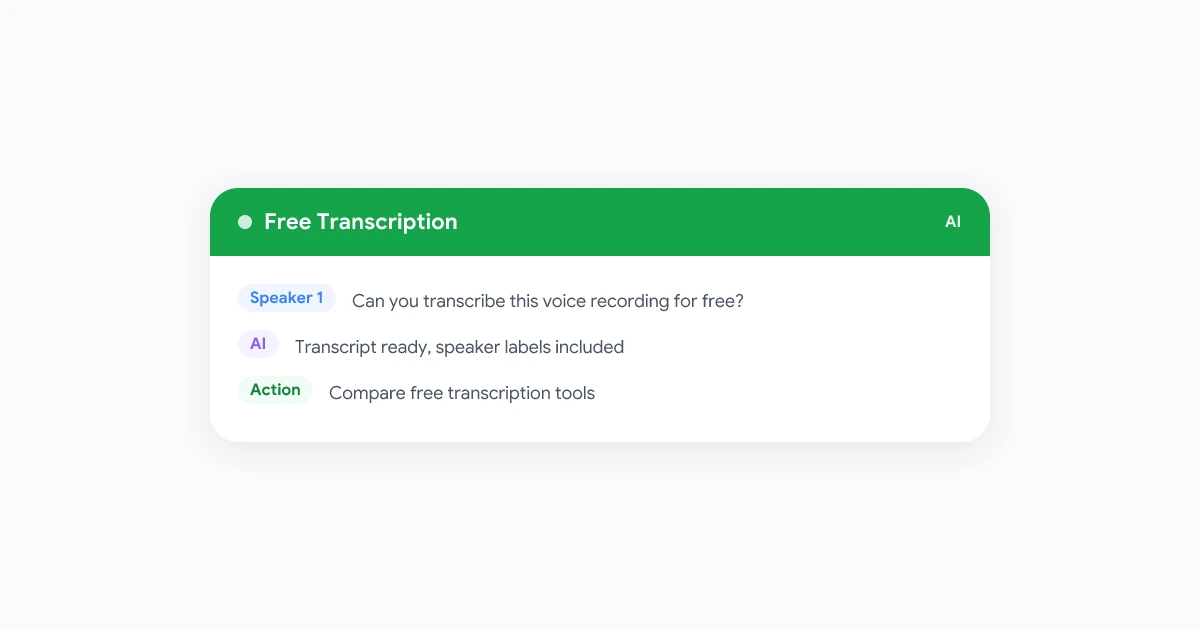
Free voice recording transcription software used to mean choppy accuracy and a lot of manual cleanup. That has changed. AI models now handle accents, cross-talk, and background noise well enough that a free tier can produce a usable transcript for interviews, lectures, voice memos, and meetings. The catch is that “free” comes with different limits depending on the tool: minutes per month, file length caps, or features locked behind a paywall.
This guide compares the free voice recording transcription software worth using in 2026, what each one is actually good at, and where the free tier runs out. If your recordings come from Google Meet specifically, there is a faster path covered near the end.
What to Look for in Free Transcription Software
Before comparing tools, it helps to know which limits actually matter. Most free transcription software restricts you in one of these ways:
- Minutes or file-length caps. Some tools cap you at 30-60 minutes per file, or a monthly quota (300 minutes is common).
- Speaker labels. Many free tiers transcribe fine but strip out who-said-what, which matters for interviews and meetings with more than two people.
- Export formats. Free plans often lock you to copy-paste text, with SRT, DOCX, or timestamped exports reserved for paid plans.
- Upload vs. live capture. Some tools only transcribe files you upload after the fact. Others can transcribe live, as the recording happens.
- Privacy and storage. Free tools that store audio in the cloud may retain it for training data. Read the terms if you are transcribing anything sensitive.
Keep these in mind as you read the list below, since they explain why the “best” free tool depends on what you are recording.
The Best Free Voice Recording Transcription Software in 2026
1. Google Docs Voice Typing
Google Docs has a built-in voice to text tool under Tools > Voice typing. It transcribes live as you speak, works in over 40 languages, and costs nothing if you already have a Google account.
Good for: dictating notes, drafts, or short voice memos in real time. Limits: no file upload for existing recordings, no speaker labels, and accuracy drops if you are transcribing audio played back through speakers rather than speaking directly into the microphone.
2. oTranscribe
oTranscribe is a free, open-source browser tool built for manual transcription. It plays your audio file next to a text editor with keyboard shortcuts for rewind, pause, and speed control, but it does not use AI to auto-transcribe.
Good for: journalists and researchers who want full control over accuracy and are comfortable typing along. Limits: it is a transcription aid, not automatic transcription. You still type every word yourself.
3. Otter.ai (Free Plan)
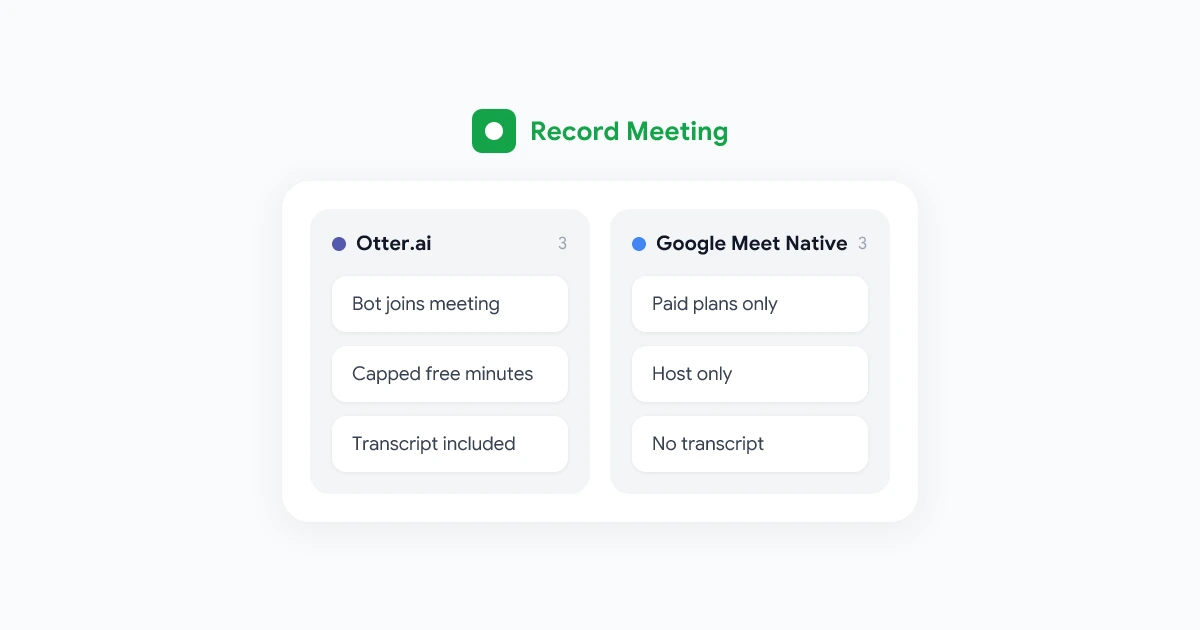
Otter’s free tier includes a monthly minutes allowance with automatic transcription, basic speaker identification, and a searchable transcript.
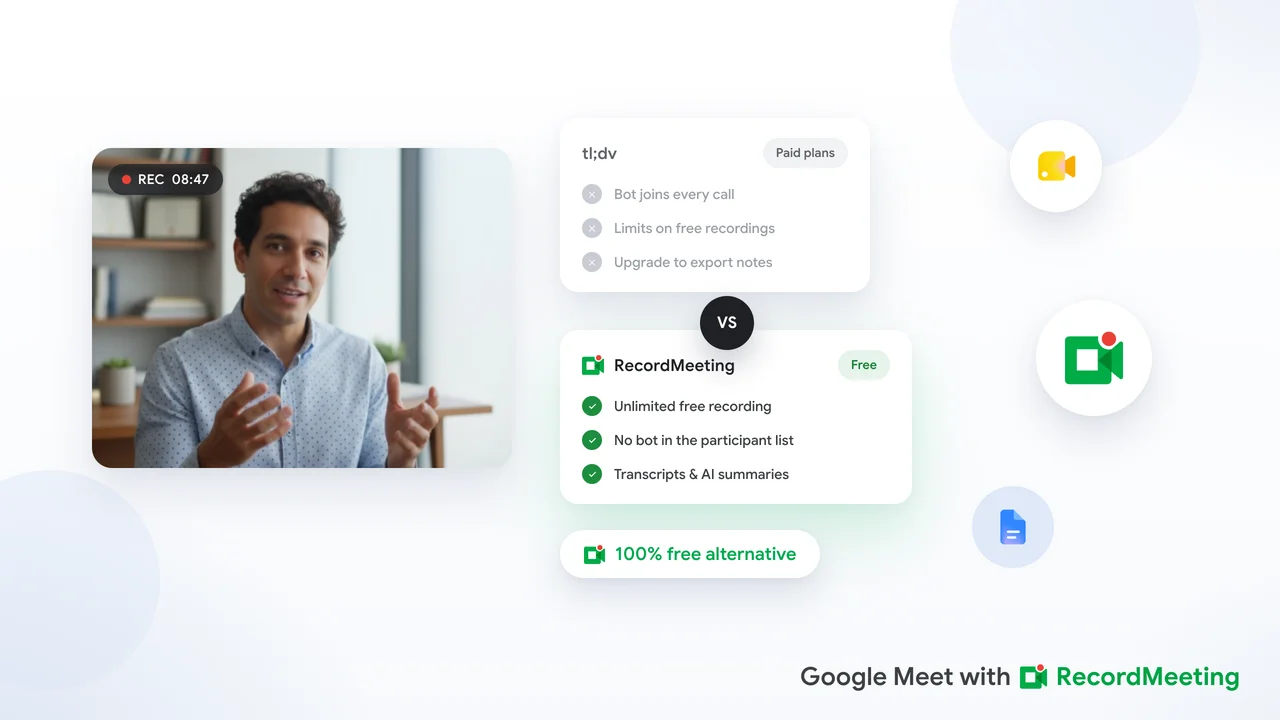
Good for: short recurring calls or interviews within the monthly minute cap. Limits: the free plan’s monthly minutes run out quickly for anyone recording daily, and features like custom vocabulary and advanced export are paid only. If you have outgrown it, see our full tl;dv free alternative comparison for how other tools stack up on free-tier limits.
4. MacWhisper (and Other Local Whisper Apps)
Several free apps wrap OpenAI’s open-source Whisper model to transcribe audio locally on your computer, with no upload and no per-minute limit. MacWhisper is the most polished example on macOS, and similar free wrappers exist for Windows and Linux.
Good for: transcribing long recordings for free with no cloud upload, useful if privacy is a priority. Limits: transcription runs on your device’s processor, so long files take real time to process, and there are no built-in meeting features like calendar sync or auto-generated summaries.
5. YouTube’s Automatic Captions
If your recording already lives on YouTube, its automatic captions can be exported as a transcript with no extra tool.
Good for: a quick, free transcript of a video you already uploaded. Limits: accuracy varies by audio quality, and there is no dedicated interface for multi-speaker interviews or meetings.
6. Whisper Transcription Web Tools
A handful of free web tools (running the same open-source Whisper model as the desktop apps above) let you upload a file and get a transcript back in the browser, no account required for short files.
Good for: one-off transcription without installing anything. Limits: free tiers usually cap file size or duration, and uploading sensitive audio to a third-party web tool is worth thinking twice about.
7. Zoom’s Built-In Transcription (Cloud Recording)
If you are on a paid Zoom plan with cloud recording, Zoom auto-generates a transcript alongside the recording at no extra charge.
Good for: teams already paying for Zoom cloud recording who want a transcript with zero setup. Limits: this only applies to Zoom, requires a paid Zoom tier for cloud recording, and speaker labels depend on participants using distinct account names.
8. RecordMeeting (for Google Meet Calls)
The tools above are built for general audio and video files. If most of what you need to transcribe is Google Meet calls specifically, a purpose-built tool is faster than uploading recordings elsewhere after the fact.
 Try Record Meeting
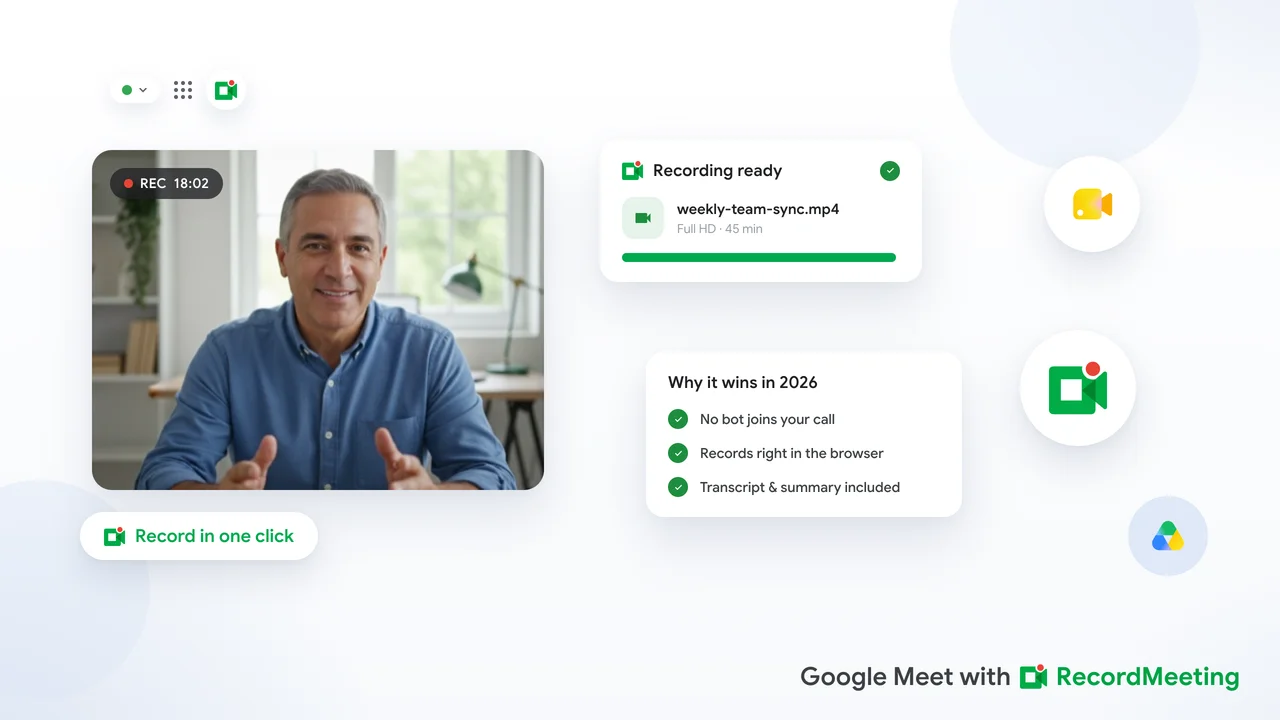
Record Google Meet calls directly in your browser, no bot joining the call, with AI transcription and speaker labels on Pro and a free plan to start.
Get Started Free
Good for: anyone whose recordings are mostly Google Meet calls and who wants speaker labels, summaries, and action items without stitching together separate recording and transcription tools. Limits: it is built around Google Meet, so it is not the right pick if most of your audio comes from in-person interviews or phone calls.
Free Voice to Text Software vs. Free Transcription Software
These two terms get used interchangeably, but they solve different problems. Voice to text software (like Google Docs Voice Typing) converts your live speech into text as you talk, meant for dictation. Transcription software takes an existing audio or video file and converts the recorded speech into text after the fact.
If you are drafting a document by talking instead of typing, you want voice to text. If you already have a recording, whether it is a meeting, an interview, or a voice memo, you want transcription software. Several tools on this list, like Otter and the Whisper-based apps, do transcription specifically rather than live dictation.
Best Free Transcription Software for Interviews and Long Recordings
Interviews and long-form recordings put more strain on a free plan than a five-minute voice memo. Two things matter most here: the minutes cap and speaker labeling.
For a one-off interview under an hour, Otter’s free tier or a Whisper-based web tool will usually get you a usable transcript with minimal setup. For longer recordings, or if you are transcribing interviews on a regular schedule, a local Whisper app like MacWhisper avoids monthly caps entirely since there is no per-minute charge, only processing time on your own machine.
If your interviews or long meetings happen over Google Meet, summarizing long meetings with AI covers how to turn a long transcript into a shorter, actionable summary rather than a wall of text.
Limitations of Free Transcription Tools (and When to Upgrade)
Free tiers are genuinely useful, but they share a few common ceilings:
- Monthly minute limits that reset but do not roll over, so a busy month leaves you stuck mid-way through.
- No custom vocabulary, so names, acronyms, and industry jargon get transcribed incorrectly more often.
- Manual export and sharing. Free plans rarely offer one-click sharing links, so you end up copy-pasting transcripts into email or docs by hand.
- No automatic summaries or action items. A transcript is not the same as knowing what was decided or who owns the follow-up.
If you are hitting these limits every week, it is usually a sign you have outgrown the free tier for that specific use case, not that free tools are bad. It just means the cost of manual work has become higher than the cost of a paid plan.
How to Transcribe a Free Voice Recording Step by Step
- Choose your tool based on the source. Live dictation needs voice to text software. An existing file needs transcription software.
- Check the file length against the free limit before you start, so you are not left with a transcript that stops halfway through.
- Upload or record, then let the tool process the audio. Cloud tools usually finish in a few minutes. Local Whisper apps take roughly the length of the recording, sometimes longer on older hardware.
- Review the transcript for names and jargon, since these are the most common errors even with modern AI transcription.
- Export or copy the result into your notes, docs, or wherever the transcript needs to live.
For Google Meet calls, this whole flow condenses into one step: recording and transcription happen together, with speaker labels and a summary generated automatically once the call ends. If you want the full walkthrough for Meet specifically, see how to transcribe Google Meet.
FAQ
Conclusion
There is no single best free voice recording transcription software, since the right pick depends on what you are recording. Google Docs Voice Typing wins for live dictation. Local Whisper apps win when you want no minute limits and are comfortable with the setup. Otter is a solid all-rounder within its monthly cap. And if most of your transcription need comes from Google Meet, pairing the recording and transcription into one step saves the extra upload entirely.
Whichever tool you start with, the goal is the same: turn a recording into a transcript you can actually search, share, and act on, without the manual work eating up more time than the meeting itself.