Otter.ai vs Google Meet Recording: Which One Should You Use?
Otter.ai vs Google Meet recording compared: pricing, bot visibility, transcript quality, and admin controls, so you can pick the right tool for your calls.

If you have ever stared at a Google Meet invite wondering whether to let Otter.ai’s bot join or just hit Google’s own record button, you are not alone. The two tools solve overlapping but different problems, and picking the wrong one means either a missing transcript or an awkward “who invited this bot” moment in front of a client.
This guide breaks down otter ai vs google meet recording across pricing, privacy, transcript quality, and admin controls, then covers a third option that avoids the trade-offs of both.
Key takeaways
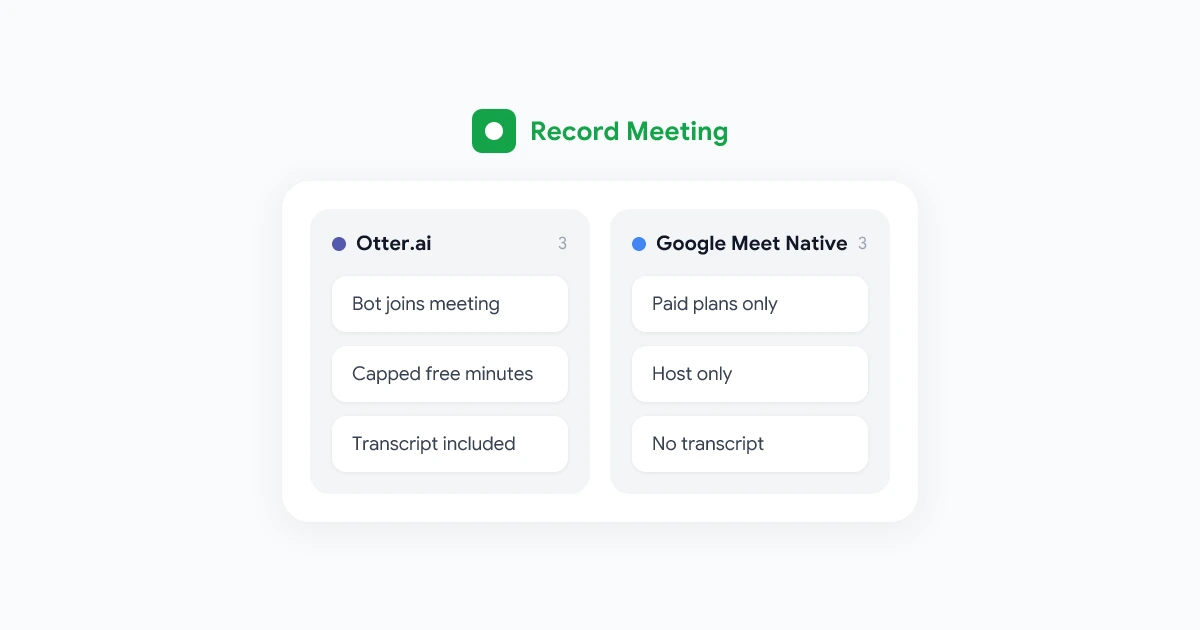
- Otter.ai joins as a visible bot in the participant list to capture audio and generate a transcript, and its free plan caps you at limited monthly transcription minutes.
- Google Meet’s native recording is not a bot, but it only works on qualifying paid Workspace plans, requires host or co-host permission, and does not include a transcript by default.
- Neither tool is free and unlimited at the same time. Otter.ai’s free tier is capped, and Google Meet’s recording is a paid-plan feature.
- Record Meeting records from your browser tab with no bot joining. The free plan covers up to 5 recordings of up to 1 hour each, and the AI transcript and summary come with Pro.
What Otter.ai Actually Does on Google Meet
Otter.ai connects to your calendar and automatically dispatches a bot, often labeled “Otter Notetaker” or similar, into scheduled Google Meet calls. That bot appears in the participant list like any other attendee, joins the audio stream, and streams it to Otter’s servers for live transcription.
What you get:
- A searchable, speaker-labeled transcript, generated in near real time
- AI-generated summaries and highlighted moments after the call
- A slide capture feature that screenshots shared content during the meeting
What trips people up:
- The bot is visible to everyone. In client calls, interviews, or sensitive internal discussions, an unfamiliar bot name in the attendee list can prompt questions or get blocked outright by meeting hosts.
- It needs calendar access and admin approval in many Workspace setups, since IT teams increasingly review which third-party bots can join company meetings.
- Audio leaves your organization. The recording is processed on Otter’s infrastructure before you see a transcript, which matters for regulated industries.
If you want the mechanics of how notetaker bots work more broadly, see our guide on Google Meet recording without a bot.
What Google Meet’s Native Recording Includes (and Skips)
Google Meet’s built-in recorder is Google’s own first-party feature, not a third-party integration. It captures video, audio, and screen share directly, then saves the file to the organizer’s Drive.
Here is what it actually covers, and where it falls short:
- Paid plans only. Native recording requires Business Standard, Business Plus, Enterprise tiers, Education Plus, or Google One with 2 TB or more storage. Free Gmail accounts and Business Starter do not get the feature at all.
- Host or co-host permission required. A regular participant cannot start a native recording, even on a qualifying plan.
- A visible recording indicator, not a bot. Everyone sees a red “recording” badge, but no extra participant joins the call.
- No transcript by default. Google Meet recording saves a video file. A separate transcript needs a different Workspace feature or a third-party tool layered on top.
- Storage limits apply. If the organizer’s Drive is full, the recording can fail to save. For troubleshooting that, see where Google Meet recordings are saved and Google Meet recording greyed out.
 Try Record Meeting
Get a transcript and AI summary from every Google Meet call, no bot joining and no paid Workspace plan required.
Get Started Free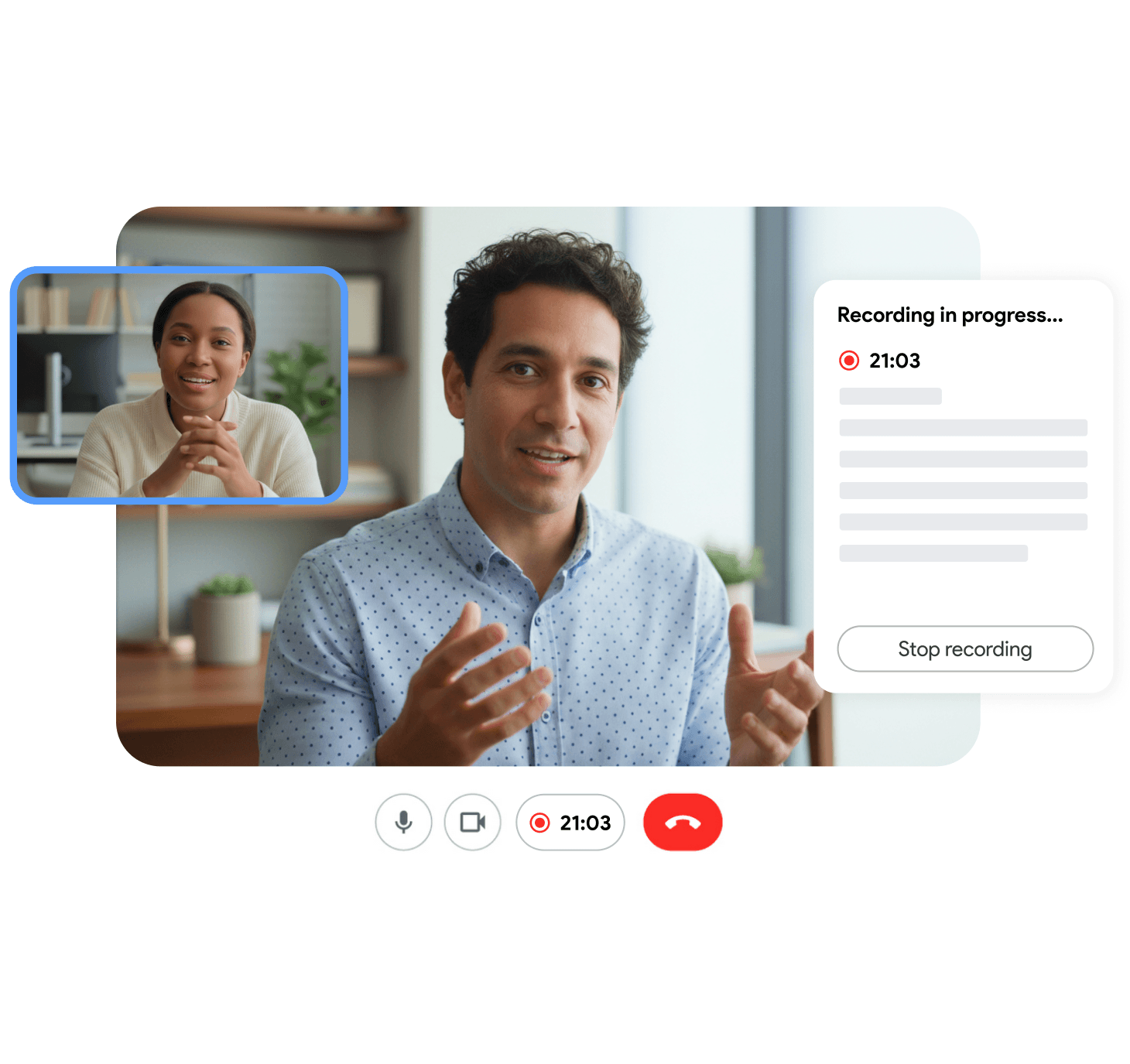
Otter.ai vs Google Meet Recording: Feature Comparison
| Otter.ai | Google Meet Native | |
|---|---|---|
| Joins as a bot | Yes, visible in participant list | No, but shows a recording badge |
| Requires paid plan for basic use | Free tier exists, capped minutes | Yes, Business Standard or higher |
| Who can start it | Anyone with a connected account | Host or co-host only |
| Transcript included | Yes, automatic | No, video only by default |
| AI summary included | Yes, on paid plans | No |
| Audio processed off your org’s infrastructure | Yes | No |
| Works on free Gmail accounts | Yes (bot only, no Meet admin needed) | No |
The pattern is clear. Otter.ai wins on transcript quality and ease of setup, but costs you bot visibility and audio leaving your control. Google Meet’s native recording keeps things in-house, but locks basic recording behind an expensive plan tier and skips the transcript entirely.
Pricing: Is Otter.ai Free? What About Google Meet?
Otter.ai has a free plan, but it caps monthly transcription minutes and limits features like custom vocabulary and advanced summaries to paid tiers. Casual users hit the cap fast if they attend more than a few calls a week.
Google Meet’s native recording is not sold as a standalone add-on. It comes bundled with specific paid Workspace editions, so the real cost is the price difference between your current plan and the cheapest qualifying tier, even if you never touch the transcript feature.
Neither option gives you unlimited recording, transcript, and summary for free at the same time. If cost is the deciding factor, weigh how many calls you actually need covered against each plan’s cap or tier requirement.
Privacy and Security: Bot vs Native vs Browser
For regulated teams, sales calls with clients, or anything involving customer data, the “how” of recording matters as much as the “what.”
- Otter.ai’s bot model means audio streams to a third-party vendor’s cloud before you get a transcript. Review Otter’s data handling terms if you work under HIPAA, GDPR, or similar frameworks. Our GDPR meeting recording guide covers what to check before adopting any AI notetaker.
- Google Meet’s native recording keeps the video inside your organization’s Google Workspace and Drive, which many compliance teams prefer, but it still needs everyone’s awareness since a recording indicator is legally required in most jurisdictions. See our breakdown of meeting recording consent rules if you are unsure what disclosure your region requires.
- Browser-based recording, like Record Meeting, captures the call from inside your own browser tab. No bot joins, and the resulting file and transcript are yours from the start.
Which One Should You Use?
Match the tool to the job:
- Choose Otter.ai if you need an automatic transcript across many meetings and do not mind a visible bot joining, and your team already has budget for the paid tier once you outgrow the free minutes.
- Choose Google Meet’s native recording if your organization already pays for a qualifying Workspace plan, values keeping recordings entirely inside Google’s ecosystem, and does not need a transcript out of the box.
- Choose a browser-based recorder if you want a transcript and AI summary without a bot in the call and without upgrading your Workspace plan just to unlock recording.
For a broader look at recorder options beyond these two, see best meeting recorder for Google Meet.
A Third Option: Recording Without a Bot or a Plan Upgrade
Record Meeting takes a different approach from both Otter.ai and Google Meet’s native feature. It records directly from your browser tab while you are in the call, so nothing new appears in the participant list, and it works on any Google account, not just paid Workspace tiers.
Every recording includes:
- An AI-generated transcript with speaker labels, in 42 languages
- A meeting summary and action items, ready to share right after the call
- A file saved to your own account, not processed through a third-party bot’s cloud
If your team has been choosing between “let the bot in” and “pay for a Workspace upgrade,” this is the option that skips both trade-offs. Learn more about how AI meeting summaries work or read our comparison of tl;dv alternatives for more on bot-based tools.
FAQ
The Bottom Line
Otter.ai and Google Meet’s native recording solve different halves of the same problem. Otter.ai gets you a transcript fast but adds a visible bot and a usage cap. Google Meet’s native recording stays invisible to other attendees but demands a paid plan and skips the transcript. If you want both the transcript and the no-bot experience without upgrading your Workspace plan, a browser-based recorder is worth a look.
Try Record Meeting free to record your next Google Meet call with no bot in sight, then add Pro when you want the transcript, summary, and action items.