Granola for Linux and Chromebook: What Works in 2026
Granola captures meetings only from its Mac and Windows app. Here is what that means on Linux, Chromebook and work laptops, and how to record from Chrome.

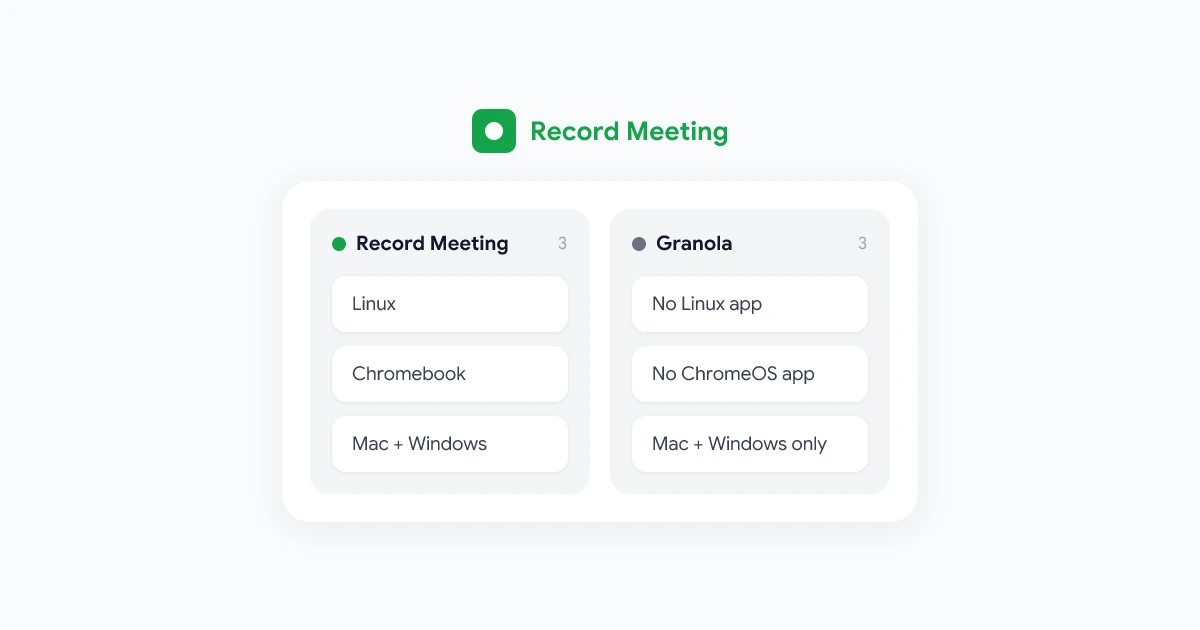
If you searched for Granola on Linux or a Chromebook, here is the short version: Granola can’t capture meetings on either. It needs its desktop app, and that app only exists for macOS and Windows. The web version and the Chrome extension don’t record calls.
This guide explains exactly what Granola supports, which setups are left out, and how to get bot-free recording, transcripts and AI notes from the browser instead.
Where Granola runs
As of October 2026, Granola’s setup guide and help center describe these apps:
| Platform | Can it capture an online meeting? |
|---|---|
| macOS 14 or later | Yes, with the desktop app |
| Windows | Yes, with the desktop app |
| Web app (notes.granola.ai) | No, it views and edits existing notes |
| Chrome extension | No, it adds Google Meet speaker names and a consent message, and needs the desktop app running |
| iPhone and Android | In-person meetings only, not Zoom or Meet calls |
| Linux | No app |
| ChromeOS (Chromebook) | No app |
Granola’s docs say plainly that the web app “cannot capture or transcribe meetings”. The capture always happens in the desktop app, on the computer that is in the call.
Who this leaves out
- Linux users. Developers, researchers and a lot of engineering teams run Ubuntu, Fedora or another distribution. There is no Granola app for them.
- Chromebook users. Schools, frontline teams and many companies hand out Chromebooks. ChromeOS can’t run the Granola desktop app.
- Older Macs. The Mac app requires macOS 14 or later.
- Locked-down work laptops. In many companies, installing a desktop app needs IT approval, and an app that listens to all system audio is exactly the kind IT reviews carefully.
- Shared or borrowed computers. Installing a notetaker on a conference room PC or a colleague’s laptop is rarely an option.
How to record meetings from the browser instead
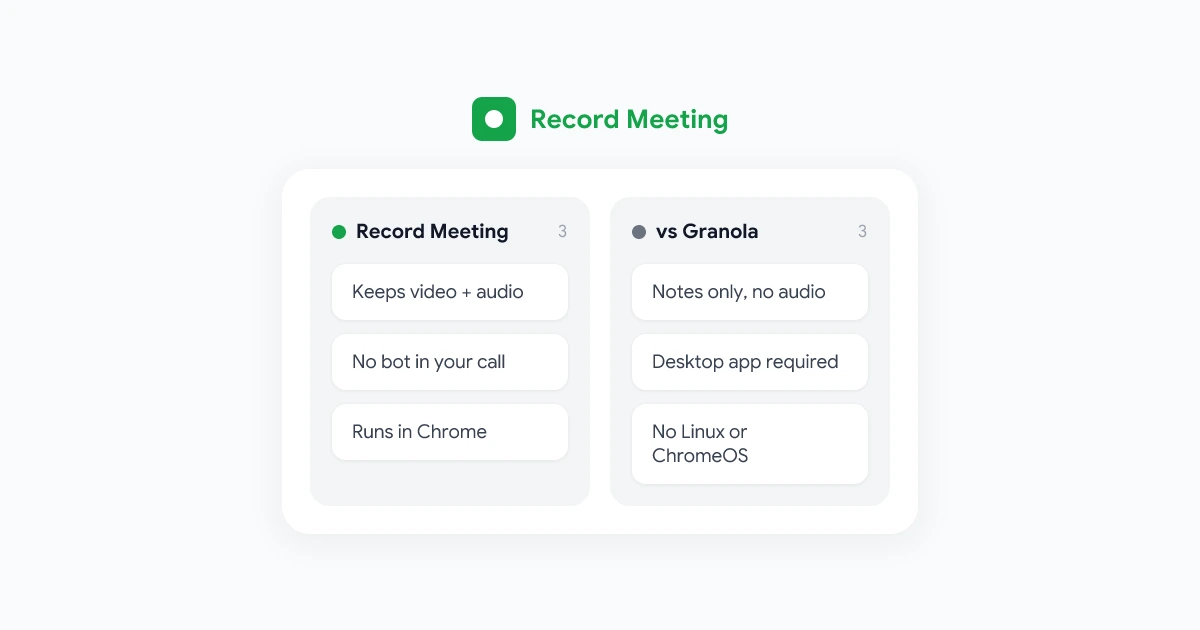
A browser-based recorder avoids the problem, because it only needs Chrome. RecordMeeting is a Chrome extension and Google Meet add-on that records the meeting from your own browser tab, with no bot joining the call, so it works anywhere Chrome does.
What you get:
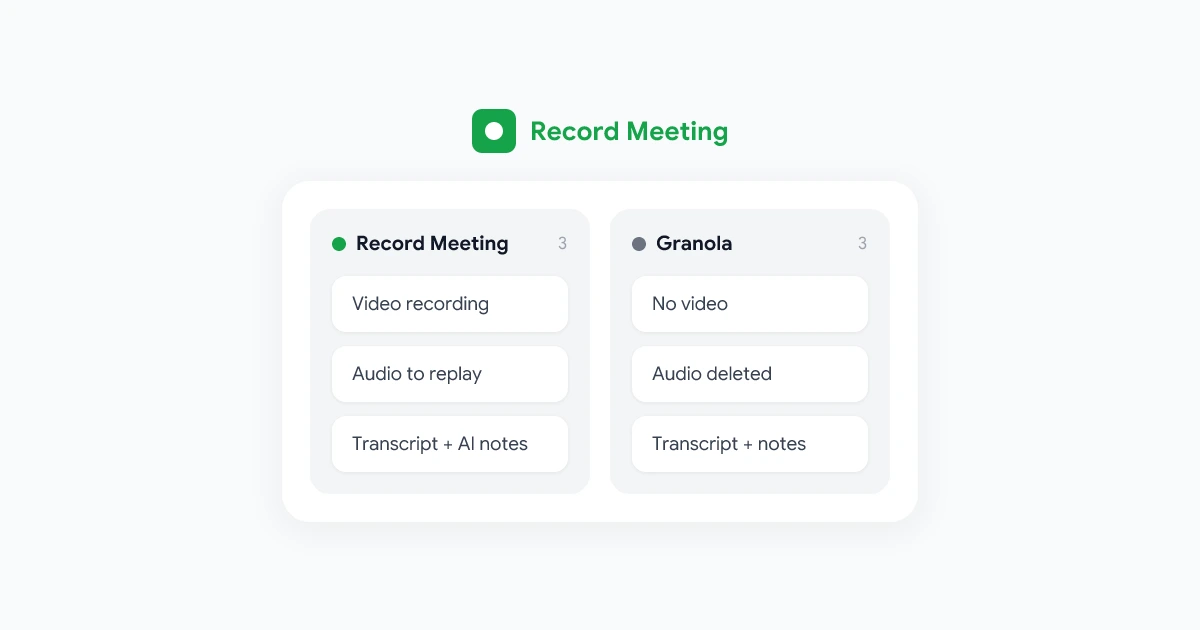
- Video and audio recording of the whole call, which Granola doesn’t keep on any platform.
- No bot, the same as Granola. Nothing appears in the participant list.
- Google Meet, Zoom, Teams, Webex, Slack huddles and more, as long as the call runs in Chrome.
- Transcripts in 50+ languages, AI meeting notes and chat with your recordings on Pro.
- Share links to the recording and transcript.
- Upload a recording you already have to get it transcribed.
Record a meeting on a Chromebook
- Open the Chrome Web Store on your Chromebook and add the RecordMeeting extension.
- Sign in with your Google account.
- Join your meeting in Chrome, for example on meet.google.com or Zoom’s web client.
- Click Record in the meeting window and pick the meeting tab when Chrome asks what to share.
- When the call ends, open the recording from your RecordMeeting dashboard.
If your Chromebook is managed by a school or company, your admin may need to allow the extension first.
Record a meeting on Linux
The steps are the same in Google Chrome on Linux: install the extension, join the call in a Chrome tab and click Record. Join Zoom and Teams through their web clients rather than the native Linux apps, since the extension records what happens in Chrome.
Record in-person meetings from your phone
For a meeting in a room, open the RecordMeeting web app on your phone and record with the microphone. The recording lands in the same workspace as your online calls.
Other options on Linux and ChromeOS
- The meeting platform’s own recorder. Google Meet, Zoom and Teams can record in the cloud, usually on paid plans and only for the host or people the host allows. See how to record Google Meet.
- A bot-based notetaker. Otter, Fathom and Fireflies send a bot into the call, so they don’t care which operating system you use. The downside is a visible extra participant in every meeting.
- OBS Studio or a screen recorder. Free and powerful on Linux, but you get a raw video file with no transcript, notes or sharing unless you add them yourself. You can upload that file to RecordMeeting to get a transcript.
Granola vs RecordMeeting on each platform
| Granola | RecordMeeting | |
|---|---|---|
| Mac | Desktop app | Chrome extension |
| Windows | Desktop app | Chrome extension |
| Linux | Not supported | Chrome extension |
| Chromebook | Not supported | Chrome extension |
| Phone, online calls | Not supported | Not supported |
| Phone, in-person | Native app | Web app |
| Keeps a recording | No | Yes, video and audio |
For the full feature comparison, see RecordMeeting vs Granola. If you are weighing several tools, our guide to the best Granola alternatives covers the main options.
Frequently asked questions
Is there a Granola Linux app?
No. Granola ships desktop apps for macOS and Windows only, and its docs don’t mention Linux.
Does Granola work on a Chromebook?
Not for capturing meetings. You can open the Granola web app to read notes, but it can’t record or transcribe a call.
Does Granola have a browser extension that records?
No. Granola’s Chrome extension adds participant names for Google Meet and can post a consent message, but it doesn’t access meeting audio or video, and it needs the desktop app running.
What is the best Granola alternative for Linux?
If you want no bot in the call, use a browser extension that records from Chrome, such as RecordMeeting. If a bot is acceptable, any bot-based notetaker works regardless of your operating system.
Is the RecordMeeting extension free?
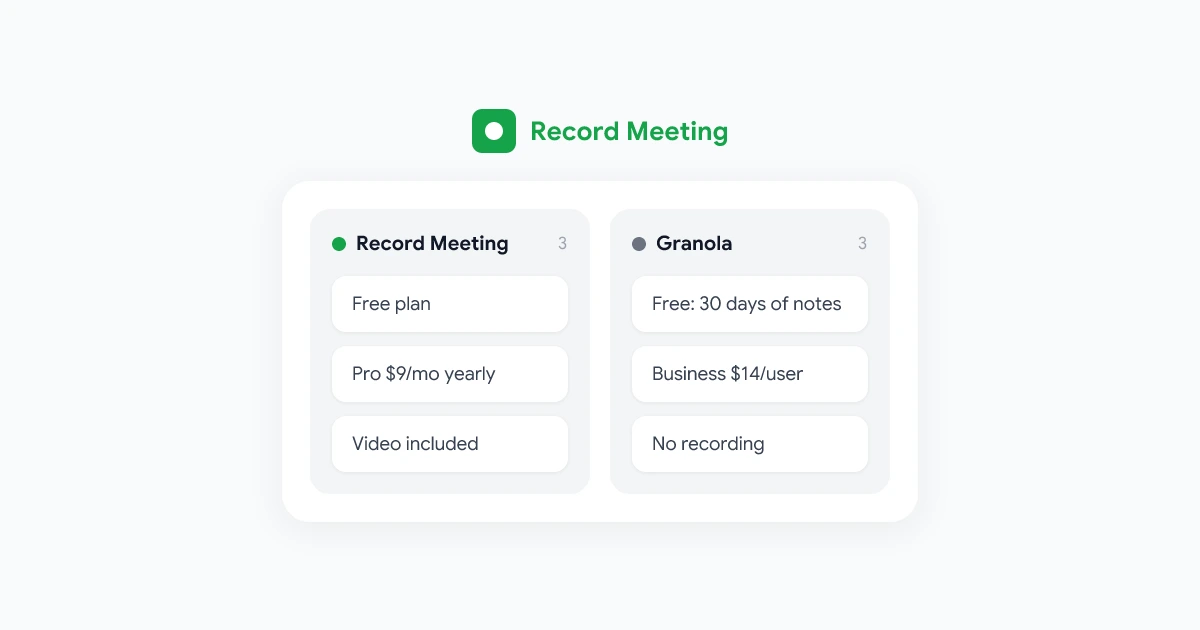
The extension is free to install, and the free plan records up to 5 meetings of up to 1 hour each with no credit card. Transcripts, AI notes and downloads come with Pro, at $15 per month or $9 per month billed yearly.