The Best Granola Alternative in 2026 (One That Keeps the Recording)
Granola writes good notes but keeps no audio or video. Compare the best Granola alternatives in 2026, starting with one that records the whole call with no bot.

Granola changed what people expect from an AI notetaker. There is no bot in the call, you type a few rough notes, and when the meeting ends Granola turns them into clean, structured notes. It is fast, it looks good, and for a lot of people it is the first notetaker that did not feel awkward in front of customers.
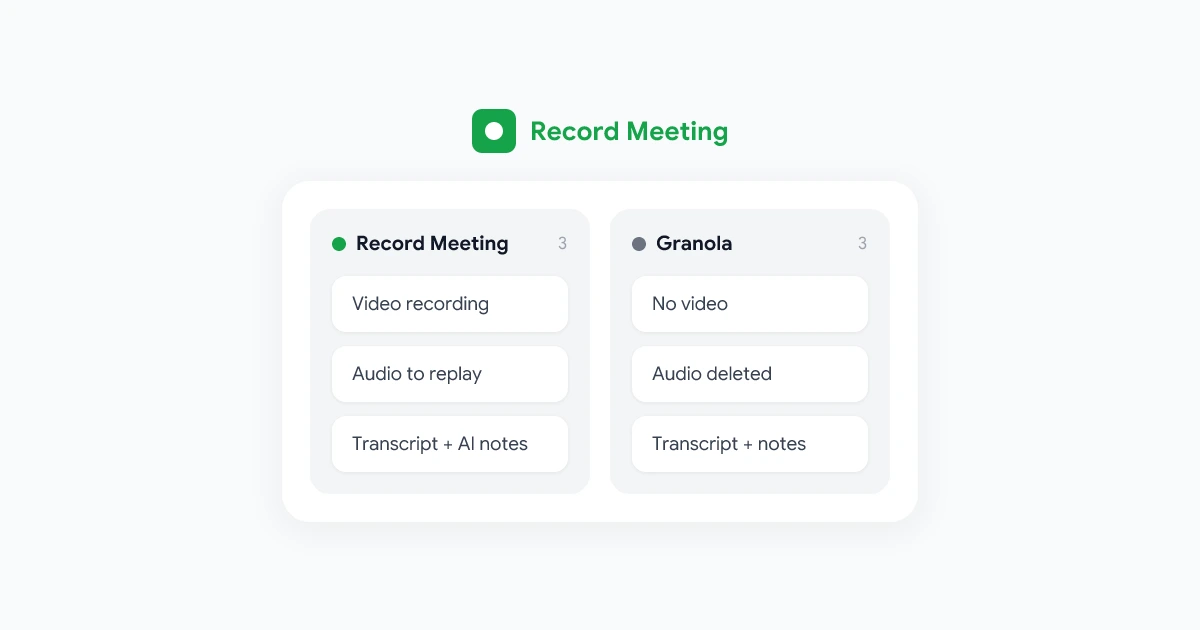
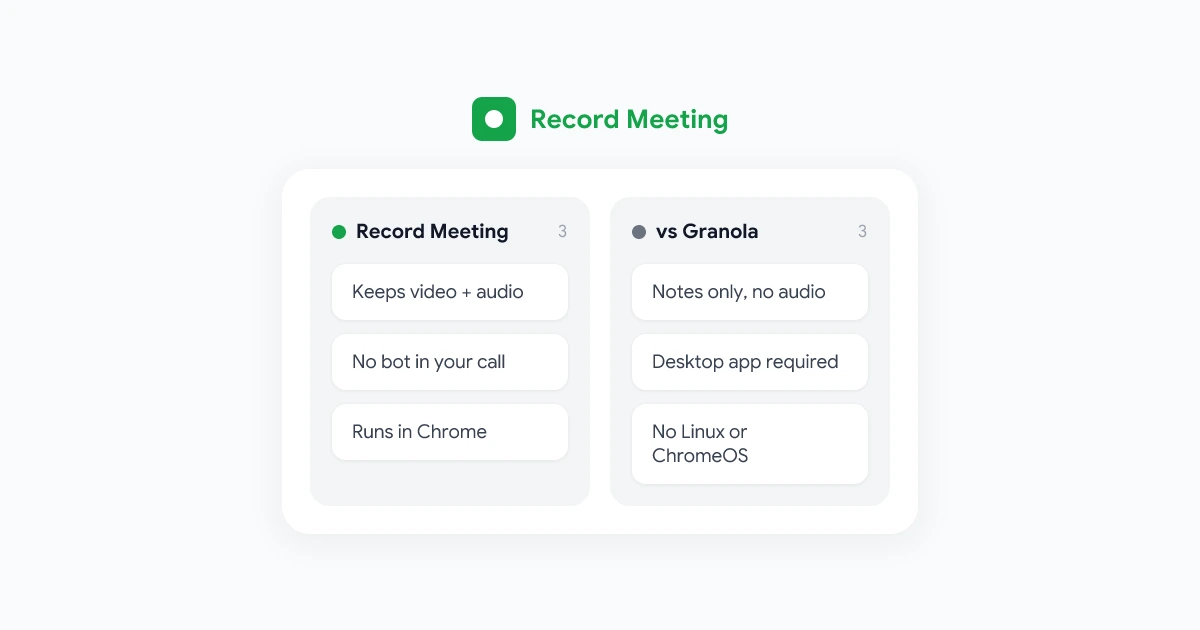
But Granola makes one big trade-off on purpose: it never keeps a recording. No audio, no video. Once the call is over, the text is all you have. That is exactly why many people start looking for a Granola alternative, usually right after the first time they need to hear what someone actually said.
This guide explains where Granola falls short, what to look for in a replacement, and how the main alternatives compare in 2026.
What Granola does well
It is worth being fair before talking about the gaps.
- No meeting bot. Granola listens to your microphone and your computer’s audio, so nothing joins the call as a participant.
- A real notepad. You can type during the meeting, and the AI builds on your notes instead of replacing them.
- Works with anything that plays audio. Because it captures system audio on your computer, it works with Zoom, Google Meet, Teams and other call apps.
- Good integrations. Slack, Notion, HubSpot, Attio, Affinity and Zapier, plus an MCP server.
If all you want is good notes and you never need to go back to the call itself, Granola is a strong product.
Why people look for a Granola alternative
1. There is no recording to go back to
Granola’s own help center is clear about this: it does not record or save audio or video at any point. Audio is cached briefly for transcription, then deleted. Granola has also said it has no plans to add audio or video recording.
In practice, that means:
- You can’t replay the moment a customer raised an objection, or hear the tone in which they said it.
- You can’t check a transcript line against the audio when a name, a number or a commitment looks wrong.
- You can’t send a teammate the two minutes of the call they need. You can only send them notes about it.
- Screen shares, demos and slides are not captured as video. On Mac, Granola can take still snapshots of a shared screen, but that is not the same as watching the demo again.
For sales calls, user research, interviews, training and anything with legal or contractual weight, the recording is often the most valuable part of the meeting.
2. You need the desktop app on the computer in the call
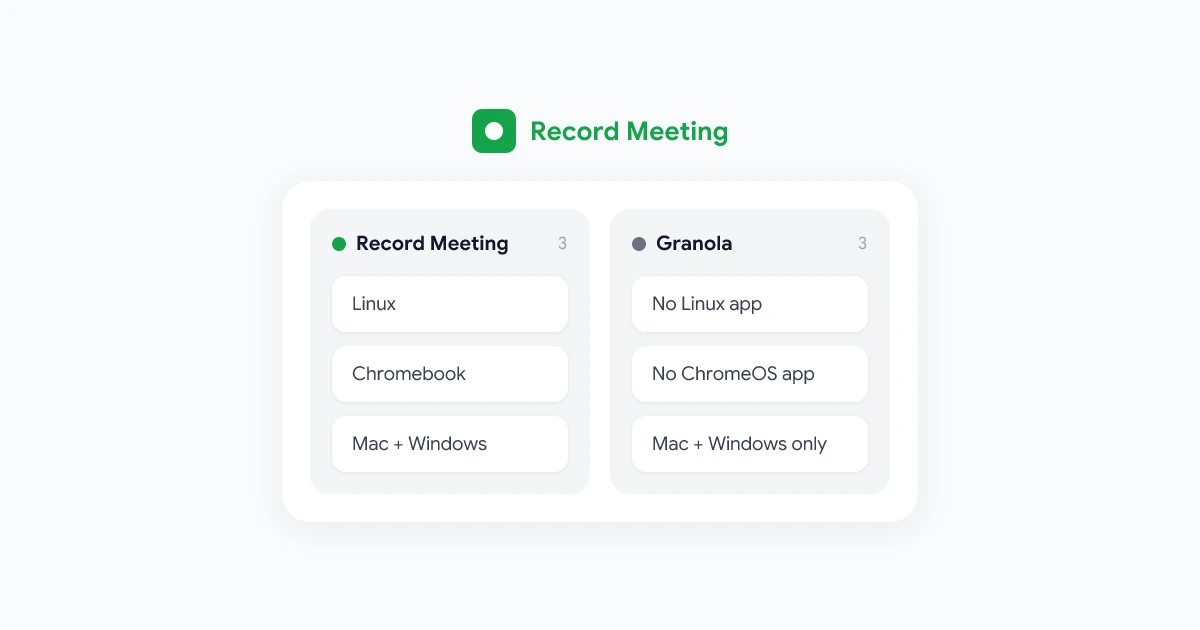
Granola captures online meetings only through its desktop app for macOS 14 or later and Windows. Its web app is for viewing and editing notes, and its Chrome extension only adds Google Meet speaker names. Neither can capture a call. The phone apps handle in-person meetings, not Zoom or Meet calls.
That rules Granola out on Linux, on Chromebooks, on older Macs, and on work laptops where IT does not allow new desktop apps. We cover this in more detail in Granola for Linux and Chromebook.
3. You can’t bring in recordings you already have
Granola can’t import a pre-recorded audio or video file. If a client sends you a recording, or you recorded a webinar another way, Granola can’t transcribe it.
4. Speaker labels need setup
By default, a Granola transcript splits the conversation into “Me” (your microphone) and “Them” (everyone else). Granola now offers speaker tags with participant names for Google Meet, Zoom and Teams on desktop, but it takes extra setup and only applies to the live transcript.
5. Shared notes don’t include the conversation
When you share a Granola note through a link, the viewer sees the summary, not the transcript. If you want the person reading your notes to see the source, there isn’t much to show them.
6. Pricing and data defaults
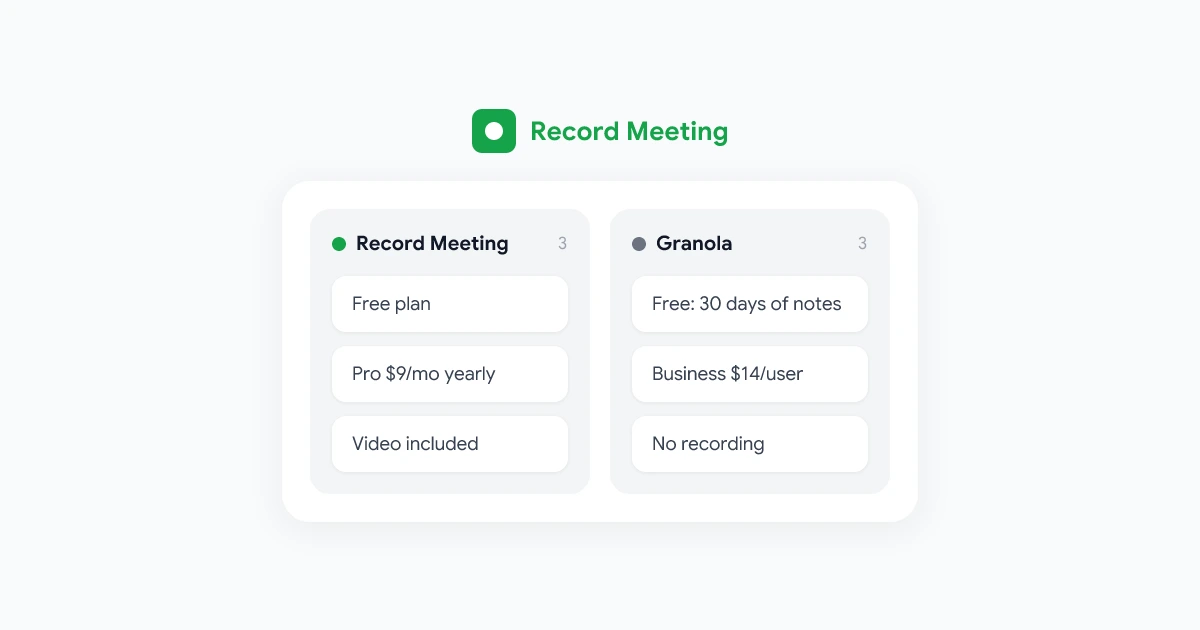
Granola’s paid Business plan is $14 per user per month, billed monthly, and billing covers every member of a workspace. On the free and Business plans, Granola uses anonymised data to improve its models unless each user opts out (model training policy). See our breakdown of Granola pricing for the full picture.
What to look for in a Granola alternative
If you liked Granola’s experience but hit one of the limits above, these are the questions that matter:
- Is there a bot in the call? Most of the well-known notetakers (Otter, Fathom, Fireflies, tl;dv) join as a participant. If you chose Granola to avoid that, you probably want to keep avoiding it.
- Does it keep the recording? Video, audio, or neither.
- What do you have to install? A desktop app, a browser extension, or nothing.
- Which platforms does it record? Google Meet, Zoom and Teams at a minimum.
- Can you share the meeting itself? A link to the recording and transcript, not only a summary.
- What does the free plan really include? Recording, transcript, AI notes, or only some of them.
The best Granola alternatives in 2026
1. RecordMeeting: best if you want the recording, with no bot
RecordMeeting keeps the part Granola drops. It records the meeting itself, video and audio, from your own Chrome tab, so there is no bot in the participant list. On Pro, every recording also gets a full transcript, AI meeting notes and a chat you can ask questions about the call.
Why it is the closest match for Granola users:
- No bot, just like Granola. Recording happens in your browser.
- Full video and audio recording, so you can rewatch screen shares, demos and the exact wording of a promise.
- No desktop app. It is a Chrome extension and a Google Meet add-on, so it runs in Chrome on Mac, Windows, Linux and Chromebook.
- Google Meet, Zoom, Teams, Webex, Slack huddles and more, all from the browser.
- Transcripts in 50+ languages with speaker labels you can rename to real names (Pro).
- AI meeting notes, chat with your recordings and downloads (Pro).
- Share links that open the recording and transcript, not only a summary.
- Upload an existing recording to transcribe it.
- MCP server for Claude and ChatGPT, so your AI assistant can search your meetings.
- In-person meetings from the web app on your phone.
Pricing: Free plan with up to 5 recordings of up to 1 hour each and no credit card. Pro is $15 per month, or $9 per month billed yearly, and adds full transcription, AI meeting notes, downloads and unlimited recordings up to 6 hours.
Where Granola is still better: Granola’s live notepad, where you type and the AI fills in around you, is a nicer writing experience during the call. Granola also has native mobile apps, while RecordMeeting uses its web app on phones.
Pick it if you want everything Granola writes plus the call it came from, or if you can’t install a desktop app.
2. Otter.ai: transcription first, with a bot
Otter is one of the oldest names in meeting transcription. It keeps the audio, so you can play it back, which Granola can’t do. The trade-off is that Otter’s notetaker joins Zoom, Teams and Google Meet as a participant.
- Free plan: 300 minutes per month, up to 30 minutes per conversation.
- Paid: Pro from $8.33 per month billed yearly ($16.99 monthly).
- Best for: people who want audio playback and are fine with a visible notetaker in the call.
We compare the two in depth in Granola vs Otter.ai.
3. Fathom: free recording with a bot
Fathom records video and writes AI summaries, and it is known for a generous free plan for individuals. Like Otter, it records by adding a notetaker bot to your meetings.
- Best for: individuals who want free video recording and don’t mind the bot.
- See also: RecordMeeting vs Fathom.
4. Fireflies.ai: integrations and search, with a bot
Fireflies focuses on transcripts, search across meetings and integrations with CRMs and other tools. It also joins meetings as a bot participant.
- Best for: teams that want a notetaker wired into their CRM and are comfortable with a bot.
- See also: RecordMeeting vs Fireflies.
5. The built-in recorder in Meet, Zoom or Teams
Each platform has its own recorder. It keeps the video, but usually only for paid plans, often only for the host or people the host allows, and the AI features vary a lot by plan. If you are the host on a paid plan and only use one platform, it can be enough. See how to record Google Meet for the details on Meet.
Granola alternatives compared
| RecordMeeting | Granola | Otter.ai | Fathom | Fireflies | |
|---|---|---|---|---|---|
| Bot joins the call | No | No | Yes | Yes | Yes |
| Keeps a video recording | Yes | No | Limited | Yes | Paid plans |
| Keeps audio to replay | Yes | No | Yes | Yes | Yes |
| Desktop app required to capture | No | Yes | No | No | No |
| Records from Linux or a Chromebook | Yes | No | Yes (bot) | Yes (bot) | Yes (bot) |
| Transcript and AI notes | Yes (Pro) | Yes | Yes | Yes | Yes |
Details on third-party tools reflect their public pages in October 2026. Check each vendor for current plans.
How to switch from Granola to RecordMeeting
- Export your Granola notes. Granola can email you a CSV of your notes, summaries and transcripts (once every 24 hours). Keep it somewhere safe.
- Install the RecordMeeting Chrome extension from the Chrome Web Store and sign in with your Google account.
- Join your next meeting in Chrome, on Google Meet, Zoom, Teams or another supported platform.
- Click Record in the meeting window. Nothing joins the call.
- Open the recording in your RecordMeeting dashboard when the meeting ends. On Pro, the transcript and AI notes appear next to the video.
You can keep using Granola for a while if you like its notepad. The two don’t conflict: Granola writes your notes, and RecordMeeting keeps the recording.
Frequently asked questions
Is there a Granola alternative that records video?
Yes. RecordMeeting records the full video and audio of the call from your browser, with no bot in the meeting. Fathom also records video, but it adds a bot to the call.
Is there a Granola alternative without a bot?
RecordMeeting works without a bot, like Granola. Otter, Fathom, Fireflies and tl;dv all join meetings as a notetaker participant.
Is there a free Granola alternative?
RecordMeeting has a free plan with up to 5 recordings of up to 1 hour each and no credit card; transcripts and AI notes come with Pro. Otter has a free plan with 300 transcription minutes a month. Granola itself is free too, but the free plan only shows your last 30 days of notes.
Does RecordMeeting work on Mac and Windows?
Yes. It works anywhere Chrome runs: Mac, Windows, Linux and Chromebook. There is no desktop app to install.
Do I still need to tell people I’m recording?
Yes. Whatever tool you use, let everyone know the call is recorded and follow the consent rules where you and your participants are. Our meeting recording etiquette guide has practical wording you can use.