Does Granola Record Audio or Video? What It Keeps After a Meeting
No. Granola transcribes your meeting live and then deletes the audio, and it never records video. Here is what Granola keeps and how to keep the recording too.

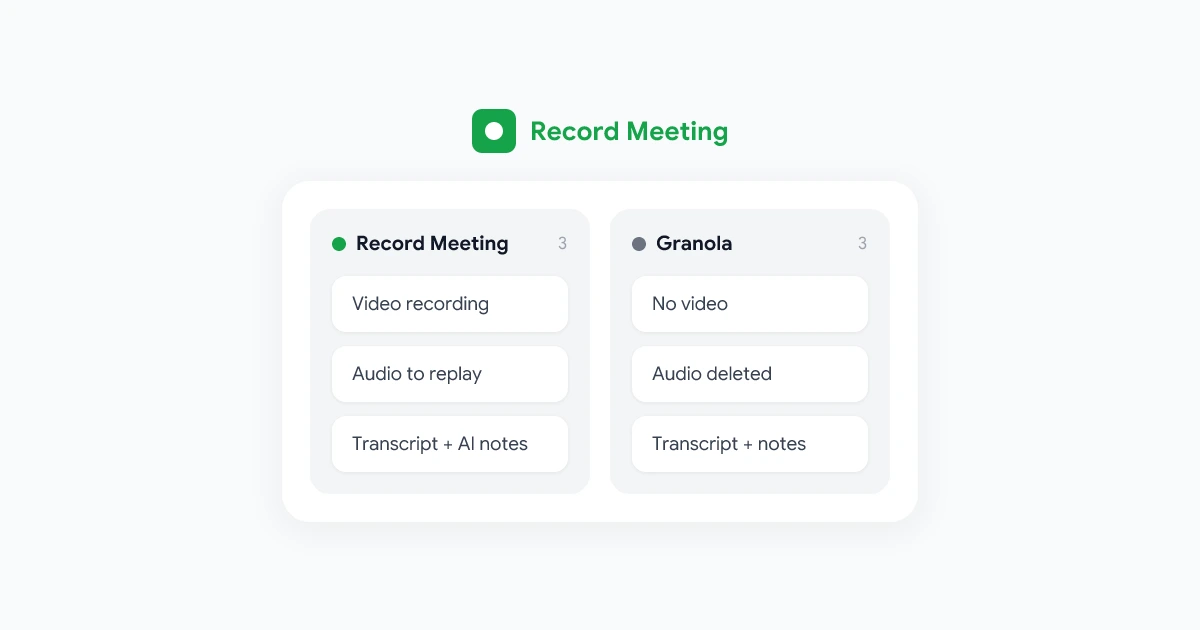
Short answer: no. Granola does not keep an audio or video recording of your meetings. It listens while the call is happening, writes a live transcript, and deletes the audio once it has been transcribed. After the meeting you have Granola’s transcript and notes, and nothing you can play back.
That is a deliberate design choice, not a missing setting. Here is how it works, what you actually get, and what to do if you need the recording as well.
How Granola captures a meeting
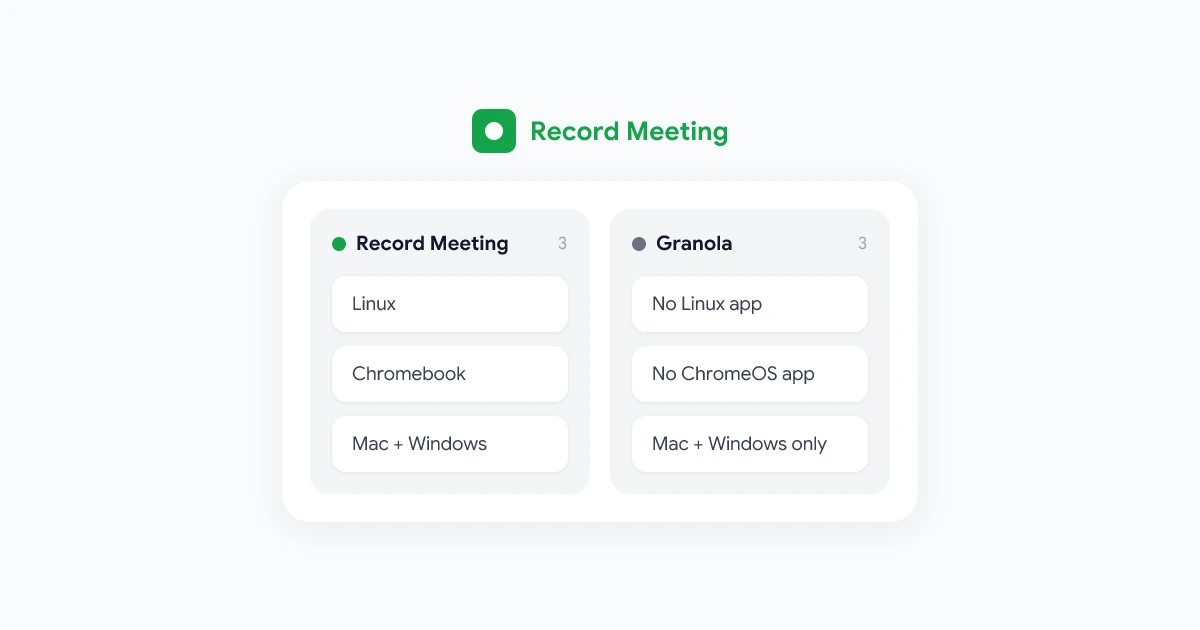
Granola runs as a desktop app on your Mac or Windows computer. During a call it listens to two sources:
- Your microphone, which becomes “Me” in the transcript.
- Your computer’s audio output, which carries everyone else’s voices and becomes “Them”.
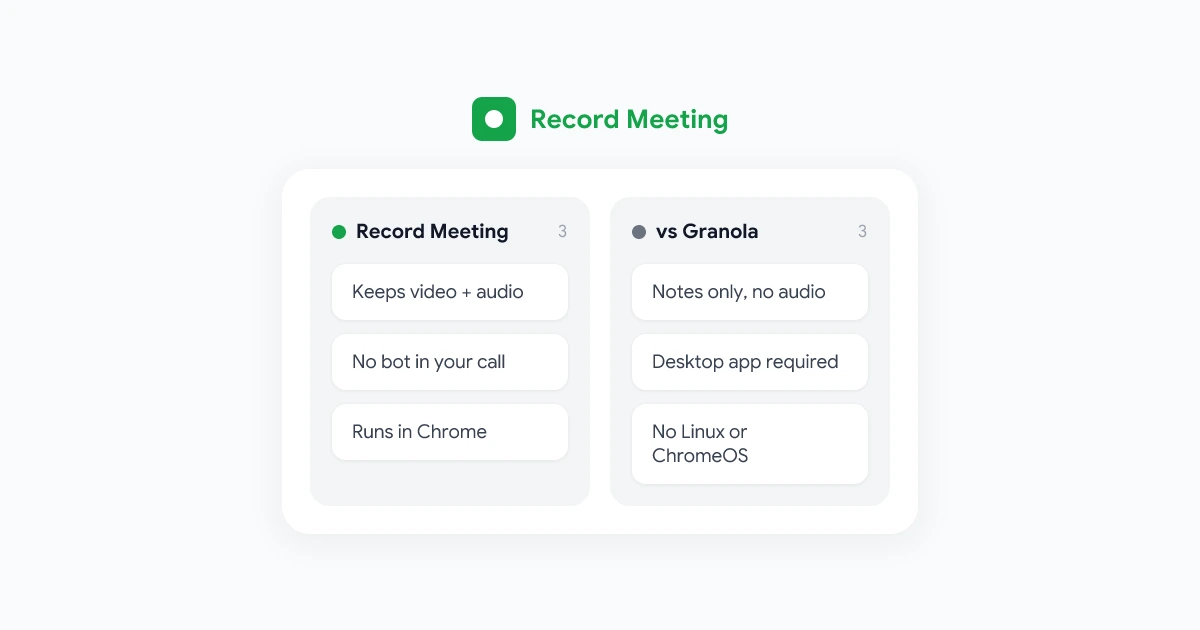
There is no bot in the meeting. According to Granola’s transcription docs, it “does not record or save audio or video at any point”. The audio is cached temporarily so it can be transcribed, then deleted. Granola’s feature request page also says it has no plans to start supporting audio or video recordings.
Because it mixes your computer’s audio, Granola can’t isolate one app. Whatever plays through your speakers during the meeting can end up in the transcript.
What Granola keeps after the call
| What | Kept by Granola? |
|---|---|
| Audio recording | No |
| Video recording | No |
| Live transcript | Yes, read and copy only |
| AI-enhanced notes | Yes |
| Screen share | Still snapshots on Mac, if you turn it on |
| Uploaded recordings | Not supported |
A few details worth knowing:
- The transcript can’t be edited. You can copy it, but not correct it inside Granola.
- Screen snapshots are Mac only. On macOS 14 or later, Granola can take still images of a screen someone else shares in Zoom, Meet in Chrome or Teams. It is opt-in, and it is not video.
- Export is a CSV. Granola can email you a CSV of your notes, summaries and transcripts, at most once every 24 hours. There is no audio to export.
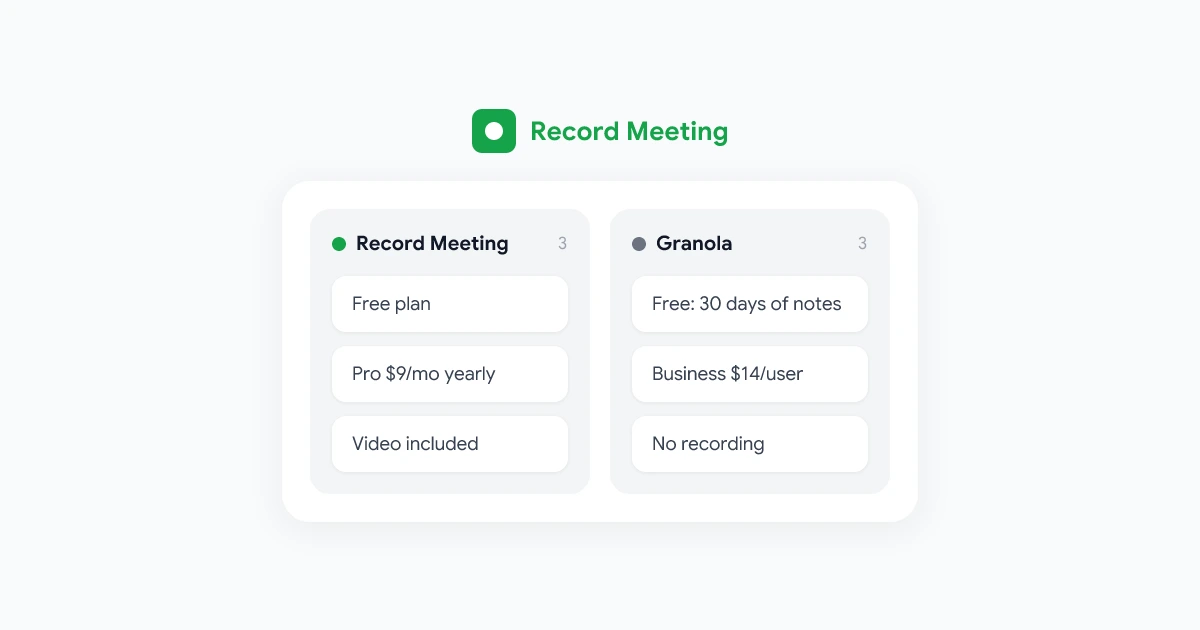
- Free plan history. On the free Basic plan, the app only shows notes from the last 30 days. Older notes are kept, and you see them again if you upgrade.
Why this matters
For many meetings, notes are enough. But a few situations come up again and again where text alone falls short.
Checking what was really said. Every speech-to-text system makes mistakes with names, numbers and jargon. With a recording, you click the line and listen. Without one, the transcript is the only version of the meeting that exists.
Tone and emphasis. “That could work” means very different things depending on how it is said. Sales teams, recruiters and researchers often care more about how something was said than the words.
Demos and screen shares. A product demo, a design review or a walkthrough of a spreadsheet is mostly visual. A still snapshot or a text summary loses most of it.
Sharing with people who weren’t there. A two-minute clip of a customer describing their problem lands harder than a bullet point. With Granola, a shared note shows the summary, not even the transcript.
When something goes wrong. If you joined late, your microphone was muted, or the transcript came out garbled, there is no audio to go back to and fix it.
How to keep the recording and still get AI notes
If you like Granola’s approach, with no bot in the call, but want the recording too, use a recorder that captures the meeting itself.
RecordMeeting is a Chrome extension and Google Meet add-on that records the call from your own browser tab:
- Video and audio of the whole call, including screen shares as video.
- No bot in the participant list.
- Works on Google Meet, Zoom, Teams, Webex, Slack huddles and more in Chrome, on Mac, Windows, Linux or Chromebook.
- Transcript in 50+ languages, AI meeting notes and chat with Pro, all linked to the recording so you can jump from a line to the moment it was said.
- Share links that open the recording with its transcript.
- Downloads as MP4 video or audio with Pro.
The free plan records up to 5 meetings of up to 1 hour each with no credit card. Pro is $15 per month, or $9 per month billed yearly.
To try it, install the extension, join your next call in Chrome and click Record in the meeting window. The recording shows up in your dashboard as soon as the call ends. For a side-by-side look at both tools, see RecordMeeting vs Granola, or browse our list of the best Granola alternatives.
Frequently asked questions
Can I download audio from Granola?
No. Granola does not store audio, so there is nothing to download. You can export your notes and transcripts as a CSV.
Does Granola record video of my screen?
No. On Mac, Granola can take still snapshots of a screen someone else is sharing, if you turn that option on. It does not record video.
Does Granola tell other participants it is running?
Not automatically. Granola offers optional tools, such as an automatic chat message and a camera watermark, that you can set up to let people know. Whatever tool you use, tell participants when a call is transcribed or recorded, and check the consent rules that apply to you. Our meeting recording etiquette guide has wording you can reuse.
Is not keeping audio more private?
It means there is less data stored, which some people prefer. Granola still keeps the transcript, which contains everything that was said. If you record with any tool, choose one that lets you delete recordings and control who can open them.
Can I use Granola and RecordMeeting together?
They work in different places: Granola listens to your computer’s audio from its desktop app, and RecordMeeting records from your Chrome tab. If you like Granola’s notepad, you can keep it for writing and use RecordMeeting for the calls you want to keep. Try it on an internal call first to check that both behave the way you expect on your machine.