Кнопка записи в Google Meet неактивна? Причины и решения
Недоступна запись в Google Meet? Разбираемся, почему кнопка записи неактивна и как записать звонок независимо от вашего тарифного плана.

Вы подключаетесь к важному звонку, открываете меню, чтобы начать запись, но кнопка неактивна. Если кнопка записи в Google Meet неактивна, причина почти всегда одна: встроенная запись является платной функцией Google Workspace, доступной только при соблюдении условий вашего аккаунта, тарифного плана и настроек администратора. Это редко бывает ошибкой.
Самое неприятное, что кнопка выглядит доступной, и кажется, будто проблема на вашей стороне. В большинстве случаев ничего не сломано. Просто вы не соответствуете одному из условий Google для использования встроенной записи, как указано в требованиях к записи в Google Meet. В этом руководстве разбираем все причины, по которым запись недоступна, как их проверить и как записать звонок, даже если встроенная функция заблокирована.
Основные моменты
- Запись относится к платным функциям. Встроенная запись в Google Meet недоступна для бесплатных личных аккаунтов Gmail. Она требует определенных редакций Google Workspace.
- Ваш тариф может ее не включать. Даже в платном Workspace записи нет в базовых тарифах, например Business Starter.
- Администратор управляет доступом. Администратор Workspace может отключить запись для всей организации, поэтому кнопка будет неактивна даже на подходящем тарифе.
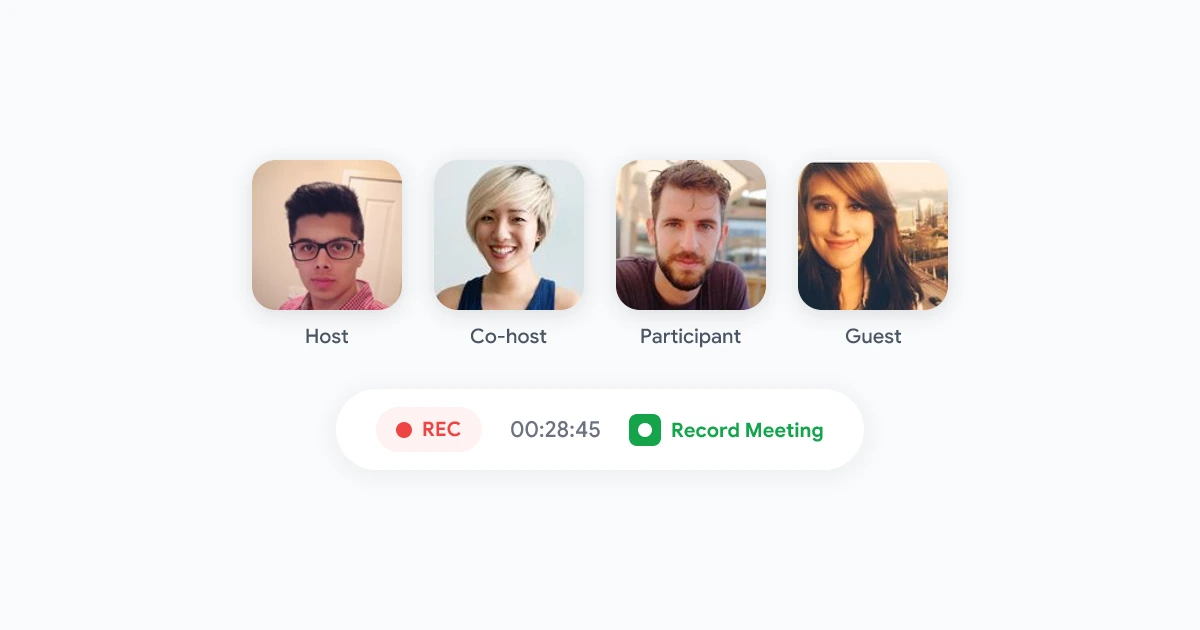
- Записывать могут только организатор и соорганизаторы. Если вы присоединились как участник, кнопка будет неактивна по умолчанию.
- Браузерный рекордер обходит все ограничения. Инструменты, записывающие вкладку с звонком, работают на любом аккаунте, любом тарифе, независимо от вашей роли.
Почему кнопка записи в Google Meet неактивна?
Перед тем как искать неисправности, важно понять: встроенная запись в Meet имеет несколько условий, и все они должны быть выполнены, чтобы кнопка стала активной. Если хотя бы одно не соблюдено, вы увидите неактивную кнопку записи в Google Meet.
Вот условия, которые проверяет Google, примерно в таком порядке:
- Вы вошли в платный аккаунт Google Workspace, а не в бесплатный личный Gmail.
- Ваша редакция Workspace включает запись. Не все платные тарифы её поддерживают.
- Администратор разрешил запись для вашей организации и вашего аккаунта.
- Вы организатор или соорганизатор звонка либо входите в организацию организатора с правом записи.
- Вы используете компьютер с поддерживаемым браузером. Мобильные приложения не поддерживают встроенную запись.
Если не уверены, какое условие не выполняется, проверяйте по порядку. Чаще всего проблема в первых двух пунктах: личный аккаунт или тариф без записи.
Тип аккаунта и запись в Google Meet
Главная причина, по которой кнопка записи неактивна, личный аккаунт Google. Бесплатные Gmail-аккаунты могут организовывать и участвовать в звонках Meet, но не могут использовать встроенную запись. Эта функция просто не входит в бесплатный тариф.
Как включить запись в личном аккаунте Google Meet
Суровая правда: встроенную запись для личного Gmail включить нельзя. Нет скрытых настроек, переключателей в Meet или способа разблокировать её внутри потребительского аккаунта. Встроенная запись относится к функциям Workspace, а личные аккаунты к нему не относятся.
Если у вас личный аккаунт и нужно записать звонок, есть два варианта:
- Перейти на платный тариф Workspace с записью (об этом ниже), что потребует бизнес-подписки и настройки администратором.
- Использовать браузерный рекордер, который запишет звонок независимо от типа аккаунта. Это самый быстрый способ для большинства, так как он работает и для личных, и для бизнес-аккаунтов.
Подробнее о втором варианте расскажем дальше. Для частных лиц и небольших команд это практичное решение.
Какие тарифы Google Workspace включают запись
Даже в платном Workspace запись есть не везде. Google предоставляет её только в более дорогих тарифах, поэтому в дешёвых кнопка останется неактивной.
Запись обычно доступна в таких редакциях, как:
- Business Standard и Business Plus
- Enterprise (Starter, Standard и Plus)
- Education Plus и Teaching and Learning Upgrade
- Workspace Individual
Записи обычно нет в:
- Business Starter
- Frontline Starter
- Бесплатном тарифе Essentials
Если ваша организация использует Business Starter, это и объясняет неактивную кнопку. Администратору нужно перейти на более высокий тариф, чтобы запись стала доступной. Названия и условия тарифов меняются, поэтому уточните текущую редакцию в консоли администратора или у ответственного за подписку.
Запись в Google Meet недоступна даже на подходящем тарифе
Допустим, у вас подходящий тариф Workspace, но запись в Google Meet всё равно недоступна. Теперь проблема обычно в настройках, а не в тарифе.
Администратор отключил запись
Администратор Workspace решает, доступна ли запись для организации, групп или отдельных подразделений. Если она выключена, кнопка останется неактивной для всех, кого это касается, независимо от тарифа.
Чтобы исправить, обратитесь к IT-администратору и попросите включить запись для вашего аккаунта в консоли администратора Google: раздел «Приложения» → Google Workspace → Google Meet → Настройки видео. Google описывает точный переключатель в статье Как включить или отключить запись в Meet для организации. Изменить это может только администратор.
Вы не организатор или соорганизатор
По умолчанию запись могут начать только организатор и соорганизаторы. Если вы присоединились как участник, кнопка будет неактивна. Это частая причина, по которой люди не могут записать звонки, которые не организовывали.
- Попросите организатора записать звонок и поделиться файлом.
- Попросите сделать вас соорганизатором, что даст право на запись.
- Если вы из другой организации, чем организатор, запись может быть полностью запрещена его настройками.
Если вам часто нужно записывать звонки, в которых вы участвуете, а не организовываете, смотрите наше руководство, как записать Google Meet без разрешения организатора с помощью браузерного инструмента, который снимает это ограничение.
Вы используете мобильное приложение
Встроенная запись в Google Meet работает на компьютере в поддерживаемом браузере. В мобильных приложениях для Android и iOS её нет, поэтому кнопки записи просто не существует. Для записи со смартфона нужен отдельный инструмент для записи экрана или настройка на компьютере.
Другие причины из руководства Google
Даже если тариф и роль в порядке, запись может быть недоступна в некоторых случаях. Согласно странице устранения неполадок Google, запись может не работать в комнатах для обсуждений, если отключён Google Drive, если администратор запретил создание файлов в Drive или если аккаунт организатора деактивирован в повторяющейся серии звонков. Проверьте эти пункты, прежде чем считать функцию сломанной.
 Попробуйте Record Meeting
Record Meeting записывает ваши звонки в Google Meet прямо в браузере, с автоматическими транскриптами и резюме в Pro. Работает на любом аккаунте и любом тарифе, бесплатном или платном, независимо от того, организуете вы звонок или просто участвуете.
Начать бесплатно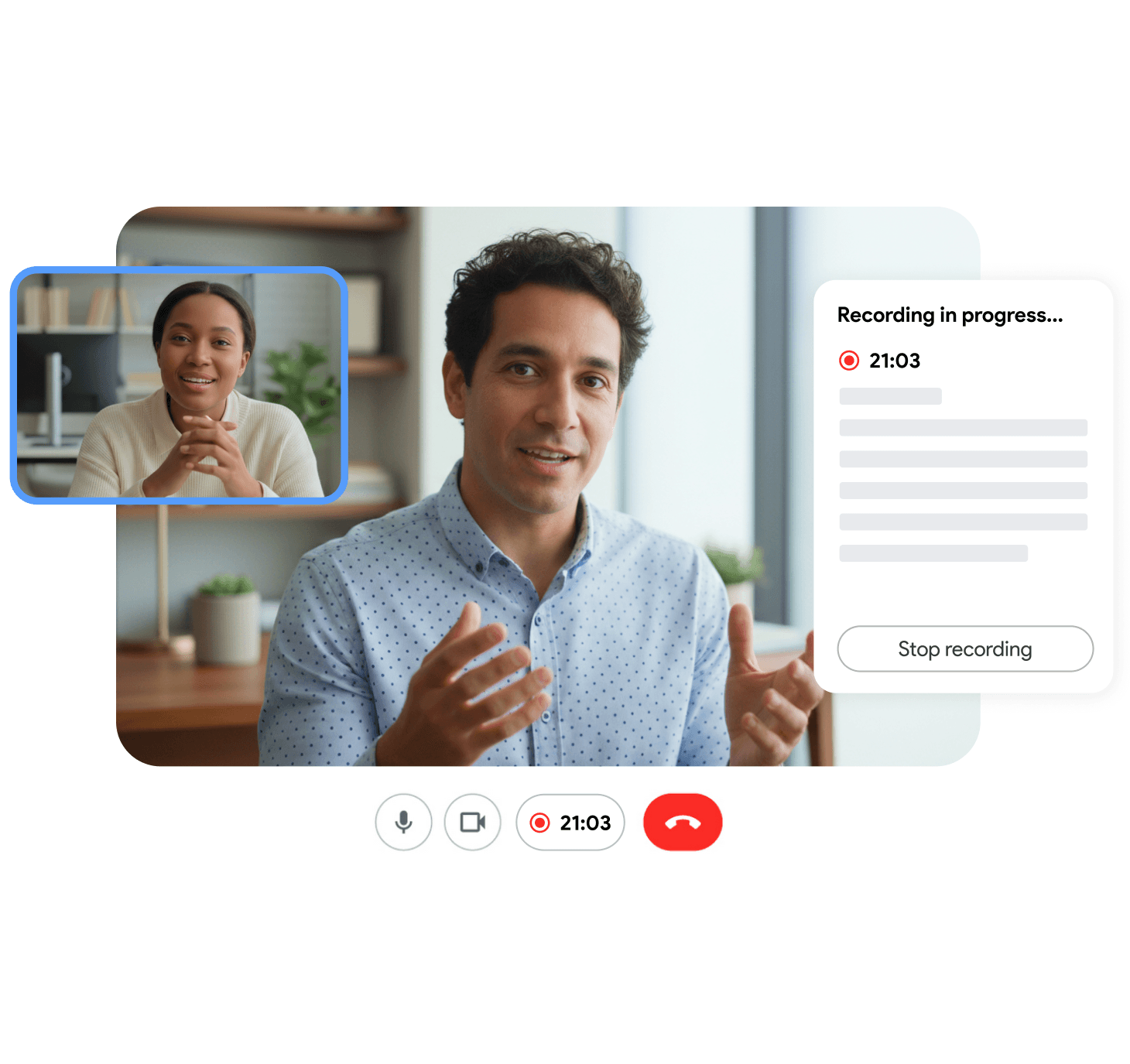
Как включить запись в Google Meet (стандартный способ)
Если вы соответствуете всем условиям и просто хотите включить функцию, вот порядок действий. Каждый шаг зависит от предыдущего.
- Убедитесь, что у вас аккаунт Google Workspace, а не личный Gmail. Проверьте аккаунт в правом верхнем углу Meet.
- Убедитесь, что ваш тариф включает запись. Спросите администратора или проверьте подписку в консоли администратора. В Business Starter или бесплатных тарифах записи не будет.
- Попросите администратора включить запись. В консоли администратора в разделе «Приложения» → Google Workspace → Google Meet → Настройки видео запись должна быть включена для вашего подразделения.
- Подключитесь к звонку с компьютера в поддерживаемом браузере, например Chrome. В мобильном приложении записи нет.
- Убедитесь, что вы организатор или соорганизатор. Начните звонок сами или попросите организатора дать вам права соорганизатора.
- Откройте меню «Действия» или три точки в звонке, выберите «Запись» → «Начать запись».
После завершения записи Google сохранит её в Google Drive организатора и добавит ссылку в событие Календаря. Если не уверены, где искать файл, в нашем руководстве куда сохраняются записи Google Meet описаны точные пути и способы поделиться записью.
Как записывать в Google Meet без подходящего тарифа или прав администратора
Для многих стандартный способ оказывается тупиком. У вас личный аккаунт, компания использует Business Starter, администратор не включает запись, или вы просто участвуете в чужих звонках. Во всех этих случаях встроенная кнопка останется неактивной.
Здесь на помощь приходит браузерный рекордер. Вместо того чтобы полагаться на функцию Google, он записывает вкладку с Meet прямо в браузере. Так как он не зависит от условий Google, он работает в ситуациях, когда встроенная запись недоступна:
- Любой тип аккаунта, включая бесплатный Gmail.
- Любой тариф Workspace, даже без записи.
- Как организатор, так и участник, так как не требует прав на запись.
- Без участия администратора, потому что ничего не нужно включать в консоли.
Record Meeting создан именно для этого. Это расширение для Chrome и дополнение для Google Workspace, которое записывает звонок в браузере и сохраняет видео сразу после звонка, а транскрипт и резюме доступны в Pro. Нет неактивной кнопки, потому что инструмент не зависит от функции записи Google. Если вам нужен и текст разговора, в нашем руководстве по транскриптам Google Meet описано, как получить точную расшифровку с указанием говорящих.
Что бы вы ни выбрали, помните: запись других людей накладывает юридические и этические обязательства. Предупреждайте участников о записи и получайте согласие, где это требуется. В нашем обзоре безопасны ли записи Google Meet подробнее рассмотрены вопросы конфиденциальности.
Частые вопросы
Итог
Неактивная кнопка записи в Google Meet почти никогда не бывает сбоем. Это Google применяет правила для платной функции: нужный тип аккаунта, подходящий тариф Workspace, разрешение администратора, роль организатора или соорганизатора и компьютер с браузером. Если хоть одно условие не выполнено, кнопка останется заблокированной.
Если все условия соблюдены, стандартный способ выше включит запись. Если нет, самое простое решение: перестать бороться с кнопкой. Браузерный рекордер запишет любой звонок Meet на любом аккаунте, бесплатном или платном, независимо от роли. Для Google Meet попробуйте Record Meeting, и запись будет готова сразу после звонка, а транскрипт и резюме доступны в Pro, без неактивных кнопок.