How to Record Google Meet: Complete Guide for Laptop, Phone, and Workspace
Learn how to record Google Meet on laptop, phone, or with built-in Workspace tools. Step-by-step methods, audio tips, and free options when the record button is greyed out.

You can record Google Meet in three main ways: use Google’s built-in recording if your Workspace plan includes it, capture the call with your laptop’s screen recorder, or install a browser extension that saves video, transcript, and summary to your own workspace. The right path depends on your account type, whether you are the host, and whether you need audio from every speaker.
Most people search for how to record Google Meet after the record button is greyed out or missing entirely. That usually means you are on a free Gmail account, a Workspace plan without recording, or you joined as a participant instead of a host. This guide walks through every method that works in 2026, including what to do on a laptop with full audio and on a phone when the mobile app has no record button.
Key takeaways
- Built-in recording needs a qualifying Workspace plan. Business Standard and above, plus select Enterprise and Education tiers. Free Gmail and Business Starter cannot use it.
- Only the host or a co-host starts native recording. Everyone in the call gets a notification when recording starts, per Google’s Meet recording requirements.
- Recordings save to the organizer’s Google Drive in a Meet Recordings folder, not to each participant’s account.
- Laptop screen recorders work on any account but macOS QuickTime often misses other participants’ voices unless you set up system audio capture.
- A Chrome extension like Record Meeting records from your browser tab on any account, with transcript and summary included on the free plan.
Record Google Meet with built-in Workspace recording
If your organization pays for a qualifying Google Workspace edition and your admin has recording enabled, the native option is the simplest path. Google saves the file to Drive automatically and emails a link to the organizer.
According to Google’s documentation, supported editions include Business Standard, Business Plus, Enterprise tiers, Education Plus, Teaching and Learning Upgrade, Workspace Individual, and Google One with 2 TB or more storage. Business Starter and free personal Gmail accounts are not on that list.
Your admin must turn recording on in the Google Admin console under Apps > Google Workspace > Google Meet > Meet video settings, as described in Google’s admin guide.
Step-by-step: start a native Google Meet recording
- Join or start the meeting as the host or a co-host on a computer (or Android with a qualifying account).
- Click Activities (the shapes icon) in the bottom-right toolbar.
- Select Recording, then click Start recording.
- Confirm when prompted. All participants see a notification that the meeting is being recorded.
- When finished, open Activities > Recording again and click Stop recording.
The file processes in the background and lands in the meeting organizer’s My Drive > Meet Recordings folder. Processing can take from a few minutes up to 24 hours for longer calls. For a full walkthrough of where files appear and how to share them, see our guide on where Google Meet recordings are saved.
Native recordings stop automatically after 8 hours. If your record button is visible but disabled, read our troubleshooting article on Google Meet recording greyed out before you assume something is broken.
Ways to record Google Meet without Workspace recording
When the built-in button is unavailable, you still have practical options. Each captures what you see and hear in your own session, which means any participant can save their own copy without asking the host to start Google’s recorder.
Record with a Chrome extension (recommended for most teams)
Browser extensions capture the Google Meet tab directly, including system audio from other speakers when configured correctly. They work on free Gmail, Workspace Individual, Business Starter, and every other account type because they do not depend on Google’s recording policy.
Record Meeting installs from the Chrome Web Store in one click. After you sign in with Google and join a Meet call, click the Record Meeting icon in your toolbar to start. When the call ends, the recording uploads to your private workspace with an AI transcript, speaker labels, and a summary with action items.
 Try Record Meeting
Record any Google Meet from your browser. Get video, transcript, and AI summary on the free plan. No Workspace upgrade required.
Get Started Free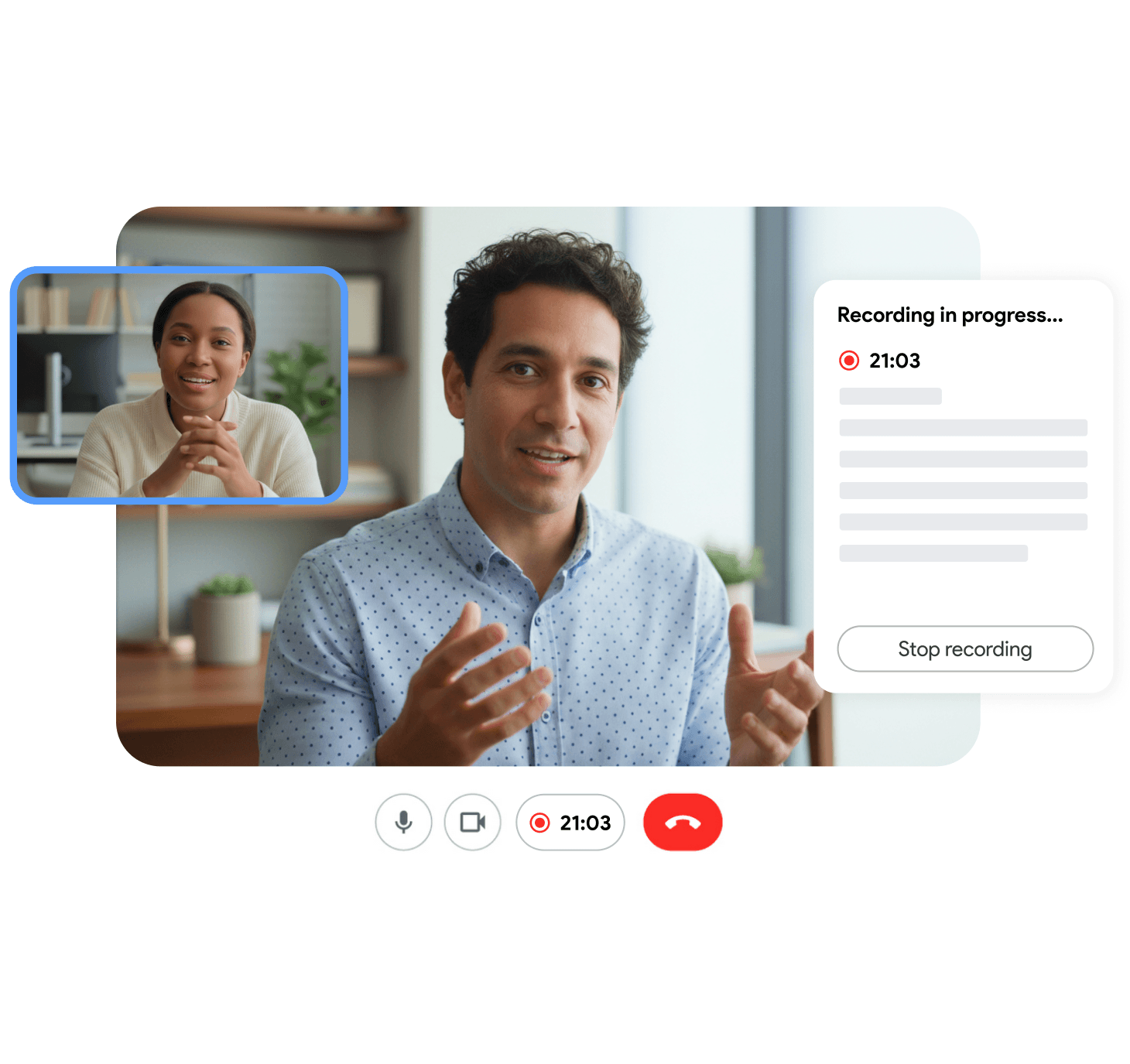
This approach is especially useful when you need a searchable transcript alongside the video. Our Google Meet transcript guide explains how browser-based transcription compares to Google’s native captions file.
Firefox note: Record Meeting is a Chrome extension. Firefox users can record through the Record Meeting webapp on desktop or use OS-level screen recording with audio settings configured for their platform.
Record Google Meet with QuickTime on Mac
Record Google Meet QuickTime is a common search because every Mac ships with QuickTime Player. It works as a fallback when you need a local video file fast and do not want to install anything new.
To record with QuickTime:
- Open QuickTime Player and choose File > New Screen Recording.
- Click the arrow next to the record button and select your microphone if you want your voice captured.
- Click Record, then select the Google Meet window or portion of the screen.
- Click Stop in the menu bar when the call ends.
- Save the
.movfile from File > Save.
The important limitation: according to MacPaw’s guide on Mac screen recording with audio, QuickTime and the macOS Screenshot toolbar (Cmd+Shift+5) capture microphone input by default, not internal system audio. You will hear yourself clearly, but other participants’ voices may be silent or faint unless audio plays through your mic.
To fix that on Mac, you need a virtual audio driver such as BlackHole combined with an Aggregate Device in Audio MIDI Setup. That setup is free but fragile. If you switch headphones mid-call, routing can break. For recurring meetings, a browser extension that captures tab audio is usually less maintenance.
Record on Windows with Xbox Game Bar
Windows 10 and 11 include Xbox Game Bar (Win+G). It can capture a single app window with system audio when configured correctly.
- Join Google Meet in Chrome or Edge.
- Press Win+G to open Game Bar.
- Click the Capture widget and select Record.
- Choose the browser window showing Meet.
- Set audio to All (system + mic), not mic only.
- Stop recording from the floating bar. Files save to Videos > Captures.
Game Bar works without admin approval on personal laptops. Quality is fine for internal reference but there is no automatic transcript. Pair it with a dedicated transcription tool if you need searchable notes.
How to record Google Meet on a laptop with audio
Getting full audio on a laptop is where most DIY recordings fail. The video looks fine but playback is silent except for your own voice.
On Windows: Use Game Bar or OBS Studio with system audio enabled. In OBS, add a Display Capture or Window Capture source plus an Audio Output Capture for your default speakers or headphones.
On Mac: Built-in tools record your mic, not Meet’s audio stream. Options ranked by reliability:
- Browser extension with tab audio (simplest for Google Meet in Chrome)
- OBS with BlackHole (free, more setup)
- Paid tools with native ScreenCaptureKit support (least configuration)
On Chromebook: Use the built-in screen recorder (Shift+Ctrl+Show Windows) and enable microphone capture. Tab audio support varies by Chrome OS version. Test a 30-second clip before an important call.
Before any external meeting, record a 60-second test with a colleague. Play it back and confirm every speaker is audible. Fixing audio after a one-hour client call is not possible.
How to record Google Meet on phone
The Google Meet mobile app does not expose the same Activities > Recording flow that desktop hosts see on qualifying Workspace accounts. Most phone users rely on the device’s screen recorder instead.
Record Google Meet on iPhone
- Add Screen Recording to Control Center in Settings > Control Center.
- Open the Google Meet app and join the call.
- Swipe down from the top-right corner and long-press the record button.
- Turn Microphone on if you want your voice included.
- Tap Start Recording, then stop from Control Center when done.
The video saves to Photos. Screen recording captures everything visible, including notifications and battery indicators. For a cleaner capture, see our guide to recording Google Meet on iPhone with the Record Meeting mobile webapp.
Record Google Meet on Android
Qualifying Workspace users on Android can tap More > Tools > Record inside the Meet app, matching Google’s Android recording steps. Everyone else should use the built-in screen recorder from the quick settings panel. On many Samsung and Pixel devices, choose Media and mic as the audio source so participant voices are included.
Always tell participants before you record from a phone. A screen recorder does not trigger Google’s in-app recording notification.
How to record a Google Meet call as a participant
If you are not the host, Google’s native recorder is usually off limits. The host must promote you to co-host, or your organization’s Host Management settings must allow participants from the host’s domain to record.
Participants who need their own copy for notes, compliance, or follow-up typically use one of these paths:
- Browser extension that captures your tab locally
- OS screen recorder with audio configured for your platform
- Ask the host to start native recording and share the Drive link afterward
Recording laws vary by country and state. In all-party consent jurisdictions, announce that you are recording even when the tool does not show a Meet notification. Our meeting recording etiquette guide covers team norms in more detail.
Choosing the right method
| Method | Best for | Needs host? | Transcript? |
|---|---|---|---|
| Built-in Workspace recording | Teams on Business Standard+ with admin approval | Yes (host/co-host) | Optional captions file |
| Record Meeting extension | Any account, recurring calls, AI notes | No | Yes, automatic |
| QuickTime / Game Bar | One-off local backup | No | No |
| Phone screen recorder | Mobile-only attendance | No | No |
If native recording fits your plan, use it for org-wide compliance and centralized Drive storage. If the button is greyed out or you want transcript and summary without a Workspace upgrade, a browser-based recorder is the faster path.
FAQ
How to record Google Meet for free?
Free Gmail accounts cannot use Google’s built-in recorder. Free options include a Chrome extension like Record Meeting (video plus transcript on the free plan), Windows Xbox Game Bar, macOS screen recording, or your phone’s screen recorder. Each captures your own view of the call without a paid Workspace subscription.
How to record Google Meet on laptop?
On a laptop, hosts with a qualifying Workspace plan click Activities, then Recording, then Start recording. Everyone else can install the Record Meeting Chrome extension, use Windows Game Bar (Win+G), or use macOS QuickTime (Cmd+Shift+5). Confirm audio captures all speakers with a short test recording first.
How to record Google Meet on laptop with audio?
On Windows, set Game Bar or OBS to capture system audio, not microphone only. On Mac, QuickTime records your mic by default but not other participants unless you route system audio through a virtual driver like BlackHole. A Chrome extension that captures tab audio is the most reliable option for full meeting audio on a laptop.
How to record Google Meet on phone?
Use your phone’s built-in screen recorder from Control Center (iPhone) or quick settings (Android). Enable microphone or media audio so voices are captured. Qualifying Android Workspace users can also tap More, then Tools, then Record inside the Meet app. The iOS Meet app has no equivalent native button for most accounts.
How to record Google Meet call when I am not the host?
Ask the host to start native recording and share the Drive file, or record your own copy with a browser extension or screen recorder on your device. You do not need host permission inside Meet to save what reaches your browser, but you should follow your local recording consent laws and team policy.
Start recording your next Google Meet
Built-in Google Meet recording works well when you are the host on Business Standard or higher and your admin has the feature enabled. For everyone else, browser-based recording closes the gap without a Workspace upgrade or IT ticket.
Install Record Meeting, join your next call, and click record. Your video, transcript, and summary will be ready in your workspace within minutes. No bot joins the call, and the free plan covers Google Meet recording out of the box.