How to Record a WhatsApp Call (iPhone, Android, and Desktop)
Need to record a WhatsApp call? WhatsApp has no built-in recorder. This guide covers practical options for iPhone, Android, and desktop, plus consent basics and a cleaner browser-based workflow.

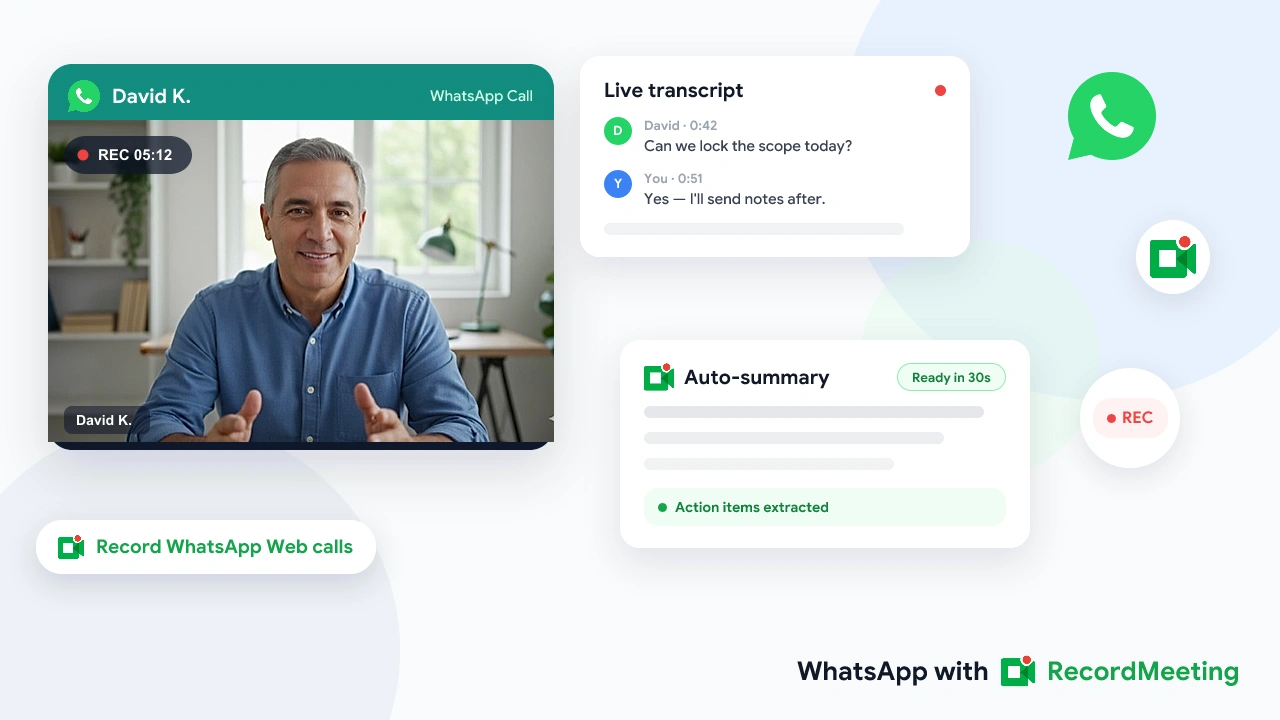
WhatsApp is where a huge share of client chats, freelancing check-ins, and international business calls actually happen. Yet if you search for record WhatsApp call, you hit the same wall: WhatsApp does not offer native call recording for voice or video.
That gap is why people reach for screen recorders, third-party apps, or desktop workarounds. Some of those paths work. Many produce noisy files with no transcript. A few create real legal risk if you skip consent.
This guide walks through what actually works in 2026 on iPhone, Android, and desktop, when each option makes sense, and how to get a usable recording with a transcript instead of a raw screen capture.
Key takeaways
- WhatsApp has no built-in call recording for voice or video calls.
- Mobile screen recording works on iPhone and Android, but files are large, notifications can appear on screen, and you still need a separate transcription step.
- Desktop via WhatsApp Web is the cleanest path if you want audio, video, transcript, and a summary in one workflow.
- Consent rules vary by country and US state. Announce recording when you are unsure.
- Record Meeting for WhatsApp captures WhatsApp Web calls from Chrome and delivers a transcript plus AI summary to your workspace.
Why WhatsApp will not record the call for you
WhatsApp is built for real-time messaging and encrypted calls. Meta does not ship a record button inside voice or video calls. Once the call ends, there is no cloud recording to download and no transcript waiting in the chat.
That design choice protects privacy expectations for casual chats. It is a problem for anyone running business conversations on WhatsApp:
- Client scope discussions disappear the moment the call ends
- Support handoffs lose context unless someone typed notes live
- International freelancers cannot prove what was agreed without a separate record
If your work depends on WhatsApp, you need an external method. The rest of this article covers the practical ones.
For product-level detail on how browser capture works with WhatsApp Web, see the WhatsApp recording page and the step-by-step how to record a WhatsApp call guide.
Quick legality and consent check
Before you record, know the rules where you and the other participants are located.
One-party consent regions generally allow you to record a conversation you are part of without telling others. Many US states and the UK follow this model.
All-party consent regions require everyone on the call to agree before recording. California, Florida, Illinois, Pennsylvania, and Washington are common US examples. Much of the EU expects clear notice under privacy rules.
Practical default: say it out loud at the start. “I am recording this so I can send notes afterward” takes a few seconds and removes most ambiguity. Recording laws are not legal advice territory for a blog post, but silent capture of business calls is a poor habit even when technology allows it.
If your team needs a written policy, start from our meeting recording policy template and recording etiquette guide.
How to record a WhatsApp call on iPhone
WhatsApp for iOS does not include call recording. The standard approach is Apple’s built-in screen recorder.
Steps
- Open Settings → Control Center and add Screen Recording if it is not already there.
- Open WhatsApp and start or join the voice or video call.
- Swipe down from the top-right corner to open Control Center.
- Long-press the Screen Recording button and turn on Microphone so your side of the conversation is included.
- Tap Record, then return to the call.
- Stop recording from the red status bar or Control Center when finished. The video saves to Photos.
Limits on iPhone
- The recording captures your whole screen, including banners and accidental app switches
- Voice-only calls still produce a video file of the WhatsApp UI
- There is no automatic transcript or searchable summary
- Sharing usually means AirDrop, Messages, or uploading the file somewhere else yourself
Screen recording is fine for a rare personal backup. It gets painful if you record client calls every week.
How to record a WhatsApp call on Android
Android options depend on the manufacturer and Android version. Many phones include a screen recorder in Quick Settings. Some regions also expose a call-recording toggle for regular phone calls, but that toggle usually does not apply to WhatsApp VoIP calls.
Typical screen-recording steps
- Start the WhatsApp call.
- Swipe down twice to open Quick Settings.
- Tap Screen recorder (name varies by brand).
- Enable microphone or system audio if the recorder offers those options.
- Confirm recording, then return to WhatsApp.
- Stop from the notification shade when the call ends. The file lands in Gallery or Movies.
Android caveats
- Audio capture rules differ by OEM. Some devices record microphone only, which can mute the other party or mix poorly.
- Google Play policies restrict many third-party “WhatsApp call recorder” apps, so quality and trust vary widely.
- Like iOS, you still end up with a large media file and no transcript unless you process it elsewhere.
If you only need an occasional clip, native screen recording is enough. If you need notes after every client call, move the call to desktop when you can.
How to record a WhatsApp call on desktop (recommended)
WhatsApp Web and the WhatsApp Desktop app let you place video calls from a computer. That matters because desktop capture can be cleaner than mobile screen recording, especially when you want a transcript afterward.
Option A: RecordMeeting on WhatsApp Web (transcript included)
Record Meeting is a Chrome extension that records the WhatsApp Web tab, then uploads the call to your private workspace with a transcript and AI summary.
- Install the Record Meeting Chrome extension and sign in.
- Open WhatsApp Web in Chrome and link your phone if needed.
- Start or join a WhatsApp video call in that browser tab.
- Click record in Record Meeting.
- When the call ends, open your workspace for the MP4, transcript, and summary.
This path fits client calls, support conversations, and freelancing check-ins where you need searchable notes, not just a screen video. It does not record calls that stay only inside the iOS or Android WhatsApp apps. Use WhatsApp Web in Chrome on a laptop or desktop.
Option B: System screen recording on Mac or Windows
- Mac: use the Screenshot toolbar (
Shift + Command + 5) or QuickTime screen recording while WhatsApp Desktop or WhatsApp Web is in a call. - Windows: use Xbox Game Bar (
Win + G) or another desktop recorder while the call window is focused.
These tools can capture audio and video, but you still handle storage, naming, and transcription yourself. For a one-off archive they are fine. For recurring business calls, a workspace with transcripts saves time.
Voice calls vs video calls
People searching for WhatsApp call recording often mean voice calls. The constraints differ slightly:
| Call type | Mobile screen record | WhatsApp Web + Record Meeting |
|---|---|---|
| Video call | Works, captures UI + audio | Supported in Chrome tab |
| Voice call | Works, but you record a static chat UI | Prefer starting a video call on Web, or use mobile screen record |
| Group call | Works if you keep the call on screen | Works for WhatsApp Web group video calls |
If your counterpart insists on a voice-only mobile call, screen recording on the phone is still the realistic option. If either side can join from a computer, WhatsApp Web gives you a better documentation workflow.
What to do with the recording afterward
A raw file is only half the job. After a WhatsApp client call you usually need:
- A short recap you can paste into email or chat
- Action items with owners and dates
- A searchable transcript for disputes about scope or pricing
- A shareable link for a teammate who was not on the call
Record Meeting produces the transcript and summary automatically after upload. If you used a phone screen recording instead, upload the audio to a transcription tool, or re-run important calls on desktop next time so the notes pipeline is automatic.
For broader meeting workflows beyond WhatsApp, the meeting recorder overview covers Google Meet, Zoom, and Teams with the same transcript-and-summary pattern.
Common mistakes to avoid
Installing random “WhatsApp recorder” APKs. Many are stale, invasive, or simply do not work after WhatsApp updates. Prefer OS screen recording or a known browser extension.
Forgetting microphone permissions. Mobile screen recorders often default to silent screen-only capture. Enable mic or system audio before the call.
Recording without saying anything. Even when the law in your location is permissive, business trust is not. Disclose when the recording might be shared or used as a reference.
Leaving the recording buried in Photos. Rename the file, move it to a client folder, or use a workspace that keeps recordings searchable.
Expecting mobile WhatsApp to behave like Zoom cloud recording. It will not. Plan the capture method before the call starts.
FAQ
Summary
WhatsApp call recording is possible, but WhatsApp will not do it for you. On iPhone and Android, use the system screen recorder and enable microphone audio. On desktop, WhatsApp Web plus a browser recorder is the cleaner path for business use because you get a file you can store, search, and share.
If you want the recording, transcript, and summary in one place, install Record Meeting and run the call through WhatsApp Web. For the short checklist version, follow how to record a WhatsApp call.
Announce the recording, keep the file somewhere you can find later, and treat WhatsApp conversations with the same documentation standard you already use on Zoom or Meet.