How to Share Meeting Recordings Securely
Learn how to share meeting recording securely with the right people. Permission controls, link settings, and async workflows for Google Meet and remote teams.

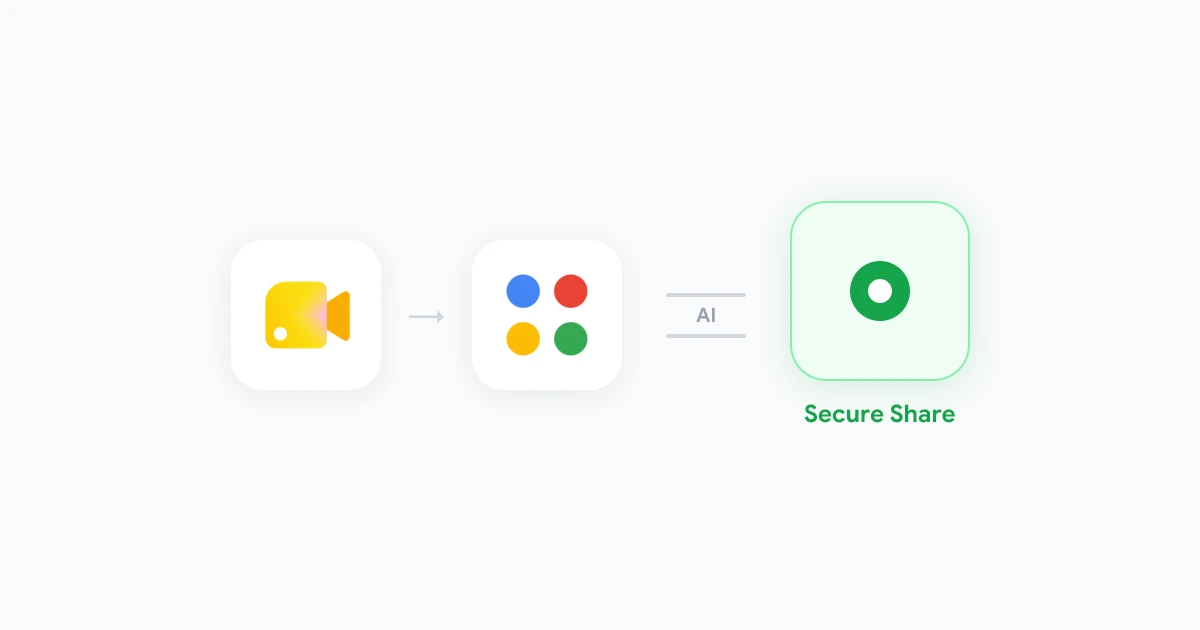
The safest way to share meeting recording securely is to give access only to people who were on the call or have a documented need, store the file in a controlled workspace, and turn off public links. Most leaks happen after the meeting ends, when someone copies a Drive link into Slack or sets sharing to “anyone with the link.”
Recording is the easy part. Sharing is where sensitive customer names, salary talk, and strategy details leave the room. This guide walks through a post-record workflow you can run on Google Meet today: where to store files, who gets access, how to send recaps to async teammates, and what to write in your team policy.
For policy language you can hand to HR, start with our meeting recording policy template. For the storage layer behind every share decision, see where Google Meet recordings are saved.
Key takeaways
- Default narrow: Share with named participants first. Expand access only when someone requests it with a reason.
- No public links: Block “anyone with the link” on work recordings. Require sign-in and domain restriction where possible.
- One home: Keep recordings in a Shared Drive or team workspace, not personal accounts.
- Async by design: Send a summary and timestamp links instead of the full video when the whole file is not needed.
- Delete on schedule: Pair sharing rules with a retention window so old files do not linger in shared folders.
Why secure sharing matters more than secure recording
Most teams worry about whether the recorder is encrypted in transit. That matters, but the bigger risk is oversharing after the call.
According to IBM’s 2024 Cost of a Data Breach report, the global average breach cost reached $4.88 million. Insider mistakes and misconfigured cloud storage show up again and again in breach root-cause data. A meeting recording sitting in a folder with loose permissions is exactly that kind of mistake.
A single Google Meet file can contain:
- Customer pricing and contract terms shared on screen
- HR or performance comments spoken aloud
- Unreleased product plans and roadmap slides
- Personal health or family details mentioned in passing
Once a link spreads, you cannot un-hear what was said. You can only revoke access and hope nobody downloaded a copy. Secure sharing is about preventing that spread in the first place.
Our Google Meet recordings security guide covers encryption and access at the platform level. This article focuses on the human workflow: who you add, what link type you choose, and how you distribute recaps.
Step 1: Store recordings in the right place before you share
You cannot share securely from the wrong location. Native Google Meet recordings land in the organizer’s Drive under “Meet Recordings.” Browser-based recorders may save to a team workspace or a vendor cloud. The rule is the same everywhere: approved storage first, sharing second.
Preferred storage locations
- Shared Drive (Team Drive): Best default for work recordings. Files belong to the team, not one employee. When someone leaves, the recording stays.
- Dedicated project folder: A folder with explicit member list, nested under a Shared Drive or a manager-owned space with tight ACLs.
- Approved recorder workspace: If you use Record Meeting or another IT-approved tool, store output in the workspace your admin configured, not a personal Gmail account.
Locations to avoid
- Personal “My Drive” root: Recordings inherit broad folder permissions more often than teams expect.
- Public or “anyone can view” folders: One drag-and-drop and every future file in that folder is exposed.
- Consumer chat apps as the system of record: Pasting a Drive link into a public channel creates a second copy of the access path you cannot audit.
Move or save the file to the team location before you notify anyone. If you must share from the organizer’s Drive temporarily, set a reminder to migrate it within 24 hours.
Step 2: Set permissions before you send the link
Google Drive sharing offers several levels. For work recordings, only two are usually appropriate.
Recommended sharing settings
| Setting | When to use | Risk if misused |
|---|---|---|
| Specific people | Default for every internal recording | Low, if the list matches actual attendees |
| Shared Drive members | Team standups and recurring project calls | Low, if membership is kept current |
| Anyone in your domain | All-hands or company-wide training | Medium, still better than public links |
| Anyone with the link | Almost never for work content | High, link can leave the company |
| Public on the web | Never for internal meetings | Critical |
Turn on “Restrict” or domain-only access in Google Workspace admin where your plan allows it. Require viewers to sign in so anonymous access is blocked.
The participant-only default
Start with this rule: everyone on the calendar invite gets access. Everyone else asks the meeting owner.
The owner (or delegate) adds names individually or adds a single Shared Drive that already lists the right members. Do not post a view link in a channel with hundreds of people unless the meeting was meant for that entire audience.
For external guests who need the file, share with their work email only. Set “Viewer” unless they must download. Disable “Editors can change permissions and share” on sensitive calls so access cannot be re-shared without the owner.
Sharing a recording with "anyone with the link" and pasting that link in Slack. Anyone who sees the message can forward the link, including contractors and former employees still in the channel history.
Step 3: Share the minimum someone needs
Not every stakeholder needs the full hour of video. Oversharing creates privacy risk and wastes time. Match the asset to the ask.
What to send by scenario
- Attendees who missed nothing: Transcript, AI summary, and action items only. Link to the full recording in the team folder without broadcasting the link company-wide.
- Absent teammates: Summary plus 2-3 timestamped clips for the decisions they missed, not the entire raw file when possible.
- Managers or coaches: Full recording with viewer access, time-boxed. Revoke when the review is done if policy allows.
- Legal or compliance: Export to the case system they specify. Do not leave a permanent copy in a general project folder.
- Customers or vendors: Only when contract or consent covers it. Use password-protected delivery or their secure portal, not an open Drive link.
When you share meeting recording securely, the goal is least privilege. If a written recap answers the question, skip the video link.
For async norms around announcing recordings and recap etiquette, pair this workflow with our remote meeting recording etiquette guide.
Step 4: Distribute recaps without exposing the file
Async teams need context fast. You can do that without turning every recap into a permission problem.
A secure async recap pattern
- Write a 5-bullet summary in the meeting doc or ticket: decisions, owners, due dates.
- Link to the recording using a restricted Drive link or workspace URL that requires sign-in.
- Post the summary in the team channel, not the raw link alone. Context tells people whether they need to open the file.
- Set expiration or review date if your tool supports link expiry. If not, calendar a permission audit 30 days out.
- Archive or delete per your retention policy when the recap period ends.
Tools that keep recordings inside Google Workspace reduce the number of places a link can leak. Review your setup against the Record Meeting security overview if you use a browser recorder alongside native Meet capture.
 Try Record Meeting
Record Google Meet from the browser with no bot joining the call. Recordings, transcripts, and summaries stay inside your Google Workspace so sharing follows the same access rules you already use in Drive.
Get Started Free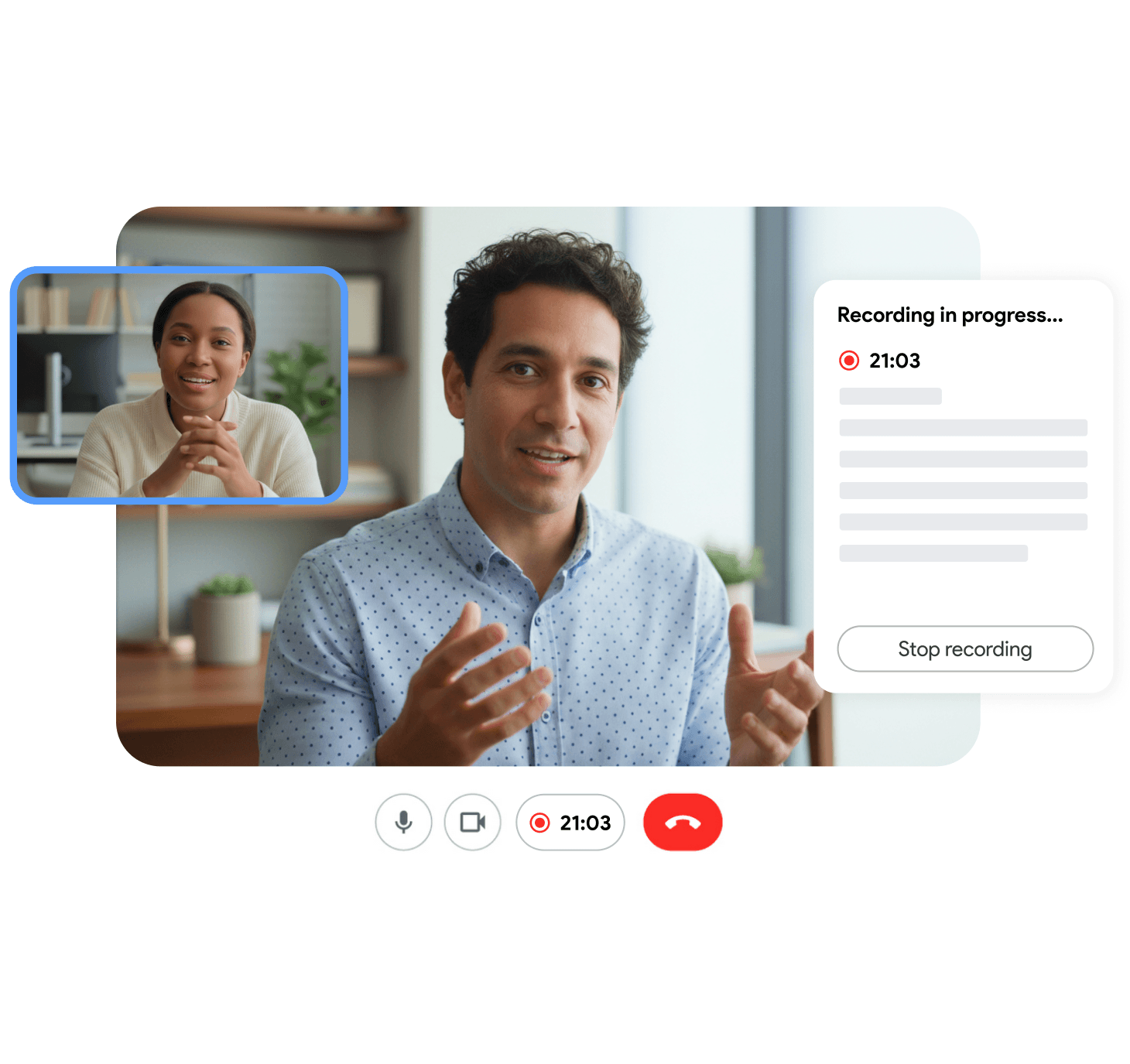
Step 5: Handle external and regulated content
Some recordings need extra gates before anyone clicks share.
External participants
- Confirm recording was announced and guests had a chance to object.
- Share with named work emails only. Avoid consumer Gmail addresses when the content is confidential.
- Prefer download disabled unless the recipient must edit or archive locally.
- Log who received access in your CRM or project notes for customer calls.
Regulated data (EU, UK, healthcare)
If the call may include personal data covered by GDPR or health information under HIPAA, sharing rules from your compliance program override convenience defaults. Our GDPR meeting recording guide and HIPAA-compliant meeting recording guide cover lawful basis, retention, and erasure requests. The sharing takeaway is simple: fewer copies, fewer people, shorter retention.
For EU teams, honour access and erasure requests quickly. That is much easier when one admin can find every recording in a Shared Drive than when files are scattered across personal accounts.
Step 6: Audit and revoke access on a schedule
Secure sharing is not a one-time click. Permissions drift as people change roles, leave the company, or join new channels.
Monthly checks (15 minutes)
- Open the Shared Drive or folder that holds recordings. Sort by “Shared with.”
- Remove users who no longer need access. Remove “anyone with the link” if it appeared on any file.
- Confirm departed employees lost access through group membership reviews, not just individual file checks.
- Spot-check three recent recordings against your meeting recording policy. Do attendees match the share list?
When someone requests broader access
Ask for a one-line business reason and an end date. Add them as viewer, not editor. Note the exception in the meeting doc or ticket. Default access stays narrow.
Google Workspace admins can run Drive audit logs to see who viewed or downloaded a file. If your industry requires it, turn on those reports before you scale recording across the company.
Secure sharing checklist
Run this list before you send any recording link:
- File lives in team storage, not a personal Drive root.
- Sharing is set to specific people or Shared Drive members, not public or link-only.
- Viewers must sign in with a work account where policy requires it.
- Recipients match the purpose (participants, absent teammates, named approvers).
- Summary posted with context so the full video is not the only message in a large channel.
- Retention date is set or documented so the file is not kept forever by default.
- External or regulated calls followed the extra steps in your compliance guide.
Print this checklist into your policy doc or paste it into the meeting template your team already uses.
Frequently Asked Questions
Bottom line
You share meeting recording securely by treating the file like credentials: store it in team space, grant the smallest audience that still gets the job done, and review permissions before they drift. Recording captured the conversation. Sharing decides who keeps hearing it.
Pick one Shared Drive folder for your team this week, move last month’s Meet recordings into it, and run the checklist on your next recap before you paste a link anywhere. If policy is still informal, adapt our meeting recording policy template and link it from the folder description so everyone sees the same rules.