Microsoft Teams Meeting Recap: Where to Find It and Why It Is Missing
Microsoft Teams meeting recap explained: where the Recap tab is, what it contains, why it is missing, who needs Teams Premium or Copilot, and how to share it.

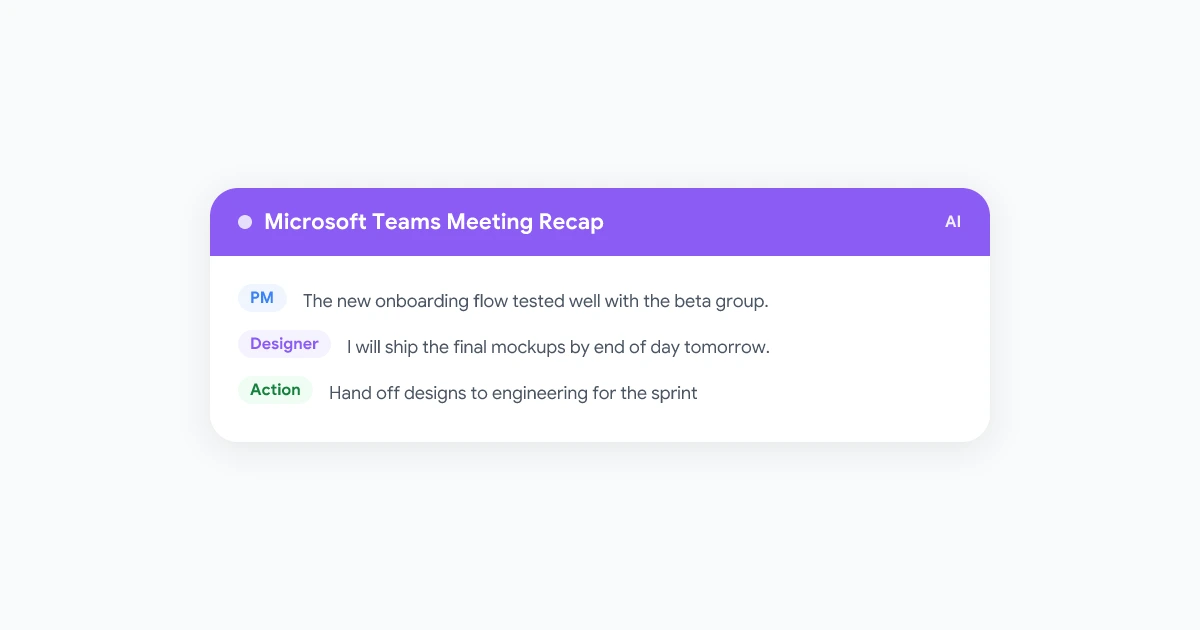
The meeting ends, the chat fills up with thank-yous, and someone asks for the notes. In Microsoft Teams the answer is supposed to be the meeting recap: one tab with the recording, the transcript, the shared files and, on the right license, AI notes and follow-up tasks. In practice the Recap tab is often not where people expect it, shows less than they hoped, or is missing entirely.
This guide covers how a Microsoft Teams meeting recap works in 2026: where to find it, which parts need Teams Premium or Microsoft 365 Copilot, why a recap goes missing, how to share one, and what to do when Teams cannot give you a recap at all.
What Is a Microsoft Teams Meeting Recap?
A Teams meeting recap is the post-meeting page that Teams builds from whatever was captured during the call. According to Microsoft’s guide to recap in Microsoft Teams, recaps are available after meetings, town halls, webinars and calls that were recorded or transcribed. No recording or transcript means no recap.
There are two levels:
- Standard recap. Anyone in your organization who was invited can open it: recording, transcript, shared files, collaborative notes, agenda and follow-up tasks in one place.
- Intelligent recap. The AI layer on top: generated notes, recommended tasks, speaker and topic navigation and personal markers. Microsoft’s admin documentation on intelligent recap for Teams calls, meetings and events states that each user needs a Teams Premium or Microsoft Copilot license on top of a Microsoft 365 subscription that includes Teams.
| Standard recap | Intelligent recap | |
|---|---|---|
| Recording and transcript | Yes, if captured | Yes, if captured |
| Shared files, notes, agenda, tasks | Yes | Yes |
| AI notes and AI recommended tasks | No | Yes |
| Speakers, topics and chapters | No | Yes, needs recording and transcription |
| Name mention, join and leave, screen share markers | No | Yes |
| Audio recap and video recap | No | Yes, Copilot license only |
Where to Find the Teams Meeting Recap
On desktop and the web
- Open Chat in Teams and select the chat for the meeting.
- Select the Recap tab at the top, or select View recap on the recording or transcript thumbnail.
- For a bigger view, select Open meeting recap in new window.
- For a recurring meeting, pick the occurrence from the dropdown inside the recap. If the date is not listed, select Load more meetings.
You can also open a past meeting in the calendar and select View recap.
On mobile
Open the meeting chat, tap Apps, then Recap, or tap the recording or transcript thumbnail. For a series, open the invite in your calendar, tap Apps, then Recap, and choose the date.
The Meeting Recaps app
Microsoft’s page on the Meeting Recaps app describes a hub for all of them: select the more apps icon in Teams, search for “Meeting recaps”, and pin it. It lists scheduled meetings from the past 30 days that were recorded or transcribed, with Meetings, Missed and Followed filters. It leaves out Meet now meetings, calls and meetings that only used temporary transcription, and it is not available on mobile.
What You Need for a Teams Meeting Recap to Exist
Most “my recap is missing” cases come down to one of four requirements.
1. Someone turned on recording or transcription
Transcription is the raw material. Microsoft’s guide to starting, stopping and downloading live transcripts gives the path: open More actions in the meeting controls, select Transcribe, confirm the spoken language and select Confirm. When you record a meeting, transcription starts automatically, and every participant sees a notification.
Recording adds the video. Per Microsoft’s guide to starting, stopping and finding meeting recordings, you start one from More actions, then Record. The file is saved in the organizer’s OneDrive and appears in the meeting chat, or in the channel conversation for channel meetings.
Who can press those buttons matters. The organizer, co-organizers and presenters from the same organization can. Guests, people from another organization and anonymous participants cannot. With Teams Premium or Copilot, the organizer can restrict it further when scheduling, down to organizers and co-organizers only, or no one.
2. You were invited, and you are in the organization
Microsoft’s rule for intelligent recap access is blunt: “Anyone who wasn’t invited or isn’t in your org won’t have access.” That holds even with a forwarded recording link or your own Teams Premium license. The rest of the recap follows suit: people from another organization can watch live transcription but not read the transcript afterwards, and Microsoft’s page on meeting notes in Teams adds that external attendees cannot access or edit the collaborative notes.
3. Your admin allows it
The admin article above says transcription must be turned on for intelligent recap at all, and recording for the full experience. In Microsoft’s words, “If recording is turned off, users experience recap without the recording, speakers, topics, and chapters.”
4. The right license, for the AI parts
The standard recap needs no add-on. AI notes, AI tasks, speaker and topic views and markers need Teams Premium or Microsoft 365 Copilot assigned to your user, and audio and video recap need Copilot specifically. Both are paid per-user add-ons, so check current pricing with your admin. Two duration rules also apply: the AI summary needs an event of at least five minutes, and video recap needs at least ten minutes of a recorded and transcribed meeting.
What Intelligent Recap Adds
With Teams Premium or Copilot, the Recap tab gains the AI features Microsoft lists on its support page:
- AI notes and follow-up tasks. A generated summary plus recommended tasks. Microsoft warns that the content comes from GPT and other AI models and may be inaccurate or incomplete, so read it before you forward it.
- Timeline markers. An @ marker shows when your name was said, join and leave markers show when you came and went, and screen share markers show when someone presented. The first two are visible only to you.
- Speakers view, topics and chapters. Who spoke when, and the meeting split into sections from transcript keywords and PowerPoint Live content. Select any of them to jump to that moment.
- Audio recap and video recap. Copilot-only extras: a podcast-style summary of up to eight meetings, stored for 60 days in your OneDrive, and narrated video highlights from the recording.
Microsoft lists 25 supported languages for intelligent recap, with translated recaps in public preview for nine of them. In an unsupported language the recap still shows the recording and transcript, but the AI sections stay empty.
Why Your Teams Meeting Recap Is Missing (and How to Fix It)
Work through this list in order. Each item is a reason people report that the Teams meeting recap is not showing or is missing content.
- Nothing was recorded or transcribed. The most common cause. Look for a recording or transcript thumbnail in the meeting chat. If there is none, there is no recap. Next time, turn on transcription at the start or ask the organizer to enable automatic recording.
- It was a Meet now meeting or a call. Microsoft states that recap notifications, notes and content are not currently available for ad-hoc events, and the Meeting Recaps app excludes Meet now meetings and calls. Schedule from the calendar when you want a recap.
- You were not on the invite. People added only in the chat, or who joined from a forwarded link, do not get recap access. Ask the organizer to open the recap, select Share, and add you by name.
- You are an external guest. Even with an invite, people outside the organization cannot open the recap. Ask the organizer for the AI summary by email or a downloaded transcript (both covered below).
- The recording is there but the AI notes are locked. A licensing gap, not a bug. You have the standard recap and no Teams Premium or Copilot license. Webinar and town hall attendees never get intelligent recap, which Microsoft limits to organizers, co-organizers and presenters for events.
- The meeting was under five minutes, or the notes are still processing. Short calls get no AI summary even on a licensed account, and AI notes for long meetings arrive some time after the transcript is final. Reopen the chat later before assuming it failed.
- The content expired or was deleted. Teams recordings and transcripts carry an expiration date, 120 days by default, and only organizers and co-organizers can choose Delete recap content from More options, which permanently removes the recording, transcript and AI notes. Our guide to Microsoft Teams recording expiration explains how to recover a recently expired recording from the recycle bin.
- The desktop app is misbehaving. Open Teams on the web and check the same chat. If the recap appears there, sign out and back in on the desktop client, or clear its cache.
If your admin confirms the policies are in place and the recap is still missing, raise it with Microsoft support through your IT team.
How to Share or Download a Teams Meeting Recap
Share inside your organization
Open the recap, select Share, add names, email addresses, groups or tags, and select Share again. For a link to paste into a chat or channel, select Share, then Copy link. Anyone without access can request it.
Email the AI summary, including to external attendees
Organizers, co-organizers and presenters can select Share, then Share to email. Teams drafts an Outlook message to the invitees, which you can edit before sending. This is the sanctioned route for external attendees, who cannot open the recap in Teams. Microsoft disables it for Confidential or Highly Confidential recipients-only sensitivity labels, or when recording or transcript access is restricted to organizers and co-organizers or to specific people. Our meeting recap email template helps the follow-up read well.
Download the transcript or recording
In the recap, select Transcript, then the arrow next to Download, and pick .docx or .vtt. By default only organizers and co-organizers can download, and the same applies to downloading or deleting the recording from OneDrive or SharePoint. Everyone else gets a view-only copy unless the permissions change.
Can You Get a Teams Meeting Recap Without Recording?
Yes, in two ways.
Transcribe without recording. Turn on Transcribe instead of Record. You get the transcript, and licensed users get AI notes and tasks. What you lose, per Microsoft, is the recording plus the speakers, topics and chapters views.
Intelligent recap without saving a transcript. For organizations that forbid stored transcripts, Microsoft’s page on using intelligent recap without transcription describes a Copilot-only option. During a scheduled meeting, select Meeting AI at the top of the window and turn on the Intelligent recap toggle. Teams works from the live audio, deletes the cached data when the meeting ends, and saves the summary as a read-only Word document in the organizer’s OneDrive Meetings folder. The toggle must still be on when the meeting ends, participants see a banner when it changes, and instant meetings are not supported.
Neither option helps if you are unlicensed, outside the organization, or your admin has transcription off. That is where a recorder you control comes in.
When Teams Cannot Give You a Recap
Guests in a client’s tenant, teams with no Premium or Copilot budget, and anyone whose admin keeps transcription off still need what a recap provides.
Record Meeting is a Chrome extension that records Teams calls from the Teams web app in your browser. Join the meeting with Continue on this browser, click the record button, and the call is captured from your own tab. No bot joins the participant list, and nothing depends on your role, your license or the organizer’s policies.
When you leave, the recording uploads to your private workspace. Within a few minutes you have an MP4, a transcript in 50+ languages with speaker labels, and an AI summary with action items, which you can share by link or download. Recordings do not expire and storage is unlimited on every plan. The free plan covers 5 recordings of up to 1 hour each. Pro removes the cap, allows recordings of up to 6 hours and unlocks full transcripts, AI notes and downloads.
Whichever tool you use, tell the meeting you are recording. Teams notifies everyone when its own recorder or transcription runs, a browser recorder does not, so say it out loud. Our guide on recording a meeting without telling participants covers the consent rules by region.
 Try Record Meeting
Get your own recap of any Microsoft Teams call: recording, transcript and AI summary with action items, straight from your Chrome browser. No Teams Premium, no Copilot license and no bot in the call.
Get Started Free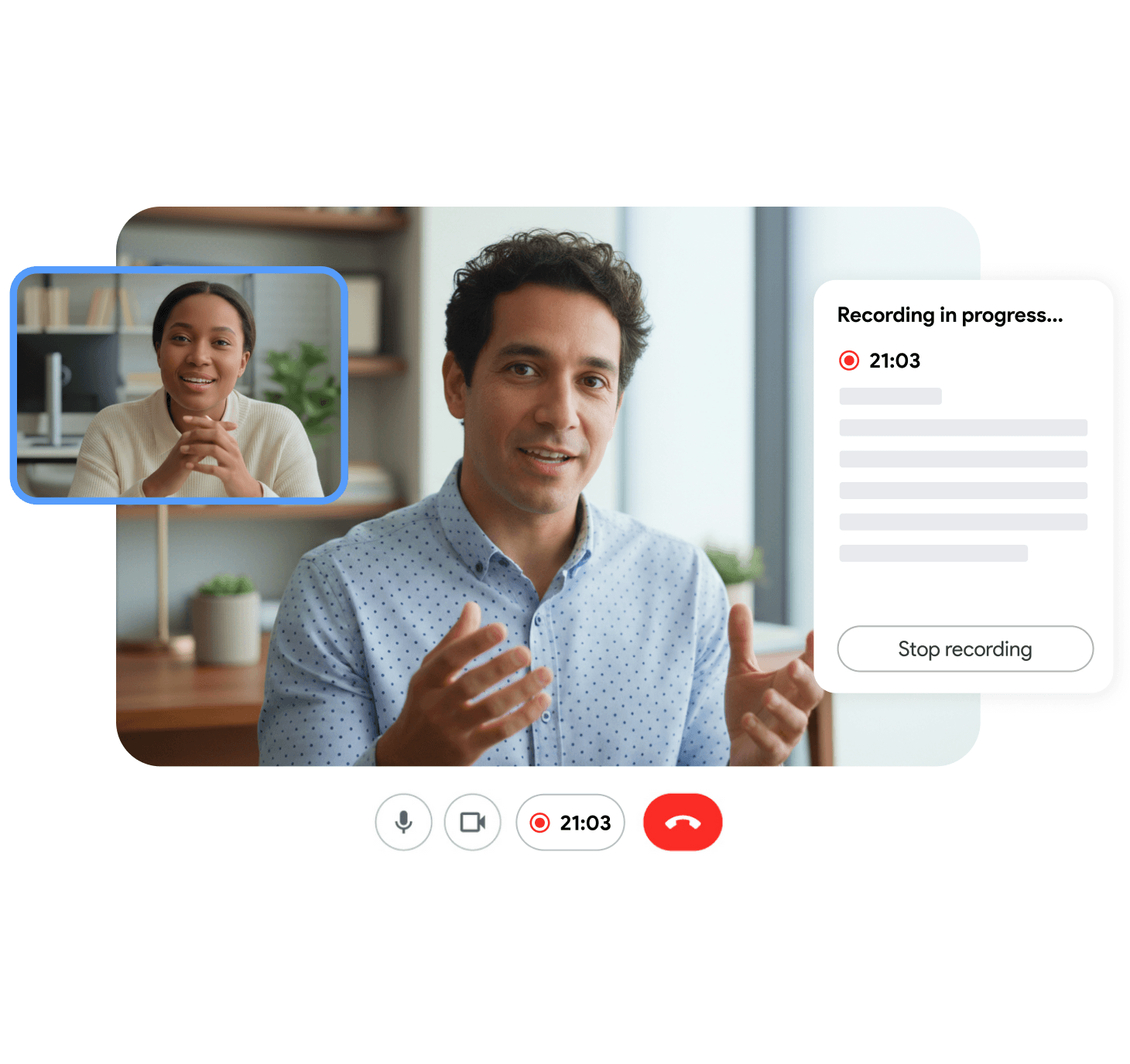
Frequently Asked Questions
Conclusion
A Microsoft Teams meeting recap is only as good as what was captured and who is allowed to see it. Recording or transcription has to be on, you need to be an invited member of the organization, your admin has to allow transcription, and the AI layer needs Teams Premium or Copilot. When those line up, the Recap tab gives you everything in one place. When they do not, a browser-based recorder like Record Meeting gives you your own recording, transcript and summary regardless of plan or role. Either way, a recap only pays off when someone acts on it, so pair it with a habit for tracking meeting action items.