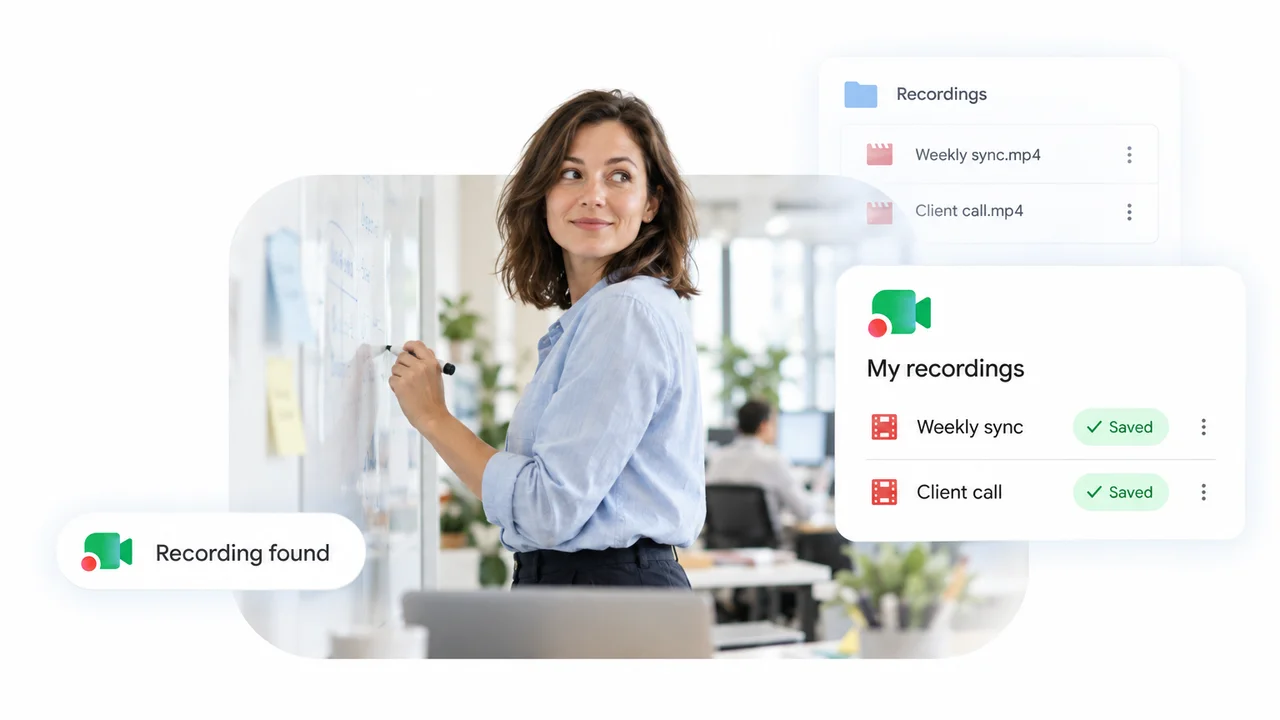
Teams recordings are stored in Microsoft 365 cloud storage, never in a folder on your computer. For a scheduled or ad hoc meeting, the MP4 lands in the meeting organizer’s OneDrive, inside a folder called Recordings. For a meeting held in a Teams channel, it lands in that channel’s SharePoint site, also in a Recordings folder. Teams then posts a link in the meeting chat and shows the file in the Recap tab of the meeting in your calendar.
That is the short answer to “where are Teams recordings stored”. The full answer depends on the type of meeting, who pressed Record, and whether the organizer has a OneDrive at all. This guide covers every case Microsoft documents, the four places to look for a Teams recording, who can open or download it, and what to do when the recording is not showing in the chat.
Where do Teams recordings go? It depends on the meeting type
Microsoft’s admin documentation on Teams recording storage in OneDrive and SharePoint spells out one rule per meeting type. The organizer’s OneDrive is the default, and it applies even when the organizer never joined the meeting.
| Type of meeting or call | Where the recording is saved | Who gets edit rights |
|---|---|---|
| Scheduled meeting, recurring meeting, Meet now, or a meeting booked from Outlook | The organizer’s OneDrive, in the Recordings folder | Organizer and co-organizers |
| Channel meeting | The channel’s SharePoint site, under Documents, then Recordings | Follows the channel’s SharePoint permissions |
| 1:1 call or group call | The OneDrive of the person who selected Record | The person who recorded |
| Meeting scheduled from a shared mailbox | The shared mailbox’s OneDrive if it has one, otherwise a co-organizer’s or the recorder’s OneDrive | Co-organizers and the recorder |
| Meet now started from a Teams Rooms device | The room account’s OneDrive if it is licensed, otherwise a co-organizer’s or the recorder’s OneDrive | Varies, and participants may have no full access |
| Webinar or town hall | The organizer’s OneDrive, with published copies stored in SharePoint Embedded containers | Organizer |
Two details from the same page catch people out. Delegate-created meetings still save to the organizer’s OneDrive, not the delegate’s. And a one hour recording is about 400 MB, which counts against the OneDrive or SharePoint quota of whoever holds the file.
What happens when the organizer has no OneDrive
Microsoft documents a fallback chain for this case:
- The first co-organizer’s OneDrive, in the order co-organizers are listed in the meeting options. If that person has no OneDrive, Teams tries the next co-organizer.
- The OneDrive of the person who started the recording, if no co-organizer has one.
- Temporary storage, which Microsoft calls async media storage, if nobody involved has a OneDrive or the quota is full. Nothing retries the upload. The organizer has 21 days to download the file before it is deleted.
Teams does not save recordings to your computer
A lot of people search for the Teams recording location on Windows or on a Mac and go looking in Documents or Movies. There is nothing there. Teams has no local recording mode. Microsoft’s support page on starting, stopping and finding meeting recordings says the recording is processed and saved to OneDrive or SharePoint, and that is the only copy Teams makes. The only local file you will ever have is one you download yourself.
How to find a Teams recording: the four places to look
Microsoft’s guide to playing, sharing and downloading meeting recordings lists the in-app routes. The fourth route, straight to the storage, is the one to use when the Teams links let you down.
- Open the meeting chat. Select Chat, open the meeting’s chat, then select the Shared tab. The recording is listed as an MP4 with a recording icon. Select it and press Play. The chat itself also shows a recording card once processing finishes.
- Open the meeting from your calendar. Select Calendar, select the past meeting, then select Recap. The recording sits at the top of the recap next to the transcript. Microsoft’s documentation on Teams recording policies calls this the Recordings and Transcripts tab.
- For a channel meeting, open the channel. Select Teams, open the channel, then select Shared or Files. The recording is in the Recordings folder with the other channel files.
- Go straight to OneDrive or SharePoint. Sign in to OneDrive on the web and open My files, then Recordings. For a channel meeting, open the channel’s Files tab, open Recordings, and select Open in SharePoint, which takes you to Documents, then Recordings on the team site.
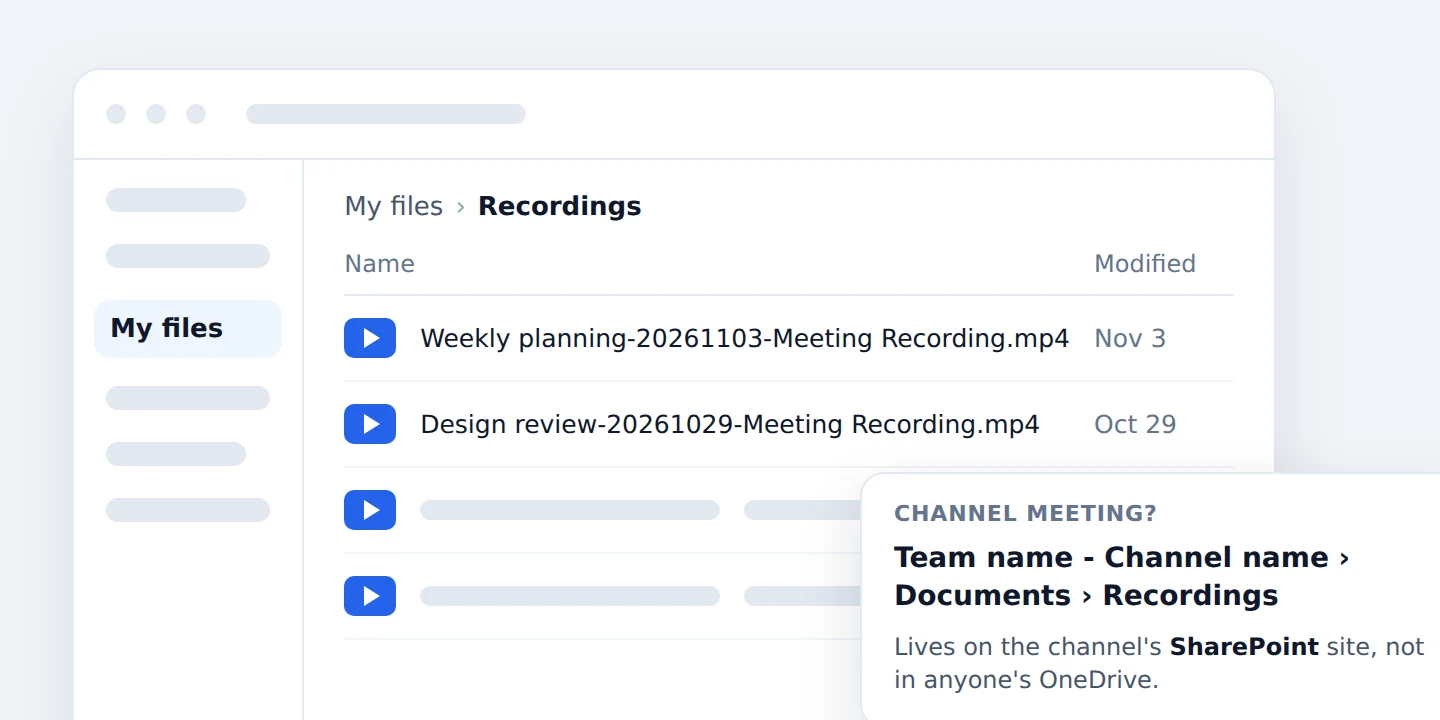
Recordings also appear in the places Microsoft 365 lists recent files, such as Shared with me and Recent, and Microsoft 365 search indexes them. Searching the meeting title in OneDrive often finds the file faster than scrolling through a chat.
Who can open, download or move a Teams recording
Finding the file is half the problem. Whether you can do anything with it depends on your role in the meeting. The permissions below come from Microsoft’s storage and permissions page linked above.
| Your role | What you can do with the recording |
|---|---|
| Organizer | Full control: play, share, download, delete, change the expiration date |
| Co-organizer | Edit and share, the same as the organizer for the recording file |
| Invited attendee from the same organization | View only. No download and no sharing unless the organizer changes the link |
| External attendee or guest | No access until the organizer shares a link directly |
| Channel member | Whatever the channel’s SharePoint permissions allow, usually view and edit |
| The other person on a 1:1 call | Read only, with no sharing or download |
A few consequences follow from that table:
- Downloading is an organizer job. Microsoft’s play and share page says only the meeting organizer can download, from the Shared tab, through More options, then Download. Co-organizers have the same edit rights, and everyone else needs to ask.
- Forwarded invitations do not always carry access. Only people who are added to the meeting chat get the personal link. If an invitation was forwarded to a large group, some of those people will not be in the chat and will have to ask the owner for access.
- Admins can lock channel recordings down. The recording policies page describes a Block setting that moves channel recordings into a view-only subfolder of Recordings, where members can watch but not download or edit.
- Moving the file has a cost. The MP4 is an ordinary file, so an organizer can move or copy it like any other OneDrive document. Microsoft warns that closed captions are not fully supported once a recording leaves its original folder.
There is no setting, for users or admins, that changes where Teams recordings are stored. If your organization needs recordings in a specific library, the workflow is to move them after upload, and to write that step into your meeting recording policy so people know who does it and when.
Teams recording not showing in chat? Where it probably went
So where do Teams recordings go when the chat shows nothing? Almost always to one of the places in the list above. Microsoft’s troubleshooting article on issues that affect meeting recordings and its expiration documentation explain the common causes.
| What you see | Likely cause | What to do |
|---|---|---|
| No card yet, and the meeting just ended | Teams is still processing and uploading the file | Wait, then check the Recap tab. Long recordings take longer |
| Other people see the card, you do not | A known issue in busy chats hides the link for some users | Scroll to the top of the chat and back down, or open My files, then Recordings in the organizer’s OneDrive |
| An error says the upload failed | The organizer’s OneDrive is full or not provisioned | The recording sits in temporary storage for 21 days. Download it now, or free up space and retry the upload |
| A banner says the recording is unavailable, expired or deleted | The expiration date passed | Restore it from the OneDrive or SharePoint recycle bin, as explained in our guide to Microsoft Teams recording expiration |
| Several files for one long session | Recording stops and restarts automatically every four hours while someone stays in the meeting | Open each part from the Recordings folder |
| Nothing anywhere | The recording never completed, or a policy blocked it | Ask an admin to run the Missing Recording Diagnostic in the Microsoft 365 admin center |
On expiration specifically, Microsoft’s recording expiration policy page sets the default at 120 days. When that date passes, the file moves to the recycle bin of the OneDrive or SharePoint site that held it, and work or school accounts keep recycled items for 93 days unless an admin changed the setting. After that, the recording is gone for good, so the recycle bin is the last place to check, not the first.
Keep your own copy of every Teams meeting
Every rule above has the same shape. The recording belongs to the organizer, lives in the organizer’s storage, expires on the organizer’s schedule, and reaches you only if you were in the chat. If you attend meetings run by other teams, clients or vendors, you depend on them for every recording. Guests and external attendees cannot even press Record.
Record Meeting removes that dependency. The Chrome extension records the Teams call from your own browser tab, so no bot joins the meeting and you do not need the organizer’s permission or a Microsoft 365 license. When you leave the call, the recording uploads to your private workspace and you get an MP4, a transcript with speaker labels in 50+ languages, and an AI summary with action items that you can share by link.
The free plan includes 5 recordings of up to 1 hour each. Pro removes the cap, with recordings up to 6 hours, full transcription, AI meeting notes and downloads. If the organizer did record, you still get the native file too. Our guide to the Teams meeting recap explains where that recording, the transcript and the AI notes appear together.
 Try Record Meeting
Record Microsoft Teams, Google Meet and Zoom calls from your browser. Every recording lands in your own workspace with a speaker-labeled transcript in 50+ languages and an AI summary, with no bot in the meeting and no dependence on the organizer.
Get Started Free
The same question comes up on every platform. If your team also runs calls elsewhere, see where Google Meet recordings go and what to do when a Zoom recording is not showing up.
Frequently Asked Questions
Conclusion
Where are Teams recordings stored? In the organizer’s OneDrive Recordings folder for ordinary meetings, in the channel’s SharePoint site for channel meetings, and in the recorder’s OneDrive for calls, with a 21 day holding area when none of those exist. Check the meeting chat’s Shared tab and the Recap tab first, then the Recordings folder itself, and the recycle bin last.
If you want a copy of every Teams meeting that does not depend on someone else’s storage, permissions or expiration date, install Record Meeting and record from your browser. You get the video, a transcript and a summary a few minutes after the call ends, whether or not you were the organizer.