Google Meet AI Summary: How to Automatically Summarize Every Meeting
How to get an AI-generated summary of your Google Meet calls automatically. Comparing native Workspace AI features, third-party tools, and how to make summaries actionable for your team.

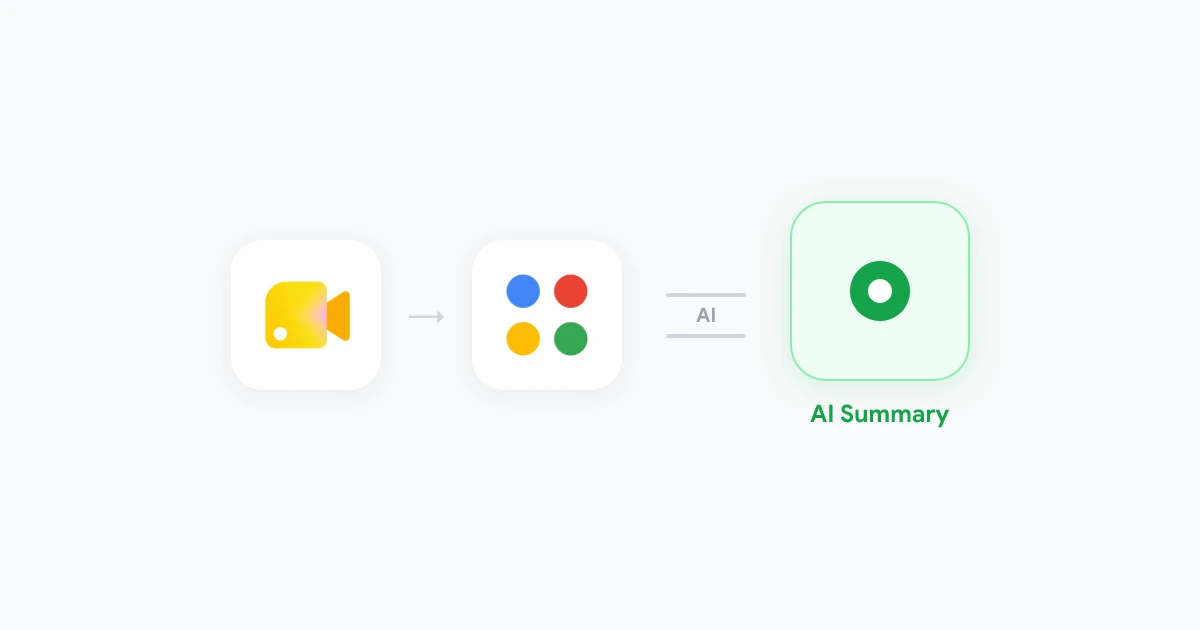
A one-hour meeting produces roughly 7,000 words of spoken content. Your team will read a 200-word summary. The gap between those two numbers is where most meeting value gets lost. AI summaries close that gap automatically, without adding any work during or after the call.
This guide explains how Google Meet AI summaries work in 2026, what different tools provide, and how to build a summary workflow that your team will actually find useful rather than ignore.
What Is a Google Meet AI Summary?
An AI summary is a document generated by a language model that reads the meeting transcript and extracts the most relevant content into a short, structured format.
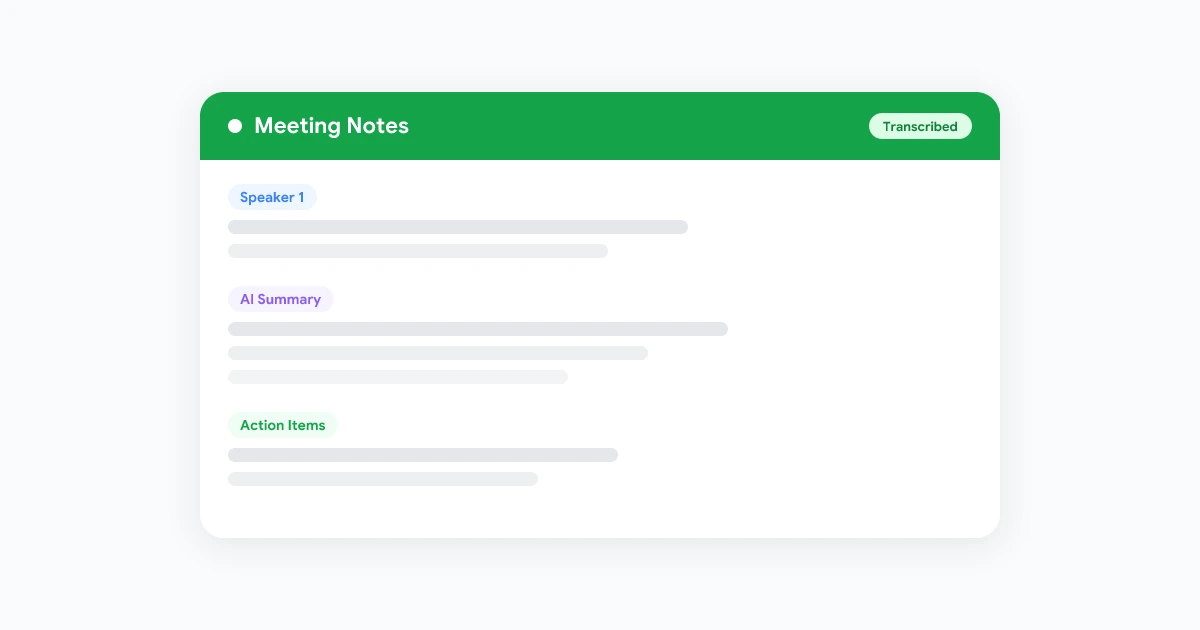
A good AI summary typically contains:
- A two-to-four sentence overview of what the meeting was about
- A list of decisions that were made
- A list of action items with owners and deadlines (when mentioned)
- Open questions that were raised but not resolved
- Optional: a section-by-section breakdown for longer calls
The summary is distinct from the transcript. The transcript is verbatim. The summary is interpreted and compressed. Both are useful, and neither replaces the other.
Native Google Workspace AI Summaries
Google has been expanding AI features inside Workspace since 2023. As of mid-2026, the native options depend on your Workspace plan and add-ons.
Google Meet recording with Gemini summary. When recording is enabled on eligible Workspace plans with Gemini add-on, Google automatically generates a summary after the recording is processed. The summary is saved alongside the recording file in Drive. It includes key topics covered and highlights, though the level of structure varies.
Google Docs “Help me write” from transcript. For teams who have the native Workspace transcript, you can paste the transcript into a Google Doc and use Gemini in Docs to generate a summary. This is a manual step but costs nothing if you already have the transcript.
Google Meet intelligent recap. On Workspace Business Standard and above with Gemini enabled, an “intelligent recap” appears in the Meet interface after a recorded call. It surfaces key moments, speaker contributions, and a basic summary. Access through Google Meet’s “Recent calls” view.
The native path works well if your team already uses Google Workspace at the right tier and if you want everything to stay inside Google’s ecosystem. The main limitations are that summaries do not always capture action items with owners clearly, and the feature set changes as Google updates its Gemini integration.
Third-Party AI Summary Tools for Google Meet
Many teams use browser-based tools that integrate directly with Google Meet and provide more structured, customizable output.
Record Meeting captures the audio through a Chrome extension, generates a full transcript in real time, and produces an AI summary automatically when the call ends. The summary is organized into topics, decisions, and action items. It appears in your Record Meeting dashboard within a minute of the call ending, without requiring any Workspace admin configuration.
The key advantage of browser-based tools is that they work regardless of your Workspace plan tier, are available immediately after the call, and often provide richer structure than the native summary.
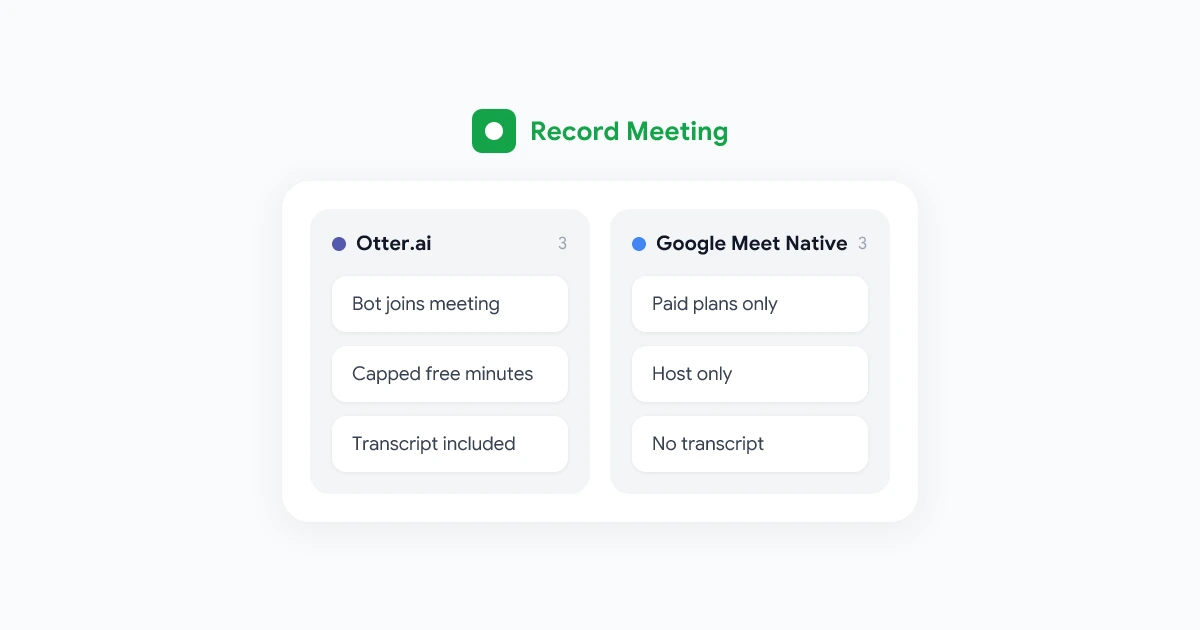
For teams evaluating options, our comparison with Otter.ai and comparison with Fireflies.ai walk through how the summary quality and workflow integration differ.
How to Set Up Automatic AI Summaries
Using Record Meeting
- Install the Record Meeting Chrome extension from the Chrome Web Store.
- Join your Google Meet.
- Click the Record Meeting icon and start recording. The extension captures the call immediately without a bot joining.
- When the call ends, stop the recording. The AI summary generates automatically.
- View the summary in the Record Meeting dashboard. Share it with participants via a link, email, or the direct copy feature.
No configuration is required beyond installing the extension. Every subsequent meeting where you start recording will produce a summary automatically.
Using Native Google Workspace
- Ensure your Workspace plan includes recording and Gemini features (Business Standard minimum for most features).
- Ask your Workspace admin to enable recording and intelligent recap in the Admin Console.
- Start recording at the beginning of your Google Meet. The recording indicator appears in the bottom toolbar.
- When the call ends, the recording and summary are processed by Google. This can take up to 30 minutes.
- Find the summary in Google Drive under the Meet Recordings folder, or in the Meet interface under your recent calls.
Making Summaries Actionable: The Workflow That Works
An AI summary that stays in your dashboard or Drive folder has limited value. The teams that benefit most build a brief distribution step into their meeting close.
Step 1: End the meeting with a verbal close. Before clicking “Leave call,” spend 60 seconds saying: “We decided X, Y takes this action, and Z will follow up by Friday.” This spoken close dramatically improves AI summary accuracy because the key information appears clearly at the end of the transcript.
Step 2: Review the summary within 15 minutes. AI summaries are good but not perfect. A quick scan after the call lets you correct any misattributed actions or missed decisions before the summary is shared.
Step 3: Share immediately. Do not wait until the next day. The summary is most useful when it lands in participants’ inboxes while the meeting is still fresh. Record Meeting can send the summary link automatically to all participants by email or Slack.
Step 4: Add open items to your project tool. Copy action items from the summary directly into your Linear, Jira, Notion, or equivalent tool. Assign them to the right person and set a deadline. A summary that does not connect to a task system produces good documentation but no follow-through.
AI Summary Quality: What to Expect and What to Check
AI summaries are reliable for common meeting types but degrade in predictable situations.
They work well for:
- Status updates and standups with clear agenda items
- Decision-making meetings with distinct options being discussed
- Planning sessions where specific tasks and owners are named
- Sales calls where next steps are stated explicitly
They struggle with:
- Brainstorming sessions where many ideas are floated without resolution
- Technical discussions with domain-specific terminology
- Calls where speakers do not identify themselves or use names
- Meetings where the audio quality is poor (background noise, unstable connection)
What to check before sharing:
- Are action item owners correctly identified?
- Are any decisions attributed to the wrong person?
- Is anything important missing, or is anything trivial inflated?
A 2-minute review before sharing catches most issues and preserves trust in the summary as a reliable record.
Privacy and Compliance Considerations
AI summaries require a transcript, and a transcript requires either an audio recording or a live capture. Before enabling AI summaries for your team, make sure everyone on the call understands that the meeting is being transcribed and summarized.
For internal team meetings: Most organizations treat recording consent as covered by team policy rather than individual session consent. Still, announce at the start of calls that recording is active.
For external calls: Client or partner calls have different consent dynamics. Tell external participants at the beginning that the meeting is being recorded and summarized. Give them a clear option to decline. Most people agree, but the opt-out needs to exist.
For regulated industries: Healthcare teams need to evaluate whether the AI processing their transcripts is HIPAA-compliant. Our HIPAA meeting recording guide covers the vendor checklist in detail.
Data retention: AI summaries contain the same information sensitivity as the meeting itself. Apply the same retention and access policies. A summary of a strategic planning session should not be accessible to your entire company indefinitely.
For a full overview of recording and privacy, see our Google Meet recording security guide.
Comparing AI Summary Quality Across Tools
The difference between a good AI summary and a bad one is mostly structure, not accuracy.
A bad AI summary gives you: “The team discussed several topics including the Q3 roadmap, budget allocation, and upcoming features. Several action items were mentioned.”
A good AI summary gives you:
Decisions made
- Q3 roadmap will prioritize the API launch over the mobile app redesign
- Marketing budget remains at $45K for the quarter
Action items
- Alex to deliver finalized API spec by June 13
- Sarah to schedule kickoff with the integration partner this week
Open questions
- Do we need legal review before the partner announcement?
The structured version is what allows someone who was not on the call to act on the output immediately.
Record Meeting produces the structured version. When evaluating any AI meeting tool, ask to see a sample output from a real meeting before committing to the workflow.
Using Summaries for Asynchronous Teams
AI summaries are especially valuable for teams across time zones who cannot attend every meeting in real time.
A team member in Singapore who was not present for the Monday planning call in London can read the summary in 3 minutes, see what was decided, and take their assigned action before the London team wakes up the next day. That is the async advantage.
Build a habit of posting every meeting summary to a shared channel immediately after the call. In Slack, this could be a #meeting-notes channel. In Teams, a shared tab. In Notion, a running database. The goal is searchability: anyone should be able to find the decision that was made in any meeting, at any time.
For a broader framework on remote meeting practices, see our remote team meeting recording guide.
FAQ
Summary
AI summaries for Google Meet are available today without significant setup. Native Google Workspace options work on eligible plans. Browser-based tools like Record Meeting work on any plan and provide structured, immediately available output.
The biggest shift is not technical. It is behavioral. Teams that make AI summaries part of their meeting close routine, share them immediately, and connect action items to their project tools see a measurable reduction in follow-up confusion and re-explaining decisions that were already made.
Start by enabling Record Meeting for your next three calls. Send the summary link to participants right after each one. By the fourth meeting, you will have a searchable archive of every decision your team has made in the past week.
Get started at recordmeeting.com.