How to Share Meeting Notes With Your Team (Without the Chaos)
Learn how to share meeting notes with your team so decisions and action items actually stick. Templates, tools, and a workflow you can start today.

Taking good meeting notes is only half the job. The other half, the part most teams get wrong, is getting those notes in front of the people who need them, in a place they will actually check. Notes that live in one person’s personal notebook or a random Google Doc might as well not exist.
This guide covers how to share meeting notes with your team in a way that survives contact with a busy inbox: where to put them, a simple template to fill in, and how to automate the whole thing so nobody has to write a recap by hand again.
Key takeaways
- Pick one home for notes: Scattering them across email, Slack, and personal docs guarantees someone misses the update.
- Share within the hour: The longer you wait, the less anyone remembers about why a decision was made.
- Separate notes from action items: A wall of text buries the two or three things people actually need to do.
- Tag people, don’t just list them: An @mention gets seen. A name in a paragraph gets skimmed past.
- Automate the first draft: A transcript-based summary removes the excuse to skip sharing notes at all.
Why sharing meeting notes matters more than taking them
A meeting produces two things: a record of what happened, and a set of commitments about what happens next. If notes stay with the person who wrote them, only that person carries those commitments forward. Everyone else is relying on memory, and memory fades within a day or two.
Teams that consistently share meeting notes get three things teams that don’t get:
- A shared source of truth. When someone asks “wait, what did we decide about the launch date?” there’s one place to check instead of five conflicting memories.
- Accountability that doesn’t depend on the room. If an action item is written down and assigned, it exists whether or not the person who agreed to it remembers saying yes.
- Coverage for people who missed the call. Async teammates, people in other time zones, and anyone who double-booked get the context without a follow-up meeting.
If your team also struggles with commitments slipping after the call, pair this with how to never miss meeting action items, which covers the ownership and follow-up side in more depth.
Where to share meeting notes: pick one home
The single biggest reason meeting notes don’t get read is that they don’t have a consistent, predictable location. Before choosing a template, choose a channel.
Team chat (Slack or Microsoft Teams) for fast recaps
Chat is the right place for short, high-signal summaries: what was decided, who owns what, and a link to the full notes. Post it in the channel the whole team already watches, not a DM to one person. Pin it if your tool supports pinning, so it doesn’t scroll away by the next morning.
A shared doc (Notion, Google Docs, Confluence) for the full record
Chat messages disappear into scroll history. A shared, searchable doc is where the detailed notes should actually live, with the chat message linking back to it. This matters most for recurring meetings, since a shared doc lets you keep a running log that people can search months later.
How to share meeting notes in Teams specifically
If your organization runs meetings in Microsoft Teams, notes taken during the call (or generated via Teams’ built-in recap) can be shared straight to the meeting’s chat thread or copied into the associated Teams channel, so they sit next to the calendar invite and recording. The same rule applies regardless of platform: put the recap somewhere the whole invite list already looks, not somewhere they have to go hunting for it.
Email for external stakeholders
Reserve email for clients, vendors, or anyone outside your internal chat tools. It’s slower to consume but works everywhere. If you send recaps by email often, the meeting recap email template has a ready-to-use structure built for exactly this.
A simple template for sharing meeting notes with your team
Whichever channel you use, structure beats prose. Here’s a template that takes under five minutes to fill in:
MEETING: [Name/topic]
DATE: [Date]
ATTENDEES: [Names]

DECISIONS
- [Decision 1]
- [Decision 2]

ACTION ITEMS
- [ ] [Owner] – [Task] – due [date]
- [ ] [Owner] – [Task] – due [date]

NOTES
- [Key discussion point]
- [Key discussion point]

RECORDING/TRANSCRIPT: [link]
Two things make this template work where a plain paragraph fails:
- Decisions come before discussion. People skim. If the resolution is buried in the fourth paragraph, most readers stop before they reach it.
- Action items are checkboxes with named owners, not a sentence like “the team will look into it.” A task with nobody’s name attached is nobody’s job.
If your team wants a standing policy on how long to keep and where to store these notes and recordings, the meeting recording policy template covers that ground.
 Try Record Meeting
Record your Google Meet calls and get an AI summary with decisions and action items already organized, ready to paste into chat or a shared doc.
Get Started Free
How to share meeting notes automatically from a recording
Filling in the template above by hand still requires someone to have taken good notes during the call, which is hard to do while also participating in the discussion. The more reliable fix is to skip manual note-taking and generate the recap from the meeting itself.
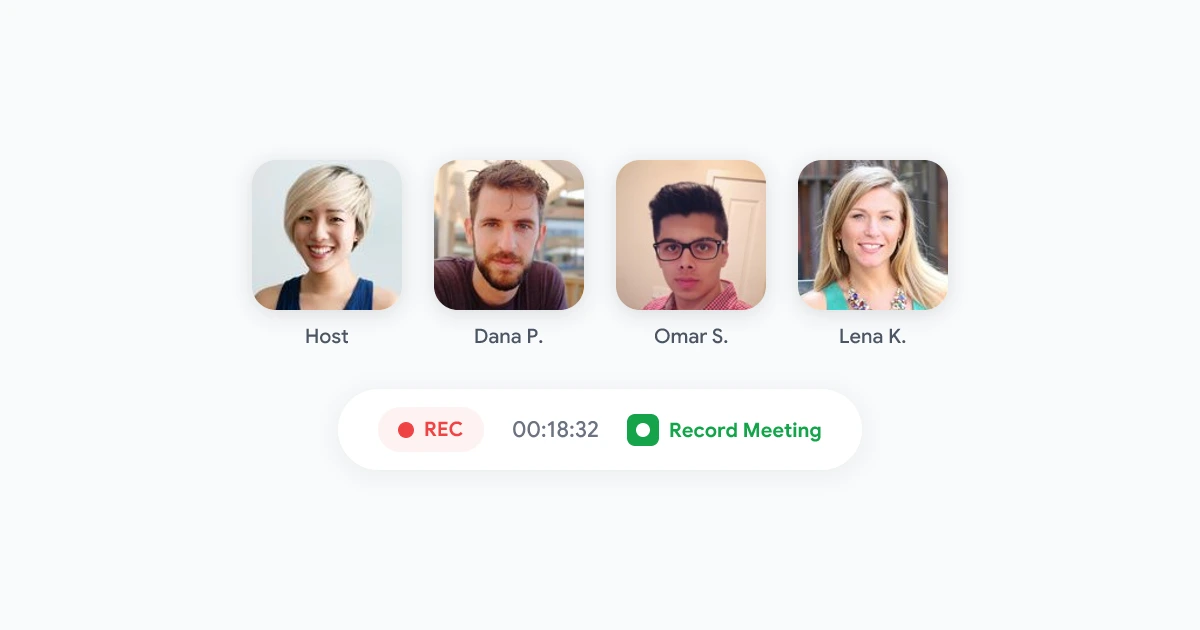
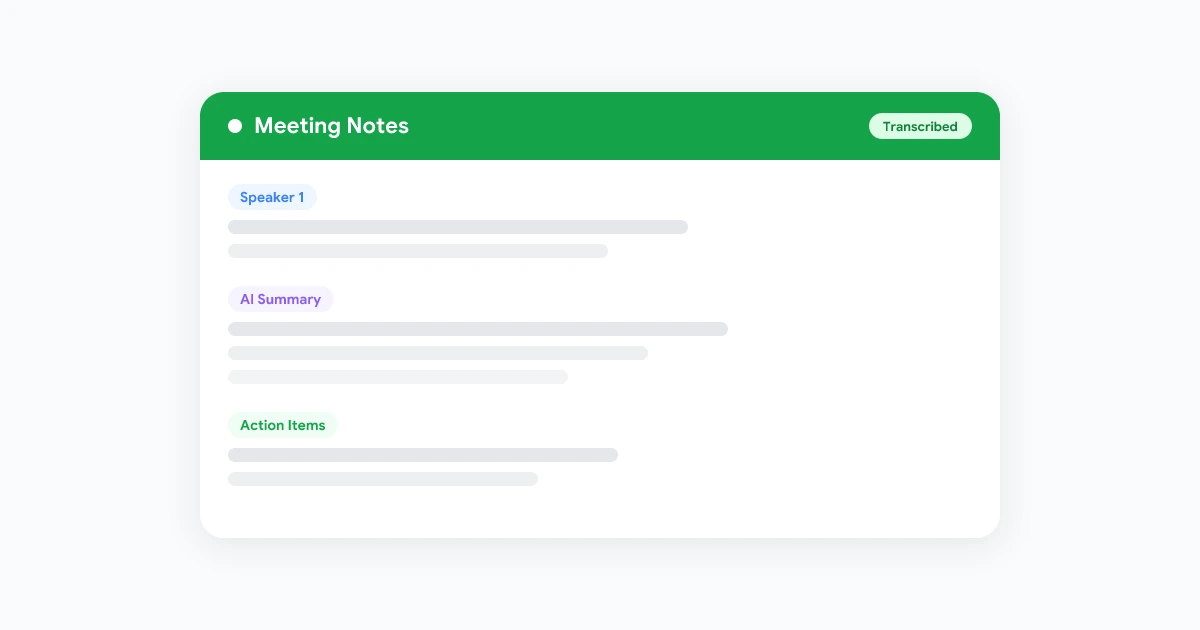
Record Meeting records your Google Meet calls directly in the browser, no bot joining the call, and produces an AI transcript with speaker labels, a summary, and a list of action items once the call ends. Instead of reconstructing what happened from memory, you get a draft that already matches the template structure above: decisions, owners, and next steps pulled straight from what was actually said.
From there, sharing is a copy-paste job:
- Let the recording finish. The transcript and summary generate automatically after the call.
- Review the AI summary for accuracy, especially names and dates, since transcription can occasionally mishear a word.
- Paste the summary into your team’s chat channel, and link the full transcript for anyone who wants the complete record.
- Drop the action items into your task tracker if your team manages work outside of chat.
This also solves the problem of meetings that never get recapped at all, since the summary exists whether or not anyone had the bandwidth to take notes live. For a deeper look at the summarization step itself, see auto-generate meeting summaries in Google Meet.
Best practices: what to include and what to leave out
Not everything discussed on a call belongs in the shared notes. A recap that tries to capture every sentence turns into the same wall of text that made people stop reading in the first place.
- Include: decisions made, action items with owners and dates, numbers or figures that were agreed on, and links to any resources referenced.
- Leave out: tangents that didn’t lead anywhere, back-and-forth that got resolved before the call ended, and anything already documented elsewhere (link to it instead of repeating it).
- Keep it skimmable. Bullet points and bold text let someone catch the important parts in fifteen seconds.
- Send it soon. Notes shared the same day get read. Notes shared two days later compete with everything else that’s piled up since.
- Track ownership over time. If the same person’s action items keep slipping meeting after meeting, that’s a pattern worth surfacing. Meeting accountability tracking covers how to spot it.
FAQ
Conclusion
Sharing meeting notes well isn’t about writing more, it’s about writing less and putting it in one predictable place. Pick a channel, use a template that leads with decisions and named owners, and send it while the meeting is still fresh in people’s minds.
If manually writing that recap is the step that keeps getting skipped, automating it removes the excuse entirely. Try Record Meeting to turn your next Google Meet call into a ready-to-share summary the moment it ends.