Meeting Notes Template for Google Docs: Free Setup Guide
Set up a meeting notes template in Google Docs using built-in building blocks or a custom layout. Includes a copy-paste structure, Drive workflow, and tips for Google Meet teams.

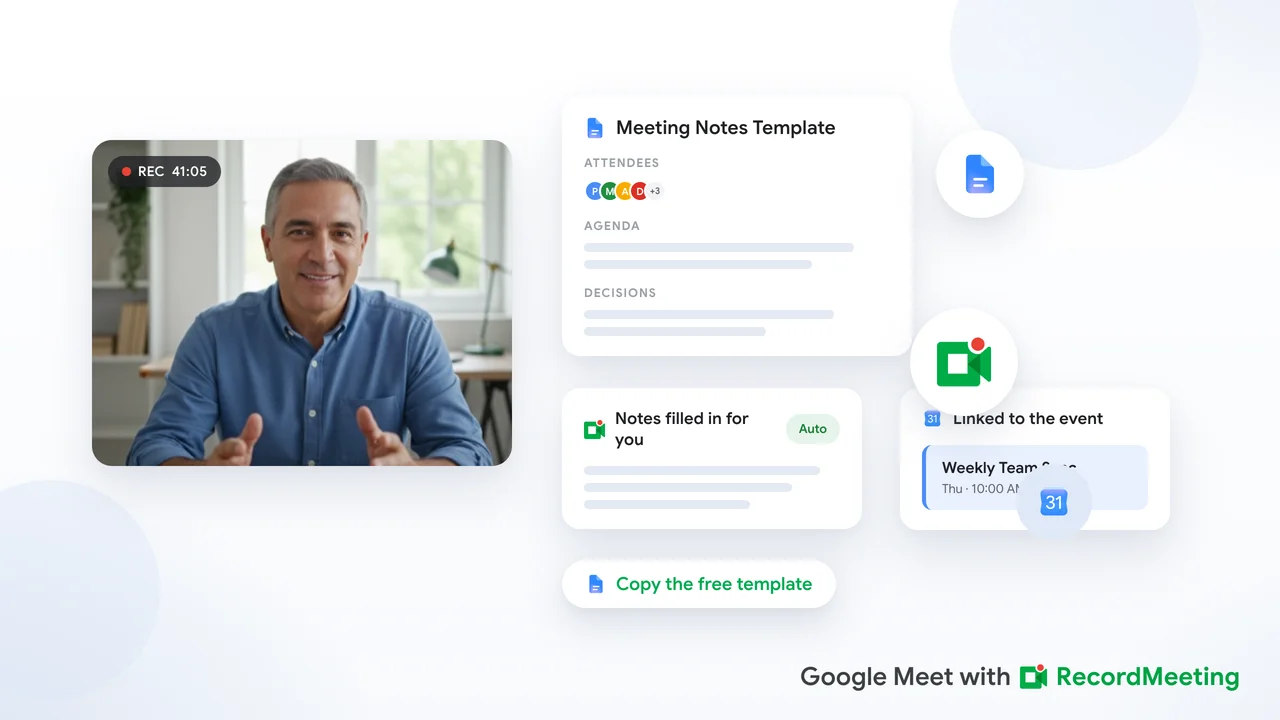
Most teams agree that meeting notes matter. Far fewer teams agree on where those notes live, who writes them, or what format they follow. A meeting notes template Google Docs setup solves that problem without adding another paid tool. Google Docs is already in your stack, syncs to Drive, and supports real-time collaboration during the call.
This guide walks through Google’s built-in meeting notes building block, a copy-paste template you can customize, and a repeatable Drive folder workflow so every recurring meeting starts from the same structure.
Why Google Docs works for meeting notes
Google Docs hits the practical requirements most teams need:
- Free and familiar: Anyone on Google Workspace already has access.
- Live collaboration: Multiple people can edit during the call without version conflicts.
- Calendar integration: Google’s meeting notes building block pulls date, title, and attendees from a Calendar event automatically.
- Searchable archive: Past notes live in Drive and show up in search results.
- Easy sharing: Share with attendees, attach to the Calendar event, or email a summary through Gmail.
The tradeoff is manual capture. Unless you pair Docs with a transcript or AI summary, someone still has to type decisions and action items during or right after the meeting. Later sections cover how to close that gap for Google Meet calls.
Option 1: Use Google’s built-in meeting notes template
Google Docs includes a pre-built Meeting notes building block. According to Google’s Workspace blog, it fills in meeting metadata from Calendar and adds structured sections for notes and action items.
Step-by-step setup
- Open a new or existing Google Doc on your computer (the web app).
- Type
@anywhere in the document. - Select Meeting notes from the Building Blocks menu.
- Choose the Calendar event from the dropdown. If you do not see it, type part of the meeting title after
@to search. - The template appears with Smart Chips for date, title, and attendees, plus sections for Notes and Action items with checkboxes.
You can also reach the same template through Insert > Templates > Meeting notes, as How-To Geek describes.
Share notes with attendees
After inserting the block, a panel on the right asks whether to share the Doc with meeting attendees. Click Share to grant access, or Share & attach if you own the event (this also links the Doc to the Calendar invite).
To send notes by email afterward, click the envelope icon next to the meeting title in the Doc. Google creates a Gmail draft you can edit before sending.
Create notes from Google Calendar
You can start from the event instead of the Doc:
- Open the Calendar event.
- In the description field, click Create meeting notes or Take meeting notes.
- Google opens a new Doc with the template already linked to that event.
Attendees see the link in the invite and can open the same Doc during the call.
Option 2: Build a custom meeting notes template
Built-in blocks work well for quick calls. Recurring team meetings often need extra sections: decisions, parking lot items, or links to a project tracker. A custom template gives you that control.
Copy-paste template structure
Create a new Doc titled Meeting Notes Master Template. Paste the structure below, then format headings with Google Docs styles (Heading 1, Heading 2) so the outline panel becomes a navigation aid.
MEETING NOTES

Meeting: [Series name] | [YYYY-MM-DD]
Time: [Start to end] | Location: [Meet link or room]
Owner: [Name] | Note-taker: [Name]
Attendees: [Names]

AGENDA
1. [Topic] | Owner: [Name] | [Time]
2. [Topic] | Owner: [Name] | [Time]

DISCUSSION NOTES
[Topic 1]
- Key points discussed

[Topic 2]
- Key points discussed

DECISIONS
- [Decision] | Owner: [Name] | Date: [YYYY-MM-DD]

ACTION ITEMS
- [ ] [Task] | Owner: [Name] | Due: [YYYY-MM-DD]
- [ ] [Task] | Owner: [Name] | Due: [YYYY-MM-DD]

OPEN QUESTIONS / PARKING LOT
- [Question or deferred topic]

NEXT MEETING
Date: [YYYY-MM-DD] | Focus: [Topic]
For a meeting minutes template Google Docs workflow aimed at formal governance, see our guide on board meeting minutes automation. The structure above fits weekly standups, project reviews, and client calls.
Save it as a reusable building block
If your account supports custom building blocks, you can reuse this layout in one click:
- Highlight the full template content.
- Right-click and select Save as custom building block.
- Name it (for example,
Team meeting notes). - In any future Doc, type
@followed by that name to insert the block.
Custom building blocks require an eligible Google Workspace work or school account and copy access to the source document.
Master template rules
Teams that use custom templates follow two habits that prevent chaos:
- Never edit the master: Use File > Make a copy at the start of each meeting.
- One folder per meeting series: Store all copies in a shared Drive folder linked from the recurring Calendar invite.
Set up a repeatable Drive folder workflow
A template alone does not help if nobody can find last week’s notes. GoTranscript’s Drive setup guide recommends three building blocks:
| Element | Purpose |
|---|---|
| Drive folder | One folder per meeting series (standup, client sync, leadership review) |
| Master template | Single Doc stored in that folder or a central Templates folder |
| Calendar link | Every invite includes links to the series folder and that meeting’s notes Doc |
Before each meeting
- Open the master template and make a copy.
- Name the copy with the date:
Product Standup 2026-06-25. - Paste the Doc link into the Calendar event description.
- Pre-fill agenda items if they are known in advance.
After each meeting
- Fill the Decisions and Action items sections while context is fresh.
- Share the Doc with attendees who were not in the editor list.
- Move any attachments (decks, screenshots) into the same folder.
This pattern scales from a 15-minute standup to a 90-minute quarterly review. The structure stays the same even when the content changes.
How to write notes that people actually use
A template gives you empty boxes. Good notes fill those boxes with outcomes, not a transcript.
During the meeting
Focus on four capture targets:
- Decisions: What was agreed, even if the discussion was long.
- Action items: Task, owner, and due date for each commitment.
- Open questions: Topics deferred to a future call.
- Context links: URLs to decks, tickets, or specs mentioned in conversation.
Skip filler dialogue. If someone tells a story to make a point, capture the point.
After the meeting
Within an hour of the call:
- Clean up shorthand and typos.
- Confirm every action item has an owner and deadline.
- Move action items to the top if your team skims notes quickly.
- Share the Doc or email the summary the same day.
For a fuller workflow that layers AI on top of manual structure, read how to take better meeting notes with AI.
Pair your template with Google Meet transcripts
Manual notes break down on long or fast-paced calls. You miss names, numbers, and side commitments. The fix is not a longer template. It is a capture layer that fills the template after the call.
For Google Meet sessions, record the call and generate a transcript. Paste key sections into your Docs template, or use the transcript to verify action items before you share notes.
Our Google Meet transcript guide covers native Workspace transcription and browser-based options that do not require admin setup. Once you have a transcript, drop decisions and tasks into the Decisions and Action items sections of your template instead of retyping the whole conversation.
 Try Record Meeting
Record Google Meet calls from your browser, get an AI transcript with speaker labels, and export summaries you can paste straight into your Google Docs meeting notes template.
Get Started Free
You can also browse meeting notes templates on Record Meeting for structures designed around recorded calls and automated summaries.
Meeting notes vs meeting minutes
These terms overlap, but they serve different audiences:
| Meeting notes | Meeting minutes | |
|---|---|---|
| Tone | Informal, working document | Formal record |
| Typical use | Team standups, project syncs | Board meetings, governance |
| Detail level | Decisions and actions | Motions, votes, approvals |
| Distribution | Shared with attendees | Often archived for compliance |
Google Docs works for both. Choose the template depth based on the meeting type, not the tool.
Troubleshooting common issues
The @ menu does not show Meeting notes
Confirm you are in the web version of Google Docs, not the mobile app. The meeting notes building block is a web feature. Sign in with the same Google account that owns the Calendar event.
Calendar events do not appear in the dropdown
You need read access to the event. If the meeting is on a shared calendar, open the event once in Calendar to confirm it appears in your view, then retry in Docs.
Attendees cannot edit the notes Doc
Check sharing permissions. The built-in share prompt grants edit or comment access depending on what you select. For recurring meetings, add the team Google Group once instead of sharing person by person.
Notes get lost among old copies
Stick to one folder per series and a consistent file naming pattern (Series Name YYYY-MM-DD). Link the folder in the recurring Calendar invite description so new hires find it without asking.
FAQ
How do I take notes in a meeting template?
Open your template before the call starts. During the meeting, fill the Discussion section under each agenda item. When someone commits to a task, add it to Action items with an owner and due date. When the group decides something, log it in Decisions. After the call, review the Doc once while the conversation is still fresh, then share it the same day.
How do I make a Cornell note template on Google Docs?
Insert a 2-column table (Insert > Table > 2x1). Set the left column to about 2.5 inches for cues and keywords. Use the right column for detailed notes. Add a Summary section below the table. Cornell layout suits lectures and training more than business meetings, but it works if your team prefers that format. Save the layout as a custom building block or make a copy before each session.
How do I write up meeting notes after a meeting ends?
Start with decisions and action items. Each action needs a clear owner and deadline. Add one or two sentences of context under each agenda topic if someone who missed the call needs background. Cut small talk and repeated discussion. Aim for a Doc someone can scan in under two minutes. Send or share within 24 hours.
How do I make a template on Google Docs?
For meeting notes specifically, type @ and choose Meeting notes for Google’s default layout. For a custom layout, format your Doc with headings and tables, highlight the content, right-click, and choose Save as custom building block. You can also keep a master Doc in Drive and use File > Make a copy before each meeting.
Is the meeting notes template Google Docs option free?
Yes. The built-in Meeting notes building block is included with Google Workspace at no extra charge. Custom templates you create yourself are also free. You only pay for add-ons if you choose a separate AI transcription or recording tool on top of Docs.
Start with structure, then add automation
A meeting notes template Google Docs setup takes less than 30 minutes to build and pays off on every call afterward. Pick Google’s built-in block for speed, or create a custom template if your team needs decisions tables and parking lot sections. Link a Drive folder from Calendar so notes stay findable.
When you are ready to spend less time typing during Google Meet calls, add a transcript layer and paste outcomes into the same template. Record Meeting records from your browser, labels speakers, and surfaces action items you can drop into Docs in minutes.
Get the structure right first. Automation makes it faster, not smarter.