Zoom can give you a meeting transcript in three ways, and all three need a paid Zoom plan: the audio transcript of a cloud recording, the Meeting transcript feature that Zoom added in May 2026, and the transcript you can keep alongside a Zoom AI meeting summary. On the free Basic plan you get live captions on screen, but since May 2026 nobody can save those captions after the call.
This guide walks through each path to a Zoom meeting transcript: the settings to turn on before the call, where the file lands afterwards, why a transcript goes missing, and what to do when you are on a free account, only have a local recording, or are not the host.
Which Zoom transcript will you get?
The transcript you end up with depends on your plan and on how the meeting was captured. Here is the short version, from Zoom’s own documentation as of November 2026.
| Method | Plan needed | What you get | File and location |
|---|---|---|---|
| Audio transcript of a cloud recording | Pro, Business, Education or Enterprise, with cloud recording on | Timestamped transcript next to the recording, editable, searchable, shown as captions on playback | VTT file under Recordings & Transcripts, Cloud recordings |
| Meeting transcript (since May 2026) | Pro, Business or Enterprise | Live transcript panel during the meeting, saved without recording | TXT saved to Documents/Zoom, or VTT in the web portal when auto-generated |
| Zoom AI meeting summary with Generate transcript | Licensed user on Pro and higher | AI summary plus an optional retained transcript | Summary by email, Zoom Chat and the Summaries page |
| Live captions only | Basic (free) and every paid plan | Readable during the call, 3 minutes of scroll back | Nothing is saved |
| Local (computer) recording | Any plan | MP4 and M4A files | No transcript |
If you are on a free account, or you want a transcript of a call you did not host, skip to the section on recording from your browser.
Does Zoom transcribe meetings for free?
Only partly. The Zoom pricing page lists Automated Captions for every plan including Basic, so free users see live captions during the call. The same page lists Recording transcripts from Pro upward, with nothing for Basic, and Basic has no cloud storage at all.
Until spring 2026 the usual free workaround was to turn on Save captions and download a text file after the call. That no longer works. Zoom’s notice on saving closed captions in a meeting states that starting May 18, 2026, users can no longer save or download closed captions, and that organizations relying on saved captions must enable Meeting transcripts instead. Zoom’s FAQ on the May 2026 captions and transcript update adds that the change rolled out between May 24 and May 26, 2026, that captions now offer up to 3 minutes of scroll back, and that the old Full transcript and Save captions settings were removed.
What about Zoom AI summaries on a free account? The pricing page lists meeting summaries for 3 hosted meetings per month on Basic, while Zoom’s support article on Meeting Summary with AI lists a Licensed user on Pro or higher as the prerequisite. If the Zoom AI icon is missing in a free meeting, that gap is why. And a summary is not a transcript.
Method 1: Get the audio transcript of a Zoom cloud recording
This is the classic Zoom audio transcript, and it is still the most complete one. According to Zoom’s article on enabling audio transcription for cloud recordings, you need a Pro, Business, Education or Enterprise account with cloud recording enabled, and the setting must be on before the meeting. You cannot switch it on during a call, and it never applies to recordings saved to your computer.
Step 1: Turn on Create audio transcript
- Sign in to the Zoom web portal and click your profile picture, then Settings.
- Open the Recording tab and check that Cloud recording is enabled under General.
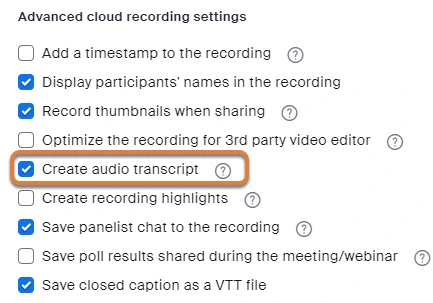
- Tick Create audio transcript under Advanced cloud recording settings, then click Save.
If the checkbox is grayed out, an admin has locked it at the group or account level. Admins find the same option under Admin Center, Settings, Recording & Transcript.
Step 2: Record the meeting to the cloud
Start the meeting as host, click Record, and choose Record to the Cloud. Zoom’s list of recording file formats shows the VTT audio transcript and the CC.VTT caption file as cloud recording files, while local recordings get MP4, M4A, a playlist and a chat text file.
Step 3: Find, edit and download the transcript
Zoom’s guide to using audio transcription for cloud recordings describes what happens next:
- Wait for two emails. The first says the cloud recording is ready. The second says the audio transcript is ready, and it can take extra time to process.
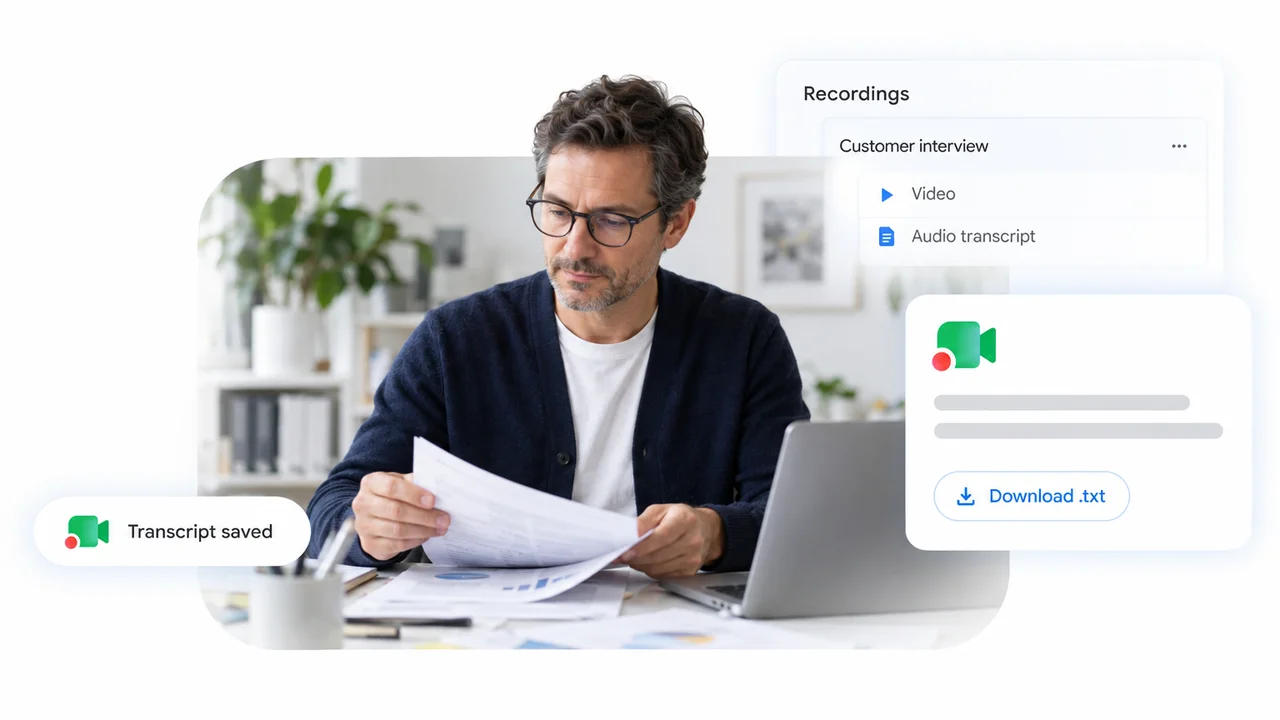
- Open Recordings & Transcripts in the web portal, click the Cloud recordings tab, then click the meeting name. The audio transcript appears as its own VTT file next to the video and audio files.
- Click the recording thumbnail to open playback with the transcript on the right. Hover over a phrase and click the pencil icon to fix words, punctuation or an Unknown Speaker label.
- Click the CC icon in the bottom right of the player to show the transcript as captions over the video.
- Download the VTT file from the recording page. A VTT file opens in any text editor or word processor.
The Cloud recordings tab also has a Search text in audio transcript box that finds every recording where a phrase was spoken.
A note on language. The default is English. Zoom’s page on using audio transcription lists 19 languages and a Change Language option that retranscribes the file, while its page on enabling the setting still says English only, so availability may depend on your account.
Method 2: Use the new Meeting transcript (no recording required)
Since May 2026, Zoom has a transcript feature that works without recording the meeting. Zoom’s article on enabling meeting transcripts lists a Pro, Business or Enterprise account as the requirement and says transcripts are off by default, so a host or admin must turn them on.
Turn it on before the meeting
- Open Settings in the Zoom web portal and click the Meeting tab.
- Scroll to In Meeting (Advanced) and switch on Meeting transcript. Confirm with Enable.
- Review the sub-settings, then click Save.
The sub-settings matter more than the toggle:
- Automatically generate transcripts for lets you choose all meetings, or only meetings that have an AI summary. With automatic generation on, the transcript is kept after the call.
- Allow saving of transcripts to computer by controls who sees a Save transcript button: host only, host and co-hosts, all non-guest participants, participants on specified IP ranges, or everyone.
- Allow hosts to view, delete and download transcripts after the meeting puts a downloadable VTT file in the Recording and Transcripts tab. Admins can also set auto-deletion after up to 9999 days.
Use it during the meeting
Zoom’s page on using meeting transcripts gives the in-meeting steps:
- Click More, then Transcript in the meeting controls. The Transcript panel opens on the right and fills in as people talk.
- Click Save transcript at the bottom of the panel when you are done. Zoom saves a TXT file to the Documents/Zoom folder on Windows, Mac and Linux.
- Participants can ask for it. A participant who clicks More, then Transcript sees a Request transcription prompt, and the host can accept or decline.
If automatic generation is off and nobody clicks Save transcript before the meeting ends, the text is gone. That is the most common way people lose a Zoom meeting transcript under the new system.
Method 3: Keep the transcript behind a Zoom AI meeting summary
Zoom AI, which many people still call AI Companion, writes a summary from speech-to-text data. Zoom’s article on Meeting Summary with AI explains that on desktop you hover over the Zoom AI icon in the top right, tick Meeting summary and optionally Generate transcript, then click Start Zoom AI. On mobile the option is called Retain meeting transcript.
After the meeting the summary arrives in the meeting’s Zoom Chat group, by email to invitees, and in the web portal under My account, then Summaries. Only the host and co-hosts can start or stop it, and it does not run in breakout rooms. The retained transcript follows the Meeting transcript settings above, so hosts need the view and download permission to get the VTT file.
Can you transcribe a local Zoom recording?
Not inside Zoom. The audio transcription setting applies only to cloud recordings, and the file format list has no transcript entry for computer recordings. If all you have is the MP4 or M4A from a local recording, your options are:
- Upload the file to a transcription tool. Any service that accepts audio or video files will do. Our roundup of free voice recording transcription software compares the usual candidates.
- Record differently next time. A browser-based recorder that transcribes every call removes the cloud-versus-local question entirely.
If the recording itself is missing rather than the transcript, start with our guide on Zoom recordings not showing up.
Get a Zoom transcript on any plan, even as a participant
Every method above needs the host to be on a paid plan and to have switched on the right setting before the call. If you are a participant, or your team is on free Zoom, Record Meeting solves the problem from your side of the call.
The Chrome extension records the Zoom call from your browser tab. No bot joins the meeting, you do not need host permission, and it works on free Zoom accounts. When you leave the call, the recording uploads to your private workspace and you get an MP4, a transcript with speaker labels and timestamps in 50+ languages, and an AI summary with action items. Transcripts export as TXT, DOCX or SRT, and you can share the whole recording by link.
The free plan includes 5 recordings of up to 1 hour each. Pro removes the cap, with recordings up to 6 hours, full transcription, AI meeting notes and downloads. For the recording side of the setup, see how to record a Zoom meeting as a participant.
 Try Record Meeting
Record Zoom, Google Meet and Microsoft Teams calls from your browser. Get a speaker-labeled transcript in 50+ languages and an AI summary after every call, with no bot in the meeting and no paid Zoom plan.
Get Started Free
Why your Zoom transcript is missing, and how to fix it
| Symptom | Likely cause | Fix |
|---|---|---|
| Cloud recording arrived, no transcript file | Create audio transcript was off when the meeting was recorded | Turn it on for future meetings. Zoom does not transcribe past recordings retroactively |
| Recording email arrived, transcript email did not | The transcript is still processing | Wait. The transcript email follows the recording email and can take longer |
| No Transcript button under More | Meeting transcript is off, the host is on Basic, or an admin locked it | Host enables Settings, Meeting, In Meeting (Advanced), Meeting transcript |
| Transcript ran, but no Save transcript button | Allow saving of transcripts to computer by excludes your role | Host widens the saving permission or saves the file and shares it |
| Transcripts tab in the web portal is empty | Automatic generation is off, or hosts lack the view and download permission | Enable Automatically generate transcripts for and the host-access sub-setting |
If the transcript exists but reads badly, Zoom’s advice is the usual: less background noise, one speaker at a time, and a microphone near whoever is talking. For long calls, see our guide on summarizing long meetings with AI.
Frequently Asked Questions
Conclusion
A Zoom meeting transcript is easy to get once the right switch is on before the call: Create audio transcript for cloud recordings, Meeting transcript for calls you do not want to record, or Generate transcript next to a Zoom AI summary. All three need a paid Zoom plan and a host who set them up in advance, and since May 2026 the free caption-saving trick is gone.
If you want a transcript of every Zoom call without depending on the host, the plan or a setting you forgot to tick, install Record Meeting and record from your browser. You get the video, a speaker-labeled transcript and an AI summary a few minutes after you leave the call, on any Zoom account.