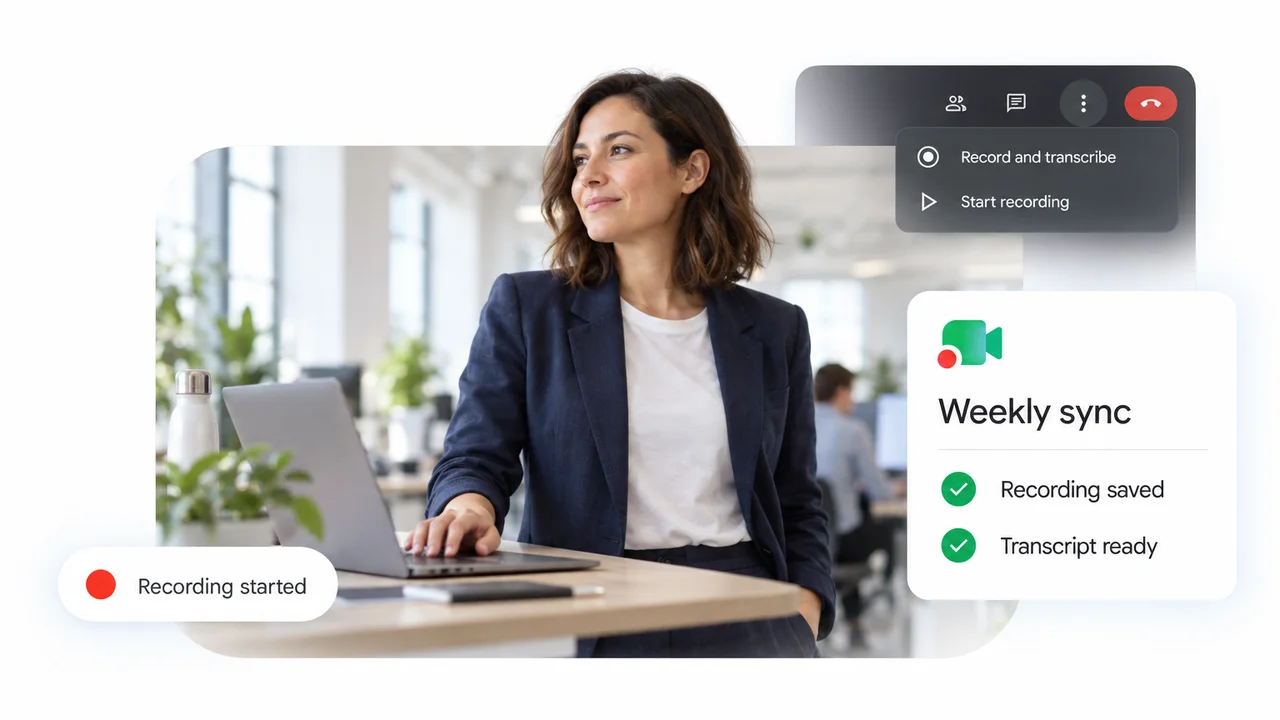
To record a Teams meeting, join the meeting, select More actions (the three dots) in the meeting controls, select Record and transcribe, then Start recording. Everyone in the meeting is notified straight away. When you stop, Teams processes the video and saves it to the organizer’s OneDrive, or to the channel’s SharePoint site for a channel meeting.
That is how to record a Teams meeting when the button is available. Often it is not, because Teams only lets certain people record. This guide covers who can record, the steps on desktop, web and mobile, automatic recording, what a recording captures, what the lock icon on the button means, and how to record when Teams will not let you.
Can you record a Teams meeting? Only with the right account and role
Microsoft’s support page on starting and stopping meeting recordings lists who can record a meeting on a work or school account.
| Who you are | Start recording | Stop recording |
|---|---|---|
| Meeting organizer | Yes | Yes |
| Person from the same organization | Yes | Yes |
| Person from another organization or company | No | No |
| Guest | No | No |
| Anonymous, joined without signing in | No | No |
Belonging to the organizer’s organization is only the first condition. The same page and Microsoft’s role table add three more:
- A license. Both the organizer and the person recording need one of these: Office 365 Enterprise E1, E3, E5, F3, A1, A3 or A5, or Microsoft 365 Business, Business Premium or Business Essentials.
- An admin policy that allows it. An IT admin must have turned recording on, and the organizer’s cloud recording policy must be on too.
- The right meeting role. Microsoft’s table of roles in Teams meetings gives “Start or stop recording” to organizers, co-organizers and presenters. Attendees do not have it.
An organizer with Teams Premium or a Copilot license can narrow this further, to organizers and co-organizers only, or to no one. Two more rules apply to every meeting: one person can record at a time, and the organizer does not need to be present.
Can you record a Teams meeting for free?
Not with Teams’ own recorder. Microsoft’s page on recordings in Teams for personal use says recording on a personal account is available to Microsoft 365 Personal, Family or Premium subscribers. Participants without a subscription cannot start or stop a recording. On personal accounts the recording appears in the meeting chat and expires after 30 days.
How to record a Teams meeting on desktop, web and mobile
On desktop or the web
These are Microsoft’s steps for the desktop app. Recording also works in Teams on the web: Microsoft’s troubleshooting guide suggests joining from the web client when the desktop button misbehaves.
- Start or join the meeting.
- Select More actions. It is the three dots in the meeting controls, labelled More.
- Select Record and transcribe, then Start recording. Microsoft’s current instructions call this menu item Record, so the label depends on your version of Teams.
- Specify the spoken language and what you want to record, when Teams asks.
- Select Confirm. The recording starts and everyone in the meeting is notified.
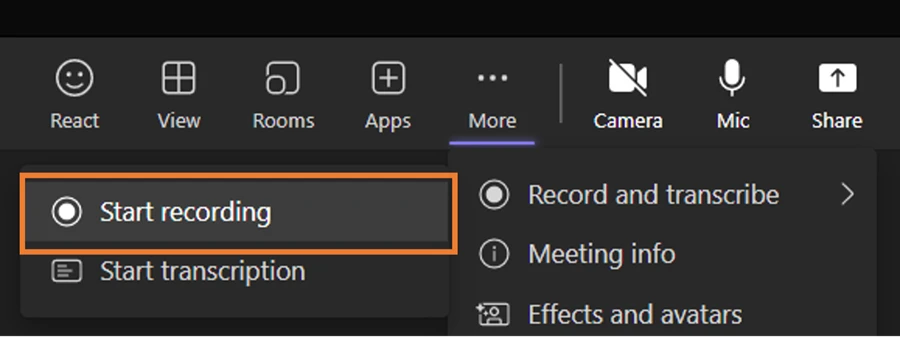
To record audio only, open the same recording dialog, choose Audio only in the Choose what to record dropdown, then select Confirm.
To stop, select More actions, then Recording. Choose Recording to stop both the recording and the live transcription. Choose Transcribing to stop only the transcription and keep recording. If you forget, the recording stops on its own once everyone has left the meeting.
On your phone
The Teams mobile app has a shorter path, and Microsoft recommends installing the latest version of the app first.
- Join the meeting in the Teams mobile app.
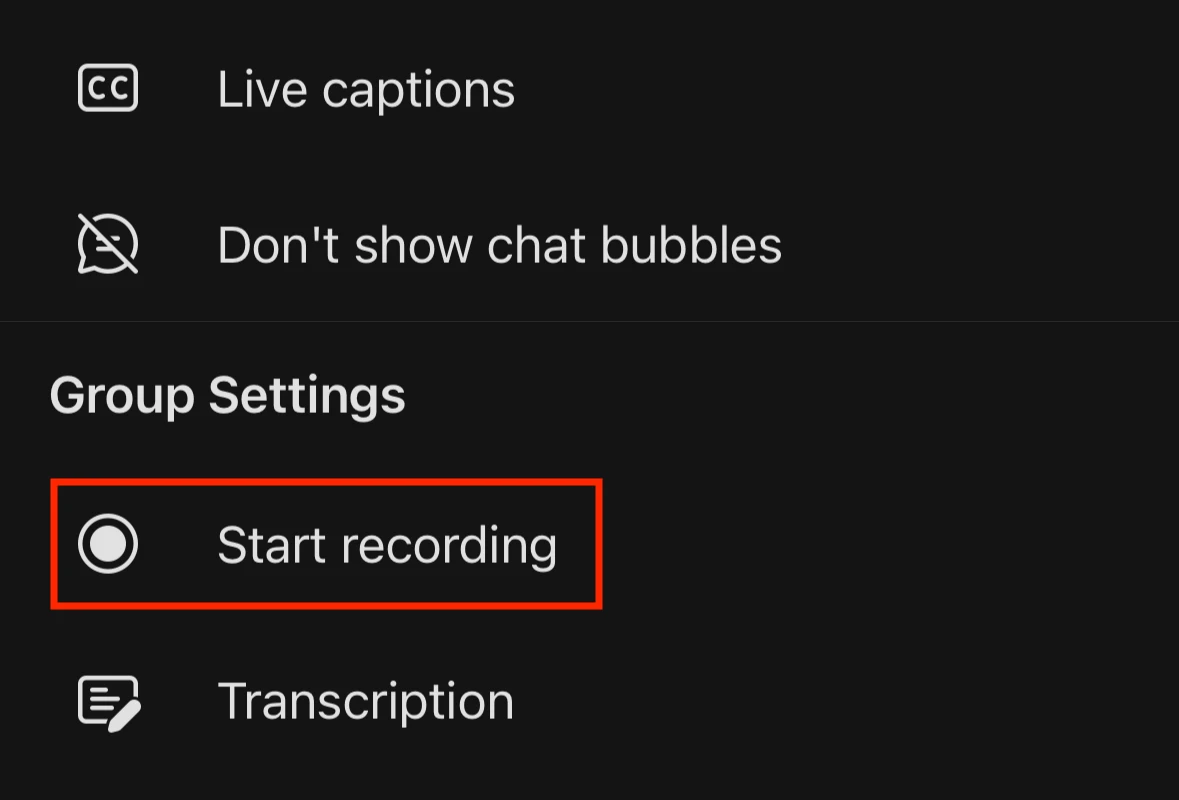
- Tap More options, the three dots in the meeting controls.
- Tap Start recording. Everyone in the meeting is notified.
- To finish, tap More options, then Stop recording.
Record a Teams meeting automatically from the meeting options
If you organize the meeting, you can make it record itself. Microsoft’s list of meeting options has a toggle for it.
- Open Calendar in Teams and open the meeting you organized.
- Select Options to open the meeting options.
- Go to Recording & transcription.
- Turn on Record and transcribe automatically, then apply the change.
The meeting is then recorded and transcribed from the moment it starts until it ends or someone stops the recording. A few details decide whether you see the toggle at all:
- It is off by default for meetings. Microsoft’s admin page on auto recording says organizers must turn it on for each meeting they want recorded. Webinars and town halls are the exception, where it is on by default.
- An admin can remove it. If the auto recording policy is off for you, the toggle does not appear in your meeting options.
- Some licenses do not have it. Microsoft’s overview of recording options for sensitive meetings says customers with a Microsoft 365 Education A1 subscription cannot record and transcribe meetings automatically.
What a Teams recording captures, and what everyone sees
| Question | Answer |
|---|---|
| What is recorded | Audio, video and screen sharing |
| What is left out | More than four people’s video streams at once, whiteboards and annotations, shared notes, content shared by apps, and videos or animations embedded in PowerPoint Live |
| Longest single recording | 4 hours or 1.5 GB. Then the recording ends and restarts automatically |
| Longest meeting | 30 hours |
| If the person who started it leaves | The recording continues on work and school accounts. On personal accounts it stops |
| Where the file goes | The organizer’s OneDrive, or the channel’s SharePoint site for a channel meeting |
| How long it is kept | 120 days by default, unless your admin changed the setting |
The two length limits are in Microsoft’s limits and specifications for Teams.
Nothing is saved on your computer. Our guide on where Teams recordings go shows how to find the file, and the one on Teams recording expiration explains how to keep it past the default date. Afterwards the recording also sits next to the transcript in the Teams meeting recap.
Does Teams notify everyone when you record?
Yes. Microsoft’s support page says all participants receive a notification in their Teams desktop, web or mobile app as soon as a recording starts. The admin settings Microsoft lists for recording add to that notice, and none of them hides it:
- A spoken announcement. Admins can turn on an audio announcement that plays when recording or transcription starts. It is off by default.
- Explicit agreement. With a meeting policy, admins can require participants to agree to being recorded before they can unmute or turn on their camera. The answers are stored in the meeting attendance report.
The notice does not settle the legal side. Microsoft’s own wording is that, depending on your region, you may need everyone’s permission before you can record them. Our guide explains when you can record a meeting without consent and when you cannot.
Why you can’t record a Teams meeting: read the lock icon
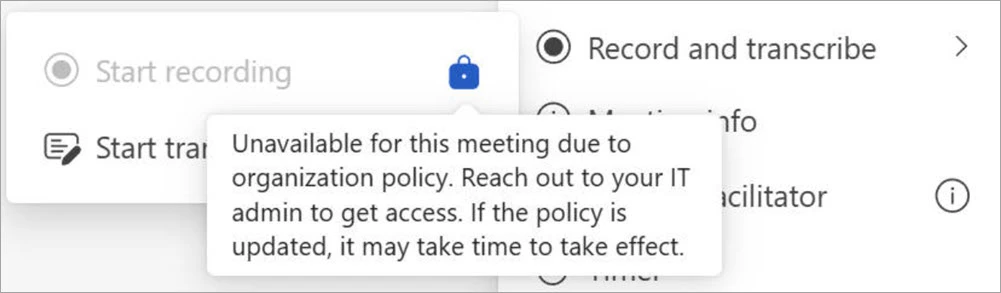
When recording is blocked, the Start recording button shows a lock. Hover over it and a tooltip states the reason. Microsoft’s help page I can’t record a meeting in Microsoft Teams matches each tooltip to a fix.
| Tooltip | What it means | What to do |
|---|---|---|
| Only people in this org can start recording | You joined anonymously, as a guest or from another organization | Sign in with an account in the organizer’s organization, or ask someone from that organization to record |
| Unavailable for this meeting due to organization policy | Your admin has not allowed you to record meetings, or a policy change has not taken effect yet | Ask your IT admin to turn recording on, then allow some time |
| Unavailable in this meeting | The organizer is not allowed to record, so nobody in the meeting can | Ask the admin to let the organizer record |
| Only meeting organizer and co-organizer can start recording | The organizer limited recording in the meeting options | Ask to be made a co-organizer, or ask the organizer to include presenters |
| The meeting organizer has disabled recording | Who can record and transcribe is set to No one | Ask the organizer to change the setting |
| Only meeting organizers and presenters can start recording | You joined as an attendee | Ask the organizer to make you a presenter |
| Unavailable because Copilot is turned off | The organizer set Allow Copilot to Off, which also turns off recording | Ask the organizer to turn Copilot on |
If the button is missing altogether, Microsoft’s troubleshooting guide for meeting recordings suggests three quick checks:
- Install the latest Teams update.
- Leave the meeting and rejoin it.
- Join from the Teams web client and record there.
Admins can also run the Meeting Recording Support Diagnostic in the Microsoft 365 admin center. It checks the user’s license and meeting policies.
How to record in Teams as a guest or without a license
Some of those locks cannot be opened from your side. Microsoft’s documentation on Teams recording policies states that external participants can’t record meetings. You have three options.
Ask someone in the organizer’s organization
This is Microsoft’s own advice: ask a participant from the organizer’s organization to start the recording and share it after the meeting. Ask for the link explicitly. Guests and external attendees can only view a recording that has been shared with them.
Record from your own browser
Teams’ rules govern Teams’ recorder. They do not cover a recorder that runs in your own browser. Record Meeting is a Chrome extension that records the call from your browser tab, so it works without a Microsoft 365 license, without being the organizer and with no bot in the call.
- Install the Record Meeting Chrome extension and sign in. It is free to start and no credit card is required.
- Open the meeting in your browser. Click the invite link and choose Continue on this browser. Microsoft’s page on joining a meeting without an account confirms that Teams for the web runs in Google Chrome with no app to install.
- Click the Record Meeting button in the meeting controls.
- Leave the call to finish. The recording uploads to your private workspace within a few minutes.
The free plan includes 5 recordings of up to 1 hour each. Pro adds unlimited recordings of up to 6 hours, a full transcript in 50+ languages, AI meeting notes and downloads.
 Try Record Meeting
Record Microsoft Teams, Google Meet and Zoom calls from your own browser, with no bot in the call. You do not need to be the organizer or hold a Microsoft 365 license. Start free with 5 recordings of up to 1 hour each.
Get Started Free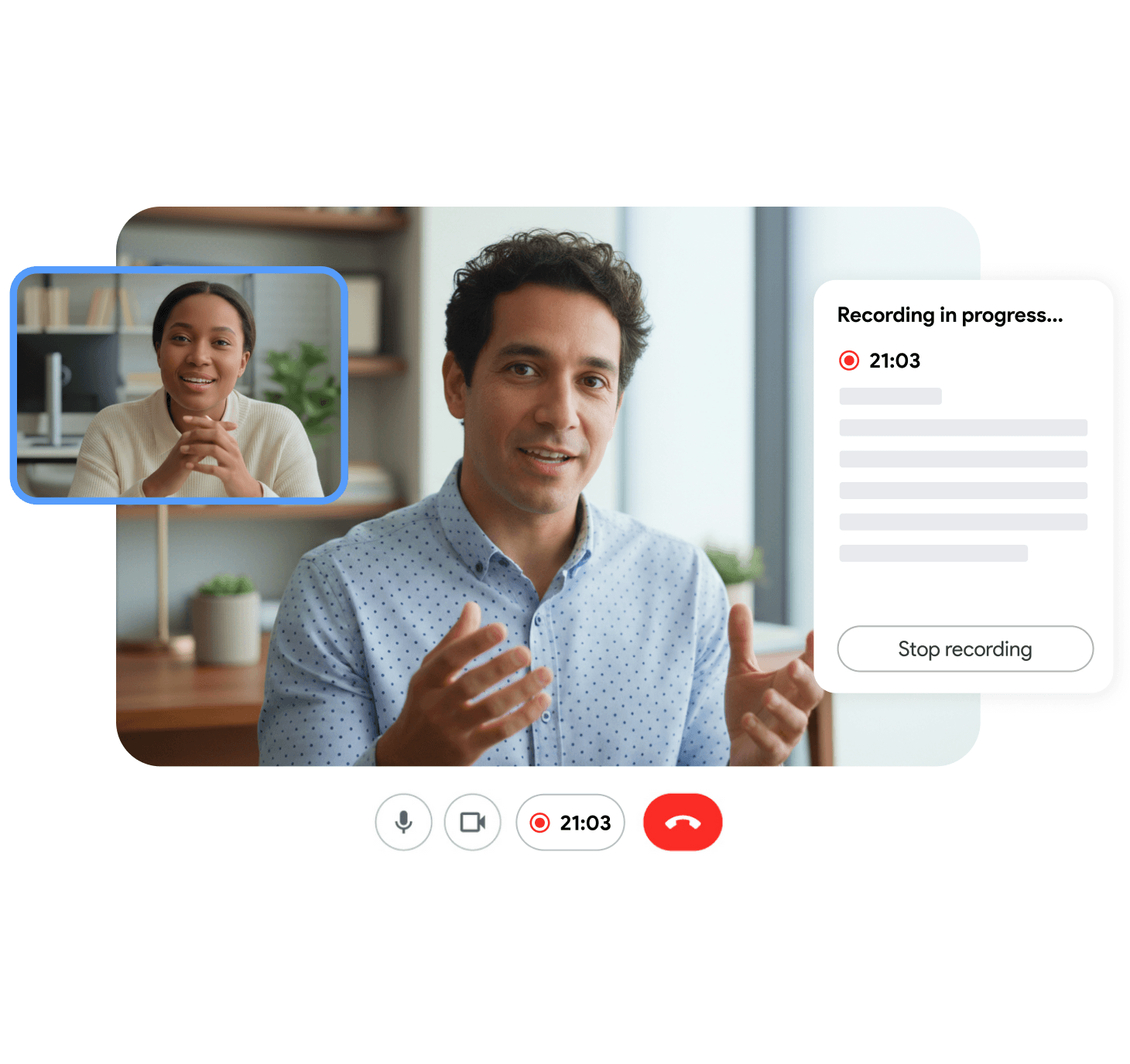
If you use the Teams desktop app on a Mac, RecordMeeting for Mac notices when a Teams call starts and asks if you want to record it. It needs an Apple Silicon Mac with macOS 15 or later. The approach is the same on other platforms, for example when you record a Zoom meeting as a participant.
Use a built-in screen recorder
Windows and macOS can both record the screen without extra software. The table shows what Microsoft and Apple document.
| Tool | Shortcut | Sound | Where the file goes |
|---|---|---|---|
| Snipping Tool on Windows 11 | Windows logo key + Shift + R | You can toggle your microphone on | Videos, then Screen Recordings |
| Screenshot on Mac | Shift + Command + 5 | Choose a microphone. Include System Audio needs macOS 27 or later | The desktop, by default |
The Windows details are from Microsoft’s guide to the Snipping Tool on Windows 11. The Mac details are from Apple’s page on how to record the screen on Mac.
A screen recording is a plain video file with no transcript and no speaker names. Test the sound before a meeting that matters. If the recorder only picked up your microphone, everyone else will be silent in the file.
Frequently Asked Questions
Conclusion
How to record a Teams meeting comes down to one menu: More actions, then Record and transcribe, then Start recording. Whether that menu works depends on your license, your role and the organizer’s settings, and the lock icon tells you which of them is in the way.
When none of them can be changed, record from your side instead. Record Meeting captures the Teams call in your browser with no bot, and the first 5 recordings are free.