Yes, you can record a FaceTime call, but no single button covers every case. For a one-to-one FaceTime audio call, Apple’s built-in Call Recording captures both voices and saves the result to Notes. For a FaceTime video call, you need a screen recording on iPhone or iPad, or a recorder on your Mac, and the hard part is the sound, not the picture.
This guide covers iPhone, iPad and Mac: which methods capture both voices, where each file ends up, and whether the other person is told. The steps come from Apple’s own documentation as it stood in November 2026.
Can you record a FaceTime call? Five methods compared
| Method | Works on | Records video | Records both voices | Notice to the other person |
|---|---|---|---|---|
| Call Recording in FaceTime | iPhone, iPad and Mac, one-to-one audio calls only | No | Yes | Yes, both people hear a notice |
| Screen Recording | iPhone and iPad | Yes | Not reliably | None |
| Local Capture | iPhone and iPad | Your camera | No, your side only | None documented |
| Screenshot toolbar | Mac | Yes | Yes on macOS 27, microphone only before that | None |
| RecordMeeting for Mac | Mac with Apple silicon | Yes, or audio only | Yes | None, so tell them yourself |
Three quick rules follow from the table:
- Audio call with one person: use Call Recording. It is the one built-in method Apple documents as recording the call itself.
- Video call on a phone or tablet: screen record it, and test the sound first.
- Video call that matters: take it on a Mac, where the computer’s own sound can be recorded.
Guests on other devices have fewer choices. Apple’s page on joining a FaceTime call from an Android or Windows device says they join from a link in the latest version of Google Chrome or Microsoft Edge. It describes no recording feature there, which leaves the screen recorder built into the phone or PC.
How to record a FaceTime audio call with Call Recording
Apple added a recorder to audio calls, and it works in FaceTime as well as in the Phone app. Apple’s support article on recording a call on iPhone says you can record a phone call or a FaceTime audio call on iPhone starting in iOS 18. The steps below are from Apple’s guide to audio call tools in FaceTime on iPhone.
- Start a one-to-one FaceTime audio call. Call Recording only works when you are talking to one other person.
- Tap More, then tap Call Recording. Both call participants hear a notice that the call is being recorded.
- Stop when you are done. Tap Stop, or tap More and then Stop next to Call Recording. The recording also stops when you end the call.
- Open the Notes app. Call recordings are saved automatically to a Call Recordings folder. Select a note, then tap Play.
What else to know:
- Transcripts. In select regions and languages, the note includes a transcript that identifies the speaker of each statement. You can search it, copy it into the note, or save the audio to Files. Apple advises checking a transcript before you rely on it.
- iPad and Mac. Apple documents the same option for FaceTime on iPad. On a Mac, the guide to FaceTime audio call features says to click More during the call, then click Call Recording. That guide covers macOS Tahoe 26 and macOS 27.
- Availability. Call recording depends on your language and region. Apple’s Phone app page, Record and transcribe a call on iPhone, says it isn’t currently available in the European Union or in a list of other countries that includes Russia, Turkey, Saudi Arabia and the United Arab Emirates.
- If the option is missing. Check that you are on an audio call with one person. Then open Settings, tap Apps, tap Phone and make sure Audio Call Recording is on. Apple says it is on by default.
Call Recording does not cover FaceTime video calls or group calls. For those you need one of the methods below.
How to screen record FaceTime with audio on iPhone and iPad
Screen Recording captures whatever is on the display, including a FaceTime video call. The steps are from Apple’s page on how to record the screen on your iPhone or iPad.
- Start the FaceTime call, then open Control Center. Pull down from the upper-right corner of the screen. If you don’t see the Record button, add Screen Recording to Control Center first.
- Turn on the microphone. Touch and hold the gray Record button, then tap the microphone button.
- Start the recording. Wait for the three-second countdown, then leave Control Center to return to the call.
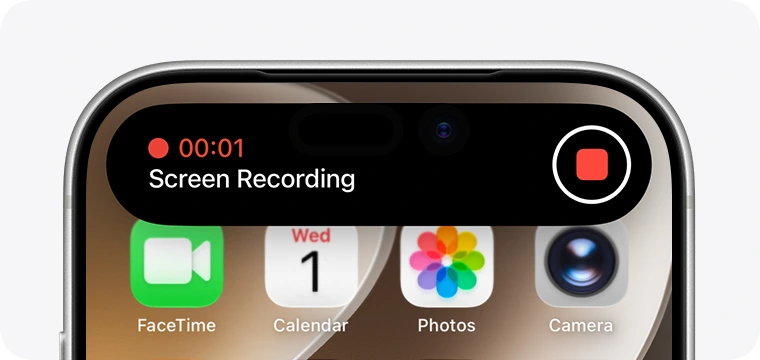
- Stop the recording. Tap the red indicator at the top of the screen, then tap Stop.
- Find the video. It is saved in the Photos app.
This is the same routine most people use to record a WhatsApp call on a phone, and it has the same weak point: the sound.
Why a FaceTime screen recording has no sound
A silent file usually has one of two causes.
- The microphone was off. Android Authority’s FaceTime recording guide notes that audio is muted by default, so a recording started with a plain tap has picture and no sound. Step 2 above fixes that.
- The app does not allow it. Apple’s screen recording page warns that some apps might not allow you to record audio or video. Apple does not say how FaceTime behaves, so do not assume the other person’s voice will be in the file.
Before a call you cannot repeat, record ten seconds of a test call and play it back. If the other voice is missing or faint, switch to Call Recording for an audio call, or move the call to a Mac.
Local Capture records your side only
Current versions of iOS and iPadOS also have Local Capture, described in Apple’s guide to improving audio and recording video calls on iPhone. Open Control Center during a video call, touch and hold the Local Capture button, and tap Start Recording. The file goes to the Downloads folder in the Files app.
Apple describes it as capturing your side of a videoconference, to be combined later with the other participants’ own recordings. It suits podcasts and interviews where everyone records themselves, not capturing the person you are talking to. Apple’s steps do not name FaceTime, so try it on a short call first.
How to record a FaceTime call on Mac
A Mac is the most dependable place to record a FaceTime video call, because it can record the computer’s own sound as well as your microphone.
Option 1: the Screenshot toolbar
These steps are from Apple’s page on how to record the screen on Mac.
- Press Shift, Command and 5. The Screenshot toolbar opens.
- Choose what to record. Pick Record Entire Screen, Record Selected Window (macOS Tahoe 26 or later) or Record Selected Portion.
- Click Options and set the sound. Choose a microphone to record your own voice. In macOS 27 Golden Gate or later, also choose Include System Audio to record the sound of the call.
- Click Record. If you chose a window, click the FaceTime window.
- Stop the recording. Click the Stop button in the menu bar, or press Command, Control and Esc. By default the file is saved to your desktop.

The system audio setting is the one that matters, and Apple lists it only for macOS 27 or later. On macOS Tahoe 26 and earlier the only sound source is the microphone you choose, so the other person is captured only if your microphone hears your speakers. Apple lists no system audio option for QuickTime Player’s screen recording either.
Option 2: RecordMeeting for Mac
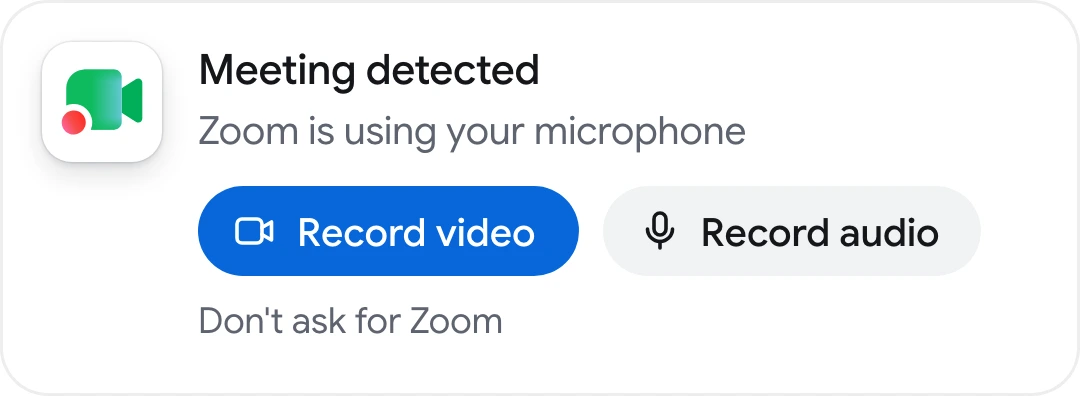
RecordMeeting for Mac is a menu bar app that notices when a call starts in FaceTime, Zoom, Teams, Slack or your browser and asks if you want to record it. It records the call window, its sound and your microphone, and nothing else on your screen. No bot joins the call.
- Install the app and sign in. It needs a Mac with Apple silicon (M1 or later) and macOS 15 or later.
- Allow the permissions it asks for. That means microphone and system audio during setup, and Screen Recording only when you record video.
- Start or answer the FaceTime call. The app shows a prompt when it notices the call.
- Click Record video or Record audio. Nothing is recorded until you click.
- End the call. Recording stops on its own shortly after the call ends, and the transcript and notes follow in your account.
The app uses your RecordMeeting account and plan. The free plan includes 5 recordings of up to 1 hour each. Pro adds unlimited recordings of up to 6 hours, full transcription in 50+ languages, AI meeting notes and downloads.
 Try Record Meeting
RecordMeeting for Mac records FaceTime, Zoom and Teams calls in one click, and the Chrome extension covers Google Meet, Zoom and Teams in your browser. No bot joins the call, and Pro adds a transcript in 50+ languages and AI notes.
Get Started Free
FaceTime is not the only calling app without a simple way to record. We also explain how to record a Slack huddle.
Does FaceTime notify the other person when you record?
Only in two cases, and neither of them is a screen recording.
| What you do | What the other person gets |
|---|---|
| Start Call Recording on a FaceTime audio call | An audible notice. Apple says both call participants hear that the call is being recorded |
| Take a Live Photo during a video call | A notification. Apple’s page on taking a Live Photo in FaceTime says you both receive one |
| Screen record on iPhone, iPad or Mac | Nothing. The Android Authority guide linked above reports that the other people on a call aren’t informed |
| Record with a separate app such as RecordMeeting for Mac | Nothing from FaceTime, and no extra participant appears in the call |
That silence puts the responsibility on you. In the United States, federal law at 18 U.S.C. 2511 says it is not unlawful to record a communication you are a party to, or one where a party has consented, unless the purpose is a criminal or tortious act. Some states go further. California Penal Code section 632 penalizes recording a confidential communication without the consent of all parties. Other countries have their own rules.
This is general information, not legal advice. Our guide on whether you can record a meeting without consent goes through the rules by state and country. For the practical side of asking, see our guide to meeting recording etiquette.
Where FaceTime recordings are saved
| Method | Where the file goes | What you get |
|---|---|---|
| Call Recording | The Call Recordings folder in Notes | Audio, plus a transcript in select regions and languages |
| Screen Recording on iPhone or iPad | The Photos app | A video of your screen |
| Local Capture | The Downloads folder in the Files app | Your own audio and video |
| Screenshot toolbar on Mac | Your desktop, unless you change Save to under Options | A .mov file named Screen Recording with the date and time |
| RecordMeeting for Mac | Your RecordMeeting account | Video or audio, with a transcript and AI notes on Pro |
A screen recording is only a video file. If you need the words, upload it to one of the free transcription software tools we compared, or record with a tool that produces the transcript for you.
Frequently Asked Questions
Conclusion
How to record a FaceTime call depends on the call. For an audio call with one person, use Call Recording and find the result in Notes. For a video call on iPhone or iPad, screen record with the microphone on and test the sound first. For a video call where you need both voices, record on a Mac, with Include System Audio on macOS 27 or with an app that captures the sound of the call.
Whichever method you choose, tell the other person before you start. If you want the recording, the transcript and the notes in one place afterwards, install Record Meeting and record your next call in one click.