15 Google Workspace Productivity Tools Worth Adding to Your Stack in 2026
A practical roundup of Google Workspace productivity tools for meetings, tasks, and collaboration, plus a framework for choosing the right add-ons for your team.

Most teams pay for Google Workspace and then only use about a third of what it can actually do. Gmail becomes a place emails pile up, Calendar becomes a list of meetings nobody prepared for, and Drive becomes a folder nobody can search. The platform is not the problem. The gap is between what Workspace natively supports and the layer of tools most teams never bother connecting to it.
This guide covers Google Workspace productivity tools worth adding to your stack in 2026, split into native features you are probably underusing, meeting-specific tools, task management add-ons, and automation that ties everything together. It ends with a simple framework for deciding what to actually adopt instead of collecting apps nobody opens twice.
The Google Workspace Tools You Already Have (and Are Probably Underusing)
Before adding anything new, it is worth checking whether Workspace already solves the problem. A few features get skipped constantly:
- Google Calendar’s “Working Hours” and focus time blocks stop meetings from getting booked over the time you actually need to do work, instead of just marking you busy after the fact.
- Smart Chips in Docs and Sheets let you
@mentiona person, file, or date and pull in live context (their availability, a linked doc) without leaving the page. - Google Tasks integrated into Gmail and Calendar turns an email into a task with two clicks, so action items do not need a separate app for simple to-dos.
- Drive’s version history means you can roll back a file to any previous state, which removes the need for “final_v3_ACTUAL” file naming.
- Google Meet’s built-in captions and Companion Mode give a second-screen view of shared content during hybrid meetings, useful when half the room is remote.
None of these require a paid add-on. They are the fastest productivity wins because the cost is learning the feature, not buying it.
Meeting Productivity Tools: Recording, Transcripts, and AI Summaries
Meetings are where Google Workspace productivity tends to leak the fastest. Someone has to take notes, someone has to remember what was decided, and someone has to chase down action items afterward. This is the layer native Workspace features do not fully cover, and it is where the highest-leverage add-ons live.
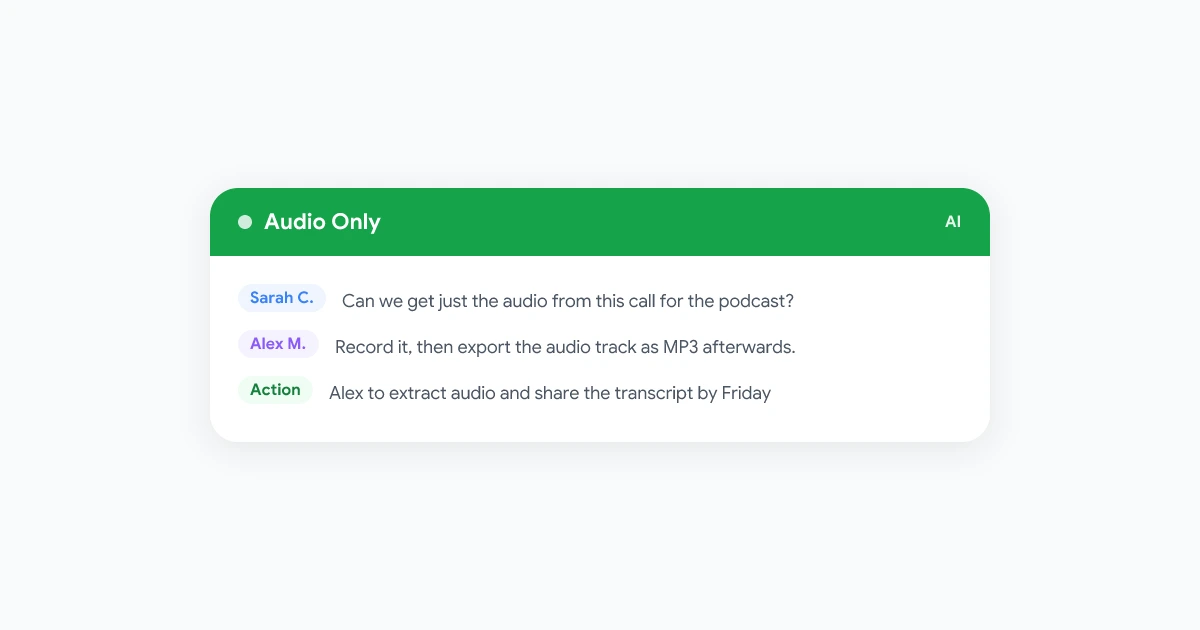
A browser-based meeting recorder that captures Google Meet calls, transcribes them, and generates an AI summary removes most of that manual work. Instead of a person splitting attention between participating and note-taking, the recording becomes the source of truth, and the summary turns it into something the team actually reads afterward.
 Try Record Meeting
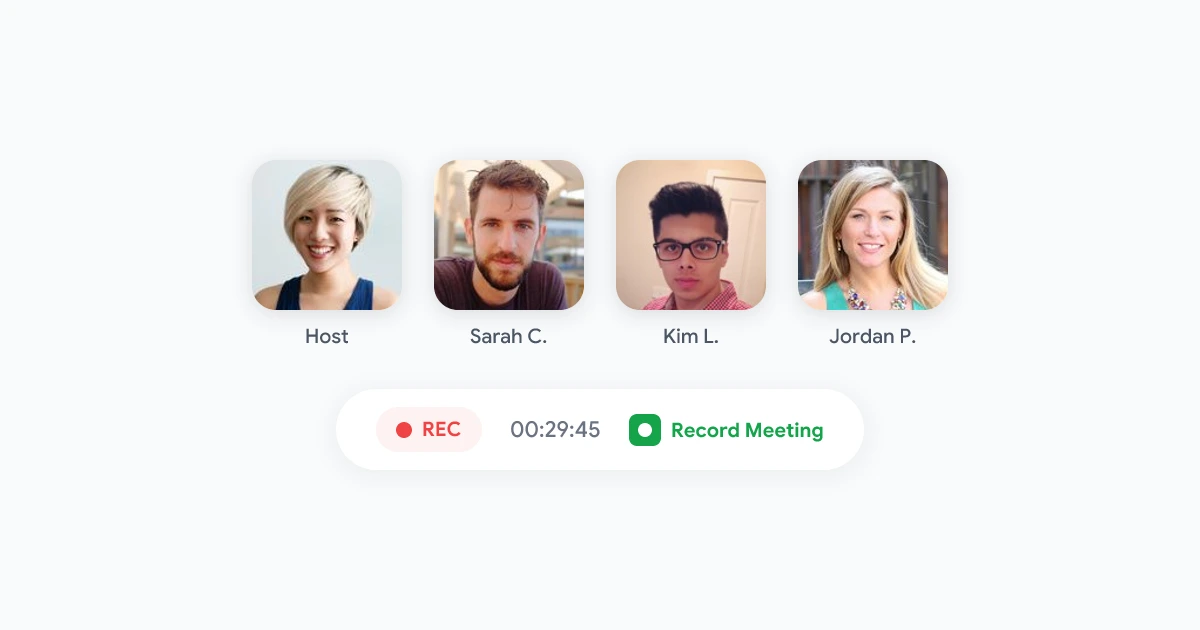
Record Google Meet calls directly from your browser, get an AI transcript with speaker labels, and receive a summary with action items pulled out automatically. No bot joins your call.
Get Started Free
Because it runs as a Chrome extension and Google Workspace add-on rather than a bot that joins the call, recordings and transcripts stay tied to your Google account and land straight in Drive. If you want the full breakdown of small habits that save the most time inside Meet itself, our 10 Google Meet tips guide covers the settings and shortcuts worth knowing before you add any third-party tool.
Once recordings and transcripts exist, the next step is turning them into something people follow up on. Our guide on auto-generating a meeting summary in Google Meet walks through setting that up so a recap lands in your inbox without anyone writing it by hand.
Task and Project Management Add-ons That Plug Into Google Workspace
Google Tasks handles simple to-dos well, but most teams outgrow it once work spans more than a person or two. The Google Workspace Marketplace has direct integrations for the popular options, so tasks created elsewhere still show up next to your calendar and email instead of living in a separate tab:
- Asana and Trello both offer Chrome extensions that turn a Gmail message into a task with the sender and thread attached, and Calendar add-ons that show due dates alongside meetings.
- ClickUp and Monday.com connect to Drive so files attached to a task stay synced with the original document instead of a stale copy.
- Google Sheets remains one of the most underrated project trackers for small teams. A shared sheet with conditional formatting for status covers what many teams pay for a dedicated tool to do.
The pattern worth noticing: the value is not the task tool itself, it is whether the task tool shows up where you already spend time (inbox, calendar) rather than requiring a separate check-in habit.
Automation Tools That Connect Google Workspace to Everything Else
The biggest productivity loss in most Workspace setups is manual re-entry: copying a meeting summary into a project board, forwarding a form response into a spreadsheet, or manually adding a new hire to five different tools. A few tools close that gap:
- Zapier and Make connect Gmail, Calendar, Drive, and Sheets to almost any other app your team uses, so a new row in a form response sheet can automatically create a task, send a Slack message, or update a CRM record.
- Google Apps Script is the free, built-in option for teams comfortable with a little code. It can run directly inside Sheets or Docs to automate anything from formatting reports to sending scheduled emails.
- AppSheet (also part of Google Workspace) turns a spreadsheet into a simple app, useful for internal tools like equipment requests or approval workflows without hiring a developer.
Start with the manual task your team repeats most often every week. If it takes under an hour to automate and saves ten minutes each time it runs, it pays for itself within a couple of months.
How to Choose Google Workspace Productivity Tools for a Remote Team
Remote and hybrid teams have a specific failure mode: tools that work fine for one person quietly become invisible to everyone else. A calendar habit that lives only in one person’s head, or a task board only the project manager checks, does not scale once half the team is not in the same room to notice it is out of date. A few questions to run any new tool through before adopting it:
- Does it update automatically, or does someone have to remember to update it? Manual steps are the first thing that breaks when a team is distributed across time zones.
- Is the information visible to everyone who needs it, not just the person who set it up? A tool only one person checks is not a team tool.
- Does it reduce a meeting, or does it just document one? The best productivity tools cut down on synchronous time, not just make the existing meetings more organized.
- Can new hires figure it out without a training session? If onboarding to the tool takes longer than the task it replaces, it is not saving time yet.
Teams that get this right tend to run leaner on meetings overall. If unassigned action items are the recurring problem, our guide to never missing a meeting action item has a specific framework for making sure tasks survive the trip from “said in the meeting” to “actually done.”
Quick Comparison: Google Workspace Productivity Tools by Use Case
| Use case | Tool type | Examples |
|---|---|---|
| Meeting notes and follow-ups | Recording and AI summary | Record Meeting |
| Simple to-dos tied to email | Native task manager | Google Tasks |
| Cross-team project tracking | Project management add-on | Asana, ClickUp, Trello |
| Repetitive manual data entry | Automation | Zapier, Apps Script |
| Internal approval workflows | No-code app builder | AppSheet |
Frequently Asked Questions
Bottom Line
The teams that get the most out of Google Workspace are not the ones with the most add-ons installed. They are the ones who first squeeze the value out of what is already included, then add exactly one tool per real gap, starting with the one that costs the most time every week. For most teams, that gap is meetings.
If notes, transcripts, and follow-ups are still eating time after every call, try Record Meeting to turn your Google Meet recordings into searchable transcripts and AI summaries automatically, then build the rest of your Workspace stack around what actually needs a dedicated tool.