Google Meet Recording Time Limit: How Long Can You Record and How Long Does Processing Take?
Learn the Google Meet recording time limit, why a recording can take a while to appear in Drive, and what to do when a long meeting runs past the cap.

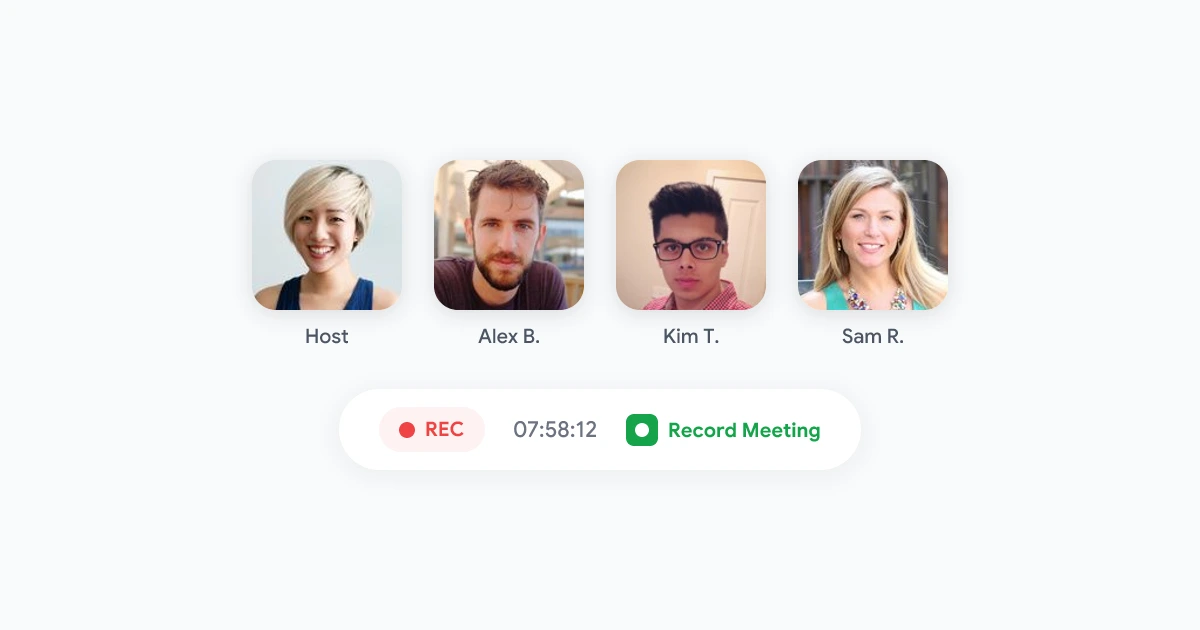
Two questions come up again and again after a long call. First, is there a Google Meet recording time limit that cuts off your session? Second, why is the file still not in Drive an hour later? Both have clear answers, and knowing them ahead of time saves you from losing the end of an important meeting or waiting on a file that is already on its way.
This guide covers how long a Google Meet recording can be, what controls how long the file takes to show up, and what to do when a workshop, training day or all-hands runs long.
What Is the Google Meet Recording Time Limit?
According to Google’s help documentation, a meeting can be recorded for a total of eight hours. When that total is reached, the recording stops automatically. The recording also ends when everyone leaves the meeting, even if you never pressed stop.
A few details are worth knowing:
- The cap is on recording time, not meeting time. Meetings themselves can run on, but the built-in recording will not continue past the eight hour total.
- It is a total, not a per-clip limit. Stopping and restarting does not give you a fresh eight hours for the same meeting.
- Recording needs a supported Google Workspace edition. Free personal accounts cannot use the built-in recorder at all. If the button is missing, see our guide on why the Google Meet recording option is greyed out.
For most teams, eight hours is more than enough. The limit matters for full-day workshops, training sessions, hackathons and long interviews, where it is easy to lose track of the clock.
How Long Does a Google Meet Recording Take to Process?
Google does not publish a fixed processing time. After the meeting ends, the recording is processed and saved to the organizer’s Drive, and the file shows a “Still processing” message until it is ready to view online.
In practice, these factors shape the wait:
- Meeting length. A 20 minute stand-up usually appears quickly. A multi-hour session takes noticeably longer.
- Screen sharing and video quality. Heavy presentations produce larger files.
- Server load. Processing is a background job, so busy periods can add delay.
- Captions and transcripts. If you also used Meet transcripts, those files can arrive after the video does.
As a rule of thumb, short meetings show up within minutes and very long ones can take hours. Treat those as typical experience, not a guarantee from Google.
Who Gets the Email With the Recording Link?
When processing finishes, Google sends an email with the link to the meeting organizer and to the person who started the recording. If the organizer changed, or the meeting ran outside its scheduled Calendar time, the link goes to the original event creator. If you are neither of those people, check with them before assuming the recording failed.
Where the File Lands
The recording is saved to the organizer’s My Drive, in a folder called Meet Recordings. If the folder does not exist, Drive creates it. Our post on where Google Meet recordings are saved walks through finding it, and the guide to managing recordings inside Google Drive covers sharing and storage.
 Try Record Meeting
Record Google Meet from your browser and get the transcript, summary and action items without waiting on Drive processing.
Get Started Free
Why Is My Google Meet Recording Taking So Long?
If the wait feels too long, work through this checklist before you worry.
- Check the right Drive. The file goes to the organizer’s Drive, not yours. Ask the organizer to look in Meet Recordings.
- Check the email. The link arrives in the inbox of the organizer and the person who pressed record. Search for “Meet Recording” in Gmail, including spam.
- Confirm the recording actually started. You should have seen the red recording indicator, and everyone is notified when it begins. If it was never started, there is nothing to process.
- Check storage. If the organizer’s Drive is full, the file cannot be saved. Free up space or ask an admin to raise the quota.
- Wait for the “Still processing” label to clear. Refreshing does not speed it up, but it does tell you whether the file exists.
- Ask your admin. Recording can be switched off or restricted by policy, and admins can see whether the feature is enabled for your organizational unit.
If the file never arrives after a full day, contact your Workspace admin. Do not rely on a missing recording being retrievable later.
What to Do When a Meeting Runs Past the Limit
Eight hours is a hard stop for the built-in recorder, so plan for long events instead of hoping.
Split Long Events Into Separate Meetings
The cleanest fix is to schedule a long event as separate sessions, such as a morning block and an afternoon block, each with its own meeting link. Each session gets its own recording, its own file and its own processing time. Smaller files are also easier to share, review and search later.
Watch the Clock on Long Sessions
If you cannot split the event, set a reminder at the six or seven hour mark. Stop the recording and start a new one before the cap hits so you do not lose the final stretch.
Use a Second Recorder as a Backup
For anything critical, such as a legal discussion, a customer interview or a board session, do not depend on a single recording. A browser-based recorder like Record Meeting runs independently of Google’s built-in feature, so you have a second copy and a transcript if the first one fails or is delayed. We explain how this works in our post on recording Google Meet without a bot.
Skip the Wait With Transcripts and Summaries
A large share of the reason people open a recording is to find what was decided. Waiting for a multi-hour video to process, then scrubbing through it, is slow. A transcript and a summary solve that part directly.
With a recording tool that transcribes as you go, you can search for a name or a decision instead of watching the whole file. Our guides on how to transcribe Google Meet and summarizing long meetings with AI show how to turn a long call into a short, usable record.
Tips to Avoid Recording Surprises
- Start recording at the beginning. It does not capture anything that happened before you pressed record.
- Tell participants. Everyone is notified when recording starts, and a quick verbal heads-up avoids awkward moments. Our meeting recording etiquette guide has wording you can reuse.
- Name the organizer deliberately. Since the file lands in the organizer’s Drive, pick someone who will actually share it.
- Test before the big event. A two minute test recording confirms permissions, storage and the email flow.
- Download the file early if you can. Once it is ready, keep a copy outside Drive. See saving a Google Meet recording to your computer.
Frequently Asked Questions
Conclusion
The Google Meet recording time limit is eight hours in total, and the file usually reaches the organizer’s Drive after a processing delay that depends on meeting length. Plan long events as separate sessions, check the organizer’s Drive and inbox before assuming something failed, and keep a backup for meetings you cannot afford to lose.
If you want a recording and a searchable transcript without waiting on Drive, try Record Meeting and keep every important call on record.