Google Meet Recording in Google Drive: Find, Edit, Share and Manage It
Manage a Google Meet recording in Google Drive: find the Meet Recordings folder, edit or trim the video, share it safely, and keep storage under control.

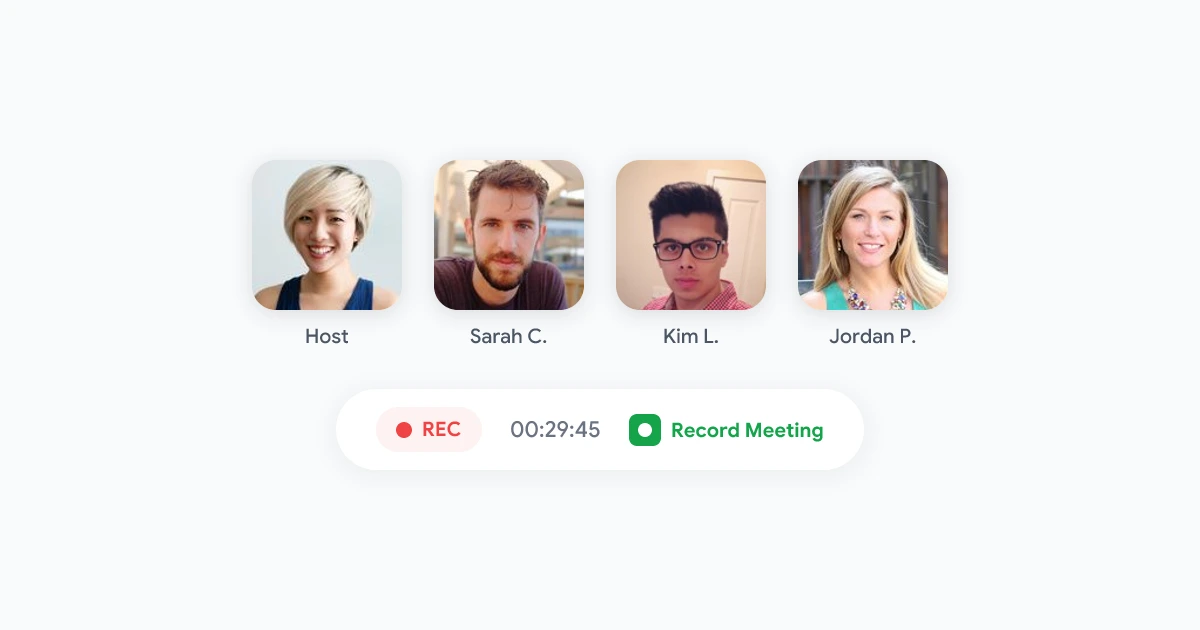
A Google Meet recording in Google Drive is easy to create and surprisingly awkward to manage. The file shows up in a folder you did not name, it belongs to the organizer, it cannot be trimmed inside Drive, and it quietly eats into your storage quota. Most people only find out when a teammate asks for the link, or when Drive warns that space is running out.
This guide focuses on what happens after the recording lands in Drive. You will learn how to find the Meet Recordings folder, how to edit a Google Meet recording in Google Drive (and what Drive cannot do), how to share it without oversharing, and how to keep storage under control. If you only need to know where the file went, our guide to where Google Meet recordings are saved covers that. If you want the file on your machine, see how to save a Google Meet recording to your computer.
Key takeaways
- Native recordings are saved to a Meet Recordings folder in the organizer’s My Drive, not in every attendee’s Drive.
- Drive plays the video but has no built-in editor, so trimming means downloading the file or sharing a timestamped link.
- Sharing a recording is a Drive permission, so check who can open it before you paste the link.
- Recordings count against the organizer’s storage, and a long meeting can be several hundred megabytes.
How to find a Google Meet recording in Google Drive
When a meeting is recorded with Meet’s built-in feature, Google processes the video and saves it to a folder called Meet Recordings in the organizer’s My Drive. The organizer also gets an email with the link, and the link is attached to the calendar event.
To find it:
- Open Google Drive while signed in as the meeting organizer.
- In the left sidebar, choose My Drive.
- Open the Meet Recordings folder.
- Look for a file named after the meeting, with the date and time added.
Where is the Meet Recordings folder if you can’t see it?
If you search for “meet recordings folder” and find nothing, one of three things is usually true:
- You are not the organizer. The folder lives in the organizer’s Drive. Ask them for access, or check your email and the calendar event for the link.
- The recording is still processing. Longer meetings can take a while to appear.
- Nothing was recorded natively. Recording in Meet needs a supported Google Workspace plan, so on a free account there may be no folder at all.
If you are hunting for a link, search Drive for the meeting title. Drive search also matches file type, so adding type:video narrows the results quickly.
Can you edit a Google Meet recording in Google Drive?
Not really. Drive is a player, not an editor. You can watch the recording, rename it, move it, and comment through sharing, but you cannot cut out the first five minutes of small talk or remove a section directly in Drive.
Here are the practical options when you need an edited version:
- Download and trim locally. Download the file from Drive, then trim it in a desktop or web video editor. This is the cleanest route when you need to remove a section before sharing.
- Share a starting point instead of cutting. If you only want people to skip ahead, add a timestamp to the link (for example, note “start at 12:40” in your message). It keeps the original intact.
- Share a summary instead of the video. For most stakeholders, a short written recap is more useful than a 50-minute video.
Before you edit anything, keep the original. If a recording may be needed later for compliance or a dispute, work on a copy, and check your own meeting recording policy first.
 Try Record Meeting
Record Google Meet in your browser with a transcript and AI summary, so you can share the key points instead of a long video.
Get Started Free
How to share a Google Meet recording from Google Drive
Sharing is where most mistakes happen. A recording is a normal Drive file, so access is controlled by Drive permissions, not by Meet.
- Right-click the recording in Drive and choose Share.
- Add people by email for the safest option, or change General access to share by link.
- Pick a role. Viewer is enough for almost everyone.
- Click Copy link and send it.
A few habits prevent trouble:
- Prefer named people over “anyone with the link.” Link sharing means anyone who receives the link can open it.
- Check who is in the recording. Clients, candidates, and customers may not expect their call to circulate. Our guides on meeting recording etiquette and GDPR meeting recording explain what to tell people.
- Use a shared folder for team recordings. Instead of sharing files one by one, move recordings into a folder the whole team can open.
- Remove access when a project ends. Old links tend to live forever unless someone cleans them up.
If a colleague says they cannot open the link, the cause is nearly always permissions. Ask them which account they are signed in with, then share with that exact address.
How to organize Google Meet recordings in Drive
By default, everything lands in one flat Meet Recordings folder, sorted by date. That works for a week and falls apart after a quarter.
A simple structure that holds up:
- Create top-level folders by team or client, such as Sales calls or Client A.
- Move recordings there after each meeting, and rename them with a consistent pattern like
2026-09-29 Weekly sync. - Star the few recordings people revisit often.
- Keep a short log of decisions and links in a shared doc, so nobody has to watch a video to find one answer.
Moving a file to a shared folder does not change who owns it. The organizer still owns the file and its storage cost, which leads to the next problem.
Storage: how Meet recordings count against your Drive quota
Recordings use the organizer’s Drive storage. A regular meeting recording is often in the range of hundreds of megabytes for an hour, depending on length and resolution, so a few weekly calls add up quickly.
To keep things under control:
- Open Drive’s storage view and sort your files by size to spot large recordings.
- Delete recordings you no longer need, then empty the trash, since trashed files still count until it is emptied.
- Download anything you must keep long term to cheaper archive storage.
- Decide a retention window for your team and stick to it.
Alternatively, keep long-term knowledge as text. A transcript and summary take a tiny fraction of the space of the video, and they are searchable, which a video file is not.
When Drive is not the right home for your recordings
Native recording has real limits. It requires a supported paid plan, it ties every file to one person’s account and quota, and it gives you no transcript unless you turn on separate features. If your team runs on a free or mixed setup, or you want recordings that do not depend on one organizer’s Drive, a browser-based recorder is simpler. Record Meeting records from your own browser, adds a transcript and AI summary, and does not add a bot to the call. You can compare the options in our roundup of the best meeting recorder for Google Meet.
FAQ
Conclusion
Managing a Google Meet recording in Google Drive comes down to a few habits. Know that the file lives in the organizer’s Meet Recordings folder, share it with named people, organize it into team folders, and remember that Drive cannot edit video. Watch your storage, and keep summaries and transcripts as the lasting record instead of hoarding large video files.
If you want recordings that are easier to search and share, try Record Meeting on your next call.