Google Meet Record Audio Only: Can You Do It, and What to Use Instead
Wondering if Google Meet can record audio only? Learn what the built-in recorder does, how to get an audio file, and when a transcript is the better choice.

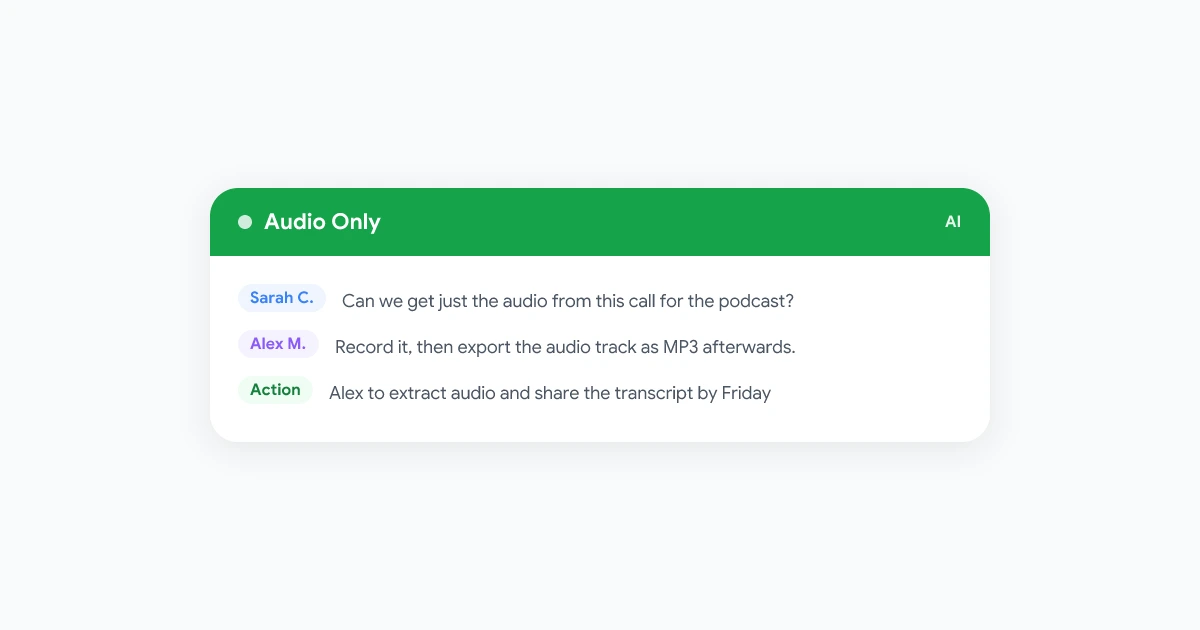
If you search for “google meet record audio only”, you are probably after a smaller file, a clean track for a podcast or interview, or a way to capture a call without the video. It is a reasonable thing to want. A one hour video call can easily be several hundred megabytes, and most of that is pixels you will never look at again.
The short answer is that Google Meet’s built-in recorder does not give you an audio-only mode. It records the meeting as a video file. That does not leave you stuck, though. This guide explains exactly what the native recorder captures, three practical ways to end up with an audio file, and when you should skip audio altogether and keep a transcript instead.
Key takeaways
- Meet’s native recording is a video file with audio included, and there is no audio-only toggle in the recording menu.
- The easiest way to get audio only is to record normally and extract the audio track afterwards.
- Phone screen recorders often capture no meeting sound, so desktop recording is more reliable.
- For notes and quotes, a searchable transcript is usually more useful than any audio file.
Can Google Meet record audio only?
Not directly. When you start a recording in Meet, Google saves the session as a video, with the audio of everyone who spoke mixed into it. The recording menu has no option to leave out the video, and recording itself is only available on supported Google Workspace plans. If you are curious about where that file ends up, see our guide to where Google Meet recordings are saved.
So when people ask “can you record audio on Google Meet”, the honest answer is yes to audio, but no to audio alone. Audio always arrives wrapped inside a video file.
Does Google Meet record audio from everyone?
Yes. The recording mixes the voices of all speakers into a single audio track. You do not get a separate track per person, which matters if you plan to edit a podcast or interview and want to fix one person’s levels. If you need individual tracks, ask each guest to also record their own side locally with a voice recorder, then line the files up afterwards.
Three ways to get an audio-only file from a Google Meet call
Option 1: Record the meeting, then extract the audio
This is the simplest route and works with any recording. After the meeting:
- Open the recording and download the file. Our guide on how to save a Google Meet recording to your computer walks through the download.
- Open the video in a free player such as VLC, or use a command line tool like ffmpeg.
- Export the audio track as MP3 or M4A.
- Keep or delete the original video depending on your retention needs.
With ffmpeg, the whole job is one command:
ffmpeg -i meeting.mp4 -vn -acodec libmp3lame -q:a 2 meeting.mp3The -vn flag drops the video, and the result is a compact audio file you can send, archive or feed into a transcription tool.
Option 2: Record with a browser extension
A browser based recorder lets you capture a Meet tab without needing the organizer to start the native recording. Record Meeting is a Chrome extension that records your Google Meet call, mixes the meeting audio with your microphone, and then produces an AI transcript with speaker labels and a summary. It does not add a bot to the call, which keeps the meeting feeling normal. For a fuller look at that approach, read about recording Google Meet without a bot.
 Try Record Meeting
Record Google Meet from your browser, get a transcript with speaker names, and skip the manual conversion work.
Get Started Free
Option 3: Use a separate voice recorder
For a quick interview, you can run a voice recorder next to the call. A phone placed near your speaker, or a desktop app that captures system audio, will give you an audio file directly. The catch is quality. Room echo, a second device and manual syncing make this the weakest option, so use it as a backup rather than a plan A.
Why Google Meet screen recording has no sound
A common version of this search is “google meet recording no sound”. It usually comes from screen recording on a phone or laptop rather than from Meet’s native recorder. A few causes show up again and again:
- Phone screen recorders often capture only the microphone or nothing at all, because the operating system treats call audio as protected.
- System audio is off. Some desktop recorders need you to explicitly share tab or system audio.
- The wrong output device. If sound plays through a headset the recorder is not listening to, the file comes out silent.
- The microphone is muted. Your own voice will be missing even if everyone else is audible.
Before an important call, record ten seconds, play it back and confirm both sides are audible. It takes less time than recovering from a silent file.
How to record Google Meet on a phone with audio
Phones are the hardest case. If you attend from a phone and need audio, the most dependable options are to ask the organizer to record natively, to join from a laptop with a recording extension, or to rely on Meet’s own transcript if your account supports it. Our guide to the Google Meet transcript explains how to turn that on.
Audio file or transcript: which should you keep?
Audio is great for tone, emphasis and proof of what was said. It is poor for searching. Nobody scrubs through a 45 minute file to find one decision. A transcript gives you the same words in a form you can search, quote and share.
| You need | Best choice |
|---|---|
| A podcast or interview track | Extracted audio file |
| Exact quotes and decisions | Transcript |
| A quick recap for people who missed it | Summary with action items |
| Evidence for compliance | Original recording plus transcript |
For most teams, the best habit is to keep the transcript and a summary as the working record and archive the audio only when you have a reason to. Our walkthrough on how to transcribe Google Meet covers the steps.
Consent and privacy for audio recordings
Audio is personal data, and voice can identify a person. The consent rules that apply to video apply to audio as well, and some places require everyone on the call to agree. Tell participants at the start, note it in the invite, and follow your own meeting recording policy. If you are unsure about your region, read the GDPR meeting recording guide.
FAQ
Conclusion
Google Meet record audio only is not a built-in feature, but you can get there in a few minutes. Record the call, extract the audio track with a free tool, or use a browser extension that also gives you a transcript. Test your audio before important calls, tell participants you are recording, and keep the transcript as your searchable record.
If you want recordings that come with a transcript and summary, try Record Meeting on your next call.